1. Introduction
This manual provides detailed instructions for the safe and efficient operation of your Samsung Glyde U940 mobile phone. Please read this manual thoroughly before using your device to ensure proper functionality and to understand all features.
2. Package Contents
Verify that your product package contains the following items:
- Samsung Glyde U940 Mobile Phone
- Standard Battery
- Travel Adapter/Charger
- User Manual (this document)
- Note: Specific accessories may vary by region or retailer.
3. Device Overview
The Samsung Glyde U940 features a large touch-sensitive display and a slide-out QWERTY keyboard for versatile input.
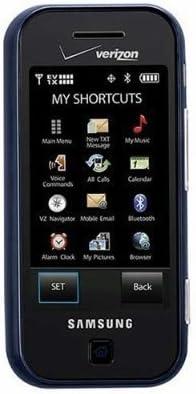
Figure 3.1: Front view of the Samsung Glyde U940, showing the 2.8-inch display and navigation buttons. The screen displays "MY SHORTCUTS" with icons for various functions like Main Menu, New TXT Message, My Music, Voice Commands, All Calls, Calendar, Mobile Email, Bluetooth, Alarm Clock, My Pictures, and Browser. "SET" and "Back" buttons are visible below the screen.
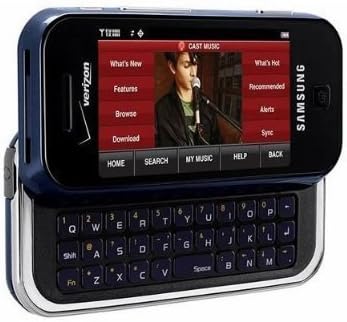
Figure 3.2: Samsung Glyde U940 with its full QWERTY keyboard extended. The phone is oriented horizontally, displaying a media interface on the screen with options like "What's New", "Features", "Browse", "Download", "What's Hot", "Recommended", "Alerts", and "Sync". Navigation buttons for "HOME", "SEARCH", "MY MUSIC", "HELP", and "BACK" are visible below the screen.
Key Features:
- Large 2.8" Display
- Slide-out QWERTY Keyboard
- Touch Screen Interface
- Full HTML Browser
- 2.0 MP Camera and Camcorder
4. Setup
4.1. Installing the Battery
- Locate the battery cover on the back of the phone.
- Gently remove the battery cover by sliding or lifting it.
- Align the battery's gold contacts with the contacts in the battery compartment.
- Insert the battery firmly into place.
- Replace the battery cover, ensuring it clicks securely.
4.2. Charging the Battery
- Connect the travel adapter to the charging port on your phone.
- Plug the other end of the travel adapter into a standard electrical outlet.
- Allow the phone to charge completely before initial use. The battery indicator on the screen will show charging status.
- Disconnect the charger once the battery is fully charged.
4.3. Powering On/Off
- To Power On: Press and hold the Power/End key until the screen lights up.
- To Power Off: Press and hold the Power/End key until the power-off options appear, then select "Power off".
5. Operating Instructions
5.1. Using the Touch Screen
The Samsung Glyde U940 features a resistive touch screen. Use your fingertip or a stylus (if provided) to interact with the display.
- Tap: Lightly touch the screen once to select an item or open an application.
- Drag: Touch and hold an item, then move your finger across the screen to reposition it.
- Scroll: Slide your finger up or down on the screen to navigate through lists or web pages.
5.2. Using the QWERTY Keyboard
Slide the screen horizontally to reveal the full QWERTY keyboard. This keyboard is ideal for typing messages, emails, and web addresses.
- Press individual keys to input characters.
- Use the Shift key for uppercase letters and symbols.
- The Fn key provides access to additional functions or symbols.
5.3. Making and Receiving Calls
- Making a Call: From the home screen, tap the Phone icon or dial the number using the keypad and press the Call key.
- Receiving a Call: When a call comes in, tap the "Answer" button on the screen.
- Ending a Call: Tap the "End" button on the screen or press the Power/End key.
5.4. Messaging (SMS/MMS)
To send a text or multimedia message:
- From the main menu, select "Messages" or "New TXT Message".
- Enter the recipient's phone number or select from your contacts.
- Type your message using either the touch screen or the QWERTY keyboard.
- To add multimedia (pictures, videos, audio), select the attachment option.
- Tap "Send".
5.5. Camera and Camcorder Functions
The Glyde U940 is equipped with a 2.0 MP camera.
- Taking Photos: Open the Camera application, frame your shot, and press the dedicated camera button or tap the capture icon on the screen.
- Recording Videos: Switch to camcorder mode within the Camera application, press the record button to start, and press again to stop.
- Access your captured media in the "My Pictures" or "Gallery" application.
5.6. Web Browser
Utilize the full HTML browser to access the internet.
- From the main menu, select "Browser".
- Enter the desired web address in the URL bar.
- Use the touch screen to navigate pages, zoom in/out, and click links.
6. Maintenance
6.1. Battery Care
- Avoid exposing the battery to extreme temperatures.
- Do not puncture or damage the battery.
- For optimal battery life, avoid frequent partial discharges and charges.
- If the phone will not be used for an extended period, store it with a partially charged battery.
6.2. Cleaning the Device
- Use a soft, lint-free cloth to clean the screen and exterior of the phone.
- Do not use harsh chemicals, cleaning sprays, or abrasive materials.
- Ensure no moisture enters openings such as the charging port or headphone jack.
6.3. Software Updates
Periodically check for available software updates to improve performance and add new features. Consult your service provider or the Samsung website for update procedures.
7. Troubleshooting
This section addresses common issues you might encounter with your Samsung Glyde U940.
| Problem | Possible Solution |
|---|---|
| Phone does not power on. | Ensure the battery is correctly installed and fully charged. Connect the charger and attempt to power on. |
| Touch screen is unresponsive or erratic. |
|
| Battery drains quickly. |
|
| Cannot make or receive calls. | Check network signal strength. Ensure "Airplane Mode" is not enabled. Contact your service provider if network issues persist. |
| QWERTY keyboard input is incorrect. | Ensure the keyboard is fully extended and locked into position. Restart the device if keys are unresponsive. |
8. Specifications
| Feature | Detail |
|---|---|
| Model Number | U940 |
| Display | 2.8 Inches, Touch Screen |
| Input Method | Touch Screen, Slide-out QWERTY Keyboard |
| Camera | 2.0 MP (Camera and Camcorder) |
| Browser | Full HTML Browser |
| Item Weight | 11.2 ounces |
| Dimensions | 8.1 x 5.4 x 2.2 inches (Package Dimensions) |
| Connectivity | Wireless, USB 2.0 |
| Manufacturer | Samsung |
9. Warranty and Support
For warranty information, please refer to the warranty card included with your product or visit the official Samsung website. For technical support, contact your service provider or Samsung customer service.
Samsung Customer Service: www.samsung.com/us/support/


