
1. Introduction
The Adesso NuScan 2100U is a handheld CCD 1D barcode scanner designed for efficient and accurate barcode reading. This device offers a combination of flexibility and performance, featuring an ergonomic design and a durable trigger switch. It is equipped with a built-in decoder capable of reading most 1D barcodes and provides instant scan feedback through an LED indicator and programmable tones. The multi-interface design with a field-replaceable cable ensures operational flexibility. This manual provides essential information for setting up, operating, maintaining, and troubleshooting your NuScan 2100U scanner.
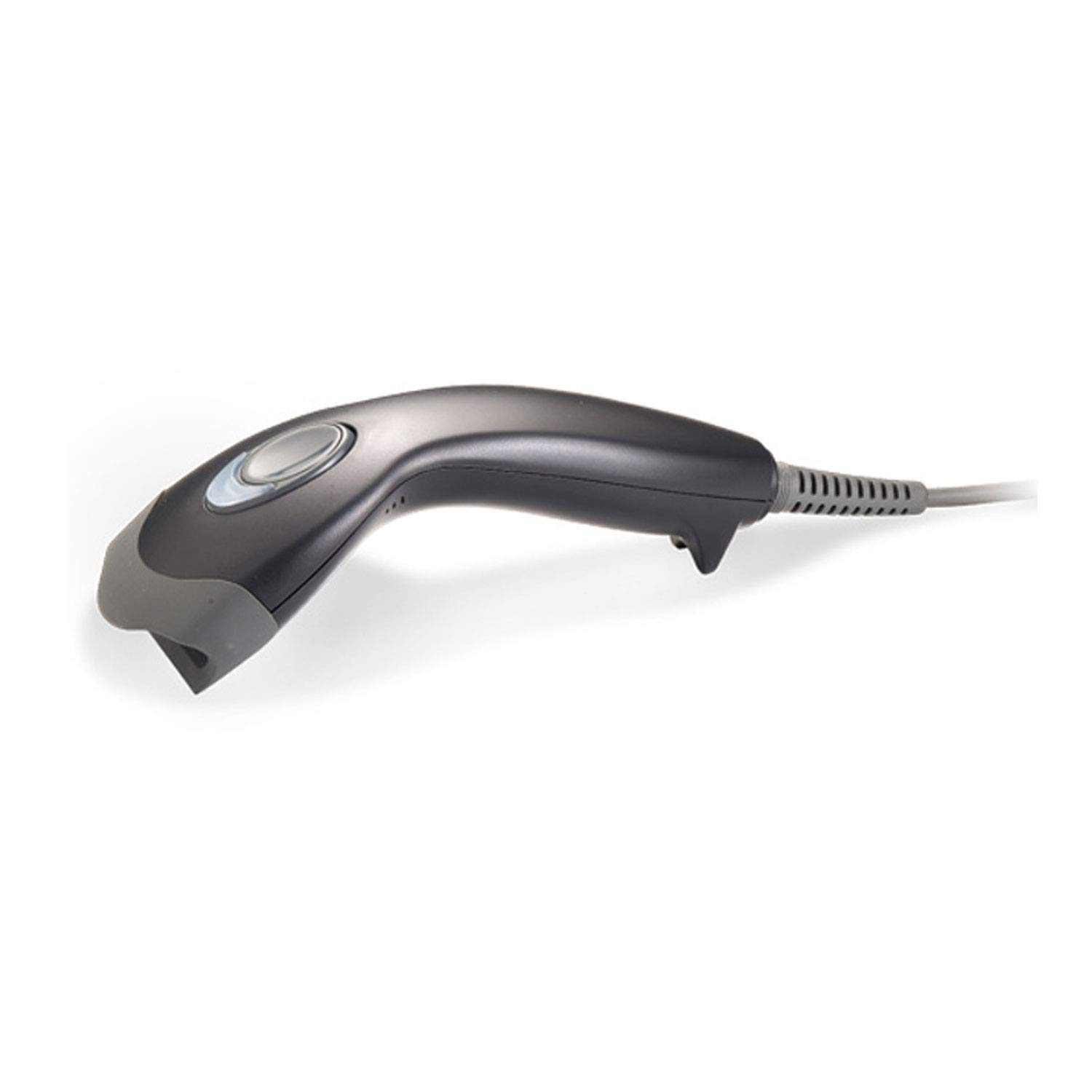
Figure 1: Adesso NuScan 2100U Barcode Scanner. This image displays the main unit of the barcode scanner, showcasing its ergonomic shape and the scanning window.
2. Product Features
- Ergonomic Design: Features a sleek form factor, easy-to-hold grip, and thumb-switch for comfortable use during extended scanning sessions.
- High-Speed Scanning: Achieves a scan rate of 330 scans per second with an innovative high-pixel CCD for fast and accurate results.
- Broad Compatibility: The built-in decoder supports most 1D barcodes. Driver-less operation ensures compatibility with Windows (7/Vista/XP/2000) and Mac OS X operating systems.
- Extended Scan Depth: The CCD sensor is capable of scanning barcodes from a distance of up to 12 inches.
3. Setup and Installation
The NuScan 2100U is designed for plug-and-play functionality, requiring no additional driver installation for most operating systems.
3.1 Connecting the Scanner
- Locate an available USB port on your computer (Desktop or Laptop).
- Connect the USB cable from the NuScan 2100U scanner to the USB port on your computer.
- The operating system will automatically detect and configure the scanner as a Human Interface Device (HID) keyboard.
- For Mac OS X users, it may be necessary to configure the scanner as a keyboard in System Preferences if automatic detection does not occur. Refer to your Mac's documentation for keyboard setup instructions.

Figure 2: Side view of the NuScan 2100U, illustrating the USB cable connection point at the base of the handle.
4. Basic Operation
Once connected, the NuScan 2100U functions as a keyboard input device, transmitting scanned barcode data directly to any active application that accepts text input.
4.1 Scanning a Barcode
- Hold the scanner with the scanning window facing the barcode.
- Press and hold the trigger button. A red scan line will emit from the scanner's window.
- Position the scan line across the entire barcode. Ensure the barcode is within the scanner's optimal reading range (up to 12 inches).
- Upon a successful scan, the scanner will emit a programmable tone and the LED indicator will flash. The barcode data will then appear in your active application.
- Release the trigger button after a successful scan.

Figure 3: Top-down view of the NuScan 2100U, highlighting the trigger button and scanning window for operational clarity.
5. Care and Maintenance
Proper care ensures the longevity and optimal performance of your NuScan 2100U scanner.
- Cleaning: Use a soft, dry, lint-free cloth to clean the scanner's exterior. For the scanning window, use a lens cleaning cloth and a mild, non-abrasive cleaning solution if necessary. Avoid harsh chemicals or abrasive materials.
- Storage: Store the scanner in a cool, dry place away from direct sunlight and extreme temperatures.
- Handling: Avoid dropping the scanner or subjecting it to strong impacts, as this can damage internal components.

Figure 4: The NuScan 2100U barcode scanner shown with an optional stand (NuScan-21HB), which can aid in hands-free operation and storage.
6. Troubleshooting
If you encounter issues with your NuScan 2100U scanner, refer to the following common problems and solutions:
| Problem | Possible Cause | Solution |
|---|---|---|
| Scanner does not power on or respond. | Loose USB connection or faulty USB port. | Ensure the USB cable is securely connected to both the scanner and the computer. Try a different USB port or computer. |
| Scanner reads barcodes inconsistently or misses characters. | Barcode damage, improper scanning technique, or software conflict. | Ensure the barcode is clear and undamaged. Position the scanner correctly over the barcode. Test in a simple text editor (e.g., Notepad) to rule out application-specific issues. For Mac users, verify keyboard configuration in System Preferences. |
| No data appears in the application after scanning. | Application not in focus, incorrect input field, or scanner not recognized as a keyboard. | Click on the input field in your application to ensure it is active. Verify the scanner is recognized by your operating system. Restart the computer and scanner. |
7. Specifications
| Feature | Detail |
|---|---|
| Model Number | NUSCAN_2100U |
| Product Dimensions | 6 x 4.12 x 2.5 inches |
| Item Weight | 4.8 ounces |
| Connectivity Technology | USB Cable |
| Power Source | Corded Electric |
| Compatible Devices | Desktop, Laptop |
| Scan Rate | 330 scans per second |
| Scan Depth | Up to 12 inches |
| Supported Barcodes | Most 1D barcodes |
| Operating Systems | Windows 7/Vista/XP/2000 & Mac OS X |
8. Warranty and Support
For warranty information and technical support, please refer to the official Adesso website or contact their customer service department. Keep your purchase receipt as proof of purchase for any warranty claims.
Adesso Support: For further assistance, visit the Adesso support page or contact their customer service. Contact details are typically available on the manufacturer's official website.


