
Introduction
This manual provides essential instructions for the safe and effective use of your Canon PowerShot G10 digital camera. Please read this manual thoroughly before using the camera and retain it for future reference. The Canon PowerShot G10 is a 14.7-megapixel digital camera featuring a 5x wide-angle optical image-stabilized zoom lens and the DIGIC 4 Image Processor, designed for advanced amateur photographers.
Setup
1. Charging and Installing the Battery
Before first use, fully charge the supplied battery using the battery charger. Insert the battery into the camera with the correct orientation, ensuring it clicks into place.

Image: Front view of the Canon PowerShot G10 camera, showing the lens and grip. This view helps in identifying the camera model.
2. Inserting a Memory Card
Open the memory card slot cover. Insert an SD or SDHC memory card into the slot until it clicks. Ensure the card is inserted with the correct orientation to avoid damage. Close the cover securely.
3. Attaching the Neck Strap
Thread the neck strap through the strap mounts on the camera body. Secure the strap firmly to prevent accidental drops.
4. Initial Settings (Date/Time)
Upon powering on the camera for the first time, you will be prompted to set the date, time, and time zone. Use the control dial and SET button to adjust these settings. Accurate date and time settings are crucial for proper image file management.
Basic Operation
1. Powering On/Off
Press the ON/OFF button located on the top of the camera to power it on or off.

Image: Top view of the Canon PowerShot G10 camera, showing the mode dial, exposure compensation dial, and power button. This view highlights key controls for camera settings.
2. Selecting a Shooting Mode
Rotate the Mode Dial on the top of the camera to select your desired shooting mode. Available modes include:
- Auto: Camera automatically sets optimal settings.
- Program (P): Camera sets aperture and shutter speed, but you can adjust other settings.
- Shutter Priority (Tv): You set the shutter speed, camera sets aperture.
- Aperture Priority (Av): You set the aperture, camera sets shutter speed.
- Manual (M): You control both aperture and shutter speed.
- Scene (SCN): Various preset scene modes for specific shooting conditions.
3. Taking Photos
Frame your shot using the LCD monitor or optical viewfinder. Press the shutter button halfway to focus, then press it fully to capture the image.
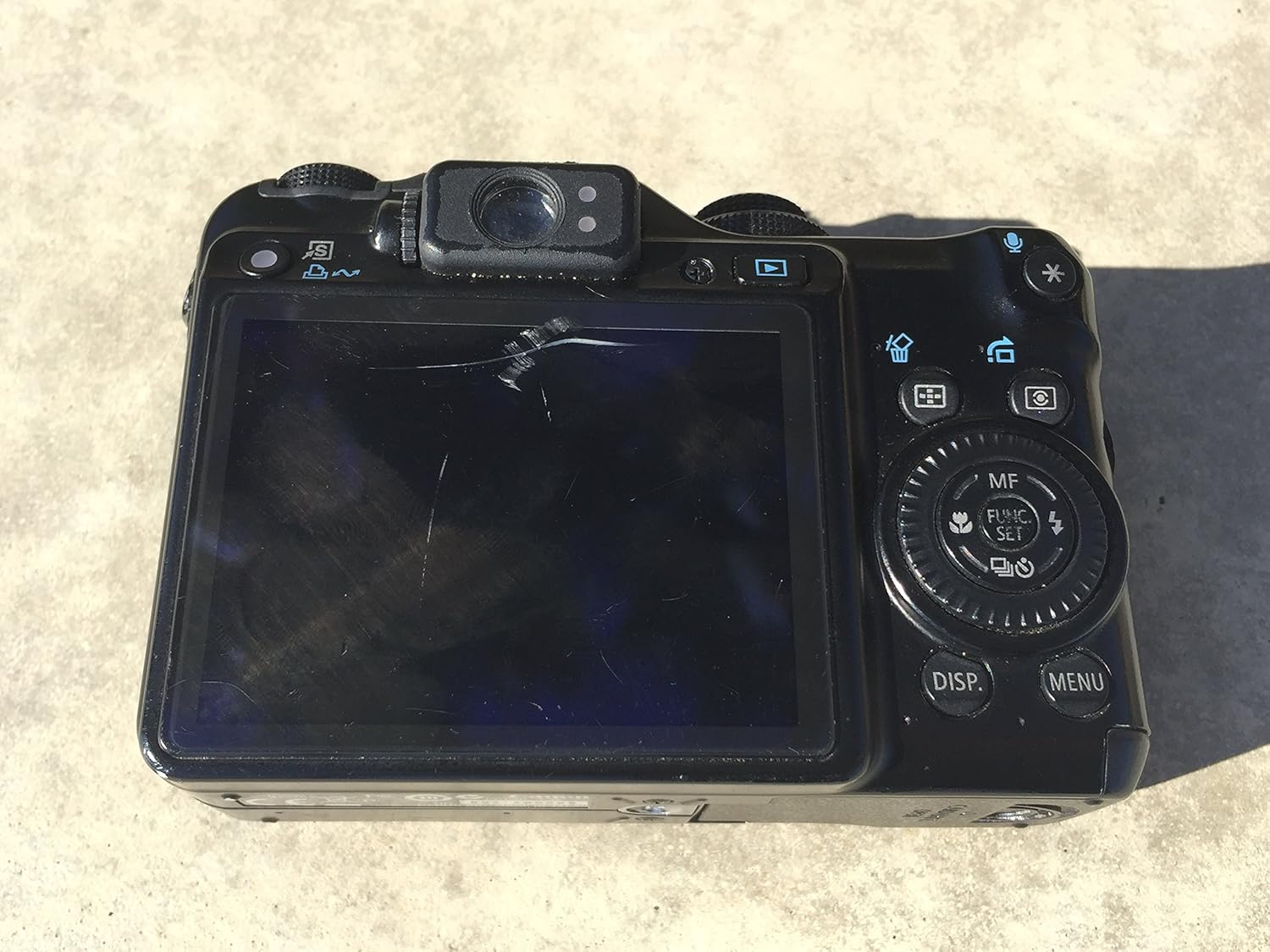
Image: Back view of the Canon PowerShot G10 camera, displaying the LCD screen and control buttons. This image is useful for identifying the display and navigation controls.
4. Zoom Operation
Use the zoom lever around the shutter button to adjust the optical zoom (5x). The camera also features a 4x digital zoom, which can be enabled in the menu, though it may affect image quality.
5. Reviewing Photos
Press the Playback button (usually indicated by a play icon) to view captured images and videos on the LCD screen. Use the directional buttons to navigate through your media.

Image: Back view of the Canon PowerShot G10 camera with the LCD screen active, showing a captured scene. This illustrates the camera in use for image review.
6. Flash Settings
The PowerShot G10 has a built-in flash. Press the flash button to cycle through flash modes such as Auto, Flash On, Flash Off, and Red-eye Reduction. For advanced lighting, the camera is compatible with Canon Speedlite flashes via its hot shoe.
7. Focusing
The camera uses Contrast Detection, Live View, Multi-area, and Single autofocus technologies with 9 autofocus points. You can select between autofocus and manual focus modes. In autofocus, the camera automatically detects and focuses on subjects. For manual focus, use the control dial to adjust focus.
8. Video Recording
The PowerShot G10 supports video recording at 480p resolution. To record a video, switch to video mode (if available on the mode dial or via menu) and press the shutter button to start/stop recording.
Maintenance
1. Cleaning the Camera
- Camera Body: Wipe with a soft, dry cloth. For stubborn dirt, use a slightly damp cloth and then dry.
- Lens: Use a lens brush to remove dust, then gently wipe with a lens cleaning cloth and lens cleaning solution. Avoid touching the lens surface with your fingers.
- LCD Screen: Use a soft, dry cloth. For smudges, a specialized LCD screen cleaner can be used.
2. Battery Care
- Store batteries in a cool, dry place when not in use.
- Avoid fully discharging the battery frequently to prolong its lifespan.
- Do not expose batteries to extreme temperatures.
3. Storage
When storing the camera for extended periods, remove the battery and memory card. Store the camera in a dry, dust-free environment, preferably in a camera bag or case to protect it from impacts and moisture.

Image: The Canon PowerShot G10 camera positioned next to a protective camera case. This image demonstrates proper storage and protection for the device.
Troubleshooting
Common Issues and Solutions
- Camera does not power on: Ensure the battery is fully charged and correctly inserted.
- Images are blurry: Check focus settings. Ensure the lens is clean. Use a higher shutter speed in low light or when shooting moving subjects.
- Flash does not fire: Check flash mode settings. Ensure the flash is not set to 'Flash Off'.
- Memory card error: Reinsert the memory card. Try a different, compatible memory card. Ensure the card is not full or corrupted.
- LCD screen is blank: Press the DISP button to cycle through display options. Ensure the camera is powered on.
If problems persist, consult the Canon customer support website or contact their service center.
Specifications
| Feature | Detail |
|---|---|
| Model Name | G10 |
| Photo Sensor Resolution | 14.7 MP |
| Optical Zoom | 5x |
| Digital Zoom | 4x |
| Image Stabilization | Optical |
| Lens Type | Zoom (28-140mm equivalent) |
| Photo Sensor Technology | CCD |
| Supported File Format | JPEG, RAW |
| Screen Size | 3 Inches |
| Display Type | LCD |
| Maximum Shutter Speed | 1/4000 Seconds |
| Minimum Shutter Speed | 15 seconds |
| Expanded ISO Range | 80-1600 |
| Video Resolution | 480p |
| Connectivity Technology | USB |
| Compatible Flash Memory | SD, SDHC |
| Item Weight | 13.76 ounces |
Warranty & Support
Warranty Information
Canon products typically come with a limited manufacturer's warranty. Please refer to the warranty card included with your product or visit the official Canon website for detailed information regarding warranty terms, conditions, and registration procedures. Keep your proof of purchase for warranty claims.
Customer Support
For technical assistance, service, or additional information, please visit the official Canon support website or contact their customer service department. Support resources often include FAQs, driver downloads, and contact details for phone or email support.
Canon Official Website: www.usa.canon.com


