
Introduction
This manual provides detailed instructions for setting up, operating, maintaining, and troubleshooting your Apple iPod Classic MB565LL/A. Please read this guide thoroughly to ensure proper use and to maximize your device's performance and longevity.
1. Setup
1.1 Unpacking and Initial Charge
Carefully remove your iPod Classic from its packaging. Before first use, it is recommended to fully charge the device. Connect the included USB cable to the iPod's dock connector port and the other end to a USB power adapter or a computer's USB port. The battery icon on the screen will indicate charging status.
1.2 Language Selection
Upon first power-on, or after a factory reset, your iPod Classic will prompt you to select a language. Use the Click Wheel to scroll through the available languages and press the center button to confirm your selection.

Image: The iPod Classic screen showing a list of languages for initial setup, with "English" highlighted.
1.3 Connecting to a Computer and iTunes
To transfer music, videos, and other media to your iPod Classic, you must connect it to a computer with Apple iTunes installed. If you do not have iTunes, download it from the official Apple website. Connect the iPod to your computer using the USB cable. iTunes will automatically detect the device.
- Install iTunes: Ensure you have the latest version of iTunes installed on your computer.
- Connect iPod: Plug the USB cable into your iPod and then into your computer's USB port.
- Sync Media: Follow the on-screen prompts in iTunes to set up syncing preferences for your music, videos, podcasts, and photos.
2. Operating Your iPod Classic
2.1 Basic Controls: The Click Wheel
The iPod Classic features a Click Wheel for navigation and control. It consists of a touch-sensitive surface and five buttons:
- Center Button: Selects menu items, plays/pauses during playback.
- Menu Button (Top): Returns to the previous menu or the main menu.
- Play/Pause Button (Bottom): Plays or pauses media.
- Previous/Rewind Button (Left): Skips to the previous track or rewinds within a track.
- Next/Fast Forward Button (Right): Skips to the next track or fast forwards within a track.
To navigate, slide your finger clockwise or counter-clockwise around the Click Wheel's surface to scroll through lists and adjust volume.
2.2 Powering On/Off and Hold Switch
- Power On: Press any button on the Click Wheel.
- Power Off: Press and hold the Play/Pause button until the screen turns off.
- Hold Switch: Slide the Hold switch (located on the top edge) to the orange position to lock the buttons and prevent accidental presses. Slide it back to unlock.
2.3 Playing Music and Videos
From the main menu, select "Music" or "Videos" and navigate through your library using the Click Wheel. Press the center button to select an item and begin playback. During playback, use the Click Wheel to adjust volume (by rotating your finger) or the left/right buttons to skip tracks.
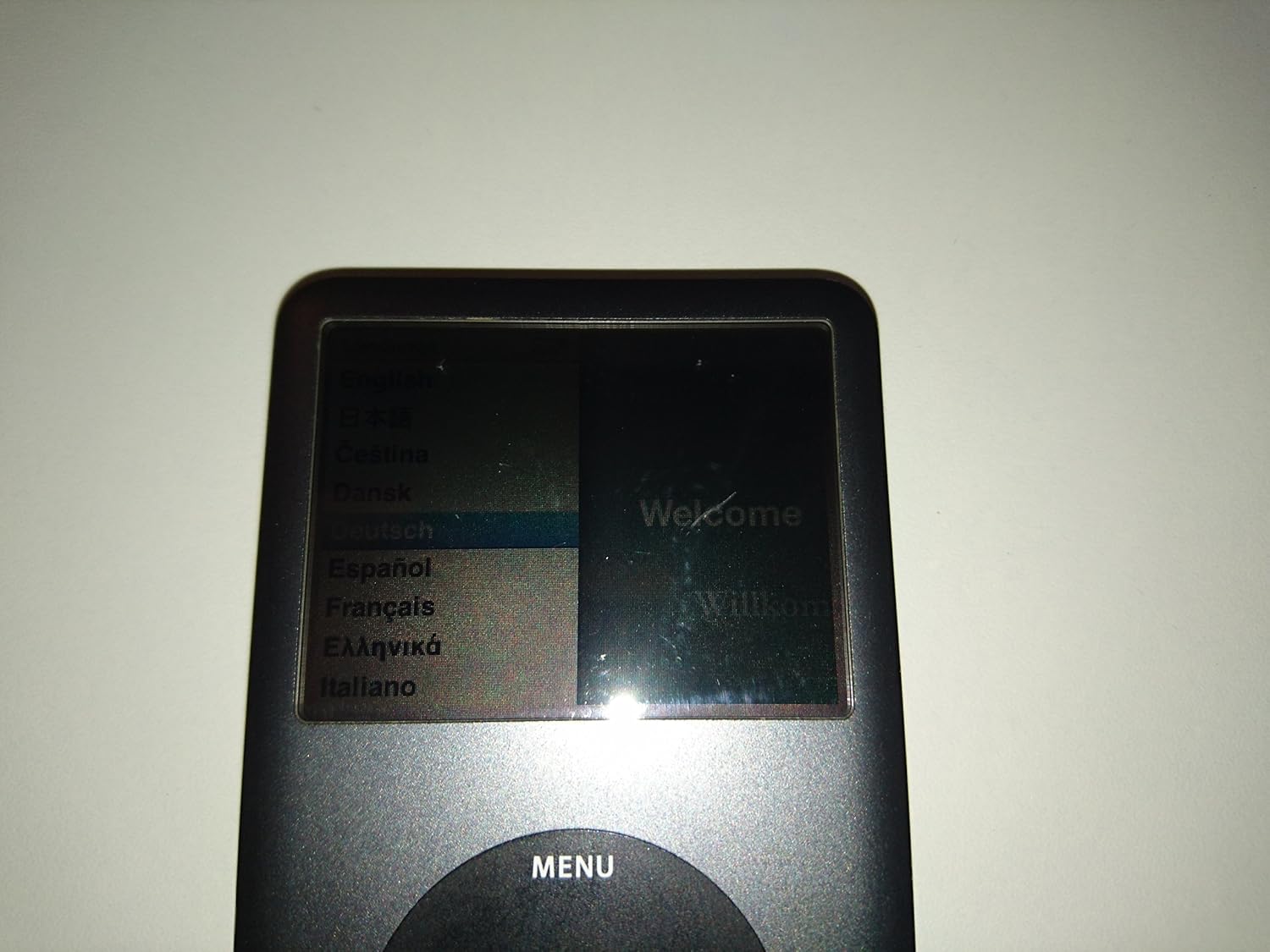
Image: A front view of the Apple iPod Classic, showcasing its dark screen and the Click Wheel controls.
3. Maintenance
3.1 Cleaning Your iPod Classic
To clean your iPod Classic, use a soft, lint-free cloth. Avoid abrasive materials, sprays, solvents, or alcohol-based cleaners. For the screen, a slightly damp cloth can be used, but ensure no moisture enters openings. The back of the iPod Classic is a polished metal surface that can show fingerprints and minor scratches easily.

Image: The highly reflective back panel of the Apple iPod Classic, showing its polished metal finish and the Apple logo.
3.2 Battery Care
To prolong battery life, avoid exposing your iPod to extreme temperatures. For long-term storage, charge the battery to about 50% and store it in a cool, dry place. Fully discharging the battery frequently can reduce its overall lifespan.
3.3 Software Updates
Periodically connect your iPod Classic to iTunes to check for and install any available software updates. Updates can improve performance, add features, or fix bugs.
4. Troubleshooting
4.1 Device Not Responding
If your iPod Classic becomes unresponsive, try resetting it:
- Ensure the Hold switch is in the unlocked position (not showing orange).
- Press and hold the Menu and Center buttons simultaneously for about 6-10 seconds until the Apple logo appears.
- If the device does not reset, ensure it has sufficient battery charge by connecting it to a power source.
4.2 Issues Connecting to iTunes
If iTunes does not recognize your iPod Classic:
- Try a different USB port on your computer.
- Use a different USB cable.
- Restart your computer and the iPod Classic.
- Ensure iTunes is updated to the latest version.
- Check your computer's device manager (Windows) or System Information (macOS) to see if the iPod is detected at a hardware level.
4.3 Battery Not Charging or Draining Quickly
- Ensure the USB cable and power adapter are functioning correctly.
- Avoid using the iPod in extremely hot or cold environments.
- If the issue persists, the battery may require service.
5. Specifications
| Feature | Detail |
|---|---|
| Brand | Apple |
| Model Number | MB565ZK/A |
| Memory Storage Capacity | 120 GB (122880 MB) |
| Color | Black |
| Screen Size | 2.5 Inches |
| Connectivity Technology | USB |
| Product Dimensions | 0.41 x 2.4 x 4.1 inches |
| Item Weight | 4.9 ounces |
| Batteries | 1 Lithium Ion battery required |
| Manufacturer | Apple Computer |
| Date First Available | August 14, 2011 |
6. Warranty and Support
6.1 Warranty Information
This product may be covered by a limited warranty. For specific warranty terms and conditions, please refer to the documentation included with your purchase or visit the official Apple support website. Note that if this is a refurbished product, specific warranty terms may apply as stated by the refurbisher.
Feature bullet from product data: "This refurbished product is tested and certified to work properly. The product will have minor blemishes and/or light scratches. The refurbishing process includes functionality testing, basic cleaning, inspection, and repackaging. The product ships with all relevant accessories, and may arrive in a generic box."
6.2 Customer Support
For further assistance, technical support, or service inquiries, please visit the official Apple Support website or contact Apple customer service. You can find comprehensive support resources, FAQs, and contact options at support.apple.com.