
Introduction
This manual provides essential information for the safe and effective use of your Nikon D90 Digital Single-Lens Reflex (DSLR) camera. Please read this manual thoroughly before using the camera to ensure proper operation and to maximize its performance. Keep this manual accessible for future reference.
Safety Information
Observe the following precautions to prevent injury to yourself or others and to avoid damage to your equipment.
- Do not disassemble: Disassembling the camera or lens can lead to electric shock or other injuries. Repairs should only be performed by qualified technicians.
- Keep dry: This camera is not water-resistant. Do not expose it to water or high humidity.
- Avoid direct sunlight: Do not leave the camera or lens pointed at the sun for extended periods, as this can damage internal components.
- Battery safety: Use only specified batteries and chargers. Do not short-circuit, heat, or dispose of batteries in fire.
- Memory card handling: Insert and remove memory cards carefully to avoid damage to the card or camera slot.
Setup
1. Unpacking
Carefully remove all items from the packaging. Verify that all components are present:
- Nikon D90 Camera Body
- AF-S DX NIKKOR 18-55mm f/3.5-5.6G VR Lens
- Rechargeable Li-ion Battery
- Battery Charger
- Power Cable
- Body Cap
- Front and Rear Lens Caps
- Eyepiece Cap
- USB Cable (if included)
- Strap
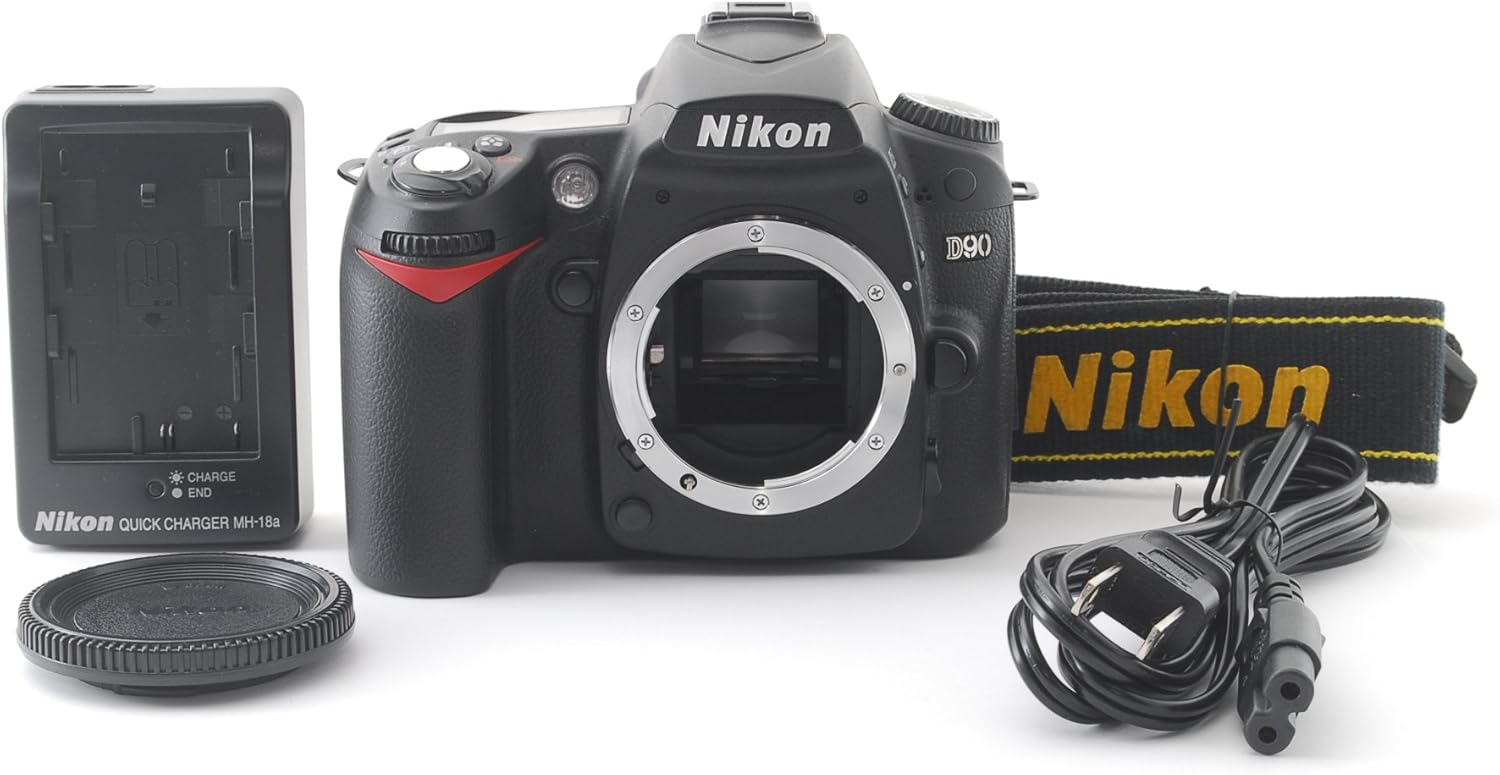
Figure 1: Nikon D90 camera and included accessories.
2. Charging and Installing the Battery
- Connect the power cable to the battery charger and plug it into a power outlet.
- Insert the rechargeable Li-ion battery into the charger. The charge indicator lamp will blink during charging and turn off when charging is complete.
- Once charged, remove the battery from the charger.
- Open the battery chamber cover on the bottom of the camera.
- Insert the battery into the chamber, ensuring it clicks into place. Close the battery chamber cover.

Figure 2: Bottom view of the camera, indicating the battery compartment.
3. Inserting a Memory Card
The Nikon D90 uses SDHC memory cards.
- Locate the memory card slot cover on the right side of the camera body.
- Open the cover.
- Insert the SDHC card with the label facing the back of the camera until it clicks into place.
- Close the memory card slot cover.
4. Attaching the Lens
Ensure the camera is turned off before attaching or detaching a lens.
- Remove the body cap from the camera and the rear lens cap from the lens.
- Align the mounting mark on the lens (a white dot) with the mounting mark on the camera body (a white dot).
- Mount the lens onto the camera body and rotate it counter-clockwise until it clicks into place.
- Remove the front lens cap.

Figure 3: Front view of the camera body, highlighting the lens mount.
5. Initial Power On and Basic Settings
- Turn the camera on using the power switch located around the shutter release button.
- The first time you turn on the camera, you may be prompted to set the language, date, and time. Follow the on-screen instructions.
- Format the memory card: Go to the SETUP MENU, select Format memory card, and confirm. This erases all data on the card and prepares it for use.
Operating the Camera
1. Basic Photography Modes
The mode dial on the top of the camera allows you to select various shooting modes.

Figure 4: Top view of the camera, highlighting the mode dial.
- AUTO (Green Camera Icon): Fully automatic mode for point-and-shoot simplicity.
- P (Programmed Auto): Camera sets aperture and shutter speed for optimal exposure. You can shift the program.
- S (Shutter-Priority Auto): You set the shutter speed, camera sets aperture. Ideal for controlling motion blur.
- A (Aperture-Priority Auto): You set the aperture, camera sets shutter speed. Ideal for controlling depth of field.
- M (Manual): You control both aperture and shutter speed.
- SCENE Modes: Pre-set modes for specific situations (e.g., Portrait, Landscape, Sports).
2. Focusing
The D90 offers both autofocus and manual focus options.
- Autofocus (AF): Set the lens switch to A (Auto) or M/A (Manual/Auto). The camera has 11 autofocus points. Half-press the shutter button to activate autofocus.
- Manual Focus (MF): Set the lens switch to M (Manual). Rotate the focus ring on the lens until the subject appears sharp in the viewfinder.
3. Exposure Settings (ISO, Shutter Speed, Aperture)
These settings control the brightness of your photos.
- ISO Sensitivity: Controls the camera's sensitivity to light. Higher ISO values allow shooting in darker conditions but can introduce noise. Access via the ISO button and command dial. Range: 100-6400 (expandable to 25600).
- Shutter Speed: Controls the duration the sensor is exposed to light. Fast speeds freeze motion; slow speeds create motion blur. Adjusted via the main command dial in S or M modes. Range: 1/4000 to 30 seconds.
- Aperture: Controls the size of the lens opening. Larger apertures (smaller f-numbers) create shallow depth of field; smaller apertures (larger f-numbers) create greater depth of field. Adjusted via the sub-command dial in A or M modes.
4. White Balance
White balance ensures that white objects appear white in your photos, regardless of the light source. Press the WB button and use the command dial to select a preset (e.g., Auto, Incandescent, Fluorescent, Direct Sunlight, Flash, Cloudy, Shade) or custom white balance.
5. Flash Usage
The D90 has a built-in pop-up flash. In Auto mode, the flash may pop up automatically in low light. In other modes, press the flash button to raise it. Use the flash mode button and command dial to select flash modes (e.g., Fill-flash, Red-eye reduction, Slow sync).
6. Video Recording (D-Movie)
The D90 can record video. To start recording:
- Rotate the Live View selector to the camera icon (Live View mode).
- Press the OK button to start/stop recording.
Video resolution is 1080p at 30 FPS. Video is saved in MP4 format.
7. Playback and Review
Press the 4 (playback) button to view your photos and videos. Use the multi-selector to navigate through images. Zoom in using the + button and zoom out using the - button.

Figure 5: Rear view of the camera, showing the LCD and control layout.
Maintenance
1. Cleaning the Camera Body and Lens
- Camera Body: Use a soft, dry cloth to wipe the camera body. For stubborn dirt, lightly dampen the cloth with distilled water. Avoid using organic solvents.
- Lens: Use a lens brush or blower to remove dust. For smudges, use a lens cleaning solution and a clean, soft lens cloth. Wipe gently in a circular motion from the center outwards.
- LCD Monitor: Use a soft, dry cloth. For persistent smudges, use a specialized LCD cleaning wipe.
2. Sensor Cleaning
Dust on the image sensor can appear as spots in your photos. The D90 has an integrated dust reduction system. If spots persist, it is recommended to have the sensor professionally cleaned by a Nikon service center.
3. Storage
When not in use for extended periods, remove the battery and memory card. Store the camera in a cool, dry place, away from direct sunlight and extreme temperatures. Use desiccant packets to prevent mold and mildew in humid environments.
Troubleshooting
| Problem | Possible Cause | Solution |
|---|---|---|
| Camera does not turn on. | Battery is depleted or incorrectly inserted. | Charge the battery fully and ensure it is inserted correctly. |
| Cannot take pictures. | Memory card full, no memory card, or lens not attached correctly. | Insert a memory card, free up space, or reattach the lens. |
| Images are blurry. | Incorrect focus, camera shake, or slow shutter speed. | Check focus mode, use a faster shutter speed, or stabilize the camera. |
| Flash does not fire. | Flash mode disabled or insufficient light for auto-flash. | Ensure flash is enabled or manually raise the flash. |
| Video recording stops unexpectedly. | Memory card speed too slow or recording time limit reached. | Use a faster SDHC card (Class 6 or higher recommended). |
Specifications
| Feature | Detail |
|---|---|
| Model Name | D90 |
| Sensor Type | CMOS, APS-C size |
| Effective Still Resolution | 12.3 MP |
| Lens Mount | Nikon F Mount |
| Included Lens | AF-S DX NIKKOR 18-55mm f/3.5-5.6G VR |
| Image Stabilization | VR (Vibration Reduction) |
| ISO Sensitivity | 100-6400 (Expanded to 25600) |
| Shutter Speed | 1/4000 to 30 seconds |
| Autofocus Points | 11 |
| Video Resolution | 1080p at 30 FPS |
| Display | 3-inch LCD |
| Storage Media | SDHC |
| Connectivity | HDMI, Wi-Fi (via optional adapter) |
| Battery Type | Lithium Ion |
| Weight | 700 Grams (body only) |
Warranty and Support
Your Nikon D90 camera is covered by a limited warranty. For specific warranty terms and conditions, please refer to the warranty card included with your product or visit the official Nikon website. For technical support, service, or additional information, please contact Nikon customer service or visit their support portal.
Nikon Official Website: www.nikonusa.com


