
1. Important Safety Information
Please read all instructions carefully before using the BLACK+DECKER CC2001 paper shredder. Keep this manual for future reference.
- Keep children and pets away from the shredder.
- Keep loose clothing, jewelry, hair, and other foreign objects away from the shredder opening.
- Do not insert more than the maximum sheet capacity (20 sheets) to prevent jams.
- Do not spray any flammable products or lubricants into the shredder.
- Unplug the shredder when not in use or before cleaning.
- Do not operate the shredder if the power cord is damaged.
2. Product Overview
The BLACK+DECKER CC2001 is a compact and efficient crosscut paper shredder designed for home and office use. It features a convenient countertop design and is capable of shredding paper, CDs, DVDs, and credit cards.
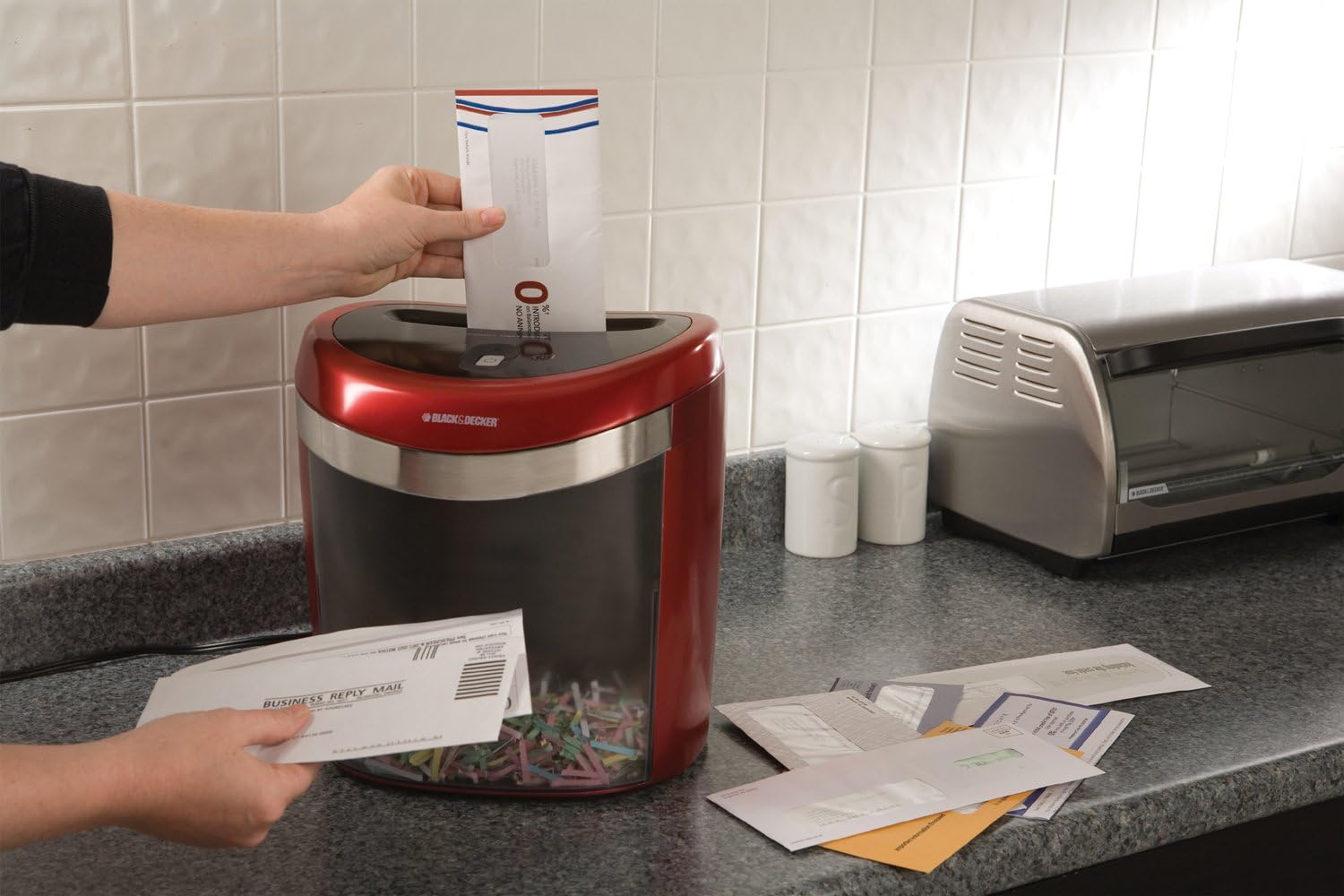
This image shows the BLACK+DECKER CC2001 Crosscut Paper Shredder from a front-side angle, highlighting its red and black design and compact form factor.
3. Setup
- Unpack: Carefully remove the shredder from its packaging. Ensure all components are present and undamaged.
- Placement: Place the shredder on a flat, stable surface, such as a countertop or desk. Ensure there is adequate space around the unit for ventilation and operation.
- Connect Power: Plug the power cord into a standard electrical outlet.
- Empty Bin: Ensure the easy-empty bin is correctly inserted into the shredder unit.
4. Operating Instructions
The CC2001 shredder is designed for efficient and secure document disposal.
- Power On: Locate the power switch or button, typically on the top or side of the shredder head. Set it to the 'ON' or 'AUTO' position. The shredder is now ready for use.
- Shredding Paper: Insert up to 20 sheets of paper (or 10 folded sheets) into the paper entry slot. The shredder will automatically start and stop once the paper has passed through. For optimal performance, avoid exceeding the maximum sheet capacity.
- Shredding CDs, DVDs, and Credit Cards: Use the dedicated slot for media shredding. Insert one CD, DVD, or credit card at a time. The shredder will process the item and stop automatically.
- Noise Level: The shredder operates at a noise level of 65dB.
- Power Off: When finished shredding, set the power switch to the 'OFF' position and unplug the unit from the power outlet.
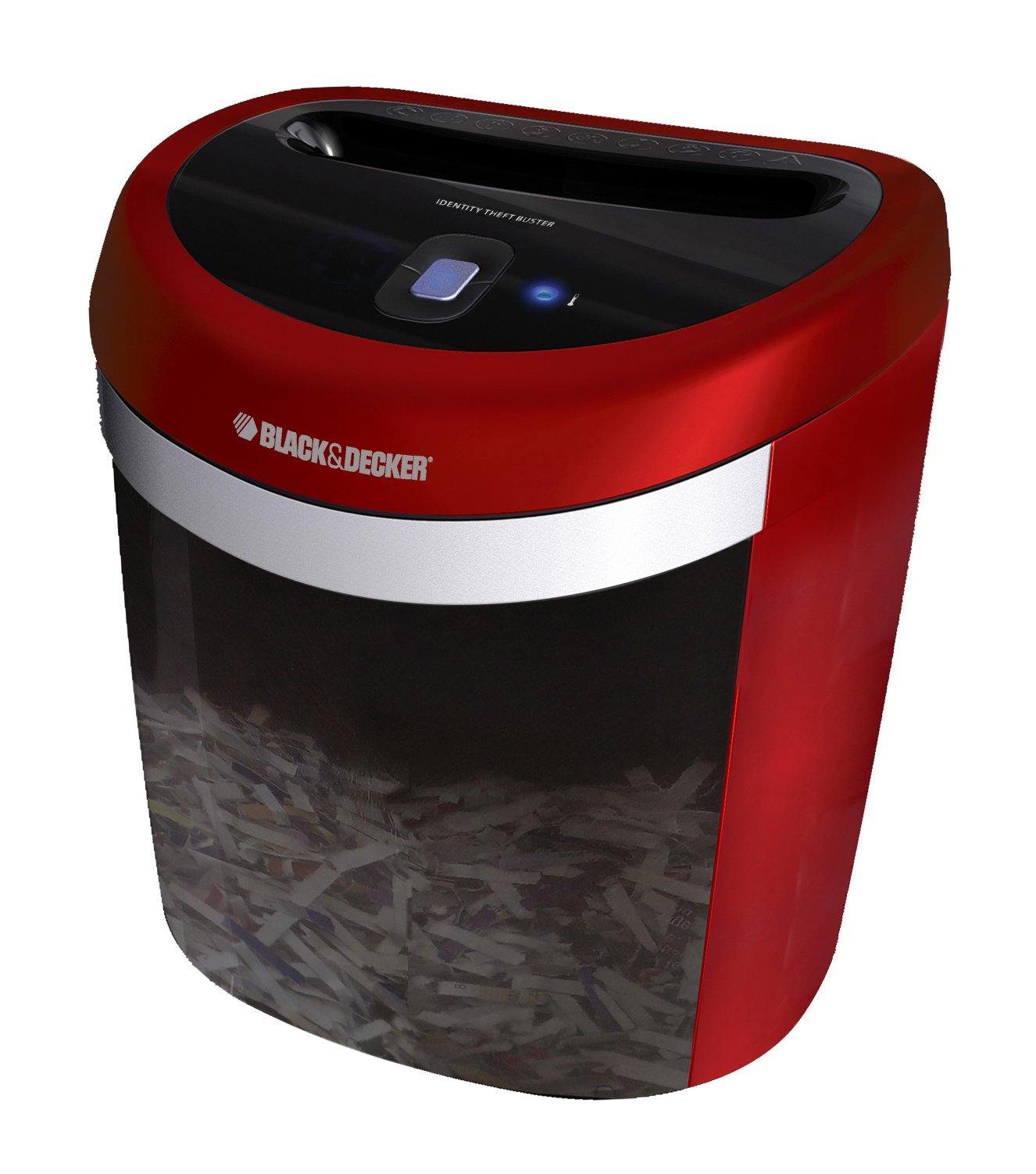
This image illustrates a person feeding an envelope into the BLACK+DECKER CC2001 shredder, demonstrating its use for shredding documents.
5. Maintenance
- Emptying the Bin: Regularly check and empty the shredder bin to prevent paper jams and ensure continuous operation. The lightweight design of the bin makes it easy to remove and empty.
- Cleaning: Unplug the shredder before cleaning. Use a soft, dry cloth to wipe the exterior of the shredder. Do not use abrasive cleaners or solvents.
- Oiling (Recommended): To maintain optimal performance and extend the life of the shredder, it is recommended to oil the cutting blades periodically. Apply shredder oil (not included) across the paper entry slot, then run a few sheets of paper through the shredder.
6. Troubleshooting
- Shredder Does Not Turn On:
- Ensure the power cord is securely plugged into a working electrical outlet.
- Check that the power switch is in the 'ON' or 'AUTO' position.
- Verify the shredder bin is correctly seated.
- Paper Jam:
- Turn the shredder off and unplug it.
- Carefully remove any visible paper from the entry slot.
- If the shredder has a reverse function, try using it to clear the jam.
- If the jam persists, contact customer support.
- Shredder Stops During Operation:
- The shredder may have overheated. Allow it to cool down for at least 30 minutes before resuming operation.
- The bin may be full. Empty the bin.
7. Specifications
| Brand | BLACK+DECKER |
| Model | CC2001 |
| Shred Type | Crosscut |
| Sheet Capacity | 20 sheets (10 folded) |
| Shreds | Paper, CDs, DVDs, Credit Cards, Staples |
| Noise Level | 65dB |
| Product Dimensions | 30.99 x 29.01 x 35 cm |
| Weight | 3.4 kg |
8. Warranty and Support
The BLACK+DECKER CC2001 Crosscut Paper Shredder comes with a Limited Lifetime Warranty. Please refer to the warranty card included with your product for specific terms and conditions.
For technical support, troubleshooting assistance, or warranty claims, please contact BLACK+DECKER customer service. Contact information can typically be found on the manufacturer's official website or on the product packaging.


