
Introduction
The CIRAGO CST1060 is a 60 GB USB 2.0 portable external hard drive designed for reliable and convenient data storage and transfer. Its compact and lightweight design makes it suitable for mobile use, allowing you to store and share important data, music, photos, and videos easily. This manual provides essential information for setting up, operating, maintaining, and troubleshooting your device.
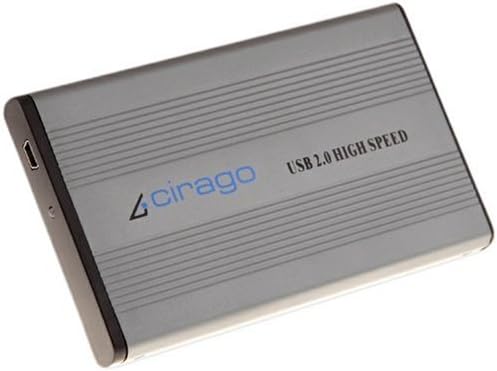
Image: The CIRAGO CST1060 60 GB USB 2.0 Portable Storage device, showcasing its sleek gray aluminum casing and USB 2.0 High Speed branding.
Key Features:
- 60GB USB 2.0 Portable Hard Drive, 2.5" form factor
- Slim, compact, and lightweight design for portability
- High-speed USB interface for efficient data transfer
- Durable aluminum case for protection
- Plug-and-Play functionality for easy installation
Setup Guide
Package Contents:
- CIRAGO CST1060 Portable Hard Drive
- USB 2.0 Cable (Mini-B to Male A, often with a dual-head for additional power)
- Carrying Pouch (may vary)
- Driver CD (typically not required for modern operating systems)
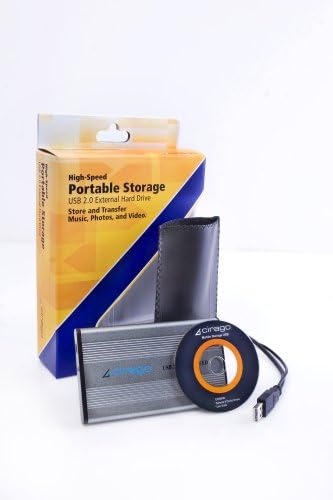
Image: The CIRAGO CST1060 portable hard drive shown with its retail packaging, USB cable, and protective pouch.
Connecting the Device:
- Connect the USB Cable: Insert the Mini-B end of the USB cable into the corresponding port on the CIRAGO CST1060 device.
- Connect to Computer: Insert the Male A end(s) of the USB cable into an available USB 2.0 port on your computer.
- For most modern computers, a single USB connection will provide sufficient power and data transfer.
- If your computer's USB port does not supply enough power (e.g., older systems or some laptops), use the dual-head USB cable and connect both Male A ends to two separate USB ports on your computer. This provides additional power to the drive.
- Automatic Recognition: Your operating system (Windows, macOS, Linux) should automatically detect and install the necessary drivers. The device is typically pre-formatted with FAT32 for universal compatibility.
- Accessing the Drive: Once recognized, the drive will appear as a removable storage device in "My Computer" (Windows) or on your desktop/Finder (macOS).
Operating Instructions
Transferring Files:
- Copy/Paste: Select the files or folders you wish to transfer from your computer, right-click and choose "Copy." Navigate to the CIRAGO CST1060 drive, right-click in the desired location, and select "Paste."
- Drag and Drop: Open a window displaying the files you want to transfer and another window for the CIRAGO CST1060 drive. Click and drag the selected files or folders from your computer's window to the drive's window.
Indicator Light:
The device features an indicator light that changes color to signify its status:
- Solid Light: Indicates the drive is powered on and idle.
- Flashing Light: Indicates active data transfer (reading or writing). Do not disconnect the drive while the light is flashing to prevent data corruption.
Safely Removing the Device:
To prevent data loss or damage to the drive, always safely remove the device before disconnecting it from your computer.
- Windows: Click the "Safely Remove Hardware and Eject Media" icon in the system tray (bottom-right corner), then select the CIRAGO CST1060 drive. Wait for the "Safe to Remove Hardware" message before unplugging.
- macOS: Drag the drive icon from your desktop or Finder sidebar to the Trash icon, or right-click the drive icon and select "Eject." Wait for the icon to disappear before unplugging.
- Linux: Right-click the drive icon on your desktop or file manager and select "Eject" or "Unmount."
Maintenance
Physical Care:
- Handling: Handle the device with care. Avoid dropping it or subjecting it to strong impacts, as this can damage the internal hard drive.
- Cleaning: Use a soft, dry cloth to clean the aluminum casing. Avoid liquid cleaners or abrasive materials.
- Temperature: Store and operate the drive within recommended temperature ranges. While the aluminum case helps dissipate heat, prolonged heavy use can cause it to warm up. Ensure adequate ventilation.
- Protection: Utilize the included carrying pouch to protect the drive from scratches and minor bumps during transport.

Image: A hand placing the compact CIRAGO CST1060 portable hard drive into a shirt pocket, demonstrating its portability.
Data Management:
- Regular Backups: While the drive is reliable, it is good practice to back up critical data to multiple locations to prevent permanent data loss.
- Disk Defragmentation (Windows): Periodically defragment the drive (if using an HDD and not an SSD) to optimize performance. Access this tool via Drive Properties > Tools.
- Disk Utility (macOS/Linux): Use built-in disk utilities to check for and repair minor file system errors.
Troubleshooting
| Problem | Possible Cause | Solution |
|---|---|---|
| Drive not recognized by computer. |
|
|
| Cannot transfer files or access data. |
|
|
| "Format drive" message appears unexpectedly. |
|
|
Specifications
| Feature | Detail |
|---|---|
| Model Number | CST-1060 |
| Digital Storage Capacity | 60 GB |
| Hard Disk Form Factor | 2.5 Inches |
| Hard Disk Interface | USB 2.0 (High Speed), backward compatible with USB 1.1 |
| Connectivity Technology | USB 2.0 |
| Product Dimensions | 5 x 0.38 x 3 inches (12.7 x 0.97 x 7.62 cm) |
| Item Weight | 12.8 ounces (362.87 grams) |
| Color | Gray |
| Special Feature | Durable, Portable |
| Compatible Devices | Desktop (and Laptops) |
| Installation Type | External Hard Drive |
| Manufacturer | Cirago International (Direct) |
| Date First Available | July 15, 2008 |

Image: The CIRAGO CST1060 portable hard drive positioned next to a US quarter, illustrating its compact size.
Warranty Information
CIRAGO products are typically covered by a limited manufacturer's warranty. For specific details regarding the warranty period, coverage, and terms for your CST1060 device, please refer to the warranty card included in your product packaging or visit the official CIRAGO website. Keep your proof of purchase for warranty claims.
Customer Support
Should you require technical assistance, have questions about your CIRAGO CST1060, or need to report an issue, please contact CIRAGO customer support. You can usually find contact information, FAQs, and additional resources on the official CIRAGO website. Please have your model number (CST-1060) and purchase details ready when contacting support.
Online Resources:
- Visit the official CIRAGO website for product updates, drivers, and support documentation.
- Check for updated FAQs or troubleshooting guides on the manufacturer's support pages.