
BRESSER 5201000
Bresser LCD-Microscope 8.9cm (3.5-Inch) User Manual
Model: 5201000 | Brand: BRESSER
1. Introduction
This manual provides comprehensive instructions for the safe and effective operation of your Bresser LCD-Microscope 8.9cm (3.5-Inch), Model 5201000. This advanced microscope features a large 3.5-inch liquid crystal monitor, allowing for group viewing and eliminating the need for a traditional eyepiece. It supports both transmitted light and limited light microscopy, with magnification ranging from 40x to 400x, and digital zoom up to 1600x. The integrated SD card slot and USB port enable easy capture and transfer of magnified images.
Please read this manual thoroughly before using the microscope to ensure proper setup, operation, and maintenance. Retain this manual for future reference.

Figure 1.1: Front view of the Bresser LCD-Microscope, showcasing the integrated 3.5-inch LCD screen and objective lenses.
2. Important Safety Instructions
Observe the following safety precautions to prevent injury or damage to the device:
- Do not disassemble: Never attempt to disassemble or modify the microscope. This can lead to electric shock or damage the device, and will void the warranty.
- Power Source: Use only the specified power adapter. Ensure the voltage matches the requirements of the device.
- Water and Moisture: Keep the microscope away from water and high humidity. Do not operate with wet hands.
- Cleaning: Use a soft, dry cloth for cleaning. Avoid abrasive cleaners or solvents.
- Handling: Handle the microscope with care. Avoid dropping or subjecting it to strong impacts.
- Children: This device is not a toy. Supervise children when they are using the microscope.
- Light Source: Do not look directly into the LED light source, as it may cause eye strain or damage.
3. Package Contents
Upon opening the package, verify that all components listed below are present and in good condition:
- Bresser LCD-Microscope Unit
- 4x Objective Lens
- 10x Objective Lens
- 40x Objective Lens
- Mechanical Stage with Nonius
- USB Cable
- Color Filter Wheel
- 5 Permanent Preparations (pre-made slides)
- 10 Blank Slides
- 20 Cover Glasses
- Large Accessory Pack including:
- Yeast
- Gum Media
- Sea Salt
- Shrimp Eggs
- Scissor
- Tweezers
- Pipette
- 2 Preparing Needles
- Microtome
- Hatchery Tank
- Power Adapter
- Carrying Case
- Strap

Figure 3.1: Included accessories, such as prepared slides, blank slides, cover glasses, various chemicals, and tools for specimen preparation.
4. Parts Diagram
Familiarize yourself with the main components of your Bresser LCD-Microscope:
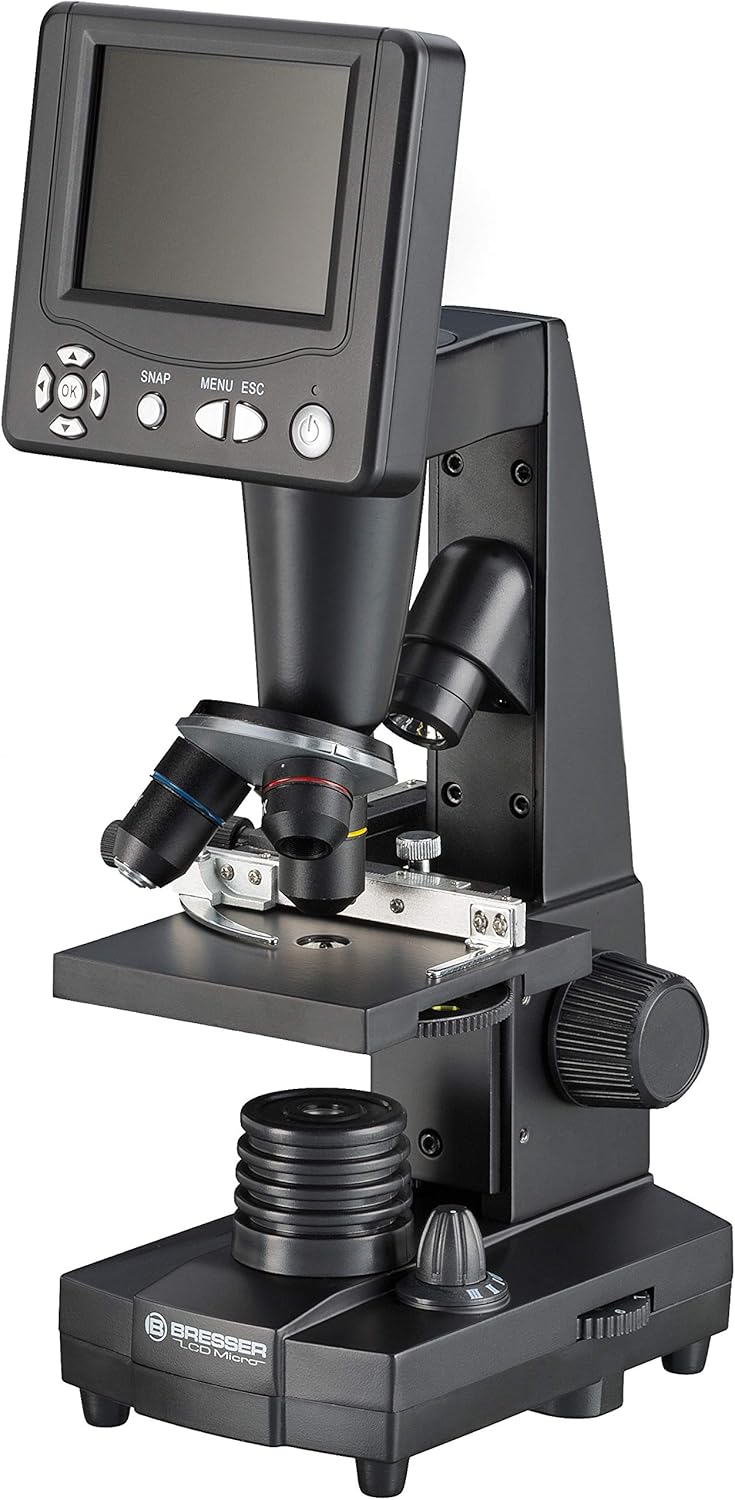
Figure 4.1: Side view of the microscope, highlighting the LCD screen, objective turret, and stage.

Figure 4.2: Rear view of the LCD screen unit, indicating the USB port and SD card slot for data transfer and storage.
- LCD Screen (3.5-inch)
- Control Buttons (SNAP, MENU, ESC, OK, Navigation)
- Power Button
- Objective Turret with 4x, 10x, 40x Objectives
- Mechanical Stage with Specimen Holders
- Coarse Focus Knob
- Fine Focus Knob
- Illumination Control Knob
- LED Light Source (Transmitted Light)
- Condenser with Color Filter Wheel
- SD Card Slot
- USB Port
- Power Input
5. Setup
- Unpacking: Carefully remove all components from the packaging. Keep the packaging materials for future storage or transport.
- Placement: Place the microscope on a stable, flat surface away from direct sunlight, heat sources, and vibrations.
- Power Connection: Connect the provided power adapter to the microscope's power input port and then plug it into a suitable electrical outlet.
- Initial Power On: Press the Power Button to turn on the microscope. The LCD screen should illuminate.
- SD Card Insertion (Optional): If you plan to capture images or videos, insert an SD card (not included) into the SD card slot on the side of the LCD unit. Ensure it is inserted correctly until it clicks into place.
6. Operating the Microscope
6.1. Preparing a Specimen
- Select a prepared slide or prepare your own specimen using the included blank slides and accessories.
- Place the slide onto the mechanical stage, securing it with the specimen holders.
- Use the stage adjustment knobs to center the specimen under the objective lens.
6.2. Adjusting Magnification and Focus
- Selecting Objective: Rotate the objective turret to select the desired magnification (4x, 10x, or 40x). Start with the lowest magnification (4x) for initial viewing.
- Illumination: Adjust the illumination control knob to achieve optimal brightness for your specimen. The microscope supports both transmitted light (from below) and limited light microscopy.
- Focusing:
- Use the Coarse Focus Knob to bring the specimen into approximate focus on the LCD screen.
- Once roughly focused, use the Fine Focus Knob for precise focusing and to achieve a sharp image.
- Digital Zoom: The microscope offers digital zoom up to 1600x. Use the navigation buttons on the LCD unit to activate and adjust the digital zoom level. Note that digital zoom interpolates pixels and may reduce image clarity compared to optical magnification.

Figure 6.1: Close-up view of the objective lenses (4x, 10x, 40x) mounted on the rotating turret.
6.3. Capturing Images and Videos
The microscope allows you to capture still images (JPEG) and potentially video (format not specified, typically AVI or similar) directly to an inserted SD card.
- Ensure an SD card is properly inserted into the SD card slot.
- Once your specimen is in focus and properly illuminated, press the SNAP button on the LCD unit to capture a still image.
- To record video, navigate through the menu using the MENU button and select the video recording option. Press OK to start and stop recording.
- Transferring Files: Connect the microscope to a computer using the provided USB cable. The microscope should appear as a removable storage device, allowing you to transfer captured images and videos. Alternatively, remove the SD card and insert it into a compatible card reader on your computer.
7. Maintenance and Care
- Cleaning Lenses: Use a soft, lint-free cloth specifically designed for optical lenses to clean the objective lenses and the LCD screen. For stubborn smudges, a small amount of lens cleaning solution can be applied to the cloth (never directly to the lens).
- Cleaning Body: Wipe the body of the microscope with a soft, dry cloth. Do not use harsh chemicals, solvents, or abrasive cleaners.
- Storage: When not in use, store the microscope in its carrying case in a cool, dry, dust-free environment. Avoid areas with extreme temperatures or high humidity.
- Dust Protection: Always cover the microscope with a dust cover (if available) or return it to its case when not in use to prevent dust accumulation on optical components.
8. Troubleshooting
| Problem | Possible Cause | Solution |
|---|---|---|
| No image on LCD screen. | Microscope not powered on; illumination off; objective not rotated correctly; specimen not in focus. | Ensure power adapter is connected and unit is on. Check illumination control. Rotate objective turret until it clicks into place. Adjust focus knobs. |
| Image is blurry or unclear. | Incorrect focus; dirty objective lens or slide; wrong magnification for specimen. | Use fine focus knob for precise adjustment. Clean lenses and slides. Adjust magnification. |
| Cannot capture images/videos. | No SD card inserted; SD card full or corrupted; incorrect menu setting. | Insert a compatible SD card. Delete unnecessary files or use a new card. Check menu settings for capture mode. |
| Microscope does not power on. | Power adapter not connected; power outlet issue; faulty adapter. | Ensure power adapter is securely connected to both microscope and outlet. Test outlet with another device. Contact support if adapter is suspected faulty. |
9. Technical Specifications
| Model Number | 5201000 |
| LCD Monitor Size | 3.5-inch (8.9 cm) |
| Optical Magnification | 40x to 400x |
| Digital Zoom | Up to 1600x |
| CMOS Sensor | Two megapixel (Interpolated 3.2 megapixel) |
| Light Source Type | LED (Transmitted Light) |
| Connectivity | SD Card Slot, USB Port |
| Dimensions (LxWxH) | Approx. 10 x 8.2 x 16 inches (25.4 x 20.8 x 40.6 cm) |
| Item Weight | 1.4 Kilograms (3.08 lbs) |
| Power Source | Corded Electric (240 Volts) |
| Color | Black |
| Material | (Mainly metal and plastic components, 'yeast' is likely a data error from product description) |
10. Warranty and Support
10.1. Warranty Information
The Bresser LCD-Microscope 8.9cm (3.5-Inch) comes with a 5-Year Warranty with Registration. Please refer to the warranty card included in your package or visit the official BRESSER website for detailed terms and conditions regarding warranty registration and claims.
10.2. Customer Support
For technical assistance, troubleshooting, or spare parts, please contact Explore Scientific, the manufacturer of this BRESSER product. Contact information can typically be found on the manufacturer's official website or through your point of purchase.
You can also visit the official BRESSER Store on Amazon for more information and related products: BRESSER Store
Related documents5201000


Ask a question about this manual
Ask about setup, troubleshooting, compatibility, parts, safety, or missing instructions. Manuals+ will review the question and use this page’s manual context to help answer it.