
1. Introduction
The BlueAnt Z9i is an advanced Bluetooth headset designed for clear communication in various environments. Featuring BlueAnt's Voice Isolation Technology, it provides superior noise suppression, echo cancellation, and wind noise reduction. This manual will guide you through the setup, operation, and maintenance of your Z9i headset.
2. Package Contents
Verify that all items are present in your BlueAnt Z9i package:
- BlueAnt Z9i Bluetooth Headset
- Ear hooks (various sizes)
- Earbuds (various sizes)
- USB Charging Cable
- AC Wall Charger
- User Manual (this document)

Figure 1: BlueAnt Z9i Retail Packaging. Contents may vary slightly.
3. Product Overview
Familiarize yourself with the components of your BlueAnt Z9i headset:
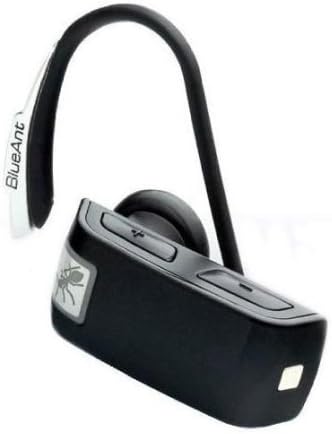
Figure 2: BlueAnt Z9i Bluetooth Headset.
- Multi-Function Button (MFB): Power on/off, answer/end calls, pairing mode.
- Volume Up/Down Buttons: Adjust call volume, navigate menus.
- Charging Port: Connect USB charging cable.
- LED Indicator: Displays status (power, pairing, battery).
- Microphone: Captures your voice.
- Ear Hook: Secures the headset to your ear.
4. Setup
4.1. Charging the Headset
Before first use, fully charge your BlueAnt Z9i headset.
- Connect the small end of the USB charging cable to the charging port on the headset.
- Connect the other end of the USB cable to the AC wall charger or a powered USB port on your computer.
- The LED indicator will glow red during charging and turn blue when fully charged.
- A full charge typically takes approximately 2 hours.
4.2. Pairing with a Bluetooth Device
The BlueAnt Z9i can be paired with up to 5 devices and connected to two phones simultaneously (multipoint functionality).
- Ensure the headset is turned off.
- Press and hold the Multi-Function Button (MFB) for approximately 5-7 seconds until the LED indicator flashes blue and red alternately. This indicates pairing mode.
- On your Bluetooth-enabled device (e.g., smartphone), go to the Bluetooth settings and enable Bluetooth.
- Search for available devices. The BlueAnt Z9i will appear in the list.
- Select "BlueAnt Z9i" from the list. If prompted for a passcode, enter "0000".
- Once paired, the LED indicator on the headset will flash blue periodically.
5. Operating the Headset
5.1. Power On/Off
- To Power On: Press and hold the MFB for 2 seconds until the LED flashes blue.
- To Power Off: Press and hold the MFB for 3 seconds until the LED flashes red and then turns off.
5.2. Call Management
- Answer a Call: Press the MFB once.
- End a Call: Press the MFB once.
- Reject a Call: Press and hold the MFB for 2 seconds.
- Redial Last Number: Double-press the MFB.
- Voice Dialing: Press the MFB once (if supported by your phone).
5.3. Volume Control
Press the Volume Up (+) or Volume Down (-) buttons during a call to adjust the listening volume.
5.4. Voice Isolation Technology
The Z9i features two Voice Isolation modes: Standard and Max.
- Standard Mode: Provides effective noise and echo cancellation for most environments.
- Max Mode: Enhances noise suppression for extremely noisy environments.
To switch between modes, press and hold both Volume Up and Volume Down buttons simultaneously for 2 seconds. The headset will announce the current mode.
5.5. Multipoint Functionality
To connect to two phones simultaneously:
- Pair the Z9i with the first phone as described in Section 4.2.
- Turn off the headset.
- Put the headset back into pairing mode and pair it with the second phone.
- Once paired with the second phone, turn off the headset and then turn it back on. It will attempt to connect to both previously paired phones.
5.6. Voice Commands
The Z9i supports voice commands for checking status:
- Press the MFB once, then say "Status" to hear battery level and connection status.
6. Maintenance
- Cleaning: Use a soft, dry cloth to clean the headset. Do not use harsh chemicals or abrasive materials.
- Storage: Store the headset in a cool, dry place away from extreme temperatures and direct sunlight.
- Battery Care: To prolong battery life, avoid fully discharging the battery frequently. Charge the headset regularly, even if not in use for extended periods.
7. Troubleshooting
| Problem | Solution |
|---|---|
| Headset does not power on. | Ensure the headset is charged. Connect to the charger and wait a few minutes before attempting to power on. |
| Cannot pair the headset with my device. | Make sure the headset is in pairing mode (flashing blue/red). Ensure Bluetooth is enabled on your device and it is discoverable. Try restarting both devices. |
| No sound or poor sound quality. | Check the volume levels on both the headset and your connected device. Ensure the headset is within range of your device. Re-pair the headset if necessary. |
| Headset disconnects frequently. | Ensure the headset is within the recommended Bluetooth range (typically 10 meters/33 feet) of your device. Avoid obstacles that may interfere with the signal. |
| Voice Isolation is not effective. | Ensure the microphone is positioned correctly. Try switching to 'Max' Voice Isolation mode for extremely noisy environments. |
8. Specifications
- Model: BlueAnt Z9i
- Connectivity: Bluetooth Wireless
- Form Factor: In-Ear
- Control Method: Voice, Buttons
- Features: Voice Isolation Technology (Standard & Max), Echo Cancellation, Noise Cancellation, Wind Noise Reduction, Multipoint
- Compatible Devices: Smartphones, Laptops, Tablets, Smart Speakers
- Weight: Approximately 0.32 Pounds
9. Warranty and Support
9.1. Warranty Information
The BlueAnt Z9i Bluetooth Headset comes with a BlueAnt 2 Year Replacement Warranty. Please retain your proof of purchase for warranty claims. The warranty covers manufacturing defects under normal use. It does not cover damage caused by misuse, accidents, unauthorized modifications, or normal wear and tear.
9.2. Customer Support
For technical assistance, troubleshooting, or warranty inquiries, please visit the official BlueAnt website or contact their customer support directly. Refer to the packaging or BlueAnt's official website for the most current contact information.


