
1. Introduction
This manual provides comprehensive instructions for the operation and maintenance of your Nyrius LT12 Global Digital Talking Translator. Please read this manual thoroughly before using the device to ensure proper functionality and to maximize your user experience. The LT12 is designed to assist with communication in various international languages, offering pre-programmed phrases and a speaking function.
2. Product Overview
The Nyrius LT12 is a compact, handheld electronic translator featuring a backlit LCD screen and an integrated speaker. It contains over 8,400 travel-related phrases across 12 languages, organized into eight conversational categories for quick access.
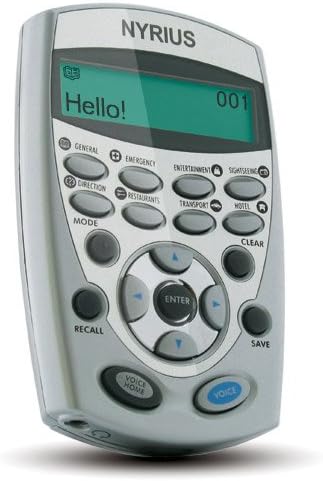
Figure 2.1: Front view of the Nyrius LT12 Digital Talking Translator, showing the screen, category buttons, navigation pad, and voice buttons.
Key Features:
- Cross-translation of 12 international languages.
- Over 8,400 pre-programmed travel-related phrases.
- Eight categorized phrase sections for easy navigation.
- Audible pronunciation of translated phrases via built-in speaker or earphone.
- Backlit LCD screen for visibility in low-light conditions.
- Phrase saving and recall function.
- Integrated alarm clock and databank with password lock.
- Automatic power-off feature.
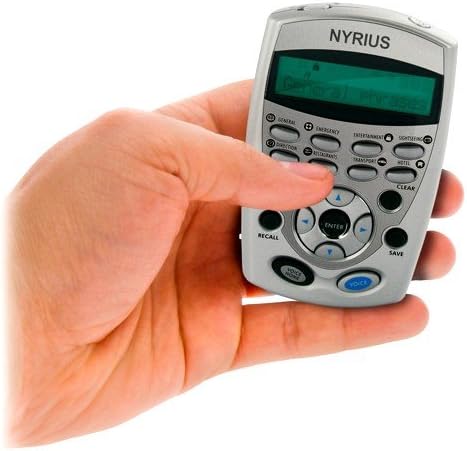
Figure 2.2: The Nyrius LT12 Digital Talking Translator shown held in a hand, illustrating its compact, pocket-sized design.
3. Setup
3.1 Battery Installation
- Locate the battery compartment cover on the back of the device.
- Slide or unclip the cover to open it.
- Insert the required batteries (typically AAA, refer to packaging for specifics) according to the polarity indicators (+/-) inside the compartment.
- Replace the battery compartment cover, ensuring it is securely closed.
3.2 Initial Power On
Press and hold the MODE button to power on the device. The LCD screen will illuminate, and the device will be ready for use.
4. Operating Instructions
4.1 Power On/Off
- To power on: Press and hold the MODE button.
- To power off: Press and hold the MODE button again. The device also features an auto power-off function to conserve battery life.
4.2 Language Selection
The LT12 supports 12 languages for cross-translation. The default language pair is typically English to another language. To change the target language:
- Press the MODE button repeatedly until the language selection menu appears.
- Use the UP and DOWN arrow buttons on the navigation pad to scroll through the available languages.
- Press ENTER to confirm your selection.
4.3 Navigating Phrase Categories
The device organizes phrases into eight categories for quick access. Each category has a dedicated button:
- GENERAL: Common phrases for everyday situations.
- EMERGENCY: Phrases for urgent situations.
- ENTERTAINMENT: Phrases related to leisure and activities.
- SIGHTSEEING: Phrases for exploring tourist attractions.
- DIRECTION: Phrases for asking and giving directions.
- RESTAURANTS: Phrases for dining and ordering food.
- TRANSPORT: Phrases for travel and transportation.
- HOTEL: Phrases for hotel and accommodation needs.
To access a category, simply press its corresponding button.
4.4 Selecting and Translating Phrases
- Select a category using the dedicated buttons.
- Use the UP and DOWN arrow buttons to scroll through the phrases within the selected category.
- Once the desired phrase is displayed, press the VOICE button (blue button) to hear the phrase spoken aloud in the selected foreign language. The phrase will also be displayed on the LCD screen.
- To hear the phrase in English, press the VOICE HOME button (grey button).
4.5 Saving and Recalling Phrases
4.5.1 Saving Phrases
- Navigate to the phrase you wish to save.
- Press the SAVE button. The device will confirm that the phrase has been saved.
4.5.2 Recalling Phrases
- Press the RECALL button. This will display your list of saved phrases.
- Use the UP and DOWN arrow buttons to scroll through your saved phrases.
- Press the VOICE button to hear a saved phrase spoken aloud.
4.6 Backlight Function
The LT12 features a backlit screen for use in dimly lit environments. To activate or deactivate the backlight, press the dedicated backlight button (if available, otherwise it might be integrated with another button or auto-activated). Refer to the device's on-screen prompts if a dedicated button is not apparent.
4.7 Alarm Clock and Databank
The device includes an integrated alarm clock and a databank for storing contact information, protected by a password lock. Access these features via the MODE button menu. Follow the on-screen instructions to set the alarm or manage databank entries.
5. Maintenance
5.1 Cleaning
To clean the device, use a soft, dry cloth. Do not use liquid cleaners, aerosols, or harsh chemicals, as these may damage the device's finish or internal components.
5.2 Battery Replacement
When the battery indicator shows low power or the device fails to power on, replace the batteries as described in Section 3.1. Always use fresh batteries of the specified type.
5.3 Storage
Store the device in a cool, dry place away from direct sunlight and extreme temperatures. If storing for an extended period, remove the batteries to prevent leakage.
6. Troubleshooting
| Problem | Possible Cause | Solution |
|---|---|---|
| Device does not power on. | Dead or incorrectly installed batteries. | Replace batteries with fresh ones, ensuring correct polarity. |
| No sound from speaker/earphone. | Volume too low; earphone not fully inserted; faulty speaker/earphone. | Adjust volume using the volume controls. Ensure earphone is fully plugged in. Test with another earphone if available. |
| Screen is dim or unreadable. | Backlight off; low battery; contrast setting. | Activate backlight. Replace batteries. Check if there's a contrast adjustment in settings (refer to on-screen menu). |
| Device freezes or becomes unresponsive. | Software glitch. | Locate the reset button (often a small pinhole) and press it gently with a paperclip. This will restart the device without losing saved data. |
7. Specifications
| Feature | Detail |
|---|---|
| Model | LT12 (FBA_LT12) |
| Brand | Nyrius |
| Languages Supported | 12 (English, French, German, Spanish, Italian, Turkish, Dutch, Russian, Portuguese, Japanese, Mandarin Chinese, Swedish) |
| Phrase Count | Over 8,400 travel-related phrases |
| Display | Backlit LCD |
| Audio Output | Built-in speaker, Headphone jack |
| Power Source | Batteries (not included, typically AAA) |
| Dimensions (L x W x H) | 9.65 x 1.52 x 5.84 cm (approximately) |
| Weight | 362.87 g (approximately) |
| Additional Features | Alarm clock, Databank with password lock, Auto power-off |
8. Warranty and Support
For warranty information and technical support, please refer to the documentation included with your purchase or visit the official Nyrius website. Keep your proof of purchase for warranty claims.