
Amazon Kindle DX (2nd Generation)
Kindle DX Wireless Reading Device User Manual
Brand: Amazon | Model: Kindle DX (2nd Generation)
Introduction
The Amazon Kindle DX is a revolutionary wireless reading device designed to provide an exceptional reading experience. Its large 9.7-inch electronic-paper display offers a sharp, high-resolution screen that mimics the look and feel of real paper, reducing eye strain during extended reading sessions.
This device simplifies access to books and periodicals, allowing you to find, purchase, and read content instantly without the need for a computer or cables. With built-in free 3G connectivity, you can download new titles in less than a minute, whether you're at home or on the go.

Image: The Kindle DX in use, held by hands, showcasing its large display with readable text. This illustrates the device's primary function as an e-reader.
Setup
1. Charging Your Kindle DX
Before first use, fully charge your Kindle DX. Connect the included USB cable to the Kindle's micro-USB port and the other end to a power adapter or a computer's USB port. The charging indicator light will illuminate while charging and turn off when fully charged. A full charge typically takes approximately 4 hours.
2. Powering On/Off
To power on your Kindle DX, slide and release the power switch located on the top edge of the device. To put the device to sleep, slide and release the power switch. To fully power off, slide and hold the power switch for 7 seconds until the screen goes blank.
3. Initial Setup and Registration
Upon first power-on, your Kindle DX will guide you through the initial setup process. This includes selecting your language and connecting to a wireless network (3G or Wi-Fi, if available). You will then be prompted to register your device to your Amazon account. Registration is essential for purchasing and downloading content from the Kindle Store.
Operating Your Kindle DX
1. Navigation and Controls
The Kindle DX features a 5-way controller located below the screen for menu navigation and selection. Page-turn buttons are located on the right side of the device for easy reading. The keyboard at the bottom allows for searching, note-taking, and interacting with menus.
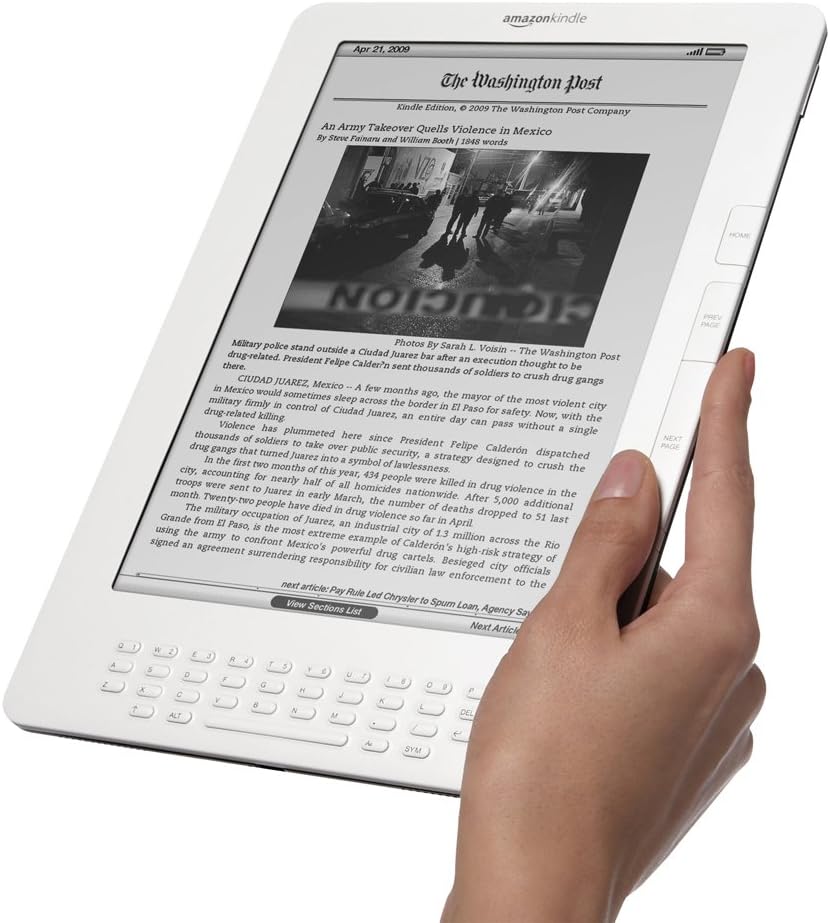
Image: The Kindle DX displaying a digital newspaper, demonstrating its capability to render complex layouts and text clearly. This highlights its utility beyond just books.
2. Reading Books and Documents
- Opening Content: From the Home screen, use the 5-way controller to select a title and press the center button to open it.
- Turning Pages: Use the "Next Page" and "Previous Page" buttons on the right side of the device.
- Adjusting Text: While reading, press the "Menu" button to access options for font size, line spacing, and words per line.
- Searching: Press the "Search" button (magnifying glass icon) to open the search bar and type your query using the keyboard.
3. Accessing the Kindle Store
From the Home screen, select "Shop in Kindle Store" to browse and purchase new books, newspapers, and magazines. Content is delivered wirelessly to your device, typically in under a minute.
4. Wireless Connectivity (3G)
The Kindle DX utilizes free 3G connectivity for downloading content and accessing the Kindle Store. No monthly fees or subscriptions are required for basic content delivery. Ensure you are in an area with 3G coverage for optimal performance.
Maintenance
1. Cleaning Your Kindle DX
To clean the screen, use a soft, lint-free cloth. For stubborn smudges, slightly dampen the cloth with water. Avoid using abrasive cleaners, solvents, or aerosol sprays directly on the device. For the body, a dry, soft cloth is sufficient.
2. Battery Care
To maximize battery life, avoid exposing your Kindle DX to extreme temperatures. If you plan not to use the device for an extended period, fully charge it before storing and periodically recharge it to prevent deep discharge.
Troubleshooting
| Problem | Solution |
|---|---|
| Device is unresponsive or frozen. | Perform a hard reset: Slide and hold the power switch for 15-20 seconds until the screen refreshes. Release the switch and allow the device to restart. |
| Kindle DX is not charging. | Ensure the USB cable is securely connected to both the Kindle and the power source. Try a different USB port or power adapter. Check for debris in the charging port. |
| Cannot connect to wireless (3G). | Ensure you are in an area with 3G coverage. Try restarting the device. If issues persist, check your device's wireless settings or contact Amazon support. |
| Content not downloading. | Verify your wireless connection. Ensure your device is registered to the correct Amazon account. Check your Amazon account for any payment issues. |
Specifications
- Display: 9.7-inch E Ink electronic paper display, 1200 x 824 pixel resolution, 16-level grayscale.
- Connectivity: Free 3G wireless (no monthly bills, no annual contracts) and Wi-Fi (802.11b/g).
- Storage: Internal storage for thousands of books (exact capacity varies by model and content).
- Battery Life: Up to 2 weeks on a single charge with wireless off (varies with wireless usage).
- Dimensions: Approximately 10.4" x 7.2" x 0.38" (264 mm x 183 mm x 9.6 mm).
- Weight: Approximately 18.9 ounces (536 grams).
- Supported Content Formats: Kindle (AZW), TXT, PDF, Audible (Audible Enhanced (AA, AAX)), MP3, unprotected MOBI, PRC natively; HTML, DOC, JPEG, GIF, PNG, BMP through conversion.

Image: The Kindle DX held between two hands, illustrating its remarkably thin profile. This image emphasizes the device's portability and sleek design.
Warranty and Support
Your Amazon Kindle DX is covered by a limited warranty. For detailed warranty information, please refer to the warranty card included with your product or visit the official Amazon support website. For technical assistance, troubleshooting, or to contact customer service, please visit amazon.com/devicesupport.
Please have your device's serial number ready when contacting support. The serial number can typically be found in the device's settings menu under "Device Info" or on the back of the device.
Ask a question about this manual
Ask about setup, troubleshooting, compatibility, parts, safety, or missing instructions. Manuals+ will review the question and use this page’s manual context to help answer it.