
Introduction
This manual provides detailed instructions for the setup, operation, and maintenance of your Logitech Driving Force GT Racing Wheel, designed for use with the PlayStation 3 console. This racing wheel offers an immersive gaming experience with advanced force feedback technology and precise controls.
Package Contents
- Logitech Driving Force GT Racing Wheel
- Pedal Unit (Gas and Brake)
- Power Adapter
- USB Connection Cable
Setup Instructions
1. Mounting the Racing Wheel
The racing wheel features an integrated clamping system for secure attachment to a table or desk.
- Place the racing wheel on a stable surface.
- Extend the clamps located on the underside of the wheel base.
- Tighten the clamps by turning the adjustment knobs until the wheel is firmly secured. Ensure the wheel does not wobble during use.
- For thicker surfaces, the removable section of the clamps can be adjusted to provide more space.
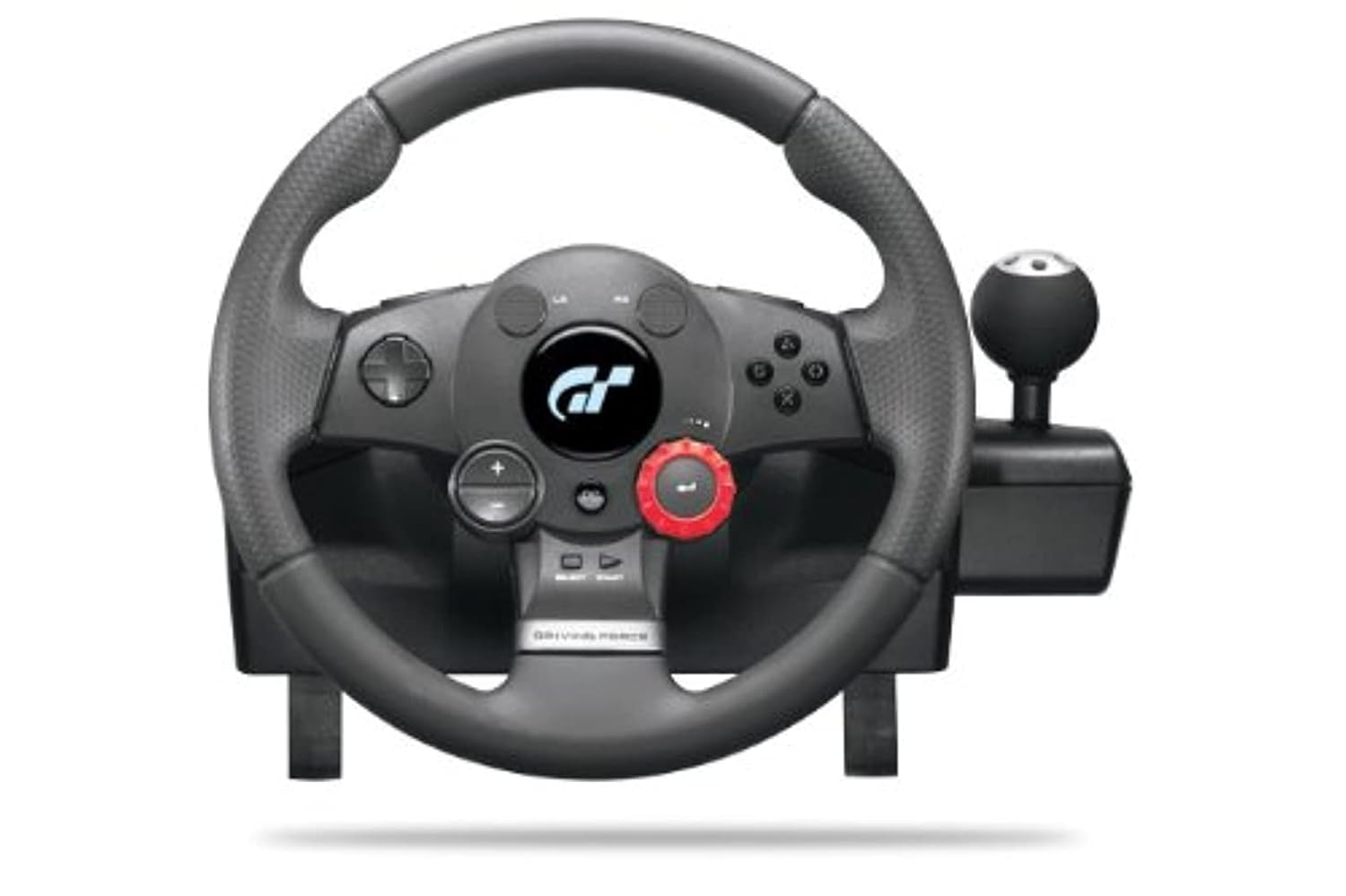
Image 1: Front view of the Logitech Driving Force GT Racing Wheel, showing the steering wheel, buttons, and sequential shifter. This image illustrates the main control unit.
2. Connecting the Pedal Unit
Connect the pedal unit cable to the corresponding port on the underside of the racing wheel base.

Image 2: The Logitech Driving Force GT Racing Wheel shown with its accompanying pedal unit. This image demonstrates the complete setup including the gas and brake pedals.
3. Power and USB Connection
- Connect the power adapter to the racing wheel and then to a wall outlet.
- Connect the USB cable from the racing wheel to an available USB port on your PlayStation 3 console.
4. Initial Calibration
Upon powering on your PlayStation 3 or starting a compatible game, the racing wheel will automatically calibrate itself. The wheel will rotate fully to one side, then the other, and finally center itself. This process ensures accurate steering input.
Operating the Racing Wheel
Steering Wheel and Pedals
- Steering: The wheel provides 900-degree rotation, mimicking the steering range of many real cars.
- Gas Pedal: Press the right pedal for acceleration.
- Brake Pedal: Press the left pedal for braking.
- Force Feedback: The wheel features force feedback technology that simulates road conditions, bumps, crashes, and traction loss, providing a realistic driving sensation. This feature is game-dependent.
Controls and Buttons
The racing wheel includes various buttons and controls for enhanced gameplay.
- D-Pad and PlayStation Buttons: Standard PlayStation controller buttons (X, O, Square, Triangle, L1, R1, L2, R2, L3, R3, Start, Select, PS button) are integrated into the wheel for menu navigation and in-game actions.
- Sequential Stick Shifter: Located on the right side of the wheel base, this shifter allows for sequential gear changes (up/down).
- Paddle Shifters: Located behind the wheel at the 3 and 9 o'clock positions, these allow for quick gear changes. They rotate with the wheel.
- 24-Position Real-time Adjustment Dial: This red dial, located in the center of the wheel, allows for on-the-fly adjustments to vehicle settings such as brake bias, Traction Control System (TCS), and damper settings. This feature is primarily supported in Gran Turismo series games. Use the plus (+) and minus (-) buttons near the dial to navigate menu options when adjusting settings.
Maintenance and Care
- Cleaning: Use a soft, dry cloth to clean the racing wheel and pedal unit. Avoid using abrasive cleaners or solvents.
- Storage: When not in use, store the racing wheel in a clean, dry environment away from direct sunlight and extreme temperatures.
- Cable Management: Ensure cables are not kinked or strained to prevent damage.
Troubleshooting
| Issue | Possible Solution |
|---|---|
| Wheel not recognized by PS3. |
|
| Force Feedback is not working or feels weak. |
|
| Wheel calibration issues (e.g., not centering). |
|
| Pedals are unresponsive. |
|
| 24-position dial or other buttons not working. |
|
Specifications
- Model Number: 941-000020
- Compatibility: PlayStation 3
- Wheel Rotation: 900 degrees lock-to-lock
- Force Feedback: Yes
- Pedals: Gas and Brake
- Shifter: Sequential stick shift, Paddle shifters
- Adjustment Dial: 24-position real-time adjustment dial
- Dimensions (Wheel Unit): Approximately 12.76 x 14.06 x 11.38 inches
- Weight (Wheel Unit): Approximately 3 pounds
- Connectivity: USB
- Manufacturer: Logitech
Warranty and Support
For warranty information, technical support, or further assistance, please refer to the official Logitech support website or contact Logitech customer service. Keep your purchase receipt for warranty claims.


