
Introduction
The Sony NVU73T is a portable GPS navigation system designed to provide turn-by-turn directions and real-time traffic information. Featuring a 4.3-inch widescreen touchscreen display, this device offers intuitive navigation with pre-installed maps of the United States, Canada, and Puerto Rico. This manual will guide you through the setup, operation, maintenance, and troubleshooting of your NVU73T navigator.
What's in the Box
Verify that all components are present in the packaging:
- GPS Receiver (Sony NVU73T unit)
- Suction Cup Mount
- Dashboard Mount
Setup
1. Mounting the Device
Choose a suitable location on your vehicle's windshield or dashboard that does not obstruct your view of the road or interfere with airbags. Attach the suction cup mount to the windshield or use the dashboard mount for alternative placement. Ensure the mount is securely fastened before attaching the NVU73T unit.

Image: The Sony NVU73T GPS Navigator displaying its main menu while mounted in a vehicle.
2. Charging the Battery
Before initial use, fully charge the device using the provided car charger. Connect the charger to your vehicle's power outlet and to the NVU73T unit. A full charge typically provides approximately 1-2 hours of battery life, depending on usage.
3. Initial Power-On
Press and hold the power button until the Sony logo appears. The device will then boot up and attempt to acquire a GPS signal. Ensure the device has a clear view of the sky for faster satellite acquisition.
Operating Instructions
1. Touchscreen Interface and Gesture Commands
The NVU73T features a responsive touchscreen. Navigate menus and input information by tapping on-screen elements. The device also supports gesture commands for quick access to frequently used functions. For example, drawing an inverted 'V' on the screen can activate the 'Take Me Home' function.

Image: The Sony NVU73T displaying a map view with a clear left turn instruction and current speed.
2. Entering a Destination
From the main menu, select "Enter Address" to input a specific street address, or "Find a Place" to search for Points of Interest (POIs) such as restaurants, gas stations, or attractions. The device includes nearly 5 million pre-loaded POIs.
3. Turn-by-Turn Guidance
Once a destination is set, the NVU73T provides clear visual and spoken turn-by-turn directions. Spoken commands include street names (Text-to-Speech) to eliminate ambiguity. The Dual View capability offers dynamic route information alongside the conventional map view, including a 3D Junction Guide to assist with complex highway merges and exits.

Image: The Sony NVU73T displaying a detailed map with a turn instruction, current speed, and speed limit.
4. Real-Time Traffic Information
The NVU73T is equipped with Real Time Traffic Information radio reception. This feature allows the device to monitor current traffic conditions and automatically re-route you around congestion or incidents, helping you avoid delays.
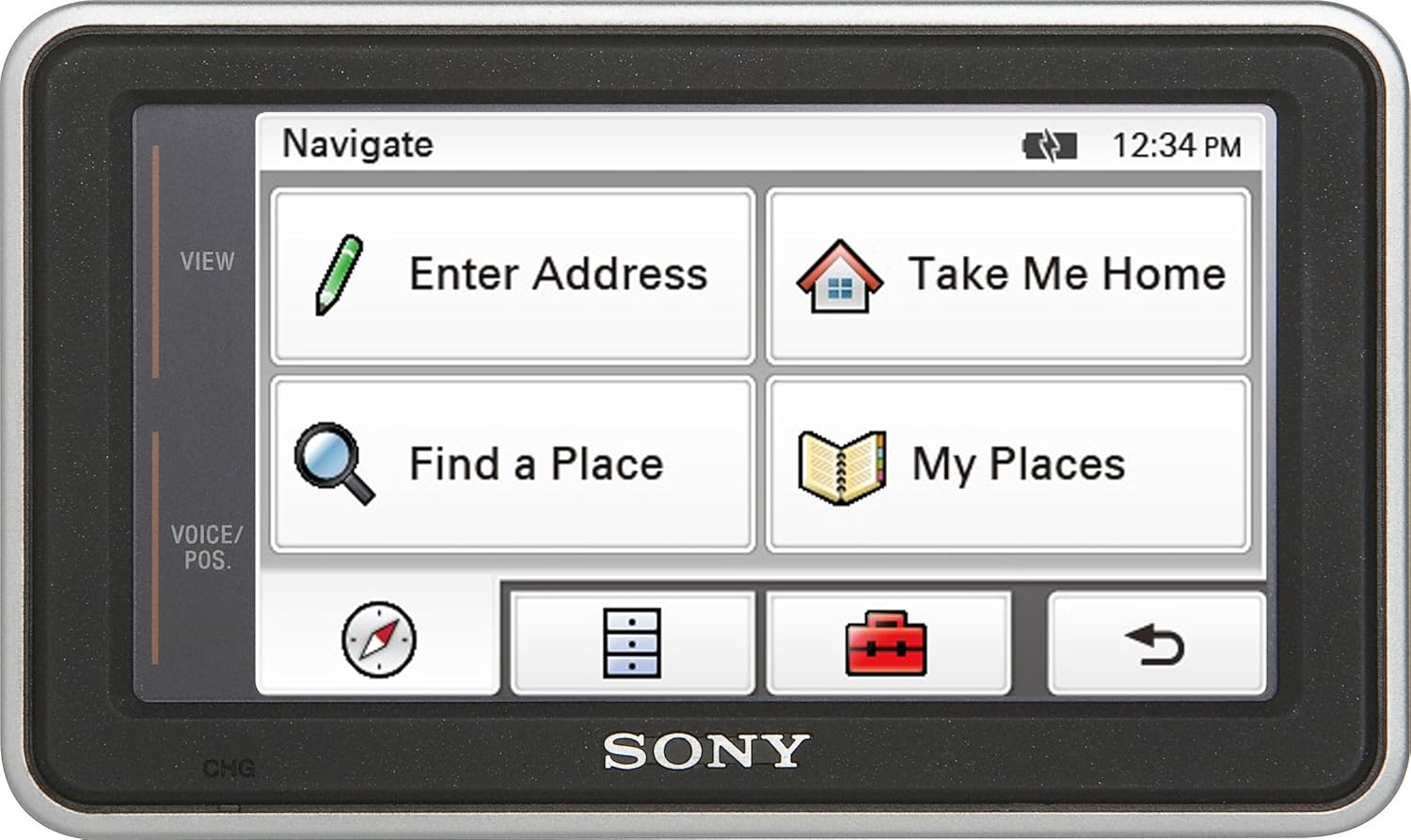
Image: The Sony NVU73T displaying a traffic message indicating congestion and average speed.
Maintenance
1. Cleaning the Device
To clean the screen and exterior of the NVU73T, use a soft, lint-free cloth. For stubborn smudges, slightly dampen the cloth with water. Avoid using harsh chemicals or abrasive cleaners, as these can damage the display and casing.
2. Software and Map Updates
Periodically check the Sony support website for available firmware and map updates. Keeping your device updated ensures optimal performance, access to the latest features, and the most accurate map data. Follow the instructions provided with the update package carefully.
3. Battery Care
To prolong battery life, avoid exposing the device to extreme temperatures. If the device will not be used for an extended period, store it with a partial charge (around 50%) rather than fully charged or completely depleted.
Troubleshooting
1. Device Not Powering On
Ensure the battery is sufficiently charged. Connect the device to a power source and allow it to charge for at least 30 minutes before attempting to power it on again.
2. GPS Signal Loss or Slow Acquisition
Ensure the device has a clear, unobstructed view of the sky. Avoid using it in tunnels, parking garages, or heavily wooded areas. If indoors, move to an open area. A firmware update may also improve satellite acquisition performance.
3. Route Recalculation is Slow
While the NVU73T is designed for quick recalculations, very complex route changes or areas with poor satellite reception can cause delays. Ensure your device has the latest firmware updates, as these often include performance improvements.
4. Incorrect Routing (e.g., Service Roads)
In some instances, the GPS may direct you to a parallel service road instead of the main highway. Pay attention to road signs and the visual map display. The device will typically recalculate if you deviate from its suggested path.
Specifications
| Brand | Sony |
| Model Name | NVU73T |
| Screen Size | 4.3 Inches |
| Display Type | Touch Screen |
| Map Type | North America (US, Canada, Puerto Rico) |
| Connectivity Technology | USB |
| Battery Life (Average) | 2 Hours |
| Memory Storage Capacity | 2048 MB |
| Compatible Flash Memory Type | SD |
| Item Weight | 0.46 Pounds |
Warranty Information
The Sony NVU73T Portable GPS Navigator comes with a 1 YEAR LIMITED warranty. Please refer to the warranty card included with your product for full terms and conditions, or visit the official Sony support website for detailed warranty information and registration.
Support
For further assistance, technical support, or to inquire about service, please visit the official Sony support website or contact Sony customer service directly. Have your model number (NVU73T) and serial number ready when contacting support.
