
1. Introduction
The Microsoft Digital Media Keyboard 3000 is a wired keyboard designed to enhance your digital media experience and productivity. It offers convenient one-touch access to various functions, including media playback, email, and document navigation. This keyboard is compatible with Windows Vista and other specified operating systems, providing a sleek and functional input solution.
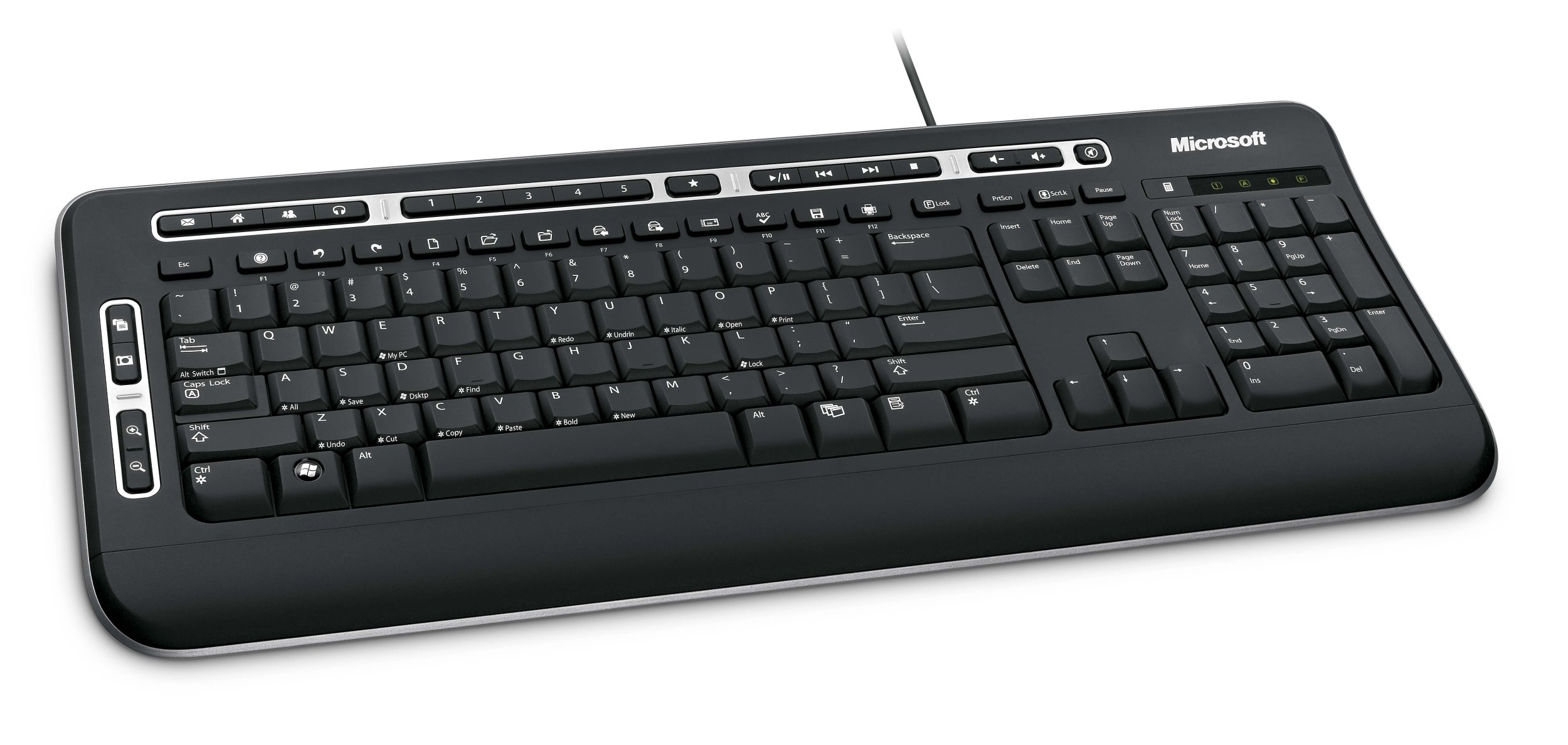
Figure 1: Overview of the Microsoft Digital Media Keyboard 3000.
2. Key Features
- Media Center Controls: Manage your media playback with dedicated buttons.
- Hot Keys: Quick access to applications like Windows Media Player, email, web browser, calculator, My Documents, instant messaging, and photos.
- Zoom Function: Easily zoom in and out of images, documents, and maps.
- "My Favorites" Hot Keys: Five customizable keys for instant access to frequently used photos, folders, files, or web pages. Set by pressing and holding the desired key.
- Enhanced F Keys: Perform common commands directly from the F1-F12 keys.
- Windows® Flip 3D Key: (For Windows Vista) Displays a 3D overlay of open windows for easy cycling.
- Windows Start Button: Launches the Start menu. In Windows Vista, allows searching your PC or the web.
- Spill-Resistant Keys: Designed with integrated water channels to drain liquids, offering protection against accidental spills.

Figure 2: Close-up of the keyboard layout, highlighting media and function keys.
3. Setup Instructions
- Unpack the Keyboard: Carefully remove the keyboard from its packaging.
- Connect to USB Port: Plug the USB connector of the keyboard into an available USB port on your computer.
- Driver Installation: Your operating system should automatically detect and install the necessary drivers. If prompted, follow the on-screen instructions. For advanced features and customization, you may need to install the IntelliType software from the included CD or Microsoft's support website.
- Adjust Keyboard Tilt: The keyboard features adjustable feet on the underside. Flip these out to change the typing angle for personal comfort.

Figure 3: Underside of the keyboard with adjustable feet.
4. Operating Instructions
4.1. Using Media Keys
The dedicated media keys located at the top of the keyboard allow for quick control of your audio and video playback. These include Play/Pause, Stop, Previous Track, Next Track, Volume Up, Volume Down, and Mute.
4.2. Utilizing Hot Keys
Press the designated hot keys to instantly launch applications such as your web browser, email client, or Windows Media Player. Refer to the icons on the keys for their specific functions.
4.3. Zoom Function
Use the Zoom keys to quickly magnify or reduce the view of documents, images, or web pages. This feature is particularly useful for detailed work or viewing content at a comfortable size.
4.4. Windows® Flip 3D (Windows Vista Only)
If you are using Windows Vista, press the Windows Flip 3D key to activate a dynamic 3D view of all open windows, allowing you to cycle through them efficiently.
5. Customization
5.1. "My Favorites" Hot Keys
To customize one of the five "My Favorites" keys, navigate to the desired photo, folder, file, or web page. Then, press and hold the chosen "My Favorites" key until the setting is saved. This allows for personalized shortcuts to your most frequently accessed items.
5.2. Enhanced F Keys
The Enhanced F Keys provide additional functionality beyond standard F1-F12 operations. These can often be configured through the IntelliType software to perform specific commands or macros, enhancing your workflow.
6. Maintenance
6.1. Cleaning
To clean the keyboard, disconnect it from your computer. Use a soft, damp cloth to wipe the surface. For stubborn dirt between keys, a can of compressed air can be used. Avoid using harsh chemicals or abrasive cleaners.
6.2. Spill Resistance
The keyboard is designed with spill-resistant features, meaning it has integrated channels to help drain liquids away from sensitive components. In case of a spill, immediately disconnect the keyboard, turn it upside down to drain liquid, and allow it to dry completely before reconnecting. While spill-resistant, it is not waterproof, and excessive liquid exposure should be avoided.
7. Troubleshooting
- Keyboard Not Responding: Ensure the USB cable is securely plugged into a working USB port. Try a different USB port or restart your computer.
- Keys Not Functioning Correctly: Check for any debris under the keys. If the issue persists, ensure the correct drivers are installed.
- Multimedia Keys Not Working: Verify that the IntelliType software (if applicable) is installed and running. Some functions may require specific media player software to be active.
- Intermittent Connectivity: Ensure the USB cable is not damaged. Avoid routing the cable in areas where it might be pinched or stressed.
8. System Requirements
- Operating System: Windows Vista®/XP or Mac OSX v.10.2–10.5.X
- Hard Drive Space: 100 MB for Windows Vista®/XP, 30 MB for Mac OSX
- Connectivity: Available USB port
- Other: CD drive (for software installation, if not downloaded)
9. Specifications
| Brand | Microsoft |
| Model Number | J93-00001 |
| Product Dimensions | 1.61 x 8.23 x 19.57 inches |
| Item Weight | 1.09 pounds |
| Connectivity Technology | USB |
| Keyboard Description | Multimedia |
| Special Feature | Spill Resistant |
| Color | Black |
| Material | Plastic |
| Included Components | Keyboard |
10. Warranty and Support
For information regarding product warranty, technical support, or service, please refer to the documentation included with your purchase or visit the official Microsoft support website. Keep your proof of purchase for warranty claims.


