
FUNAI SV2000
Funai WV20V6 SV2000 DVD Recorder and VCR Combo User Manual
Model: SV2000 | Brand: FUNAI
Introduction
The Funai WV20V6 SV2000 DVD Recorder and VCR Combo simplifies your home theater by combining two devices into one, giving you the best features of each without compromise. This unit allows for both DVD and VCR playback and recording, providing a versatile solution for managing your media collection. It enables you to save space and money while preserving your cherished VHS tapes by transferring them to DVD.
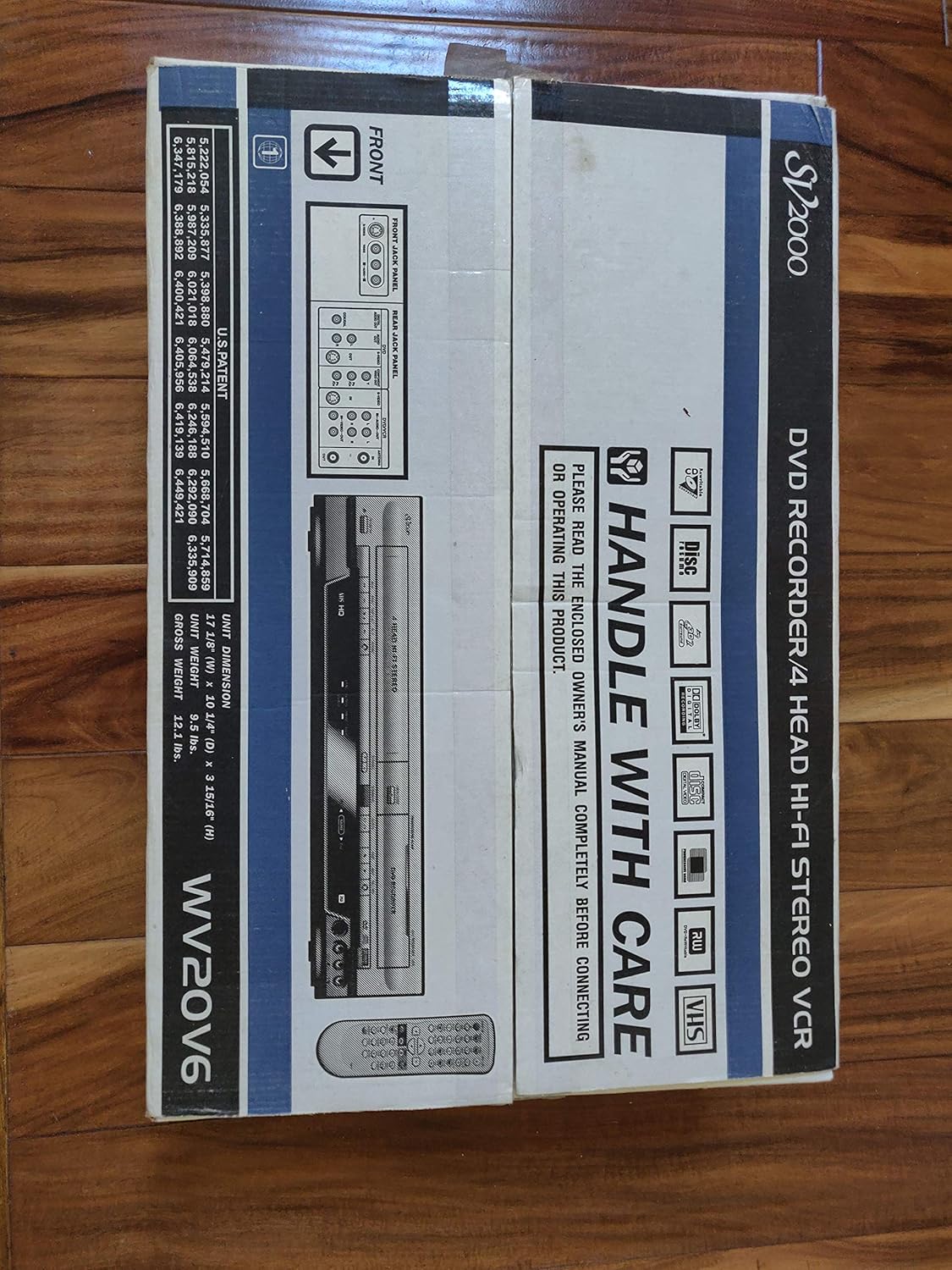
Figure 1: Front view of the Funai WV20V6 SV2000 unit, showcasing its sleek silver design with both VCR and DVD trays visible.
Safety Information
Please read and understand all safety instructions before operating this product. Keep the unit away from water and moisture. Do not block ventilation openings. Refer all servicing to qualified service personnel. Disconnect the power cord during lightning storms or when unused for long periods.
Legal Disclaimer: NO WARRANTY IMPLIED. UNIT ONLY. NO REMOTE INCLUDED. DOES NOT COME WITH ORIGINAL PACKAGING.
What's in the Box
Upon unpacking your Funai WV20V6 SV2000, please ensure all the following items are present:
- Remote control
- Power cable
- Composite cables
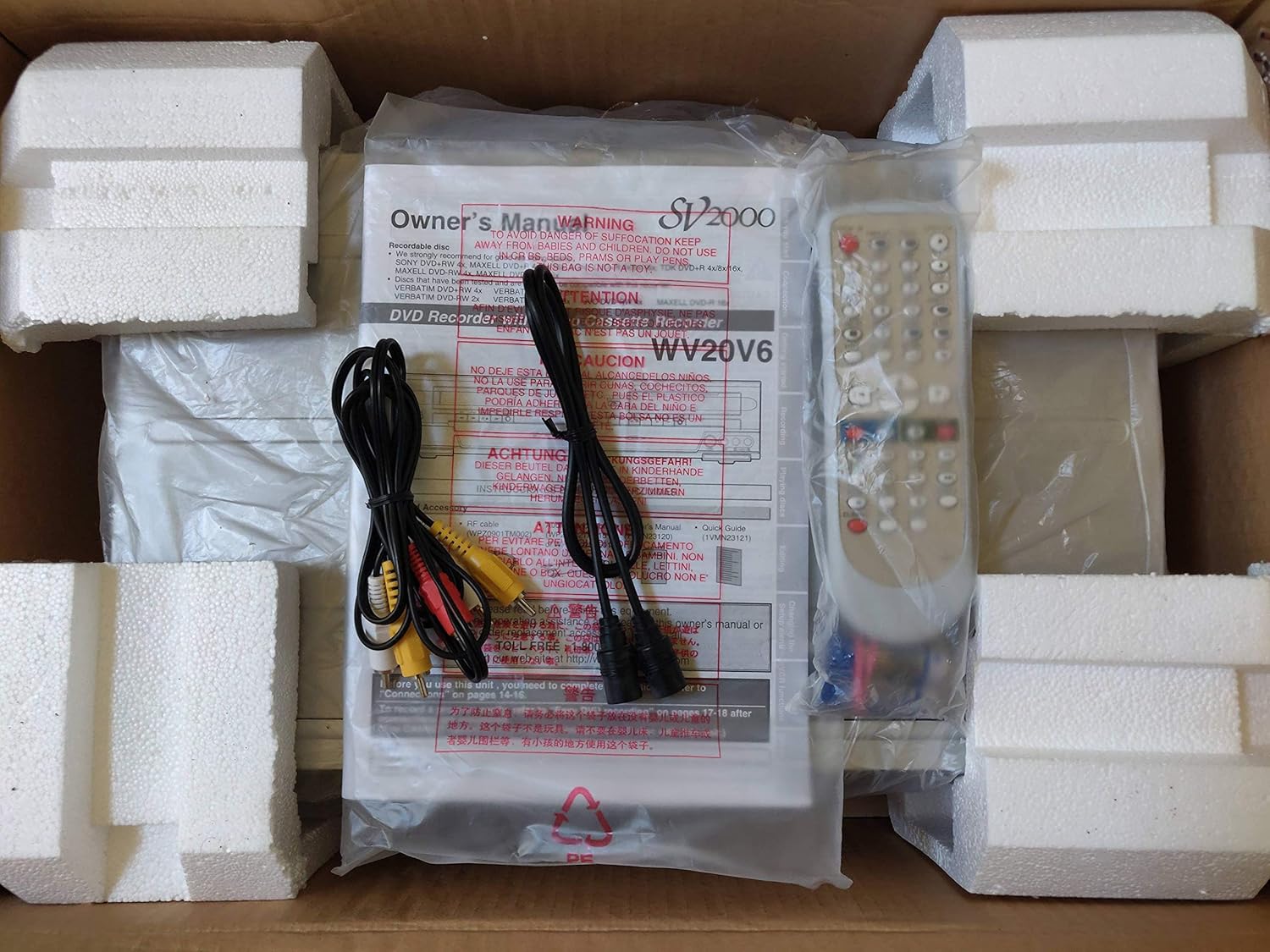
Figure 2: Contents of the product packaging, including the remote control, power cable, and composite cables, alongside the main unit and owner's manual.
Setup
- Placement: Place the unit on a stable, flat surface with adequate ventilation. Ensure there is enough space around the unit for proper airflow.
- Power Connection: Connect the supplied power cable to the AC IN jack on the rear of the unit and then to a wall outlet.
- Video/Audio Connections:
- For standard definition, use the included composite (RCA) cables (yellow for video, red/white for audio) to connect the unit's AUDIO/VIDEO OUT jacks to your TV's corresponding input jacks.
- For improved video quality, use an S-Video cable to connect the S-VIDEO OUT jack to your TV's S-Video input.
- For the best video quality, use component video cables (red, green, blue for video) to connect the COMPONENT VIDEO OUT jacks to your TV's component video input.
- Antenna/Cable Connection (Optional): If connecting to an antenna or cable TV, connect the incoming signal to the ANTENNA IN jack and then connect the ANTENNA OUT jack to your TV's antenna input.
- Remote Control Setup: Insert 2 AA batteries (not included) into the remote control, ensuring correct polarity.
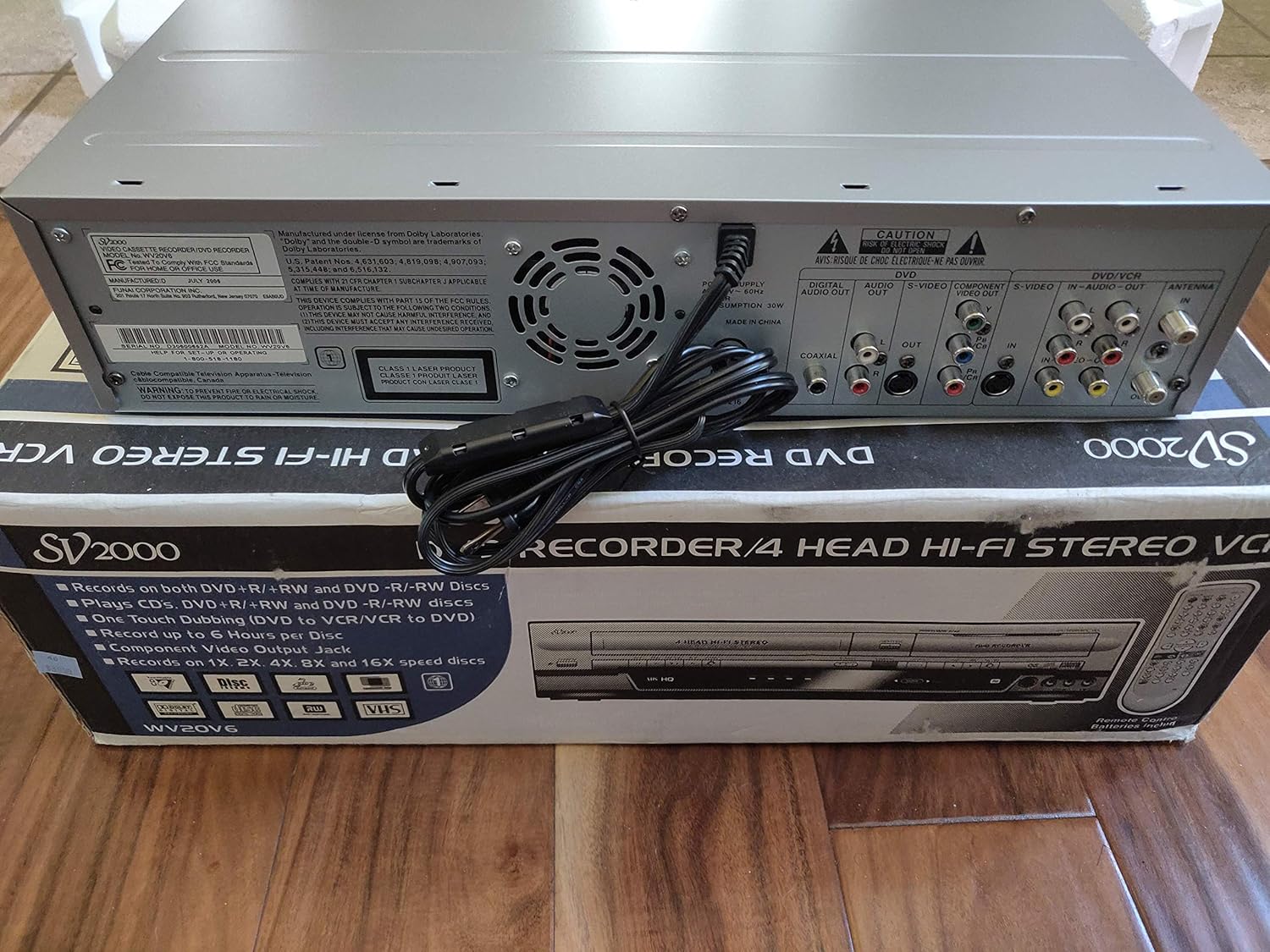
Figure 3: Rear panel of the unit, illustrating the various audio/video input and output ports, including S-Video, RCA, and Component Video connections.
Operating Instructions
Basic Operation
- Power On/Off: Press the POWER button on the front panel or remote control to turn the unit on or off.
- Selecting Source: Use the SOURCE button to switch between VCR and DVD modes.
- Loading Media:
- For DVD: Press OPEN/CLOSE to open the DVD tray, place a DVD or CD disc, and press OPEN/CLOSE again to close.
- For VCR: Insert a VHS tape into the VCR slot.
- Playback: Press PLAY to begin playback of the loaded media.
- Stop/Pause: Use the STOP and PAUSE buttons for media control.
- Fast Forward/Rewind: Use the FFWD and REW buttons for navigation.
Recording Functions
The SV2000 supports DVD+R/RW recording and DVD+VR recording on DVD-R/RW discs. It features 4 recording modes and auto finalizing for DVDs.
- One-Touch Recording: Press the RECORD button to start recording directly to the selected media (DVD or VCR).
- Timer Recording: Utilize the 1 Month/8 Program Recording feature to schedule recordings from external sources or TV broadcasts. Refer to the on-screen display (OSD) for detailed programming instructions.
Dubbing (Copying)
The unit offers convenient one-touch dubbing from DVD to VCR and VCR to DVD, allowing you to transfer content between formats.
- VCR to DVD Dubbing: Insert the VHS tape you wish to copy into the VCR slot and a blank recordable DVD into the DVD tray. Select VCR as the source and press the D.DUBBING button.
- DVD to VCR Dubbing: Insert the DVD you wish to copy into the DVD tray and a blank VHS tape into the VCR slot. Select DVD as the source and press the D.DUBBING button.

Figure 4: Detailed view of the DVD player section, highlighting the 'D.DUBBING' button and front S-Video and Audio/Video input jacks for easy access.

Figure 5: Detailed view of the VCR section, showing the 4-Head Hi-Fi Stereo label and control buttons for tape operation.
Maintenance
- Cleaning the Exterior: Use a soft, dry cloth to wipe the exterior of the unit. For stubborn stains, slightly dampen the cloth with water and a mild detergent, then wipe dry. Avoid abrasive cleaners or solvents.
- Disc and Tape Care: Keep DVDs and VHS tapes clean and free of dust and fingerprints. Store them in their cases when not in use to prevent damage.
- VCR Head Cleaning: The 4-Head Hi-Fi Stereo VCR features an Auto Head Cleaner. However, if playback quality degrades, a VCR head cleaning tape may be used.
Troubleshooting
| Problem | Possible Cause | Solution |
|---|---|---|
| Unit does not power on. | Power cable not securely connected; power outlet not active. | Ensure power cable is firmly plugged into the unit and a working outlet. Test the outlet with another device. |
| No picture or sound. | Incorrect input selected on TV; A/V cables not connected properly. | Select the correct input (e.g., Video 1, HDMI) on your TV. Check all A/V cable connections between the unit and TV. |
| DVD will not record. | Disc is not recordable (e.g., DVD-ROM); disc is full; disc is finalized. | Ensure you are using a blank, recordable DVD+R/RW or DVD-R/RW disc. Check disc capacity. A finalized disc cannot be recorded on. |
| VCR playback issues (e.g., distorted picture). | Dirty VCR heads; damaged tape. | Use a VCR head cleaning tape. Try a different VHS tape to determine if the issue is with the unit or the tape. |
| Remote control not working. | Batteries are dead or incorrectly inserted; remote sensor blocked. | Replace batteries (2 AA). Ensure there is no obstruction between the remote and the unit's sensor. |
Specifications
| Feature | Detail |
|---|---|
| Model Name | SV2000 |
| Brand | FUNAI |
| Media Type | CD, DVD, VHS |
| Supported File Format | MP3, MPEG-1, MPEG-2 |
| Audio Output Mode | Stereo |
| VCR Type | 4-Head Hi-Fi Stereo with Auto Head Cleaner |
| DVD Recording | DVD+R/RW Recording, DVD+VR Recording on DVD-R/RW disc |
| Dubbing Feature | One-touch dubbing from DVD to VCR and VCR to DVD |
| Video Output | Progressive Scan DVD playback |
| Front Panel Jacks | S-Video Output, Audio/Video Input |
| Recording Modes | 4 Recording Modes, Auto Finalizing |
| Timer Recording | 1 Month/8 Program Recording |
| Additional Features | Component Video Jack, MTS/SAP, Trilingual OSD, Parental Lock, Search (3 Steps), Slow Motion, Zoom (1.2X, 1.5X, 2X) |
| Item Weight | 0.01 ounces |
| Package Dimensions | 20 x 16.3 x 6.5 inches |
Warranty and Support
This product is manufactured by Funai. For support inquiries, please refer to the contact information provided by Funai. Please note the following legal disclaimer:
NO WARRANTY IMPLIED. UNIT ONLY. NO REMOTE INCLUDED. DOES NOT COME WITH ORIGINAL PACKAGING.
It is recommended to retain your purchase receipt for any potential support needs.
Related documentsSV2000


Ask a question about this manual
Ask about setup, troubleshooting, compatibility, parts, safety, or missing instructions. Manuals+ will review the question and use this page’s manual context to help answer it.