
1. Introduction
Thank you for purchasing the JVC KW-AVX810 Vehicle Multimedia Receiver. This unit is designed to provide advanced audio and video entertainment in your vehicle, featuring a 7-inch touch panel monitor, DVD playback, USB connectivity for iPod/iPhone, and Bluetooth readiness. This manual provides essential information for the proper installation, operation, and maintenance of your new multimedia receiver.
2. Safety Information
- Professional Installation Recommended: Due to the complexity of vehicle electrical systems, professional installation is highly recommended to prevent damage to the unit or your vehicle.
- Power Supply: This unit is designed for 12V DC negative ground electrical systems. Ensure correct wiring to avoid short circuits or damage.
- Driving Safety: Do not operate the unit's advanced features or watch videos while driving. Always prioritize safe driving practices.
- Detachable Faceplate: Handle the detachable faceplate with care. Avoid exposing it to direct sunlight or high temperatures for extended periods.
- Ventilation: Ensure adequate ventilation around the unit to prevent overheating. Do not block ventilation openings.
3. Package Contents
Please check that all items are present in the package:
- JVC KW-AVX810 Multimedia Receiver
- Detachable Faceplate
- Wiring Harness
- Mounting Hardware
- Remote Control (if included)
- User Manual (this document)
4. Setup & Installation
4.1 Wiring Connections
Refer to the wiring diagram below for proper connection of the power, speaker, and auxiliary cables. Incorrect wiring can cause damage to the unit or vehicle electrical system.
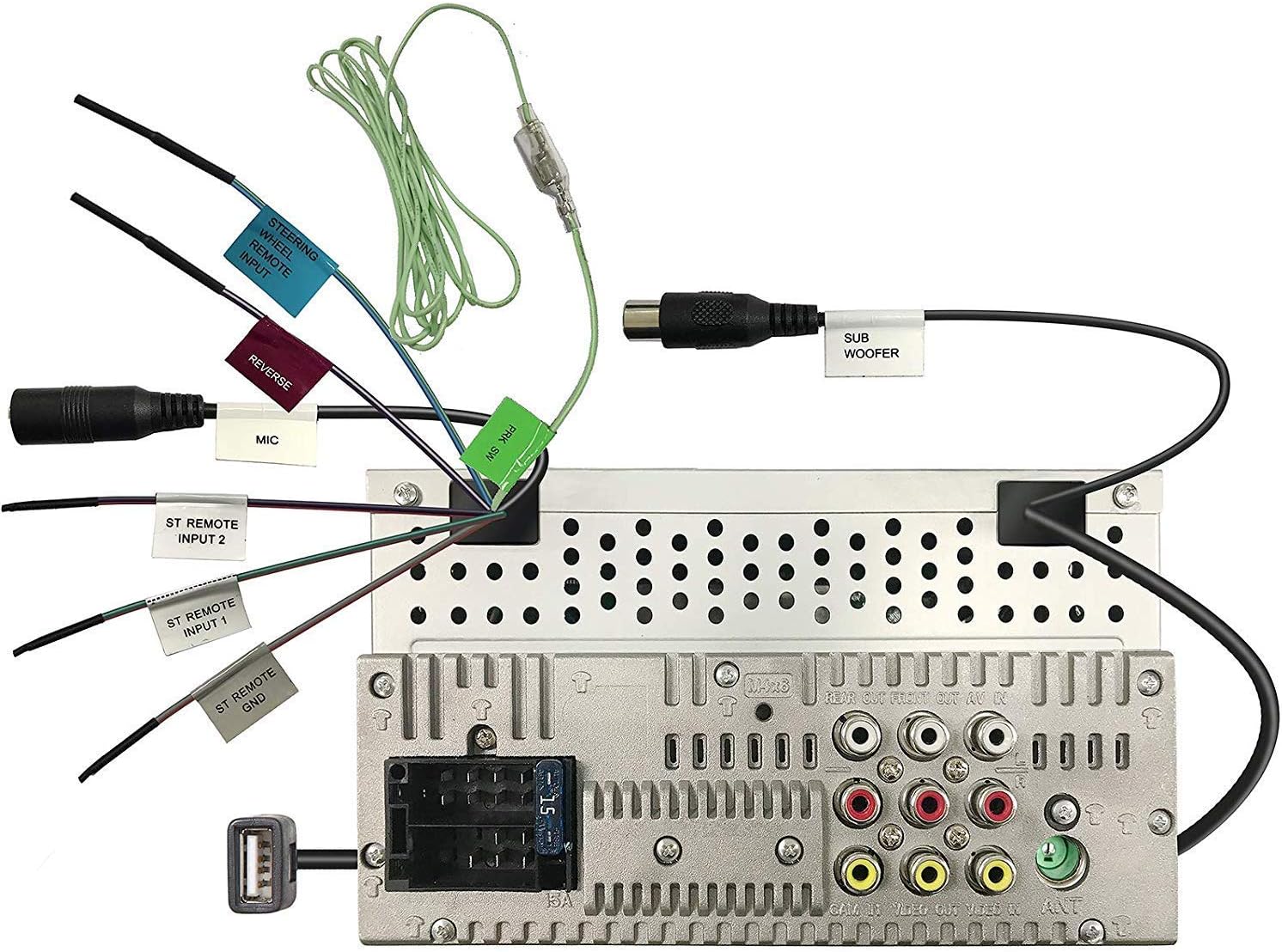
Figure 4.1: Rear panel wiring connections. This image displays the back of the JVC KW-AVX810 unit, illustrating various input and output ports. Key connections include the main power harness, speaker outputs, RCA pre-outs for front, rear, and subwoofer, video input/output, USB port, microphone input, and steering wheel remote input. Each connection is clearly labeled for identification.
- Power Connections: Connect the yellow wire to the constant 12V supply, the red wire to the accessory 12V supply, and the black wire to a good chassis ground.
- Speaker Connections: Connect the speaker wires to the corresponding vehicle speakers, ensuring correct polarity.
- USB Input: The USB port allows connection of compatible devices like iPods/iPhones for audio and video playback, and charging.
- RCA Outputs: Use these for connecting external amplifiers for front, rear, and subwoofer channels.
- Video Input/Output: For connecting external video sources or monitors.
- Steering Wheel Remote Input: Connect to a compatible steering wheel control interface (sold separately) for integrated control.
4.2 Mounting the Unit
The KW-AVX810 is a double-DIN unit. Ensure your vehicle's dashboard opening is compatible. Secure the unit using the provided mounting brackets and screws. After mounting, connect all wiring harnesses before reassembling the dashboard.
5. Operating Instructions
5.1 Basic Controls and Display
The unit features a 7-inch touch panel monitor for intuitive control. The main interface provides access to various functions.

Figure 5.1: Front panel and display. This image shows the JVC KW-AVX810's 7-inch touch panel display, featuring a graphical user interface with icons for various functions such as Tuner, Mirroring, AV-IN, Phone, BT Audio, and Settings. Volume controls and power button are visible on the left bezel. The current time is displayed prominently in the center.
- Power On/Off: Press the power button (usually located on the left bezel) to turn the unit on or off.
- Volume Control: Use the volume up/down buttons or the on-screen controls to adjust the audio level.
- Source Selection: Tap the desired source icon (e.g., Tuner, DVD, USB, BT Audio, AV-IN) on the touch screen to switch between functions.
- Detachable Faceplate: To detach the faceplate, press the release button (refer to the unit's specific mechanism). Always detach the faceplate when leaving the vehicle to deter theft.
5.2 Media Playback
- DVD/CD Playback: Insert a disc into the slot. The unit will automatically switch to DVD/CD mode. Use the touch screen for playback controls (play, pause, skip, menu).
- USB/iPod/iPhone: Connect your device to the USB port. The unit will detect the device and allow you to browse and play media files. The KS-U20 cable (sold separately) may be required for iPod video functionality.
- Bluetooth Audio: Pair your Bluetooth-enabled device with the KW-AVX810. Once paired, you can stream audio wirelessly.
- Radio Tuner: Select the Tuner source. Use the touch screen to scan for stations, save presets, and switch between AM/FM bands.
5.3 Settings and Customization
Access the 'Settings' menu from the main screen to customize various aspects of the unit, including:
- Audio Settings: Adjust equalizer (7-Band iEQ), balance, fader, subwoofer levels, and sound effects (Dolby 5.1 headphone surround sound).
- Display Settings: Adjust brightness, contrast, and background.
- System Settings: Language, time, and other general preferences.
- Bluetooth Settings: Manage paired devices and connection options.
6. Maintenance
- Cleaning the Display: Use a soft, dry cloth to wipe the touch screen. For stubborn smudges, lightly dampen the cloth with water or a screen cleaner designed for electronics. Do not use abrasive cleaners.
- Cleaning the Faceplate: Wipe the detachable faceplate with a soft, dry cloth. Avoid harsh chemicals.
- Disc Care: Handle discs by their edges. Keep them clean and free of scratches. Store discs in their cases when not in use.
- General Care: Keep the unit free from dust and moisture. Avoid extreme temperatures.
7. Troubleshooting
If you encounter problems with your KW-AVX810, refer to the following common issues and solutions:
| Problem | Possible Cause | Solution |
|---|---|---|
| No power | Incorrect wiring; Blown fuse; Vehicle battery issue. | Check power connections (yellow, red, black wires). Inspect the unit's fuse and vehicle's fuse box. Ensure vehicle battery is charged. |
| No sound | Volume too low; Mute activated; Incorrect speaker wiring; Amplifier issue. | Increase volume. Check if mute is on. Verify speaker connections. If using external amplifier, check its power and connections. |
| Display not working | Faceplate not properly attached; Display settings. | Ensure faceplate is securely attached. Check display brightness/contrast settings. |
| USB/iPod not recognized | Incompatible format; Loose connection; Device issue. | Ensure media files are in a supported format. Reconnect the USB device. Try a different USB device. Update iPod/iPhone software if necessary. |
| Bluetooth connection issues | Device not in pairing mode; Interference; Already paired to another device. | Ensure Bluetooth is enabled on both devices and in pairing mode. Delete previous pairings and re-pair. Move closer to the unit. |
If the problem persists after trying these solutions, contact JVC customer support or a qualified service technician.
8. Specifications
- Product Dimensions: 18.39 x 17.81 x 10.01 cm; 2.6 kg
- Item Model Number: KWM150BT+XV95BK+MAGNET
- Brand: JVC
- Connectivity Technology: Bluetooth, USB
- Controller Type: Android (compatible)
- Special Features: Built-In Bluetooth, FM Tuner, Subwoofer Pre-out
- Compatible Devices: Smartphone
- Total HDMI Ports: 1 (Note: This may refer to an internal component or specific model variant, as the main description does not highlight HDMI)
- Connector Type: USB
- Audio Output Mode: Surround
- Surround Sound Channel Configuration: 4.1
- Manufacturer: JVC
9. Warranty & Support
9.1 Warranty Information
The JVC KW-AVX810 Vehicle Multimedia Receiver comes with a warranty. For Mobile Products, the warranty covers 1 Year Parts and Labor from the date of purchase. Please retain your proof of purchase for warranty claims. The warranty does not cover damage caused by improper installation, accident, misuse, abuse, or unauthorized modification.
9.2 Customer Support
For technical assistance, service, or warranty inquiries, please contact JVC customer support. Refer to the official JVC website or your product packaging for the most current contact information.


