
Introduction
This manual provides detailed instructions for the installation, operation, and maintenance of your Cooler Master STB-3T4-E3-GP 4-in-3 HDD Module Device. This device is designed to convert three standard 5.25-inch drive bays into four 3.5-inch hard drive bays, enhancing storage capacity and providing active cooling for the installed drives.
Product Overview
Key Features:
- Converts three 5.25-inch drive bays into four 3.5-inch HDD bays.
- Includes one 120x120x25 mm blue LED fan for active cooling.
- Fan operates at 1200 RPM with a noise level of 22 dBA.
- Compatible with ATX cases featuring three available 5.25-inch drive bays.
- Constructed with aluminum and an ABS bezel.
Components:
- HDD Module Device (main frame)
- 120mm Cooling Fan (pre-installed)
- Mounting Screws for module and hard drives
- Side panels for 5.25" bay installation
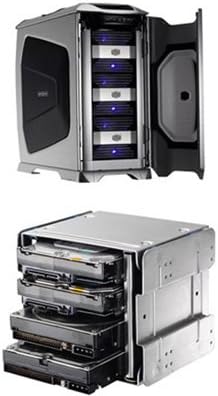
Image: The Cooler Master 4-in-3 HDD Module Device shown installed within a computer case, demonstrating its integration into 5.25-inch bays. Below, a detailed view of the module itself, populated with four 3.5-inch hard drives, illustrating its capacity and design.
Setup and Installation
Required Tools:
- Phillips head screwdriver
- Anti-static wrist strap (recommended)
Step-by-Step Installation:
- Prepare Your Computer Case: Power off your computer and disconnect all cables. Open the computer case to access the internal components. Identify three consecutive, unoccupied 5.25-inch drive bays. Remove any bay covers or brackets from these bays.
- Install Hard Drives into the Module:
- Carefully slide each 3.5-inch hard drive into an available slot within the HDD module.
- Secure each hard drive using the provided screws. Ensure drives are firmly seated to prevent vibration.
- Mount the Module into 5.25-inch Bays:
- Slide the assembled HDD module into the three open 5.25-inch bays from the front of your computer case.
- Align the screw holes on the module with those on the drive bay frame.
- Secure the module to the case using the appropriate mounting screws. Ensure it is stable and does not wobble.
- Connect Power and Data Cables:
- Connect a SATA power cable from your power supply unit (PSU) to each installed hard drive.
- Connect a SATA data cable from each hard drive to an available SATA port on your motherboard.
- Connect the 4-pin Molex power connector from the module's 120mm fan to an available Molex connector from your PSU.
- Final Checks: Double-check all connections to ensure they are secure. Close your computer case and reconnect all external cables.
Operating Instructions
Once installed and connected, the Cooler Master STB-3T4-E3-GP operates automatically upon computer startup. The integrated 120mm fan will begin to spin, providing airflow to cool the installed hard drives. The blue LED on the fan will illuminate, indicating power and operation.
- Fan Operation: The 120mm fan is designed to run continuously to maintain optimal operating temperatures for your hard drives.
- LED Indicator: The blue LED indicates that the fan is receiving power and functioning.
Maintenance
Regular maintenance ensures optimal performance and longevity of your HDD module and hard drives.
- Dust Cleaning: Periodically (e.g., every 3-6 months), power off your computer and open the case. Use compressed air to gently clean dust from the fan blades and the front grille of the HDD module. Accumulation of dust can impede airflow and reduce cooling efficiency.
- Fan Replacement: The 120mm fan is designed for long-term operation. However, if the fan becomes excessively noisy or stops functioning, it may require replacement. Note that accessing and replacing the fan may require disassembling the front bezel and potentially removing the entire module from the computer case, as the fan is secured with a rivet-like system rather than standard screws. Exercise caution during this process.
- Hard Drive Replacement: To replace an individual hard drive, the entire module may need to be partially or fully removed from the computer case to access the drive mounting screws.
Troubleshooting
If you encounter issues with your Cooler Master STB-3T4-E3-GP, refer to the following common problems and solutions:
- Hard Drives Not Detected:
- Ensure all SATA power and data cables are securely connected to both the hard drives and the motherboard/PSU.
- Verify that the hard drives are properly seated within the module and secured with screws.
- Check your motherboard's BIOS/UEFI settings to ensure SATA ports are enabled and drives are recognized.
- Test drives individually if possible to isolate a faulty drive or cable.
- Fan Not Spinning or Blue LED Off:
- Confirm the 4-pin Molex power connector for the fan is securely connected to your PSU.
- Check for any obstructions preventing the fan blades from spinning.
- If the fan remains unresponsive, it may need replacement (refer to Maintenance section).
- Excessive Noise or Vibration:
- Ensure all hard drives are securely mounted within the module. Loose drives can cause vibration.
- Verify the module itself is securely fastened to the 5.25-inch bays in your computer case.
- If the fan is the source of noise, consider cleaning it or replacing it if it's faulty.
- Poor Cooling Performance / High Drive Temperatures:
- Clean any dust accumulation from the fan and front grille to ensure unrestricted airflow.
- Ensure your computer case has adequate overall airflow.
- While the included fan provides cooling, some users have noted its airflow is on the lower side. For higher performance drives or warmer environments, consider replacing the fan with a higher RPM model, if feasible, keeping in mind the replacement challenges mentioned in the Maintenance section.
Specifications
| Feature | Detail |
|---|---|
| Model Number | STB-3T4-E3-GP |
| Drive Bay Compatibility | Converts three 5.25" bays to four 3.5" HDD bays |
| Fan Size | 120 x 120 x 25 mm |
| Fan Speed | 1200 RPM |
| Fan Noise Level | 22 dBA |
| Fan Bearing Type | Sleeve Bearing |
| Construction Material | Aluminum with ABS bezel |
| Product Dimensions | 7.24 x 6.02 x 5.08 inches (18.39 x 15.29 x 12.90 cm) |
| Item Weight | 1.65 pounds (0.75 kg) |
| Date First Available | July 7, 2008 |
| Manufacturer | Coolermaster |
Warranty and Support
For information regarding warranty coverage, technical support, or to download the latest drivers and utilities, please visit the official Cooler Master website:
Please retain your proof of purchase for warranty claims.
