
Introduction
The Creative Inspire T10 2.0 Multimedia Speaker System is designed to deliver high-quality audio for your PC, notebook, or MP3 player. Featuring a sleek, compact design and BasXPort Technology, these speakers provide enhanced audio performance without the need for a separate subwoofer. This manual provides essential information for setting up, operating, maintaining, and troubleshooting your Inspire T10 speakers.

Image: The Creative Inspire T10 2.0 Multimedia Speaker System, showcasing both left and right speakers with their sleek black finish and speaker grilles.
Key Features
- Compact and Sleek Design: High-glossy black finish, ideal for matching with PCs, notebooks, or MP3 players.
- Premium 2.0 Speaker System: Dedicated tweeter in each satellite for improved highs and mid-tones.
- BasXPort Technology: Provides strong bass without requiring a separate subwoofer.
- Extended Listening Options: Built-in headphone jack for private listening and an AUX In connector for external audio devices.
Setup
1. Unpacking
Carefully remove all components from the packaging. Ensure the following items are present:
- Creative Inspire T10 Left Speaker
- Creative Inspire T10 Right Speaker (with controls)
- Power Adapter
- 3.5mm Stereo Audio Cable
2. Speaker Placement
For optimal sound quality, place the speakers on a flat, stable surface, equidistant from your listening position. Position them to form an equilateral triangle with your ears. Ensure there are no obstructions in front of the speakers.
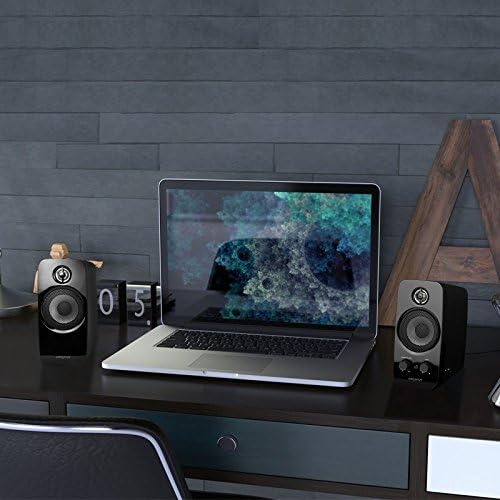
Image: Creative Inspire T10 speakers positioned on a desk alongside a laptop, demonstrating typical setup.
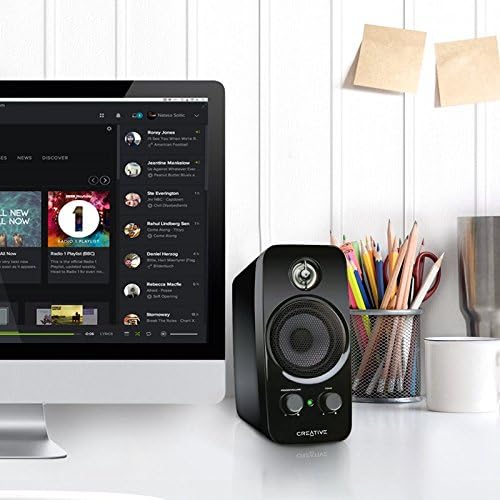
Image: A single Creative Inspire T10 speaker placed next to a desktop computer monitor, illustrating a common desktop setup.
3. Connecting the Speakers
- Connect the audio cable from the left speaker to the corresponding port on the right speaker.
- Connect the 3.5mm stereo audio cable from the "AUX IN" port on the right speaker to the audio output jack (headphone jack) of your computer, MP3 player, or other audio source.
- Connect the power adapter to the power input port on the right speaker, then plug the adapter into a wall outlet.
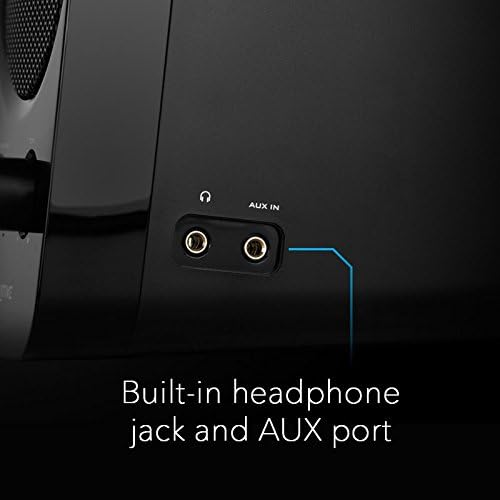
Image: A detailed view of the side panel of the Creative Inspire T10 speaker, highlighting the built-in headphone jack and AUX In port for external audio connections.
Operating Instructions
Power On/Off and Volume Control
The main control knob on the right speaker functions as both the power switch and volume control.
- To power on, rotate the POWER/VOLUME knob clockwise until you hear a click and the power indicator light illuminates.
- Continue rotating clockwise to increase the volume.
- Rotate counter-clockwise to decrease the volume.
- To power off, rotate the POWER/VOLUME knob counter-clockwise until you hear a click and the power indicator light turns off.
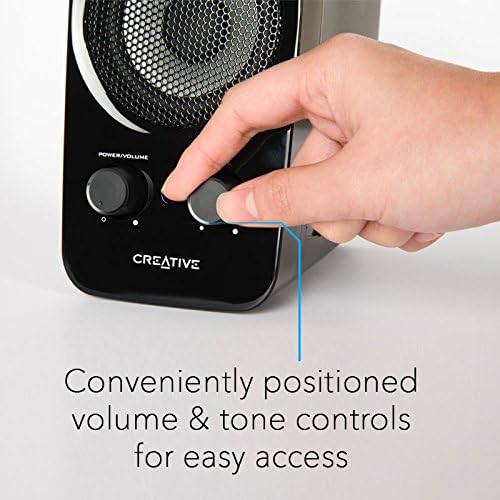
Image: A hand adjusting the conveniently positioned Power/Volume and Tone controls on the front of the Creative Inspire T10 speaker.
Tone Control
The TONE knob allows you to adjust the audio characteristics, balancing between bass and treble to suit your preference.
- Rotate the TONE knob clockwise to enhance higher frequencies (treble).
- Rotate counter-clockwise to emphasize lower frequencies (bass).
Using the Headphone Jack
For private listening, plug your headphones into the headphone jack located on the side of the right speaker. When headphones are connected, audio output from the speakers will automatically mute.
Image: A detailed view of the side panel of the Creative Inspire T10 speaker, highlighting the built-in headphone jack and AUX In port for external audio connections.
Maintenance
Cleaning
- Before cleaning, ensure the speakers are powered off and unplugged from the wall outlet.
- Wipe the speaker surfaces with a soft, dry, lint-free cloth.
- Do not use liquid cleaners, aerosols, or abrasive cleaning agents, as these may damage the finish or internal components.
Storage
When not in use for extended periods, store the speakers in a cool, dry place, away from direct sunlight and extreme temperatures.
Safety Precautions
- Do not expose the speakers to water or excessive moisture.
- Avoid placing speakers near heat sources or in direct sunlight.
- Do not attempt to open or service the speakers yourself. Refer all servicing to qualified personnel.
- Ensure proper ventilation around the speakers.
Troubleshooting
If you encounter issues with your Creative Inspire T10 speakers, refer to the following common problems and solutions:
| Problem | Possible Cause | Solution |
|---|---|---|
| No sound from speakers. |
|
|
| Distorted or unclear sound. |
|
|
| Humming or buzzing noise. |
|
|
Specifications
| Model Name | Inspire T10 |
| Model Number | IN-T10-R3 |
| Speaker Type | Computer, Satellite |
| Surround Sound Channel Configuration | 2.0 |
| Speaker Maximum Output Power | 10 Watts |
| Product Dimensions (D x W x H) | 6.9"D x 9.4"W x 8.1"H |
| Item Weight | 0.01 Ounces (Note: This weight seems unusually low and might be a data entry error. Actual product weight is likely higher.) |
| Connectivity Technology | Wired |
| Audio Output Mode | Stereo |
| Compatible Devices | Desktop, Laptop, MP3 Player, Projector, Smartphone, Tablet, Television |
| Control Method | Manual Knobs (Power/Volume, Tone) |
| Special Features | BasXPort Technology, Built-in Headphone Jack, AUX In |
Note: Specifications are subject to change without prior notice.
Warranty and Support
Warranty Information
Creative products are covered by a limited hardware warranty. For specific warranty terms and conditions applicable to your region, please refer to the warranty card included with your product or visit the official Creative website.
Customer Support
For technical assistance, product inquiries, or warranty claims, please contact Creative customer support through their official website:
Visit Creative Support Website
Please have your product model number (IN-T10-R3) and purchase details ready when contacting support.

