
1. Introduction
This manual provides essential information for the safe and efficient operation of your Roline DesignSecure 525 Uninterruptible Power Supply (UPS). Please read this manual thoroughly before installation and use to ensure proper functionality and to prevent damage to the unit or connected equipment.
The Roline DesignSecure 525 UPS is designed to provide reliable emergency power for workstations and communication technology, protecting against power fluctuations, blackouts, and surges.
2. Safety Information
WARNING: Failure to follow these safety instructions may result in electric shock, fire, or serious injury.
- Do not open the UPS casing. There are no user-serviceable parts inside. Refer all servicing to qualified service personnel.
- Do not connect appliances that could overload the UPS, such as laser printers or vacuum cleaners.
- Ensure the UPS is connected to a grounded power outlet.
- Do not expose the UPS to water or excessive humidity.
- Position the UPS in a well-ventilated area, away from direct sunlight and heat sources.
- Disconnect the UPS from the power outlet before cleaning. Use a dry cloth for cleaning.
3. Product Overview
The Roline DesignSecure 525 UPS provides uninterruptible power and protection for your electronic devices. Key features include:
- Reliable Power Supply: Provides emergency power and protection against spikes, voltage variations, blackouts, interference, and overvoltage.
- Extended Battery Life: Features a battery management system for efficient charging and a digital display for battery status.
- Power Capacity: Supports 2000 VA / 1200 W, offering a full power runtime of 2 minutes and 4 minutes at mid-power.
- Built-in AVR: Automatic Voltage Regulation protects against surges and undervoltages, regulating voltage variations via Buck and Boost technology.
- Monitoring Software: Includes built-in software for communication between the inverter microprocessor and a PC, compatible with common operating systems.
3.1. Components
Below is an image of the Roline DesignSecure 525 UPS, highlighting its general appearance.
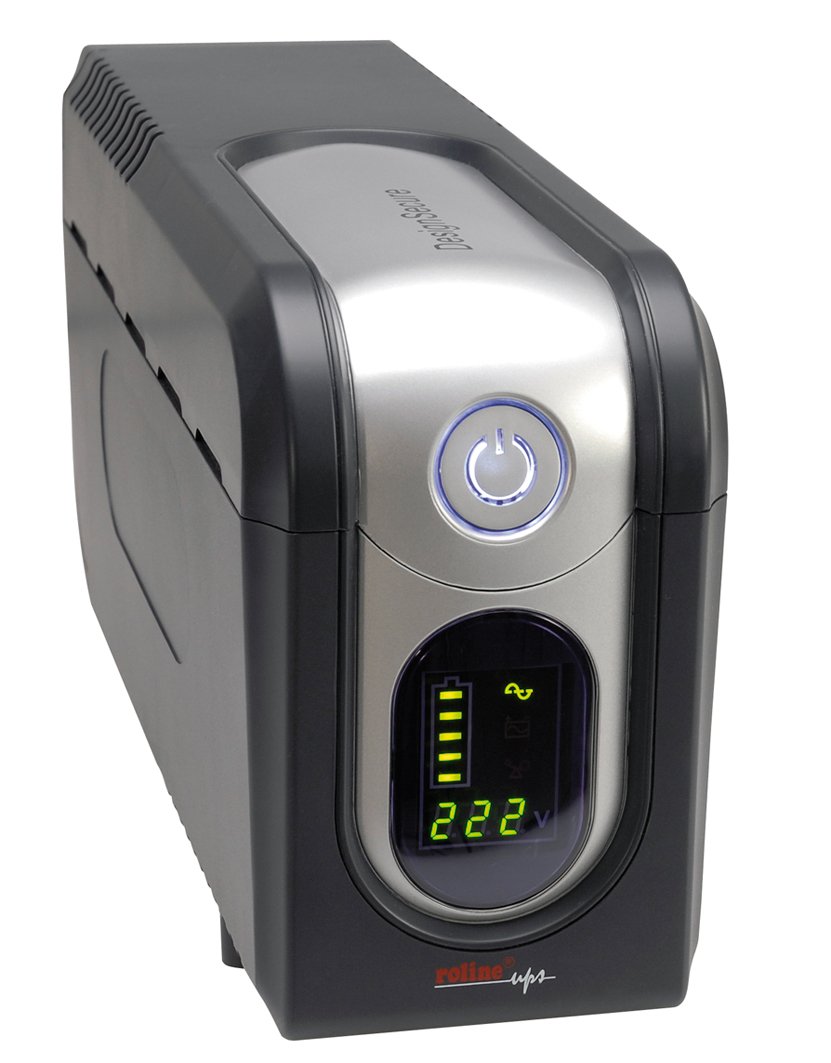
Figure 1: Front view of the Roline DesignSecure 525 UPS. This image shows the main unit, including the display panel and power outlets.
The UPS typically includes:
- Power Input Port
- Output Power Outlets (Type B - 3 pin North American)
- Control Panel / LCD Display
- USB Communication Port
- Telephone/Modem Protection Ports (RJ11)
4. Setup
4.1. Unpacking
Carefully unpack the UPS and inspect it for any shipping damage. Retain the packaging for future transport or storage.
4.2. Placement
Place the UPS on a flat, stable surface in a clean, dry, and well-ventilated area. Ensure there is adequate space around the unit for proper airflow. Avoid placing it near heat sources or in direct sunlight.
4.3. Connecting to Power
- Ensure the UPS is switched off.
- Connect the UPS power input cable to a grounded Type B (3-pin North American) wall outlet.
- Allow the UPS to charge for at least 8 hours before initial use to ensure optimal battery performance.
4.4. Connecting Equipment
- Connect your computer, monitor, and other critical devices to the UPS output receptacles.
- For telephone/modem line protection, connect your incoming telephone/modem line to the "IN" port on the UPS, and then connect a cable from the "OUT" port to your telephone/modem device.
- Do not connect surge strips or extension cords to the UPS output.
4.5. Software Installation (Optional)
For advanced monitoring and management, install the provided smart monitoring software on your computer. Connect the UPS to your computer using a USB cable. Refer to the software's specific instructions for installation and configuration.
5. Operating Instructions
5.1. Turning On the UPS
Press and hold the power button on the front panel for approximately 2-3 seconds until you hear a beep and the display illuminates. The UPS will perform a self-test and then enter online mode.
5.2. Turning Off the UPS
To turn off the UPS, press and hold the power button for approximately 2-3 seconds until you hear a beep and the display turns off. Ensure all connected devices are properly shut down before turning off the UPS.
5.3. Display Indicators
The digital display provides real-time information about the UPS status, including:
- Input Voltage
- Output Voltage
- Battery Charge Level
- Load Level
- Operating Mode (Online, Battery, Bypass)
- Error Codes (if any)
Refer to the software manual for detailed explanations of all display indicators and error codes.
5.4. Automatic Voltage Regulation (AVR)
The built-in AVR automatically corrects minor voltage fluctuations without switching to battery power, preserving battery life. If the input voltage goes too high or too low, the AVR will adjust it to a safe level for your connected devices.
5.5. Battery Mode
In the event of a power outage, the UPS will automatically switch to battery power. An audible alarm will sound, and the display will indicate battery mode. The duration of battery backup depends on the load connected. The UPS will automatically shut down when the battery is depleted to prevent deep discharge.
6. Maintenance
6.1. Battery Care
- To maintain optimal battery life, ensure the UPS is connected to a power source and charging when not in use.
- Avoid frequent deep discharges.
- If storing the UPS for an extended period, fully charge it every three months to prevent battery degradation.
- Battery replacement should only be performed by qualified personnel.
6.2. Cleaning
Ensure the UPS is turned off and disconnected from the power outlet before cleaning. Use a soft, dry cloth to wipe the exterior. Do not use liquid or aerosol cleaners.
6.3. Environmental Conditions
Maintain the UPS in an environment with stable temperature and humidity. Extreme conditions can shorten battery life and affect performance.
7. Troubleshooting
This section provides solutions to common issues you might encounter with your Roline DesignSecure 525 UPS.
| Problem | Possible Cause | Solution |
|---|---|---|
| UPS does not turn on. | No input power; Low battery; Power button not pressed long enough. | Check power cord connection; Allow UPS to charge for several hours; Press and hold power button for 2-3 seconds. |
| UPS beeps continuously in online mode. | Overload condition; Internal fault. | Reduce connected load; Disconnect non-essential devices; If problem persists, contact support. |
| Short battery backup time. | Overload; Battery nearing end of life; Battery not fully charged. | Reduce connected load; Allow UPS to charge fully; Consider battery replacement if old. |
| Connected devices not receiving power. | UPS is off; UPS is in fault mode; Output receptacles are not active. | Turn on UPS; Check display for error codes; Ensure devices are connected to battery-backed outlets. |
If the problem persists after attempting these solutions, please contact Roline customer support.
8. Specifications
| Feature | Detail |
|---|---|
| Model Number | 19401205 |
| Product Dimensions | 4.13 x 6.61 x 13.15 inches |
| Item Weight | 12.79 pounds |
| Output Voltage | 120 Volts (AC) |
| Power Plug Type | Type B - 3 pin (North American) |
| Color | Black / Silver |
| Manufacturer | ROLINE |
| Date First Available | August 20, 2012 |
9. Warranty and Support
9.1. Warranty Information
Roline products are manufactured to high quality standards. For specific warranty terms and conditions, please refer to the warranty card included with your product or visit the official Roline website. Keep your proof of purchase for warranty claims.
9.2. Customer Support
If you require technical assistance or have questions not covered in this manual, please contact Roline customer support. Contact information can typically be found on the Roline website or on the product packaging.
When contacting support, please have your model number (19401205) and purchase date ready.


