
1. Introduction
The Microsoft Reclusa Gaming Keyboard, model 9VU-00015, is a high-performance peripheral designed for an optimized gaming and computing experience. Co-developed with Razer, this keyboard integrates advanced features to provide precision and customization.
Key features include customizable game control functions, allowing users to create macros and assign specific game operations, which can be saved as profiles for different games. It utilizes Razer's HYPERESPONSE keys for rapid and accurate key input. For convenience, a gold-plated USB hub is built into the side of the unit, enabling easy connection of additional USB devices. The keyboard also features an elegant blue backlight, enhancing its aesthetic appeal and visibility in low-light conditions.
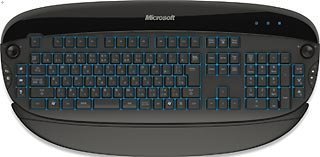
Figure 1: The Microsoft Reclusa Game Keyboard, showcasing its full layout and design.
2. Setup
2.1 System Requirements
- Operating System: Compatible with Windows Vista, Windows XP, and Windows Media Center Edition.
- Available USB Port: Required for keyboard connection.
- Internet Connection: May be required for driver and software updates.
2.2 Connecting the Keyboard
- Locate an available USB port on your computer.
- Plug the USB connector of the Reclusa Gaming Keyboard into the USB port.
- Your operating system should automatically detect the keyboard. For advanced features and customization, install the dedicated software (drivers) from the manufacturer's website or included media.
2.3 Driver Installation
While the keyboard offers basic plug-and-play functionality, installing the official Microsoft/Razer drivers and utility software is recommended to unlock all features, including macro programming and profile management. Visit the official Microsoft support website for the latest drivers.
3. Operating Instructions
3.1 Basic Keyboard Functions
The Reclusa keyboard functions as a standard 104-key keyboard for general typing and computer navigation. All standard keys (alphanumeric, function keys, numeric keypad) operate as expected.
3.2 Backlight Control
The keyboard features a blue backlight. Specific keys or software controls may be available to adjust the brightness or toggle the backlight on/off. Refer to the software utility for detailed backlight customization options.
3.3 Integrated USB Hub
The keyboard includes a gold-plated USB hub located on its side. This allows for convenient connection of other USB devices such as a mouse, headset, or flash drive directly through the keyboard.
3.4 Volume Control Dial
A dedicated volume control dial is integrated into the keyboard, providing direct control over your system's audio output. Rotate the dial to adjust the volume up or down.
4. Customization and Macro Programming
The Reclusa Gaming Keyboard offers extensive customization through its dedicated software utility. This includes:
- Programmable Keys: The keyboard features additional programmable keys, including 4 bumper keys, 6 hotkeys, and 2 jog dials. These can be assigned to perform specific actions, launch applications, or execute complex macros.
- Macro Creation: Create and record sequences of keystrokes and mouse clicks (macros) to automate repetitive tasks or execute complex in-game commands with a single key press.
- Profile Management: Save different key assignments and macro configurations as profiles. These profiles can be linked to specific games or applications, allowing the keyboard to automatically switch to the appropriate settings when the program is launched.
- HYPERESPONSE Key Settings: Fine-tune the responsiveness of the HYPERESPONSE keys for optimal performance.
Refer to the keyboard's software utility for detailed instructions on programming and managing these features.
5. Maintenance
5.1 Cleaning the Keyboard
To maintain optimal performance and appearance, regularly clean your keyboard:
- Disconnect the keyboard from your computer before cleaning.
- Use a soft, lint-free cloth slightly dampened with water or a mild cleaning solution to wipe the keycaps and surfaces.
- Avoid using harsh chemicals, abrasive cleaners, or spraying liquids directly onto the keyboard.
- Use compressed air to remove dust and debris from between the keys.
5.2 Storage
When not in use for extended periods, store the keyboard in a dry, cool environment away from direct sunlight and extreme temperatures.
6. Troubleshooting
If you encounter issues with your Microsoft Reclusa Gaming Keyboard, refer to the following common troubleshooting steps:
- Keyboard Not Responding:
- Ensure the USB cable is securely connected to your computer.
- Try connecting the keyboard to a different USB port.
- Restart your computer.
- Check if the keyboard drivers are properly installed and up to date.
- Backlight Not Working:
- Verify that the backlight function is enabled through the keyboard's software utility.
- Check for any dedicated backlight control keys on the keyboard.
- Programmable Keys/Macros Not Working:
- Ensure the keyboard's software utility is running and the correct profile is active.
- Verify that the macros and key assignments are correctly configured within the software.
- Some games or applications may override keyboard macros; check in-game settings.
- Integrated USB Hub Issues:
- Ensure the device connected to the hub is functioning correctly when plugged directly into the computer.
- Some high-power USB devices may require a direct connection to the computer or a powered USB hub.
If the issue persists after attempting these steps, please contact Microsoft or Razer support for further assistance.
7. Specifications
| Feature | Detail |
|---|---|
| Brand | Microsoft |
| Model Number | 9VU-00015 |
| Connection Technology | Wired USB |
| Product Weight | 2.08 Kilograms |
| Recommended Use | Gaming |
| Compatible Devices | PC |
| Hand Orientation | Ambidextrous (Left/Right Common) |
| Special Features | Programmable keys, Blue Backlight, Integrated USB Hub, HYPERESPONSE Keys, Volume Dial |
8. Warranty and Support
8.1 Product Warranty
This product includes a 3-year product warranty from the date of purchase. Please retain your proof of purchase for warranty claims. The warranty covers defects in materials and workmanship under normal use.
8.2 Technical Support
For technical assistance, driver downloads, or further information, please visit the official Microsoft support website or contact their customer service department. You may also find resources on the Razer support website due to the co-development of this product.
- Microsoft Support: support.microsoft.com
- Razer Support: support.razer.com


