
1. Introduction
Thank you for purchasing the OLYMPUS CAMEDIA FE-220D Digital Camera. This compact digital camera is designed for ease of use, allowing you to capture high-quality images and videos effortlessly. This manual will guide you through the camera's features and operations to help you get the most out of your device.
2. Product Overview
The OLYMPUS CAMEDIA FE-220D features a 7.1-megapixel sensor and a 3x optical zoom lens, housed in a slim 20mm stainless steel body. Its intuitive design ensures straightforward operation for all users.
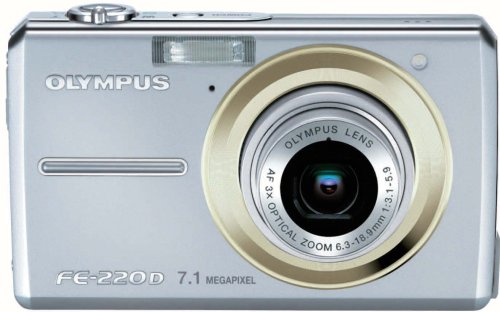
Figure 1: Front view of the OLYMPUS CAMEDIA FE-220D Digital Camera, showing the lens and flash.
3. Setup
3.1. Installing the Battery
- Open the battery compartment cover located on the bottom of the camera.
- Insert the Lithium-ion battery with the correct orientation, matching the polarity indicators (+/-).
- Close the battery compartment cover securely until it clicks into place.
3.2. Inserting a Memory Card
- Open the memory card slot cover, usually located next to the battery compartment.
- Insert a compatible memory card (e.g., xD-Picture Card) into the slot until it locks. Ensure the card is facing the correct direction.
- Close the memory card slot cover securely.
4. Operating the Camera
4.1. Powering On/Off
- To power on, press the POWER button.
- To power off, press the POWER button again.
4.2. Taking Photos
- Turn on the camera.
- Frame your shot using the LCD monitor.
- Press the shutter button halfway down to focus. The focus indicator will light up when focus is achieved.
- Press the shutter button fully down to take the picture.
4.3. Using the Zoom
The camera features a 3x optical zoom. Use the zoom lever (typically located around the shutter button) to adjust the focal length:
- Move the lever towards W (Wide) to zoom out.
- Move the lever towards T (Telephoto) to zoom in.
4.4. Recording Movies
The OLYMPUS CAMEDIA FE-220D supports movie recording.
- Set the camera to Movie mode (refer to your camera's mode dial or menu for this setting).
- Press the shutter button to start recording.
- Press the shutter button again to stop recording.
5. Maintenance
5.1. Cleaning the Camera
- Use a soft, dry cloth to clean the camera body.
- For the lens and LCD screen, use a specialized lens cleaning cloth and solution. Avoid harsh chemicals.
- Gently remove dust from the lens using a blower brush.
5.2. Storage
- Store the camera in a cool, dry place away from direct sunlight and extreme temperatures.
- Remove the battery if the camera will not be used for an extended period.
6. Troubleshooting
If you encounter issues with your camera, refer to the following common problems and solutions:
- Camera does not power on: Ensure the battery is fully charged and correctly inserted.
- Cannot take pictures: Check if a memory card is inserted and has sufficient free space. Ensure the lens cap is removed.
- Images are blurry: Ensure the lens is clean. Check lighting conditions and camera shake.
- Flash does not fire: Check flash settings to ensure it is not set to 'Off' or 'Red-eye Reduction' in bright conditions.
For more complex issues, please consult the Olympus support website or contact customer service.
7. Specifications
| Feature | Specification |
|---|---|
| Brand | OM SYSTEM/Olympus |
| Product Model Number | FE-220D |
| Maximum Image Resolution | 7.1 MP |
| Optical Zoom | 3x |
| ISO Sensitivity (Expanded) | 100-3200 |
| Finder Type | Electronic |
| Lens Type | 3x zoom, wide-angle starting from 20mm |
| Shooting Function | Movie |
| Battery Type | Lithium-ion |
| Package Dimensions | 18.9 x 8 x 1.6 cm |
| Item Weight | 421.84 g |
| Aspect Ratio | 4:3 |
| Photo Sensor Technology | CMOS |
| Supported File Format | JPEG |
| Exposure Control Type | Auto |
| Form Factor | Compact |
8. Warranty and Support
For information regarding warranty coverage, service, and technical support for your OLYMPUS CAMEDIA FE-220D, please refer to the documentation included with your product or visit the official Olympus website. Keep your proof of purchase for warranty claims.


