
1. Product Overview
The Slingbox SOLO is a revolutionary device designed to transform your PC, Mac, tablet, or smartphone into a personal television, allowing you to watch and control your home TV entertainment from anywhere in the world over the internet. It incorporates high-definition component, S-Video, and composite video inputs and outputs, ensuring compatibility with a wide range of standard-definition and high-definition satellite receivers, set-top boxes, and DVRs.
This device serves as the perfect companion for your existing DVR, cable box, satellite receiver, or DVD player, providing unparalleled access to your favorite TV shows, sporting events, and special programs without any monthly subscription fees.
Key Features:
- Watch your HDTV anywhere on your laptop or mobile phone with no monthly fees.
- Watch and control a high-definition or standard definition A/V device, such as a DVR, cable set-top box, satellite receiver, or DVD player.
- Full set of pass-through connections for easy integration with virtually any A/V device.
- Clip+Sling ready: Use your Slingbox to clip segments of your favorite TV programs and share them with friends and family online.
- Supports Windows XP/Vista, Mac, and Windows Mobile, Symbian or Palm OS-based mobile devices.

Figure 1: Front view of the Sling Media Slingbox SOLO (SB260-100).
2. Setup and Installation
Setting up your Slingbox SOLO is a straightforward process. Follow these steps to get started:
- Connect to an A/V Source: Connect the Slingbox SOLO to your desired audio/video source, such as a DVR, cable set-top box, or satellite receiver. The Slingbox is compatible with virtually any A/V source. Use the appropriate component, S-Video, or composite video cables.
- Connect to Your Home Network: Connect the Slingbox SOLO to your home network using an Ethernet cable. If your router is too far for a direct connection, consider using a SlingLink TURBO or another Ethernet bridge for connectivity.
- Install SlingPlayer Software: On your PC or Mac computer connected to your home network, install the SlingPlayer software. This software enables you to complete the setup and begin enjoying your home theater content.
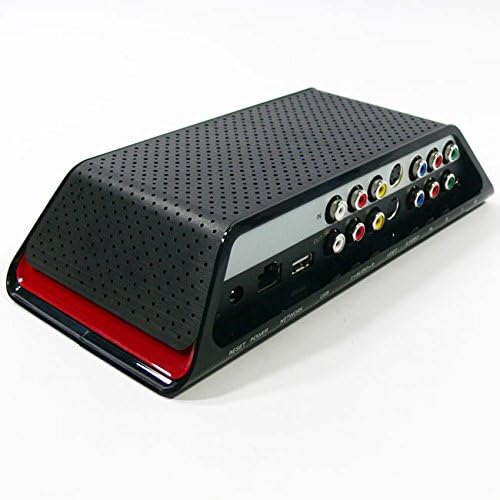
Figure 2: Rear view of the Slingbox SOLO, showing the various input and output ports for A/V and network connections.
Video 1: An official overview of the Slingbox SOLO, demonstrating its features and basic setup. This video illustrates how the device allows you to watch and control your home TV from anywhere, highlighting its connectivity options and ease of use.
3. Operating Your Slingbox SOLO
Once your Slingbox SOLO is set up, you can access your home TV content from various devices:
3.1. Watching on a Laptop (PC or Mac)
You can watch and control your TV directly from Slingbox.com. Using a compatible web browser (Firefox, Internet Explorer, or Safari), you gain complete access to your Slingbox and its connected cable box, satellite receiver, or DVR. The web interface provides a virtual remote control and a searchable TV guide, eliminating the need for desktop software downloads or installations.
3.2. Watching on a Smartphone or Tablet
For mobile viewing, the SlingPlayer software (sold separately) is required. This application allows you to watch your TV and all its programming on a wide range of mobile devices, including iPad, iPhone, BlackBerry, Android phones, Android tablets, Windows Phone, Palm OS, or Symbian mobile devices.
- Full Control: Control your programming with easy-to-use menus and shortcuts on either a touch screen or navigational interface. Easily change TV channels, navigate program guides, and schedule recordings on your DVR.
- Device Access: Control your digital cable box, satellite receiver, DVR, or DVD player. Access music channels or video on demand.
- High-Quality Viewing Modes: Enjoy stunning full-screen video. Switch to audio-only mode to save bandwidth or battery life. Adjust the video display size or aspect ratio (audio-only mode and adjustable video display size are supported on select devices).
- Mobile Connectivity: Access your television programming over a high-speed 3G, 4G, or Wi-Fi connection. Ensure your mobile device and service support the chosen connectivity option.
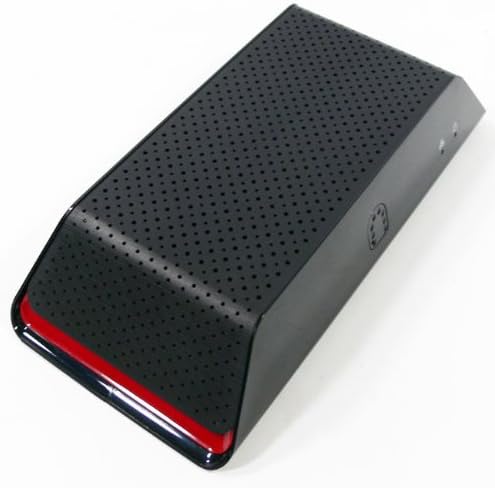
Figure 3: Top view of the Slingbox SOLO, showcasing its sleek design and perforated surface for ventilation.
4. Maintenance
The Slingbox SOLO is designed for minimal maintenance. To ensure optimal performance:
- Keep the device in a well-ventilated area to prevent overheating.
- Clean the exterior with a soft, dry cloth. Avoid using liquid cleaners or abrasive materials.
- Ensure all cable connections are secure and free from damage.
- Periodically check for firmware updates through the SlingPlayer software or Sling Media's official website to ensure you have the latest features and bug fixes.
5. Troubleshooting
If you encounter issues with your Slingbox SOLO, consider the following common troubleshooting steps:
- No Picture/Sound:
- Verify all A/V cables are securely connected between the Slingbox and your source device (DVR, cable box, etc.).
- Ensure the source device is powered on and outputting a signal.
- Check the input selection within the SlingPlayer application to ensure it matches the connected source.
- Poor Picture Quality/Choppy Video:
- Check your internet connection speed. A stable, high-speed connection is crucial for smooth streaming.
- Ensure your home network (router, Ethernet cables) is functioning optimally.
- Adjust the video quality settings within the SlingPlayer application to a lower resolution if bandwidth is limited.
- Cannot Connect to Slingbox:
- Confirm the Slingbox SOLO is powered on and its network light is active.
- Verify the Ethernet cable is properly connected to your router.
- Restart your router, modem, and the Slingbox SOLO.
- Check your router's settings to ensure it's not blocking the Slingbox's connection (e.g., firewall settings, port forwarding).
- Remote Control Issues:
- Ensure the IR blaster cable is correctly positioned and securely connected to the Slingbox and aimed at the IR receiver of your source device.
- Verify that the correct remote control profile is selected within the SlingPlayer software for your specific A/V source.
For more detailed troubleshooting or persistent issues, please refer to the Sling Media support website or contact their customer service.
6. Specifications
| Feature | Detail |
|---|---|
| Product Dimensions | 11.6 x 9.6 x 3.5 inches |
| Item Weight | 2.2 pounds |
| Model Number | SB260-100 |
| Brand | Sling Media |
| Connectivity Technology | Wired |
| Connector Type | Component, S-Video, Composite Video, RCA |
| Compatible Devices | Adapter, Ipad, Ipod, Laptop, Mobile Phones, Remote, Security Camera, Tablet, Television, Watch |
| Input Video Compatibility | PAL |
| Manufacturer | Sling Media |
| Date First Available | September 11, 2007 |
7. Warranty and Support
The Sling Media Slingbox SOLO (SB260-100) comes with a 1-Year Limited Warranty from the date of purchase. This warranty covers defects in materials and workmanship under normal use.
For warranty claims, technical support, or further assistance, please visit the official Sling Media support website or contact their customer service department. Keep your proof of purchase for warranty validation.
