
Introduction
This manual provides essential information for the installation, operation, and maintenance of your Western Digital WD Blue 320 GB PATA Desktop Hard Drive, model WD3200AAJB. This internal hard drive is designed for desktop computer systems requiring a PATA (Parallel ATA) interface, offering 320 GB of storage capacity, a 7200 RPM rotational speed, and an 8 MB cache.
Setup
1. Pre-installation Checklist
Before beginning installation, ensure you have the following:
- WD Blue 320 GB PATA Hard Drive (WD3200AAJB)
- 40-pin PATA ribbon cable
- 4-pin Molex power connector from your power supply
- Screwdriver (Phillips head recommended)
- Anti-static wrist strap (recommended)
- Computer case mounting screws
2. Jumper Settings
The WD3200AAJB hard drive uses jumpers to configure its role within the PATA chain (Master, Slave, or Cable Select). Refer to the label on the drive for the specific jumper configuration diagram. Typically, the options are:
- Master: For the primary drive on a PATA channel.
- Slave: For a secondary drive on the same PATA channel as a Master drive.
- Cable Select (CS): Allows the PATA cable to determine the drive's role. Both drives on the cable must be set to CS for this to function correctly.
Ensure your computer is powered off and unplugged before adjusting jumpers.
A detailed view of the rear of the WD Blue hard drive, highlighting the 40-pin PATA interface connector, the 4-pin Molex power connector, and the jumper block. The jumper block is used to configure the drive as Master, Slave, or Cable Select, as indicated by a diagram on the drive's label.
3. Physical Installation
- Power off your computer and unplug the power cord.
- Open the computer case.
- Locate an available 3.5-inch drive bay.
- Carefully slide the hard drive into the bay and secure it with mounting screws.
- Connect the 40-pin PATA ribbon cable to the drive's PATA interface connector and to the motherboard's PATA controller. Ensure the red stripe on the ribbon cable aligns with Pin 1 on both the drive and the motherboard connector.
- Connect a 4-pin Molex power connector from your power supply to the hard drive's power input.
- Close the computer case and reconnect the power cord.
4. Initial System Configuration
After physical installation, power on your computer. You may need to:
- Enter the BIOS/UEFI setup to ensure the drive is detected and configured correctly.
- Use your operating system's disk management tools to partition and format the drive before it can be used for storage. Refer to your operating system's documentation for specific instructions.
Operating Principles
The WD Blue WD3200AAJB hard drive is designed for reliable data storage and retrieval in desktop environments. It incorporates several technologies to optimize performance and user experience:
- WhisperDrive Technology: Minimizes operational noise to ensure a quiet computing environment.
- IntelliSeek: Calculates optimal seek speeds to reduce power consumption, noise, and vibration, contributing to longer drive life and quieter operation.

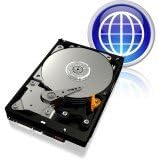
An overhead view of the Western Digital Blue 320 GB PATA desktop hard drive, showing the metallic platter, read/write head, and the circuit board on the underside. This image illustrates the overall physical appearance of the hard drive.
Maintenance
To ensure the longevity and optimal performance of your hard drive, consider the following maintenance practices:
- Data Backup: Regularly back up important data to an external drive or cloud storage. Hard drives are mechanical devices and can fail.
- System Cooling: Ensure your computer case has adequate airflow to prevent the hard drive from overheating. High temperatures can reduce drive lifespan.
- Dust Removal: Periodically clean the interior of your computer case to remove dust buildup, which can impede cooling.
- Software Maintenance: Run disk defragmentation utilities (for non-SSD drives) and check for disk errors periodically using your operating system's built-in tools.
Troubleshooting
If you encounter issues with your WD Blue hard drive, consider these common troubleshooting steps:
- Drive Not Detected:
- Verify that the PATA ribbon cable and power cable are securely connected to both the drive and the motherboard/power supply.
- Check the jumper settings (Master/Slave/Cable Select) to ensure they are configured correctly for your system.
- Enter your computer's BIOS/UEFI setup to confirm the drive is recognized.
- Slow Performance:
- Ensure the PATA cable is not damaged.
- Check for excessive background processes or malware that might be consuming system resources.
- Run disk defragmentation (if applicable) and error checking utilities.
- Unusual Noises:
- Clicking, grinding, or repetitive noises can indicate a potential drive failure. Immediately back up any critical data if you hear such sounds.
- Ensure the drive is securely mounted and not vibrating against the computer case.
Specifications
| Feature | Specification |
|---|---|
| Model Number | WD3200AAJB |
| Digital Storage Capacity | 320 GB |
| Hard Disk Interface | ATA (PATA) |
| Connectivity Technology | PATA |
| Hard Disk Form Factor | 3.5 Inches |
| Hard Disk Rotational Speed | 7200 RPM |
| Cache Memory Installed Size | 8 MB |
| Data Transfer Rate | 100 Megabits Per Second |
| Compatible Devices | Desktop |
| Item Weight | 1.6 Pounds |
| Hardware Platform | Mac, PC, laptop (for compatibility with PATA interface) |
Warranty Information
This Western Digital WD Blue 320 GB PATA Desktop Hard Drive (WD3200AAJB) is covered by a 2-year manufacturer's warranty. For detailed terms and conditions, please refer to the official Western Digital warranty statement available on their website or included with your purchase documentation.
Support
For technical assistance, driver downloads, firmware updates, or further product information, please visit the official Western Digital support website. You can typically find support resources by searching for your specific model number (WD3200AAJB) on their site.


