
FUNAI SV2000
FUNAI SV2000 DVD/VCR Combo Player User Manual
Model: SV2000 (WV806)
Introduction
This manual provides detailed instructions for the setup, operation, and maintenance of your FUNAI SV2000 DVD/VCR Combo Player. Please read this manual thoroughly before using the unit to ensure proper and safe operation. Keep this manual for future reference.
Product Overview
The FUNAI SV2000 is a versatile entertainment device combining a DVD player and a VCR (Video Cassette Recorder) into a single unit, allowing you to enjoy both DVD discs and VHS tapes. It features a 4-head VCR for optimal video playback and recording quality.

Figure 1: Front View of the SV2000. This image displays the front of the SV2000 unit, showing the DVD tray on the right, the VHS tape slot on the left, and various control buttons below them. The silver finish and compact design are visible.
Front Panel Controls and Indicators
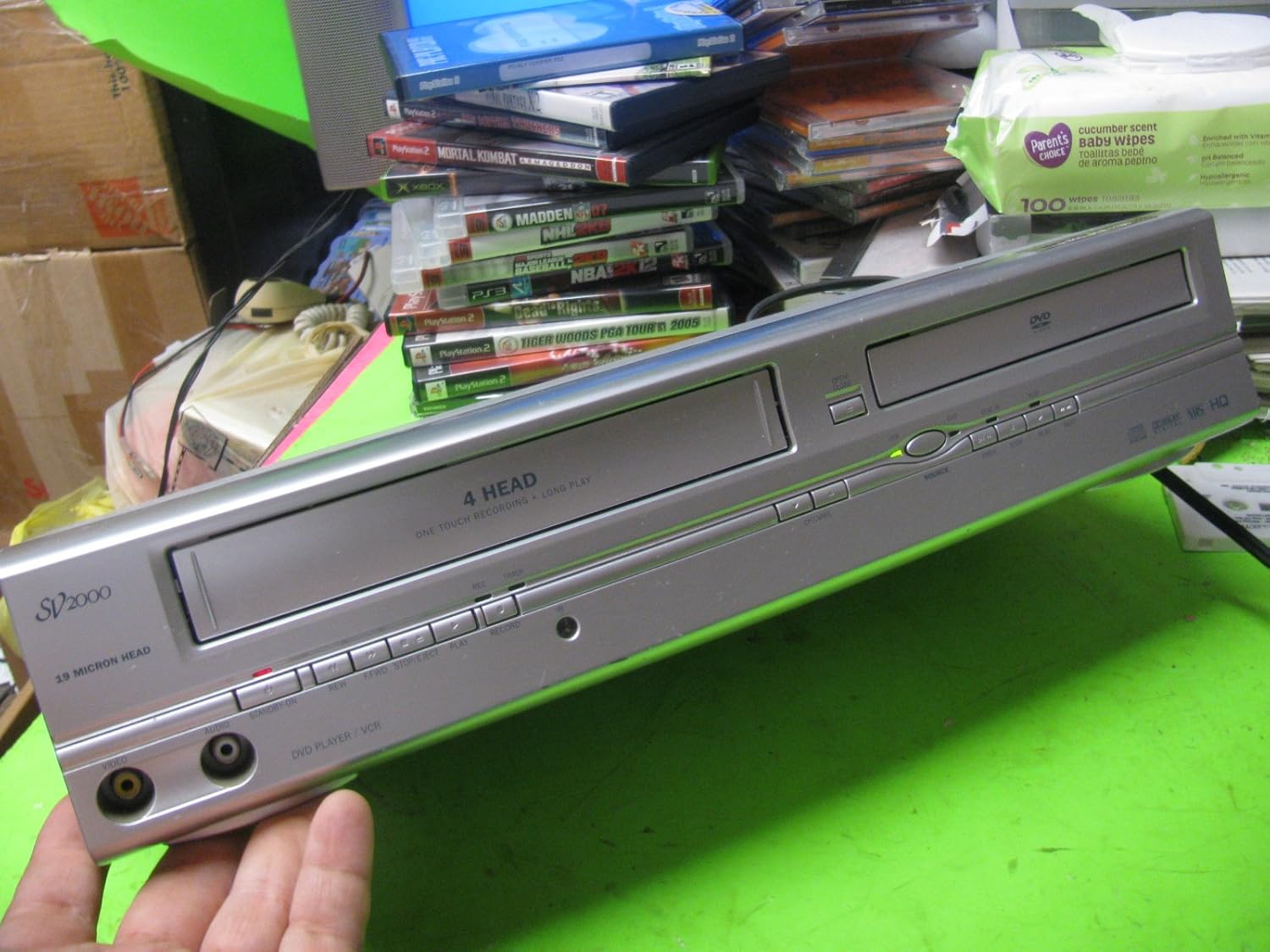
Figure 2: Front Panel Detail. A closer view of the front panel, highlighting the DVD and VCR sections. Key buttons such as Power, Play, Stop, Rewind, Fast Forward, Record, and Eject are visible, along with input jacks for audio/video on the left side.
- Power Button: Turns the unit on or off.
- DVD Tray: For inserting DVD discs.
- VHS Tape Slot: For inserting VHS video cassettes.
- Play/Pause Buttons: Controls playback for both DVD and VCR.
- Stop Button: Halts playback.
- Rewind/Fast Forward Buttons: Navigates through media.
- Record Button: Initiates recording on VHS tapes.
- Eject Buttons: Ejects DVD discs or VHS tapes.
- Front A/V Inputs: RCA jacks (yellow for video, white/red for audio) for connecting external devices like camcorders.
Rear Panel Connections

Figure 3: Rear Panel Connections. This image shows the back of the SV2000, detailing the various input and output ports, including composite video, S-Video, component video, and audio outputs, along with the power cord connection.
- Video Output (Composite): Yellow RCA jack for standard video connection to a TV.
- Audio Output (Stereo): White and Red RCA jacks for stereo audio connection.
- S-Video Output: For improved video quality connection.
- Component Video Output (Y, Pb, Pr): Green, Blue, and Red RCA jacks for high-quality progressive scan video output.
- RF Coaxial Input/Output: For antenna/cable connection and TV output.
- Power Cord: Connects the unit to an AC power outlet.
Setup
Step 1: Connecting to Your Television
Choose the best available connection method for your television. For optimal picture quality, use the Component Video connection if your TV supports it. Otherwise, use S-Video or Composite Video.
- Component Video (Best Quality): Connect the Green (Y), Blue (Pb), and Red (Pr) component video cables from the SV2000's "COMPONENT VIDEO OUT" jacks to the corresponding "COMPONENT VIDEO IN" jacks on your TV. Then, connect the White and Red audio cables from the SV2000's "AUDIO OUT" jacks to the "AUDIO IN" jacks on your TV.
- S-Video (Better Quality): Connect an S-Video cable from the SV2000's "S-VIDEO OUT" jack to the "S-VIDEO IN" jack on your TV. Then, connect the White and Red audio cables from the SV2000's "AUDIO OUT" jacks to the "AUDIO IN" jacks on your TV.
- Composite Video (Standard Quality): Connect a yellow RCA video cable from the SV2000's "VIDEO OUT" jack to the "VIDEO IN" jack on your TV. Then, connect the White and Red audio cables from the SV2000's "AUDIO OUT" jacks to the "AUDIO IN" jacks on your TV.
- RF Coaxial (Basic Quality): Connect a coaxial cable from your antenna/cable source to the "RF IN" jack on the SV2000. Then, connect another coaxial cable from the SV2000's "RF OUT" jack to the "RF IN" jack on your TV. Tune your TV to channel 3 or 4.
Step 2: Power Connection
Plug the AC power cord of the SV2000 into a standard electrical outlet (AC 120V, 60Hz).
Step 3: Initial Power On
Press the Power button on the front panel or the remote control to turn on the unit. Select the correct input source on your TV (e.g., Video 1, Component, HDMI 1) that corresponds to the connection you made.
Operating Instructions
Playing a DVD
- Ensure the unit is powered on and your TV is set to the correct input.
- Press the DVD/VCR button on the remote or front panel to select DVD mode. The DVD indicator light will illuminate.
- Press the Eject button (▲) next to the DVD tray to open it.
- Place a DVD disc gently into the tray with the label side facing up.
- Press the Eject button (▲) again to close the tray. The disc will load automatically, and playback should begin. If not, press the Play button (▶).
- Use the Play (▶), Pause (▐▐), Stop (■), Fast Forward (►►), and Rewind (◄◄) buttons to control playback.
Playing a VHS Tape
- Ensure the unit is powered on and your TV is set to the correct input.
- Press the DVD/VCR button on the remote or front panel to select VCR mode. The VCR indicator light will illuminate.
- Insert a VHS tape into the VHS tape slot. The unit will automatically pull the tape in.
- Playback should begin automatically. If not, press the Play button (▶).
- Use the Play (▶), Pause (▐▐), Stop (■), Fast Forward (►►), and Rewind (◄◄) buttons to control playback.
- To eject the tape, press the Eject button (▲) next to the VHS slot.
Recording on VHS (One-Touch Recording)
The SV2000 features a "One Touch Recording" function, indicated on the front panel. This allows for quick recording from an external source connected to the unit's inputs (e.g., front A/V inputs) or from a TV broadcast if connected via RF coaxial.
- Ensure a blank or recordable VHS tape is inserted into the VCR.
- Select the input source you wish to record (e.g., TV channel, external device connected to front A/V inputs).
- Press the Record (●) button on the front panel or remote control. Recording will begin immediately.
- To stop recording, press the Stop (■) button.
Maintenance
Cleaning the Unit
- Wipe the exterior of the unit with a soft, dry cloth. Do not use liquid or aerosol cleaners.
- For the DVD lens, use a commercially available DVD lens cleaner disc.
- For the VCR heads, use a dry-type VCR head cleaner tape sparingly. Excessive use can damage the heads.
- Never open the unit's casing; refer servicing to qualified personnel.
Care for Discs and Tapes
- Handle discs by their edges to avoid fingerprints on the playing surface.
- Store discs in their cases when not in use, away from direct sunlight and extreme temperatures.
- Keep VHS tapes away from strong magnetic fields, dust, and extreme temperatures.
- Rewind tapes fully after viewing to prevent damage.
Troubleshooting
If you experience problems with your SV2000, consult the following table for possible solutions. If the issue persists, contact customer support.
| Problem | Possible Cause | Solution |
|---|---|---|
| No power | Power cord not connected; power outlet not active. | Ensure power cord is securely plugged in. Check the power outlet with another device. |
| No picture or sound | Incorrect TV input selected; A/V cables loose or incorrect. | Select the correct input on your TV. Check all A/V cable connections. |
| Disc/Tape won't play | Disc/Tape inserted incorrectly; disc/tape is dirty or damaged; unit in wrong mode (DVD/VCR). | Ensure disc is label-side up. Ensure tape is fully inserted. Clean disc/tape. Switch to correct DVD or VCR mode. |
| Remote control not working | Batteries are dead or inserted incorrectly; obstruction between remote and unit. | Replace batteries. Ensure correct polarity. Remove any obstructions. |
Specifications
| Feature | Detail |
|---|---|
| Brand | FUNAI |
| Model Name | SV2000 (WV806) |
| Media Type | CD, DVD, VHS |
| Special Feature | Progressive Scan |
| Connectivity Technology | AUX (via RCA jacks) |
| Audio Output Mode | Stereo |
| Supported Audio Format | MP3 |
| Item Weight | 5.64 pounds |
| Package Dimensions | 17.28 x 9.8 x 3.7 inches |
| Power Requirements | AC 120V, 60Hz, 21W |
Warranty and Support
For technical assistance or service inquiries regarding your FUNAI SV2000 DVD/VCR Combo Player, please contact customer support.

Figure 4: Product Label with Support Information. This image provides a close-up of the product's rear label, clearly displaying the model number WV806, serial number, and the customer support telephone number.
Customer Support Hotline: 1-800-518-1180
Please have your model number (SV2000 or WV806) and serial number ready when contacting support. The serial number can be found on the rear label of the unit.
No official product videos are available for this model from the manufacturer.
Related documentsSV2000


Ask a question about this manual
Ask about setup, troubleshooting, compatibility, parts, safety, or missing instructions. Manuals+ will review the question and use this page’s manual context to help answer it.