Product Overview
The Kensington ComboSaver Combination Portable Notebook Lock K64515US is designed to secure your notebook computer against theft. It features a combination locking mechanism and a retractable, self-coiling cable for portability. This lock is compatible with the Kensington security slot found in most notebook computers.
Key Features:
- 10,000 Personalized Combination Codes: Offers a wide range of customizable security options.
- Retractable, Self-Coiling Cable: Extends from 3 inches to 6 feet for flexible use and compact storage.
- Resettable Combination Lock: Allows you to change your combination as needed.
- SAFE-Tested: Engineered for enhanced security.
- Travel Pouch: Included for convenient storage and transport.
Package Contents
Please verify that all items are present in your package:
- Kensington ComboSaver Combination Portable Notebook Lock unit
- Travel Pouch
- Instruction Manual (this document)
Setup Instructions
1. Setting Your Personal Combination
Your lock is factory preset to 0-0-0-0. To set your personal combination:
- Ensure the lock is set to the factory default combination (0-0-0-0) and the lock head is open.
- Locate the reset button or dial on the side or bottom of the lock head. This is typically a small, recessed button or a rotatable dial.
- Using a pen or a small pointed object, press and hold the reset button OR rotate the reset dial 90 degrees clockwise (depending on your specific lock design).
- While holding the reset button/dial, rotate the combination wheels to your desired 4-digit code. Choose a memorable but secure combination.
- Release the reset button OR rotate the reset dial back to its original position. Your new combination is now set.
- Important: Write down your combination and store it in a safe place. Kensington offers an online combination retrieval service; visit kensington.com for details.
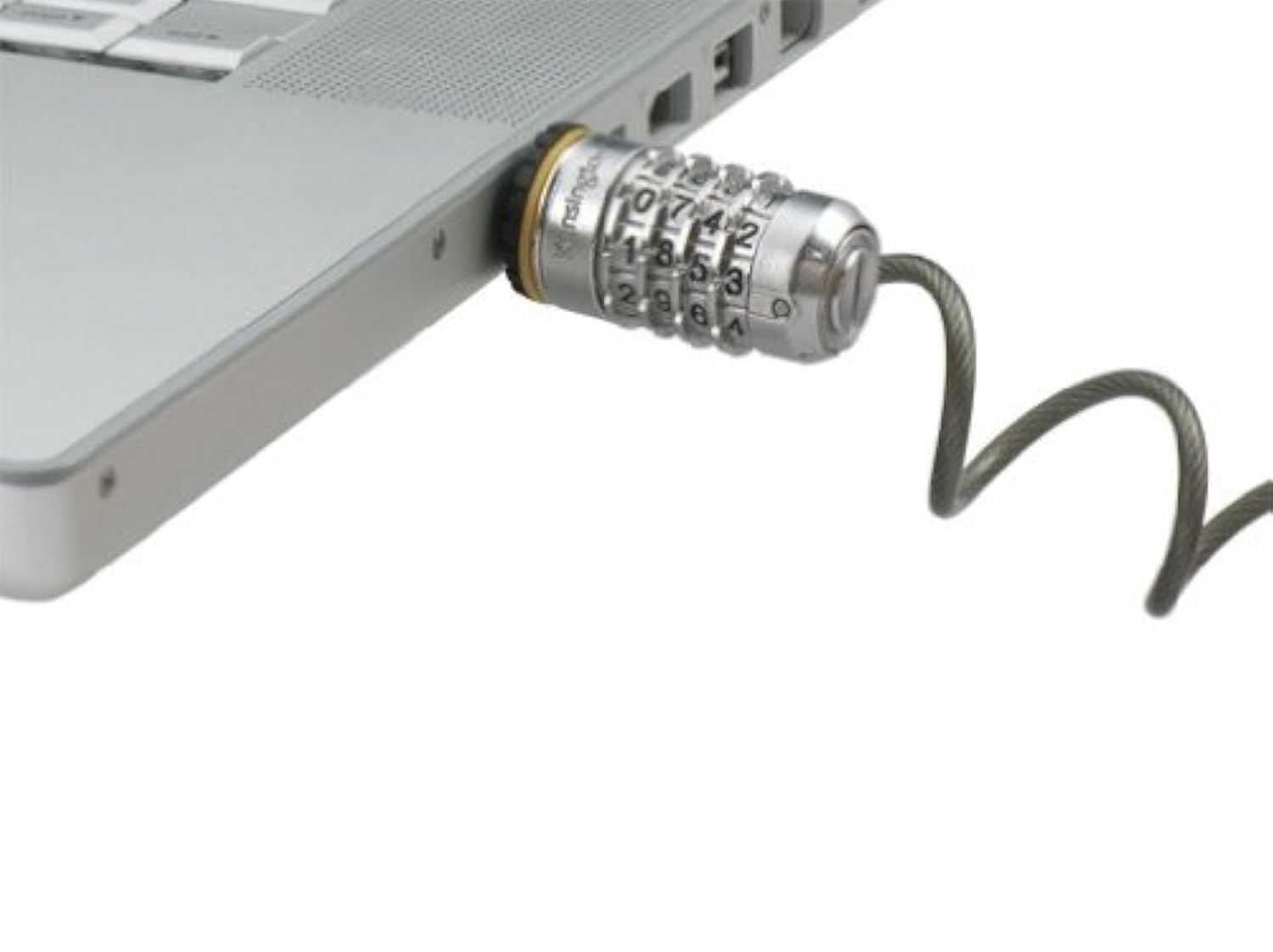
Image showing the Kensington ComboSaver Combination Portable Notebook Lock, featuring its compact design and retractable cable. The combination wheels are visible on the lock head.
2. Attaching the Lock to Your Notebook
The ComboSaver lock is designed to fit into the Kensington Security Slot (also known as a K-Slot) found on most notebooks and other portable devices.
- Locate the small, rectangular security slot on your notebook computer. It is usually found on the side or back edge of the device.
- Ensure the lock head is open and the combination is set to your personal code.
- Insert the lock head into the security slot.
- Rotate the lock head 90 degrees to secure it within the slot.
- Scramble the combination wheels to lock the device.
- Anchor the cable to a sturdy, immovable object (e.g., a heavy desk leg, a secure anchor point). Wrap the cable around the object and feed the lock head through the loop at the end of the cable.
Operating Instructions
Locking Your Device
- Attach the lock to your notebook and anchor the cable as described in the Setup section.
- Scramble the combination wheels to a random sequence. This prevents unauthorized access.
- Verify that the lock head is firmly secured in the security slot and the cable is taut around the anchor point.
Unlocking Your Device
- Align the combination wheels to your personal 4-digit code.
- Press the release button or pull the lock head away from the cable loop (depending on the lock design) to open the lock.
- Rotate the lock head 90 degrees and pull it out of the notebook's security slot.
Retracting the Cable
The ComboSaver features a self-coiling cable for easy storage.
- To retract the cable, gently pull the cable end away from the lock head until it begins to coil automatically.
- Guide the cable as it retracts to prevent tangling.
- Store the coiled lock in the provided travel pouch.
Maintenance
- Keep the lock clean and free from dust and debris. Use a soft, dry cloth for cleaning.
- Avoid using harsh chemicals or abrasive cleaners, as these can damage the lock's finish or internal mechanisms.
- Store the lock in its travel pouch when not in use to protect it from scratches and impacts.
- Do not force the combination wheels or the lock head. If you experience resistance, recheck your combination or the alignment.
Troubleshooting
Forgotten Combination
If you have forgotten your combination, Kensington offers an online combination retrieval service. You must have registered your lock previously to use this service.
- Visit the official Kensington website (kensington.com) and navigate to the support section for combination retrieval.
- Follow the instructions provided to retrieve your registered combination.
- If you did not register your lock, you may need to contact Kensington customer support for further assistance.
Lock Not Fitting into Security Slot
- Ensure your device has a standard Kensington Security Slot (K-Slot). Some newer or ultra-thin devices may use a different security slot type.
- Verify that the lock head is correctly aligned with the slot before attempting to insert it.
- Do not force the lock. If it does not fit, it may not be compatible with your device's security slot.
Cable Not Retracting Properly
- Ensure the cable is not tangled or obstructed.
- Gently pull the cable out to its full extension and then release it slowly to allow the self-coiling mechanism to reset.
- If the issue persists, contact customer support.
Specifications
| Model Number | K64515US |
| Lock Type | Combination Lock |
| Combination Codes | 10,000 personalized codes |
| Cable Length | Retracts from 3 inches to 6 feet (approx. 7.6 cm to 1.83 m) |
| Material | Metal, Plastic |
| Product Dimensions (L x W x H) | 25.4 x 20.3 x 5.1 Centimetres (approx. 10 x 8 x 2 inches) |
| Item Weight | 226.8 g (approx. 0.5 lbs) |
| Compatibility | Kensington Security Slot (K-Slot) |
Warranty and Support
Warranty Information
The Kensington ComboSaver Combination Portable Notebook Lock K64515US is backed by a Kensington Lifetime Warranty. This warranty covers defects in materials and workmanship under normal use. Please refer to the official Kensington website for full warranty terms and conditions.
Customer Support
For technical support, warranty claims, or further assistance, please contact Kensington customer service:
- Website: Visit www.kensington.com for FAQs, support resources, and contact information.
- Manufacturer Contact: SAN MATEO, CA, 94404 US


