
1. Introduction and Overview
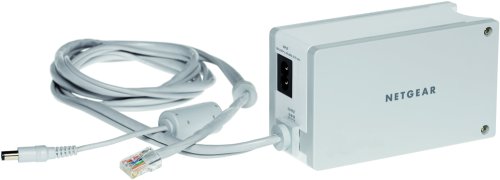
The NETGEAR XEPS103 Powerline Network Extender is designed to extend secure network connections to any electrical outlet within your home. This device utilizes your existing electrical wiring to transmit network data, offering a convenient way to expand your network coverage without running new Ethernet cables.
The XEPS103 supports data transfer rates of up to 85 Mbps and is compatible with HomePlug 1.0 Powerline devices. Its space-saving 2-in-1 design allows it to function as both a network extender and a power supply for many NETGEAR routers, reducing clutter and optimizing power outlet usage. Installation is straightforward, requiring a simple plug-and-play process.
2. Package Contents
Please verify that your package contains the following items:
- One (1) NETGEAR XEPS103 Powerline Network Extender
- One (1) Ethernet Cable
- This User Manual
3. Setup and Installation
The NETGEAR XEPS103 is designed for true plug-and-play simplicity. Follow these steps to set up your Powerline Network Extender:
- Connect to your Router: Take the provided Ethernet cable and connect one end to an available Ethernet port on your existing router.
- Connect to the Extender: Connect the other end of the Ethernet cable to the Ethernet port on the NETGEAR XEPS103 Powerline Network Extender.
- Plug into Power Outlet: Plug the NETGEAR XEPS103 directly into a wall electrical outlet. Avoid using power strips or surge protectors, as these can interfere with Powerline communication.
- Power On: Ensure the electrical outlet has power. The extender should power on automatically.
- Verify Connection: Once powered on, the extender will establish a connection over your home's electrical wiring. The status indicator lights on the device will confirm a successful connection. Refer to the device's LED indicators for specific status information (e.g., Power, Powerline, Ethernet activity).
The XEPS103's 2-in-1 design allows it to also power many NETGEAR routers directly when plugged into the wall, further simplifying your setup and reducing cable clutter.
4. Operating Instructions
Once the NETGEAR XEPS103 Powerline Network Extender is successfully set up and connected to your router, it will begin extending your network through your home's electrical system.
- Connect Devices: To connect a device (e.g., computer, gaming console, smart TV) to the extended network, simply plug an Ethernet cable from your device into the Ethernet port on the XEPS103 extender.
- Network Access: Your connected device should automatically obtain an IP address and gain access to the network and internet, provided your router is functioning correctly.
- Performance: The XEPS103 delivers wired speeds of up to 85 Mbps. Actual performance may vary depending on the quality of your electrical wiring, distance, and electrical interference.
5. Maintenance
To ensure optimal performance and longevity of your NETGEAR XEPS103 Powerline Network Extender, consider the following maintenance guidelines:
- Cleaning: Keep the device clean and free from dust. Use a soft, dry cloth for cleaning. Do not use liquid or aerosol cleaners.
- Ventilation: Ensure the device has adequate ventilation. Do not block the ventilation openings.
- Environment: Operate the device within its specified temperature and humidity ranges. Avoid exposing it to extreme heat, cold, or moisture.
- Power Outlets: Periodically check the electrical outlets for secure connections.
6. Troubleshooting
If you encounter issues with your NETGEAR XEPS103 Powerline Network Extender, try the following troubleshooting steps:
- No Power: Ensure the extender is securely plugged into a working electrical outlet. Check if the power outlet itself is functional by plugging in another device.
- No Network Connection:
- Verify that the Ethernet cable is securely connected between the extender and your router, and between the extender and your end device.
- Ensure your router is powered on and providing internet access.
- Check the Powerline LED on the extender. If it is off or blinking unusually, there might be an issue with the Powerline connection. Try plugging the extender into a different wall outlet.
- Avoid plugging the extender into power strips, surge protectors, or extension cords, as these can degrade Powerline performance or prevent connection.
- Slow Speed:
- Powerline performance can be affected by electrical interference from other appliances. Try plugging the extender into a different wall outlet, ideally on the same electrical circuit as the other Powerline device.
- Ensure there are no high-power consuming devices (e.g., washing machines, refrigerators) on the same circuit that might cause interference.
- Compatibility: The XEPS103 is compatible with HomePlug 1.0 Powerline devices. Ensure any other Powerline adapters you are using are also HomePlug 1.0 compatible.
7. Specifications
| Feature | Specification |
|---|---|
| Model Number | XEPS103 |
| Product Dimensions (WxHxD) | 2.76 x 1.81 x 4.92 inches |
| Item Weight | 1 pound |
| Hardware Interface | Ethernet |
| Compatible Devices | Desktop, Laptop, Smart TV, Smartphone, Tablet |
| Data Link Protocol | Ethernet, Fast Ethernet, HomePlug 1.0 |
| Data Transfer Rate | 85 Megabits Per Second |
| Manufacturer | Netgear |
| Date First Available | July 7, 2004 |
8. Warranty and Support
NETGEAR products are backed by a manufacturer's warranty. For specific warranty terms and conditions applicable to your XEPS103 Powerline Network Extender, please refer to the warranty information provided with your product packaging or visit the official NETGEAR website.
For technical support, product registration, and additional resources, please visit the official NETGEAR support website. You can find FAQs, troubleshooting guides, and contact information for customer service there.
Online Support: www.netgear.com/support


