
Xbox 718122515486
Xbox 360 Elite 120GB Console Bundle User Manual
Model: 718122515486
Introduction
This manual provides essential information for setting up, operating, and maintaining your Xbox 360 Elite 120GB Console Bundle. The Xbox 360 Elite console features a premium black finish, an HDMI port, three powerful core processors, 16:9 cinematic aspect ratio, anti-aliasing for smooth textures, full surround sound, and DVD playback with upscaling capabilities. The included 120GB detachable hard drive offers ample storage for games, television shows, movies, music, pictures, and other content from Xbox LIVE Marketplace.
The bundle also includes a black wireless controller, a black headset, an HDMI cable, an Xbox LIVE Silver Membership, and a one-month Xbox LIVE Gold subscription, providing a comprehensive gaming and entertainment experience.
Package Contents
Please verify that all items listed below are included in your package:
- Xbox 360 Elite Console (Black)
- Xbox 360 120GB Detachable Hard Drive
- Xbox 360 Wireless Controller (Black)
- Xbox 360 Headset (Black)
- Xbox 360 HDMI Cable
- Power Supply Unit and Power Cable
- Xbox LIVE Silver Membership (Pre-installed)
- One-month Xbox LIVE Gold Subscription (Voucher may be included)
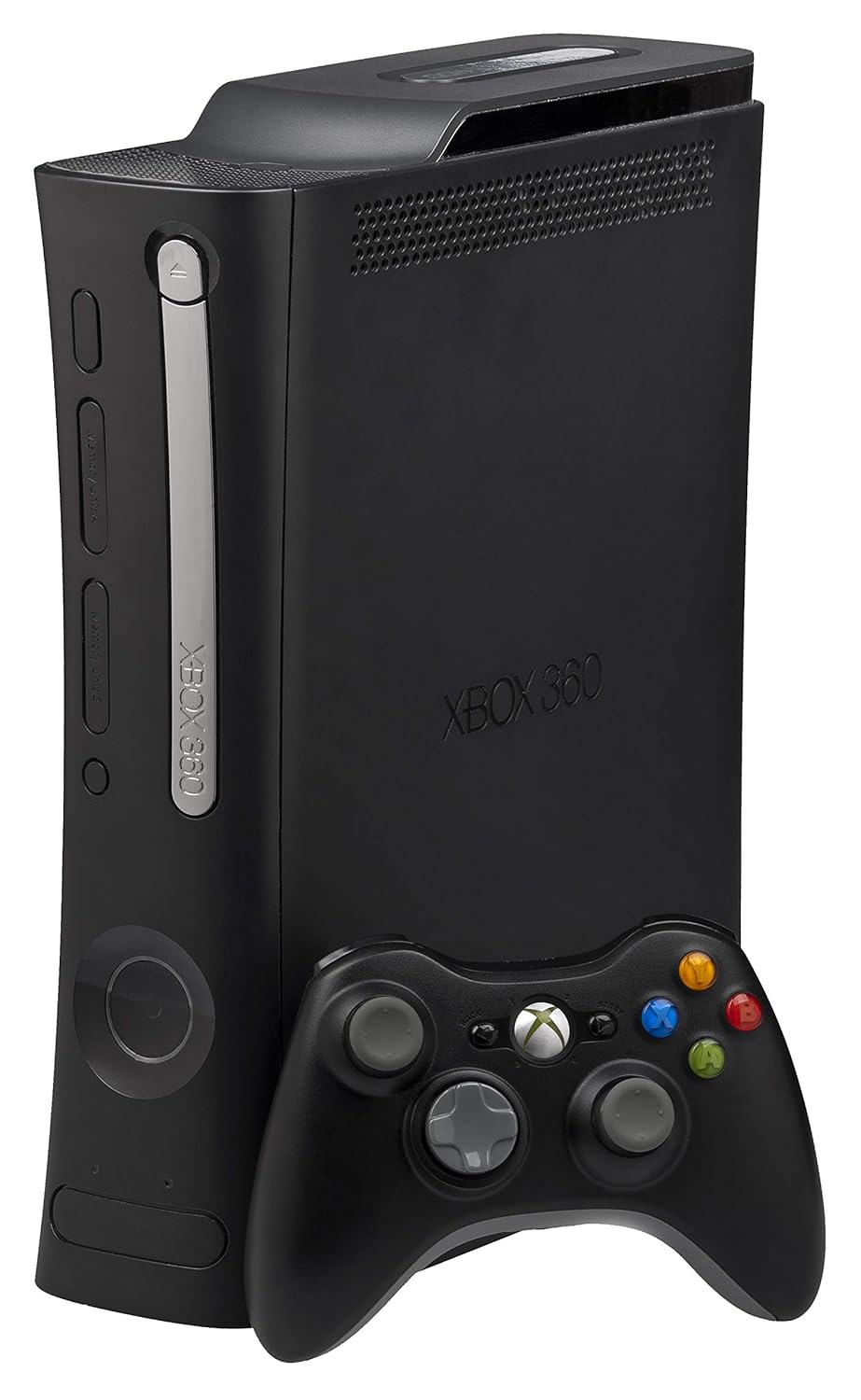
An image showing the black Xbox 360 Elite console standing vertically, with a black wireless controller placed in front of it. The console features a sleek black finish, with the Xbox 360 logo visible on the front.
Setup
1. Connecting the Console
- Place the Xbox 360 Elite console in a well-ventilated area, either horizontally or vertically. Ensure adequate space around the console for airflow.
- Connect the HDMI cable from the console's HDMI port to an available HDMI input on your television or display.
- Connect the power supply unit to the console's power input. Plug the power cable into the power supply unit, then into a wall outlet.
2. Attaching the Hard Drive
- Locate the hard drive bay on the top of the console (if standing vertically) or the side (if horizontal).
- Align the 120GB hard drive with the bay and gently push it until it clicks into place. Ensure it is securely seated.
3. Connecting the Wireless Controller
- Insert two AA batteries into the wireless controller.
- Press and hold the Xbox Guide button (center button with Xbox logo) on the controller until it turns on.
- Press the connect button on the console (small circular button near the memory unit slots).
- Within 20 seconds, press the connect button on the controller (small circular button on the top edge, near the battery compartment). The lights around the console's power button and on the controller will flash and then become solid when connected.
4. Initial Power On and System Setup
- Press the power button on the console or the Xbox Guide button on the controller to turn on the system.
- Follow the on-screen prompts to complete the initial setup, including language selection, display settings, and network configuration.
Operating the Console
Power On/Off
- To turn on: Press the power button on the console or the Xbox Guide button on the controller.
- To turn off: Press and hold the Xbox Guide button on the controller and select "Turn Off Console" from the menu, or press the power button on the console.
Using the Disc Tray
- To open: Press the eject button located on the front of the console, next to the disc tray.
- Insert a game disc or DVD with the label side facing up.
- To close: Press the eject button again or gently push the tray until it closes.
Navigating the Dashboard
Use the D-pad or left analog stick on your controller to navigate through the Xbox 360 Dashboard. The Dashboard provides access to your games, media, Xbox LIVE Marketplace, and system settings.
Maintenance
Cleaning the Console
- Regularly wipe the exterior of the console with a soft, dry cloth to remove dust.
- Ensure ventilation openings are clear of obstructions and dust buildup. Use compressed air to gently clear dust from vents if necessary, holding the can upright to prevent propellant discharge.
- Do not use liquid cleaners or abrasive materials on the console.
Hard Drive Care
- Handle the detachable hard drive with care. Avoid dropping it or exposing it to excessive force.
- Ensure the hard drive is securely attached to the console to prevent accidental disconnection during operation.
Troubleshooting
| Problem | Possible Cause | Solution |
|---|---|---|
| Console does not power on. | Power cable not securely connected; power supply issue. | Ensure all power connections are firm. Check if the power supply unit light is green. Try a different power outlet. |
| Disc tray does not open or close. | Mechanical obstruction; internal mechanism issue. | Ensure no foreign objects are blocking the tray. Gently try to assist the tray. If the issue persists, service may be required. |
| Controller does not connect. | Batteries low/dead; not synced; interference. | Replace batteries. Re-sync the controller by pressing the connect buttons on both the console and controller. Move closer to the console. |
| No video or audio output. | HDMI cable loose or faulty; incorrect TV input. | Check HDMI cable connections at both the console and TV. Ensure your TV is set to the correct HDMI input. Try a different HDMI cable or port. |
| Hard drive not recognized or loose. | Hard drive not properly seated. | Gently remove and re-insert the hard drive, ensuring it clicks firmly into place. |
Specifications
- Model Number: 718122515486
- ASIN: B000PD0HQE
- Release Date: September 17, 2008
- Dimensions (Console): 3.15 x 12.2 x 10.24 inches
- Weight (Console): Approximately 11 Pounds (10.98 pounds specified)
- Hard Drive: 120GB Detachable
- Video Output: HDMI (up to 1080p), Component, Composite
- Audio Output: Multichannel Surround Sound
- Wireless Controller Range: Up to 30 feet
- Wireless Controller Battery Life: Approximately 30 hours (with AA batteries)
- Manufacturer: Microsoft
Warranty and Support
For information regarding product warranty, technical support, or service, please refer to the official documentation included with your purchase or visit the official Xbox support website. Specific warranty terms and support options may vary by region and purchase date.
For additional resources and community support, you may visit the Xbox Store on Amazon.
Ask a question about this manual
Ask about setup, troubleshooting, compatibility, parts, safety, or missing instructions. Manuals+ will review the question and use this page’s manual context to help answer it.