Introduction
Thank you for purchasing the Genius MaxFire Blaze2 Vibration Gamepad. This manual provides detailed instructions for setting up, operating, and maintaining your gamepad to ensure optimal performance and longevity. The MaxFire Blaze2 is designed to provide superior control and an immersive gaming experience on both PlayStation 2 consoles and compatible Windows PC systems.
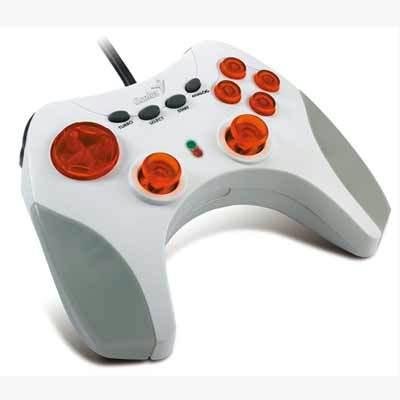
Image: The Genius MaxFire Blaze2 Gamepad, featuring a white and grey body with prominent orange translucent buttons and black control buttons. A black cable extends from the top.
Setup
Follow these steps to connect your Genius MaxFire Blaze2 Gamepad to your gaming system.
Connecting to PlayStation 2:
- Ensure your PlayStation 2 console is powered off.
- Locate an available controller port on the front of your PlayStation 2 console.
- Insert the gamepad's connector plug firmly into the controller port.
- Power on your PlayStation 2 console. The gamepad should be automatically recognized.
Connecting to PC (Windows XP/2000/ME/98SE):
- Ensure your PC is powered on.
- Locate an available USB port on your PC.
- Insert the gamepad's USB connector plug firmly into the USB port.
- Your operating system (Windows XP/2000/ME/98SE) should detect the new hardware and attempt to install the necessary drivers automatically.
- If prompted, follow the on-screen instructions to complete driver installation. In most cases, standard HID (Human Interface Device) drivers will be used.
- After installation, you can verify the gamepad's functionality through your operating system's Game Controllers settings (e.g., in Windows, go to Control Panel > Game Controllers or Devices and Printers).
Operating Instructions
The Genius MaxFire Blaze2 Gamepad features a standard layout for intuitive control.
Basic Controls:
- Directional Pad (D-Pad): Located on the left, used for precise directional movement.
- Analog Sticks: Two analog sticks provide 360-degree movement for finer control in games.
- Action Buttons: Typically located on the right (e.g., Triangle, Circle, Cross, Square for PlayStation; A, B, X, Y for PC games).
- Shoulder Buttons (L1, L2, R1, R2): Located on the top edge of the gamepad, used for various in-game actions like aiming, firing, or switching items.
- START Button: Used to pause games or access in-game menus.
- SELECT Button: Often used for map access, inventory, or other secondary functions.
- ANALOG Button: Toggles the analog stick mode on/off. An indicator light may illuminate when analog mode is active.
Turbo Function:
The Turbo function allows a button to be pressed repeatedly with a single hold, which is particularly useful in action or shooting games for rapid firing.
- To activate Turbo for a specific button: Press and hold the TURBO button, then press the desired action button (e.g., Fire button). The Turbo function is now assigned to that button.
- To deactivate Turbo for a specific button: Press and hold the TURBO button again, then press the same action button. The Turbo function will be removed from that button.
Vibration Feedback:
The MaxFire Blaze2 features vibration feedback, which enhances immersion by providing tactile sensations during gameplay (e.g., explosions, impacts). This feature is automatically enabled when supported by the game and system.
Maintenance
Proper care will extend the life of your gamepad.
- Cleaning: Use a soft, dry cloth to wipe the surface of the gamepad. For stubborn dirt, slightly dampen the cloth with water. Do not use harsh chemicals or abrasive cleaners.
- Storage: Store the gamepad in a cool, dry place away from direct sunlight and extreme temperatures. Avoid tangling the cable.
- Handling: Do not drop the gamepad or subject it to strong impacts. Avoid pulling the cable forcefully when disconnecting.
Troubleshooting
If you encounter issues with your Genius MaxFire Blaze2 Gamepad, try the following solutions:
- Gamepad not recognized:
- Ensure the cable is securely plugged into the console or PC's port.
- Try a different controller port or USB port.
- Restart your console or PC.
- For PC, check Device Manager to see if the device is listed and if there are any driver issues. Reinstall drivers if necessary.
- Buttons or Analog Sticks unresponsive:
- Ensure the gamepad is properly connected.
- Test the gamepad in a different game or application to rule out game-specific issues.
- For PC, calibrate the gamepad through the Game Controllers settings in your operating system.
- Vibration not working:
- Verify that the game you are playing supports vibration feedback.
- Check in-game settings to ensure vibration is enabled.
- For PC, ensure the vibration feature is enabled in the gamepad's driver settings (if applicable).
Specifications
| Brand | Genius |
| Model Number | Blaze2 |
| Platform Compatibility | PlayStation 2, PC (Windows XP/2000/ME/98SE) |
| Number of Buttons | 14 |
| Features | Vibration Feedback, Turbo Function, Analog Sticks |
| Dimensions (L x W x H) | 73.66 x 45.72 x 60.96 cm (29 x 18 x 24 inches) |
| Weight | 19.5 kg (43 lbs) |
Note: Dimensions and weight may refer to packaging or shipping weight. Product weight is typically much lower.
Warranty and Support
For warranty information or technical support, please refer to the documentation included with your purchase or visit the official Genius website.
Manufacturer: Genius


