
1. Introduction
Thank you for choosing the Casio PQ-31-1EF Digital Wake Up Timer. This manual provides detailed instructions for the proper setup, operation, and maintenance of your new digital alarm clock. Please read this manual thoroughly before using the product to ensure correct usage and to prevent damage.
2. Safety Precautions
- Do not expose the unit to extreme temperatures, direct sunlight, or high humidity.
- Avoid dropping the unit or subjecting it to strong impacts.
- Do not attempt to disassemble or modify the unit. This will void the warranty.
- Keep batteries out of reach of children. If swallowed, seek medical attention immediately.
- Dispose of used batteries according to local regulations.
3. Package Contents
Please check to ensure all items are present in your package:
- 1 x Casio PQ-31-1EF Digital Wake Up Timer
- 2 x Lithium Metal batteries (pre-installed or included separately)
- 1 x User Manual (this document)
4. Product Overview
The Casio PQ-31-1EF is a compact digital alarm clock designed for reliability and ease of use. It features a clear digital display, an integrated alarm function, and a light for visibility in low-light conditions. The sturdy case provides impact resistance for daily use.
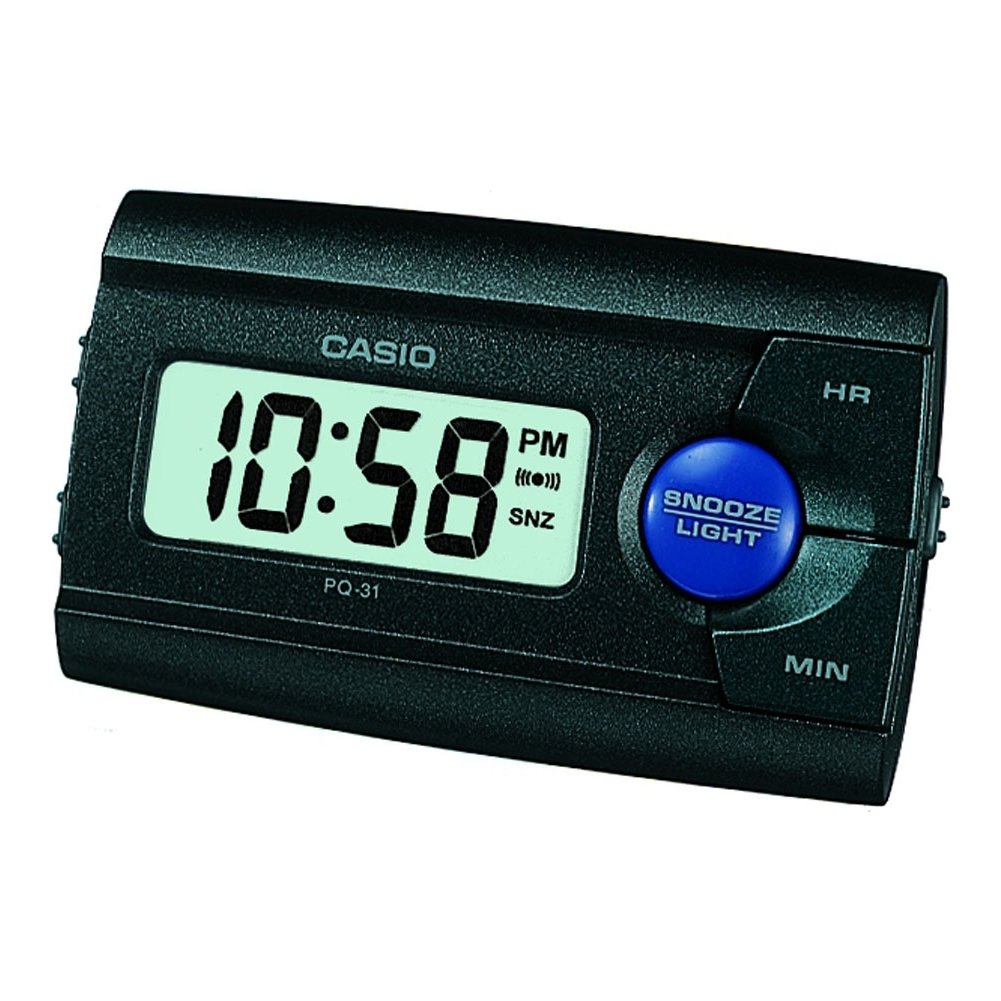
Figure 1: Front view of the Casio PQ-31-1EF Digital Wake Up Timer. Shows the digital display and general shape of the device.
Button Functions (Typical Layout - Refer to actual device for exact labels):
- MODE/SET Button: Used to switch between time, alarm, and timer modes, and to confirm settings.
- ADJUST/+/H Button: Used to increase values (hours) or move forward in settings.
- ADJUST/-/M Button: Used to decrease values (minutes) or move backward in settings.
- LIGHT Button: Activates the backlight for a few seconds.
- ALARM ON/OFF Switch: Toggles the alarm function.
- SNOOZE Button: Temporarily silences the alarm and activates snooze function.
5. Setup
5.1 Battery Installation
Your Casio PQ-31-1EF requires 2 Lithium Metal batteries. These are typically included with the product.
- Locate the battery compartment cover on the back or bottom of the unit.
- Open the cover by sliding it or unscrewing it (if applicable).
- Insert the 2 Lithium Metal batteries, ensuring the positive (+) and negative (-) terminals are aligned correctly according to the diagram inside the compartment.
- Replace the battery compartment cover securely.
The clock display should now activate. If not, check battery orientation or replace with fresh batteries.
5.2 Initial Time Setting
- In normal time display mode, press and hold the MODE/SET button for a few seconds until the hour digits begin to flash.
- Use the ADJUST/+ or ADJUST/- buttons to set the correct hour. Pay attention to AM/PM indicators if your clock uses a 12-hour format.
- Press the MODE/SET button again to move to the minute setting. The minute digits will flash.
- Use the ADJUST/+ or ADJUST/- buttons to set the correct minutes.
- Press the MODE/SET button one more time to exit the time setting mode. The time will now be set.
6. Operating Instructions
6.1 Setting the Alarm
The daily alarm reminds you of events that recur every day.
- From the normal time display, press the MODE/SET button once to enter alarm setting mode. The alarm time will be displayed, and the hour digits may flash.
- Use the ADJUST/+ or ADJUST/- buttons to set the desired alarm hour.
- Press the MODE/SET button again to move to the minute setting.
- Use the ADJUST/+ or ADJUST/- buttons to set the desired alarm minutes.
- Press the MODE/SET button one more time to confirm the alarm setting and return to normal time display.
6.2 Activating/Deactivating the Alarm
To turn the alarm ON or OFF, locate the ALARM ON/OFF switch (usually on the side or back of the unit) and slide it to the desired position. An alarm icon will typically appear on the display when the alarm is active.
6.3 Using the Snooze Function
When the alarm sounds, press the SNOOZE button (often a large button on top of the unit). The alarm will temporarily stop and sound again after a few minutes (typically 5-10 minutes, depending on the model).
6.4 Using the Backlight
To illuminate the clock face in dark environments, press the LIGHT button. The light-emitting diode (LED) will illuminate the display for a short period, then automatically turn off.
7. Maintenance
7.1 Cleaning the Unit
To clean the Casio PQ-31-1EF, wipe it gently with a soft, dry cloth. Do not use abrasive cleaners, solvents, or chemical sprays, as these can damage the casing and display.
7.2 Battery Replacement
When the display becomes dim or the clock functions erratically, it is time to replace the batteries. Follow the steps in Section 5.1 Battery Installation to replace the 2 Lithium Metal batteries. Ensure proper disposal of old batteries.
8. Troubleshooting
| Problem | Possible Cause | Solution |
|---|---|---|
| Display is blank or dim. | Batteries are dead or incorrectly installed. | Replace batteries with new ones, ensuring correct polarity. |
| Alarm does not sound. | Alarm is not activated or volume is too low (if adjustable). | Ensure the ALARM ON/OFF switch is in the ON position. Check alarm settings. |
| Time is incorrect. | Time was not set correctly or batteries were removed. | Reset the time following instructions in Section 5.2. |
| Buttons are unresponsive. | Temporary software glitch or low battery. | Remove and reinsert batteries to reset the unit. Replace batteries if necessary. |
9. Specifications
| Feature | Detail |
|---|---|
| Model Number | PQ-31-1EF |
| Brand | Casio |
| Display Type | Digital |
| Colour | Black (Unit color, display is typically grey/LCD) |
| Power Source | Battery Powered |
| Battery Type | 2 x Lithium Metal batteries |
| Product Dimensions (W x H) | 8.6W x 5H centimetres |
| Item Weight | 45.4 Grams |
| Special Features | Alarm, Backlight (LED), Impact Resistance |
| Mounting Type | Tabletop mount |
| Indoor/Outdoor Use | Indoor |
10. Warranty and Support
Casio products are manufactured to high-quality standards and are backed by a manufacturer's warranty. For specific warranty terms and conditions, please refer to the warranty card included with your purchase or visit the official Casio website for your region.
If you encounter any issues or require technical assistance, please contact Casio customer support through their official website or the contact information provided in your product packaging. Please have your model number (PQ-31-1EF) and proof of purchase ready when contacting support.
Note: Warranty terms may vary by region.