
1. Introduction
The ZYXEL G-4100 v2 is an advanced all-in-one hotspot gateway designed to provide secure and managed Internet access. This device integrates authentication and accounting functions for both wireless and wired clients, supporting up to 100 concurrent users. It is ideal for various environments such as coffee shops, bookstores, hotels, and resorts looking to offer reliable Internet services.
Key features include an easy-configuration authentication server, support for RADIUS servers for large-scale deployments, and rich networking functions such as IP PnP, DHCP server, NAT, MAC address, and IP address filtering. The G-4100 v2 ensures user privacy and provides a seamless 'zero configuration' user experience.
2. Package Contents
Please verify that your package contains the following items:
- ZYXEL G-4100 v2 Hotspot Gateway Unit
- Power Adapter
- Ethernet Cable
- Quick Start Guide (if applicable)
- Warranty Card (if applicable)
If any items are missing or damaged, please contact your vendor or ZYXEL support immediately.
3. Setup
3.1. Physical Installation
- Positioning: Place the G-4100 v2 in a central location to maximize wireless coverage. Avoid placing it near large metal objects, concrete walls, or sources of interference such as microwave ovens or cordless phones.
- Connect Power: Connect the provided power adapter to the DC-in port on the back of the G-4100 v2 and then plug it into a standard electrical outlet. The power LED indicator should illuminate.
- Connect to Internet Source: Connect an Ethernet cable from your broadband modem or router's LAN port to the WAN port on the G-4100 v2.
- Connect to Local Network (Optional): If you have wired devices or a local network switch, connect an Ethernet cable from one of the LAN ports on the G-4100 v2 to your device or switch.
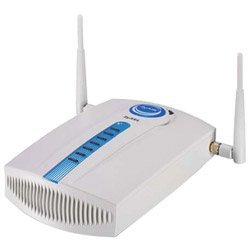
Figure 3.1: Rear view of the ZYXEL G-4100 v2 showing power, WAN, and LAN ports. Ensure all cables are securely connected as illustrated.
3.2. Initial Configuration
- Connect a Computer: Connect a computer directly to one of the G-4100 v2's LAN ports using an Ethernet cable, or connect wirelessly to the default Wi-Fi network (SSID and password usually found on a label on the device).
- Access Web Interface: Open a web browser and enter the default IP address of the G-4100 v2 (commonly
192.168.1.1or192.168.0.1). Refer to the Quick Start Guide or device label for the exact IP address. - Login: Enter the default username and password (e.g.,
admin/1234oradmin/password). It is highly recommended to change these default credentials immediately after the first login for security purposes. - Run Setup Wizard: Follow the on-screen setup wizard to configure basic Internet settings, Wi-Fi network name (SSID), and security settings.
4. Operating Instructions
4.1. Basic Operation and Status Indicators
Once configured, the G-4100 v2 operates automatically. Monitor the LED indicators on the front panel to understand the device's status:
- Power LED: Solid green indicates the device is powered on.
- WAN LED: Solid green indicates a successful connection to the Internet. Blinking indicates data activity.
- WLAN LED: Solid green indicates the wireless network is active. Blinking indicates wireless data activity.
- LAN LEDs: Solid green indicates a wired device is connected to that port. Blinking indicates data activity.
4.2. Configuring Hotspot Services
The G-4100 v2's primary function is to provide managed hotspot services. Access the web interface to configure these settings:
- Authentication Methods: Choose between free access, ticket-based access, or external RADIUS server authentication.
- User Policies: Set bandwidth limits, session durations, and access schedules for different user groups.
- Login Page Customization: Customize the captive portal login page with your branding, messages, or redirect users to advertisement links.
- Ticket Generation: If using ticket-based access, the G-4100 v2 can work with a ZYXEL SP-200E statement printer to generate and print tickets with account details and pre-configured access times.
4.3. User Management
The web interface provides tools to monitor and manage connected users:
- View active sessions and their usage.
- Disconnect specific users.
- Generate new user accounts or tickets.
- Review access logs for auditing purposes.
5. Maintenance
5.1. Firmware Updates
Regularly updating the device firmware ensures optimal performance, security, and access to new features.
- Visit the official ZYXEL support website (www.zyxel.com/us/en/support) to download the latest firmware for the G-4100 v2.
- Access the G-4100 v2 web interface.
- Navigate to the 'Maintenance' or 'System' section and locate the 'Firmware Upgrade' option.
- Upload the downloaded firmware file and follow the on-screen instructions. Do not power off the device during the upgrade process.
5.2. Resetting to Factory Defaults
If you encounter persistent issues or forget your login credentials, you may need to reset the device to its factory default settings. This will erase all custom configurations.
- With the device powered on, locate the 'Reset' button (often a small pinhole button) on the back or bottom of the unit.
- Use a paperclip or a similar pointed object to press and hold the 'Reset' button for approximately 10-15 seconds until the LEDs flash.
- Release the button. The device will restart with factory default settings.
5.3. Cleaning
To maintain optimal performance and longevity, keep the device clean.
- Ensure the device is powered off and unplugged before cleaning.
- Use a soft, dry cloth to wipe the exterior surfaces.
- Do not use liquid cleaners, aerosols, or solvents.
- Keep ventilation openings clear of dust and debris.
6. Troubleshooting
6.1. Common Issues and Solutions
- No Power:
- Ensure the power adapter is securely connected to both the device and a working electrical outlet.
- Check if the power outlet is functional by plugging in another device.
- No Internet Access:
- Verify that the WAN cable is securely connected to your modem/router and the G-4100 v2's WAN port.
- Check the WAN LED on the G-4100 v2. If it's off, there might be an issue with the upstream connection.
- Ensure your modem/router is working correctly and has an active Internet connection.
- Restart both your modem/router and the G-4100 v2.
- Check the Internet settings in the G-4100 v2's web interface (e.g., DHCP, Static IP, PPPoE).
- Cannot Connect to Wi-Fi:
- Ensure the WLAN LED on the G-4100 v2 is solid green.
- Verify that you are selecting the correct Wi-Fi network (SSID) and entering the correct password.
- Move closer to the G-4100 v2 to rule out range issues.
- Try restarting the G-4100 v2.
- Slow Internet Speed:
- Check for excessive concurrent users or high bandwidth usage.
- Review bandwidth management settings in the G-4100 v2's web interface.
- Ensure the G-4100 v2 is placed optimally to avoid interference.
- Test your Internet speed directly from your modem/router to rule out issues with the G-4100 v2.
7. Specifications
| Feature | Description |
|---|---|
| Brand | ZYXEL |
| Model Number | G-4100 v2 (G4100V2WOPRINTER) |
| Wireless Communication Standard | 802.11g |
| Connectivity Technology | Wireless, Ethernet |
| Item Weight | 0.01 Ounces |
| UPC | 760559114244 |
| ASIN | B000N5UXZO |
| Manufacturer | ZYXEL |
8. Warranty and Support
ZYXEL products are designed for reliability and performance. This device comes with a standard manufacturer's warranty. Please refer to the warranty card included in your package or visit the official ZYXEL website for detailed warranty terms and conditions.
For technical assistance, troubleshooting, or further inquiries, please contact ZYXEL Customer Support:
- Website: www.zyxel.com/us/en/support
- Phone: Refer to the ZYXEL website for regional support contact numbers.
When contacting support, please have your product model (G-4100 v2) and serial number ready.


