
1. Introduction
The Genius G-Pen 560 is a USB graphics tablet designed for digital art, design, and general computer interaction. It features a 4.5 x 6-inch working area and comes with a cordless pen, offering 1024 levels of pressure sensitivity for precise control. This manual provides essential information for setting up, operating, and maintaining your G-Pen 560 tablet.
2. Package Contents
Please check the package contents to ensure all items are present:
- Genius G-Pen 560 Graphics Tablet
- Cordless Pen
- Pen Holder
- USB Cable
- Installation CD (Drivers and Software)
- Quick Start Guide / User Manual
3. Product Features
The G-Pen 560 offers a range of features to enhance your digital creative experience:
- Working Area: 4.5 x 6 inches for comfortable drawing and handwriting.
- Cordless Pen: Features two programmable buttons and 1024 levels of pressure sensitivity for precise control over line thickness and opacity.
- Programmable Hot-Keys: 12 customizable hot-key areas on the tablet for quick access to office and internet functions.
- High Resolution: 2000 LPI (Lines Per Inch) for detailed input.
- Fast Report Rate: 125 points/second maximum report rate for smooth tracking.
- Tilt Range: 60° tilt range with ± 0.42 mm accuracy.
- Built-in Pen Holder: Convenient storage for the cordless pen.
- Connectivity: Standard USB interface for easy connection to your computer.
- Operating System Compatibility: Supports Windows and macOS (driver availability may vary for newer OS versions).
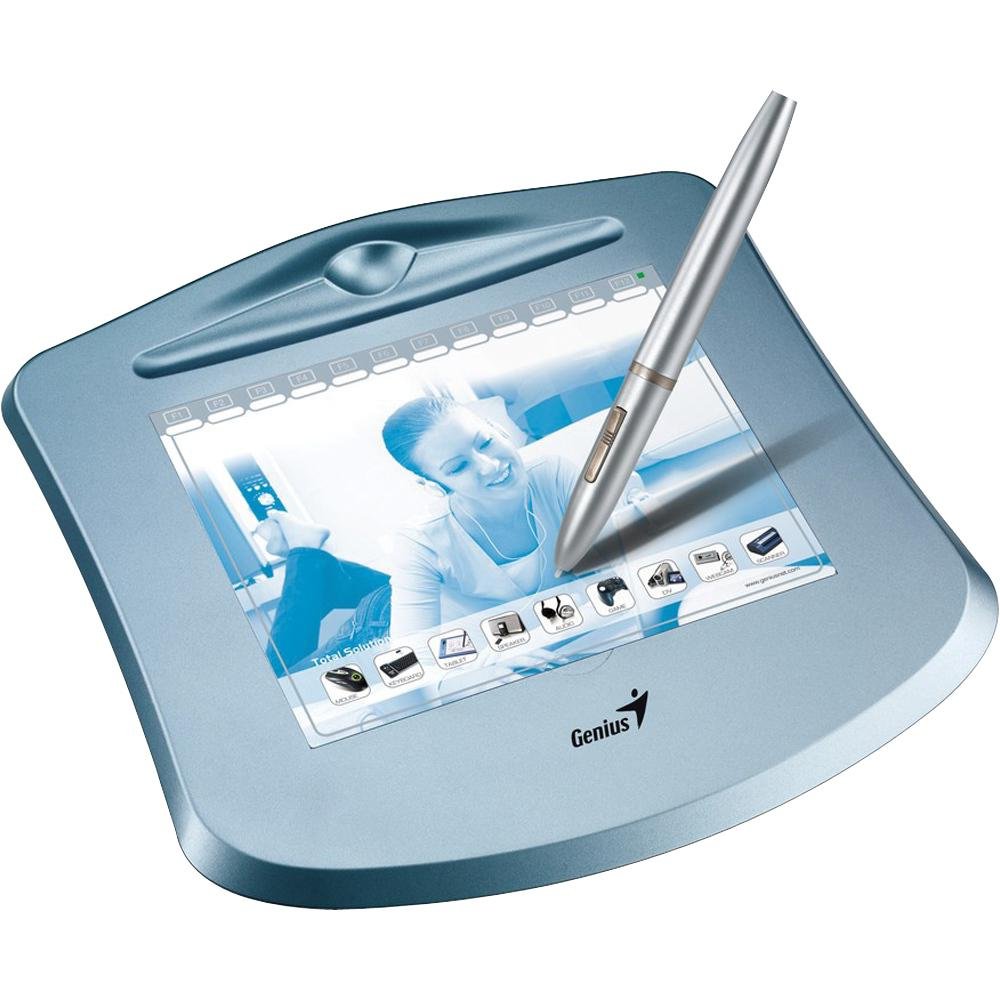
An image showing the Genius G-Pen 560 graphics tablet, featuring its working surface, the cordless pen, and the hot-key area.
4. Setup Guide
4.1 Driver Installation
- Do not connect the tablet to your computer yet.
- Insert the provided Installation CD into your computer's CD/DVD drive.
- Follow the on-screen instructions to install the tablet drivers and utility software. If the installer does not launch automatically, browse the CD and run the 'Setup.exe' file.
- Alternatively, visit the official Genius website and download the latest drivers for your operating system (Windows or macOS) and G-Pen 560 model. Install these drivers.
- Restart your computer after the installation is complete, if prompted.
4.2 Connecting the Tablet
- Once the drivers are installed and your computer has restarted, connect the small end of the USB cable to the G-Pen 560 tablet.
- Connect the larger end of the USB cable to an available USB port on your computer.
- Your computer should detect the tablet automatically.
4.3 Pen Battery Installation
The cordless pen requires a battery to operate.
- Unscrew the pen barrel to open the battery compartment.
- Insert the required battery (e.g., AAA battery, refer to pen markings for exact type) with the correct polarity.
- Screw the pen barrel back on securely.
5. Operating Instructions
5.1 Basic Pen Usage
- Hover: Move the pen tip close to the tablet surface (within a few millimeters) to move the cursor on the screen without making contact.
- Click: Tap the pen tip once on the tablet surface to perform a left-click.
- Double-Click: Tap the pen tip twice quickly on the tablet surface.
- Drag: Press the pen tip onto the tablet surface and slide it across to drag items.
5.2 Using Pen Buttons
The cordless pen features two buttons. By default, these buttons may function as right-click and middle-click, or they can be customized using the tablet's driver software.
- Open the tablet's control panel (usually found in your system tray or control panel/system preferences).
- Navigate to the 'Pen' or 'Button Settings' tab.
- Assign desired functions (e.g., right-click, scroll, undo) to each pen button.
5.3 Utilizing Hot-Keys
The G-Pen 560 includes 12 programmable hot-key areas. These can be customized for quick access to frequently used functions.
- Open the tablet's control panel.
- Locate the 'Hot-Key' or 'Express Key' settings.
- Assign specific commands, application shortcuts, or keyboard combinations to each hot-key area.
- You can write the assigned functions on the blank squares on the tablet cover for easy reference.
6. Maintenance
6.1 Cleaning the Tablet
- Always disconnect the tablet from your computer before cleaning.
- Use a soft, damp, lint-free cloth to gently wipe the tablet surface.
- Do not use harsh chemicals, abrasive cleaners, or excessive moisture, as this can damage the surface.
6.2 Pen Nib Replacement
Over time, the pen nib may wear down. If replacement nibs were included, follow these steps:
- Gently pull the old nib straight out of the pen using a nib remover tool or tweezers.
- Insert a new nib firmly into the pen until it clicks into place.
6.3 Pen Battery Replacement
If the pen becomes unresponsive or erratic, the battery may need replacement. Refer to section 4.3 for instructions on installing a new battery.
6.4 Storage
When not in use, store the tablet and pen in a clean, dry place away from direct sunlight and extreme temperatures.
7. Troubleshooting
If you encounter issues with your G-Pen 560, try the following troubleshooting steps:
- Tablet Not Responding:
- Ensure the USB cable is securely connected to both the tablet and the computer.
- Try connecting the tablet to a different USB port.
- Verify that the pen battery is correctly installed and has sufficient charge.
- Check if the tablet drivers are properly installed and up-to-date. Reinstall if necessary.
- Restart your computer.
- Pen Not Drawing or Erratic Behavior:
- Ensure the pen nib is not worn down and is properly seated. Replace if needed.
- Check the pen battery.
- Verify that the tablet's working area is clean and free of obstructions.
- Test the tablet in a different application to rule out software-specific issues.
- Adjust pressure sensitivity settings in the tablet's control panel.
- Hot-Keys Not Working:
- Ensure the tablet drivers are installed and running.
- Check the hot-key assignments in the tablet's control panel to ensure they are correctly configured.
- Make sure no other software is conflicting with the hot-key functions.
8. Specifications
| Model Name | G-Pen 560 |
| Product Dimensions | 10.5 x 9.79 x 2 inches |
| Item Weight | 1.5 pounds |
| Connectivity Technology | USB |
| Pressure Sensitivity | 1024 Levels |
| Operating System | Windows, macOS |
| Manufacturer | KYE International Corporation - GENIUS |
9. Warranty and Support
For warranty information and technical support, please refer to the warranty card included with your product or visit the official Genius website. You can typically find drivers, FAQs, and contact information for customer service there.
Please retain your proof of purchase for warranty claims.