
Introduction
This manual provides detailed instructions for the setup, operation, and maintenance of your Altec Lansing M604 Powered Audio System. Designed to enhance your Zune audio experience, this system delivers clear, high-definition sound in various home environments.
The M604 features a built-in docking station for Zune players, allowing for audio playback, charging, and data transfer. It also includes an auxiliary input for compatibility with other audio devices and a composite video output for Zune video playback on a television.
What's in the Box
Carefully unpack all components and ensure the following items are present:
- M604 Speaker System
- Wireless Remote Control
- Universal MP3 Cradle
- 3.5 mm Stereo Cable
- Power Supply
- Quick Connect Instructions
- User's Manual (this document)
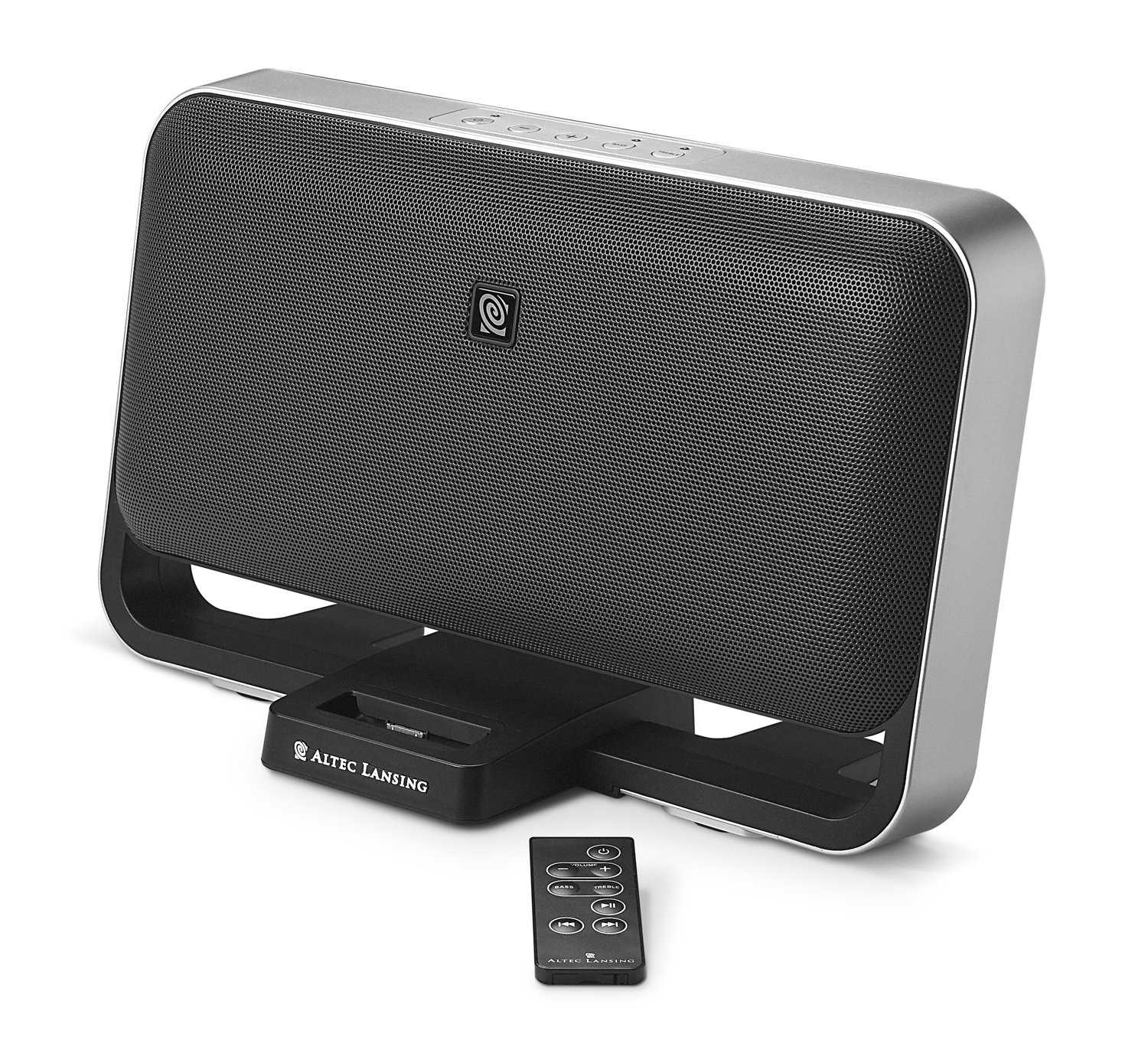
Image: The Altec Lansing M604 speaker system, featuring a Zune player docked in the center and the wireless remote control placed in front. This image illustrates the main components of the system.
Setup
- Placement: Position the M604 speaker system on a stable, flat surface. The system is designed for tabletop use and can also be wall-mounted (mounting hardware not included). Ensure adequate ventilation around the unit.
- Connect Power: Connect the power supply to the DC input port on the back of the M604 system, then plug the power supply into a standard electrical outlet.
- Docking Your Zune:
- Gently place your Zune player into the built-in docking cradle located at the front of the M604. Ensure it is seated firmly. The Zune will begin charging automatically.
- Note: Some Zune models, such as the Zune 80GB, may not fit the dock connector directly. In such cases, use the auxiliary input for audio playback.
- Connecting Other Audio Devices (Auxiliary Input):
- For MP3 players, iPods (non-Zune), or other audio sources, use the provided 3.5 mm stereo cable.
- Connect one end of the 3.5 mm stereo cable to the headphone jack or line-out port of your external audio device.
- Connect the other end of the cable to the AUX IN port on the M604 system.
- If using a non-Zune device, you may use the universal MP3 cradle to support it, though it will not charge the device.
- Connecting to a Television (Composite Video Output):
- If your Zune supports video output, you can connect the M604 to a television to view videos.
- Connect a composite video cable (not included) from the VIDEO OUT port on the M604 to the video input port on your television.
- Select the appropriate video input channel on your television.
Operating Instructions
Power On/Off
- Press the Power button on the M604 unit or the wireless remote control to turn the system on or off.
Zune Playback
- Once your Zune is docked, it will automatically switch audio output to the M604 system.
- Use the controls on your Zune or the wireless remote control to manage playback:
- Play/Pause: Press the Play/Pause button.
- Skip Tracks: Use the Forward/Back buttons to navigate between songs.
- Volume: Adjust the volume using the Volume Up/Down buttons.
- Bass/Treble: The remote control allows for fine-tuning of bass and treble levels.
- Note: The remote control is designed for basic playback functions and volume/tone adjustments. Navigating Zune menus must be done directly on the Zune device.
Auxiliary Input Playback
- Ensure your external audio device is connected to the AUX IN port.
- Select the auxiliary input source on the M604 (refer to the unit's controls if available, or it may auto-detect).
- Control playback (play, pause, skip) directly from your external audio device. Volume can be adjusted on both the external device and the M604.
Headphone Jack
- For private listening, plug standard headphones into the headphone jack on the M604. This will mute the main speakers.
Maintenance
- Cleaning: Disconnect the power before cleaning. Use a soft, dry cloth to wipe the exterior surfaces of the M604. Do not use liquid cleaners or abrasive materials, as they may damage the finish.
- Storage: If storing the unit for an extended period, disconnect it from power and store it in a cool, dry place away from direct sunlight and extreme temperatures.
Troubleshooting
| Problem | Possible Cause | Solution |
|---|---|---|
| No power | Power supply not connected or outlet not active. | Ensure the power supply is securely connected to both the M604 and a working electrical outlet. |
| No sound from Zune | Zune not properly docked; Zune volume too low; M604 volume too low; Zune model incompatibility. |
|
| No sound from auxiliary device | Auxiliary cable not connected; device volume too low; incorrect input selected. |
|
| Remote control not working | Batteries depleted; obstruction between remote and unit; remote too far away. |
|
Specifications
| Model Name | M604 |
| Brand | Altec Lansing |
| Speaker Type | Powered Audio System (with 2x 3-inch full-range neodymium drivers and 2x 1-inch silk-dome tweeters) |
| Connectivity Technology | Docking Station, Remote Control, 3.5mm Auxiliary Input |
| Speaker Maximum Output Power | 60 Watts |
| Audio Output Mode | Stereo |
| Signal-to-Noise Ratio | 70 dB |
| Power Source | Corded Electric |
| Control Method | Remote |
| Product Dimensions (W x H x D) | 13.94 x 8.19 x 5.39 inches (approximately) |
| Item Weight | 1 pound (approximately) |
| UPC | 021986953845 |
Warranty and Support
The Altec Lansing M604 Powered Audio System is backed by a limited warranty. Please refer to the warranty card included with your product for specific terms and conditions.
For technical support, troubleshooting assistance, or warranty claims, please contact Altec Lansing customer service. Contact information can typically be found on the manufacturer's official website or on the product packaging.


