
1. Product Overview
The Nintendo Official LAN Adapter provides a stable and fast wired internet connection for your Nintendo Switch, Wii U, and Wii consoles. This adapter is designed to enhance your online gaming experience by minimizing latency and ensuring a reliable network connection.
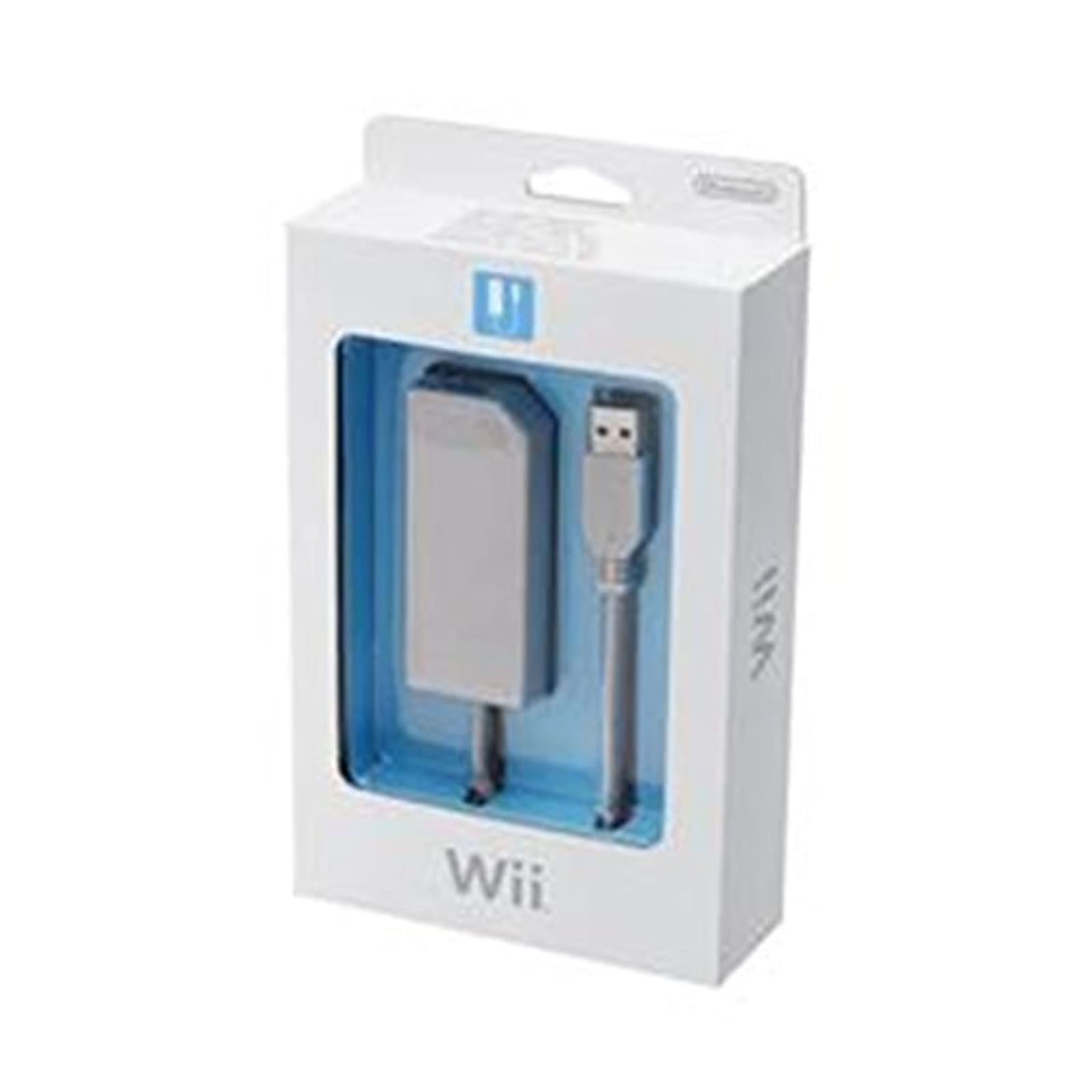
Image: The Nintendo Official LAN Adapter, a compact device with a USB connector on one end and an Ethernet port on the other, designed for wired internet connectivity.
Key Features:
- Provides a wired internet connection for Nintendo Switch, Wii U, and Wii.
- Ensures a fast and stable network connection.
- Ideal for online multiplayer gaming.
- Officially manufactured by Nintendo.
2. Setup Instructions
Follow these steps to connect your Nintendo Official LAN Adapter to your console.
For Nintendo Switch:
- Ensure your Nintendo Switch console is docked in the Nintendo Switch Dock.
- Connect the USB end of the LAN Adapter to an available USB port on the Nintendo Switch Dock.
- Connect an Ethernet cable (not included) from your router or modem to the Ethernet port on the LAN Adapter.
- The Nintendo Switch should automatically detect the wired connection. You can verify this in the System Settings under 'Internet'.
For Wii U:
- Connect the USB end of the LAN Adapter to an available USB port on the back of the Wii U console.
- Connect an Ethernet cable (not included) from your router or modem to the Ethernet port on the LAN Adapter.
- From the Wii U Menu, select 'System Settings'.
- Tap 'Internet' and then 'Connect to the Internet'.
- Select 'Wired Connection' and follow the on-screen prompts to complete the setup.
For Wii:
- Connect the USB end of the LAN Adapter to an available USB port on the back of the Wii console.
- Connect an Ethernet cable (not included) from your router or modem to the Ethernet port on the LAN Adapter.
- From the Wii Menu, select the 'Wii Options' button (bottom-left corner).
- Select 'Wii Settings' and then navigate to 'Internet'.
- Choose 'Connection Settings' and then select an empty connection slot.
- Select 'Wired Connection' and follow the on-screen prompts to complete the setup.
3. Operation
Once the LAN Adapter is correctly set up and connected, your console will automatically use the wired internet connection. This provides a more stable and often faster connection compared to Wi-Fi, which is beneficial for online gaming, streaming, and downloading content.
No additional software or drivers are typically required for the Nintendo Official LAN Adapter, as it is designed for plug-and-play compatibility with supported Nintendo consoles.
4. Care and Maintenance
- Keep the adapter clean and free from dust. Use a soft, dry cloth for cleaning.
- Avoid exposing the adapter to extreme temperatures, humidity, or direct sunlight.
- Do not attempt to disassemble or modify the adapter, as this may void any potential warranty and could cause damage.
- Ensure cables are connected securely but without excessive force to prevent damage to ports.
5. Troubleshooting
No Internet Connection:
- Check all cable connections: Ensure the LAN Adapter is firmly connected to the console's USB port and the Ethernet cable is securely connected to both the adapter and your router/modem.
- Verify router/modem status: Confirm that your internet router or modem is powered on and functioning correctly. Try restarting your router/modem.
- Test Ethernet cable: If possible, test the Ethernet cable with another device to ensure it is not faulty.
- Console network settings: Double-check your console's internet settings to ensure 'Wired Connection' is selected and configured correctly.
Slow or Unstable Connection:
- Check network traffic: High network usage from other devices on your home network can affect performance.
- Router performance: Ensure your router is not overloaded or experiencing issues.
- Cable quality: A damaged or low-quality Ethernet cable can impact connection speed. Consider trying a different cable.
6. Technical Specifications
| Brand | Nintendo |
| Model Number | 2110566 |
| UPC / GTIN | 045496890094 |
| Item Dimensions (L x W x H) | 0.39 x 0.39 x 0.39 inches |
| Item Weight | 55 g |
| Number of Ports | 2 (1x USB, 1x Ethernet) |
| Color | White |
| Finish Type | Matte |
7. Warranty and Support
Specific warranty information for this product is not provided within this manual. For details regarding warranty coverage, technical support, or service, please refer to the official Nintendo website or contact Nintendo customer support directly.
Official Nintendo Support Website: www.nintendo.com/support/


