
1. Introduction
The Nintendo DS Lite is a portable dual-screen handheld game system designed for interactive gaming experiences. It features two bright LCD screens, with the lower screen incorporating touch-screen technology. The system supports wireless connectivity for multiplayer gaming and online features. This manual provides essential information for the proper use and care of your Nintendo DS Lite.
2. Safety Information
Please read the following safety guidelines carefully before using your Nintendo DS Lite to ensure safe operation and prevent damage to the device or injury to yourself.
- Battery Safety: Do not attempt to replace the battery yourself. Use only the specified charger. Do not expose the battery to extreme temperatures or dispose of it in fire.
- Screen Care: Avoid applying excessive pressure to the screens. Use only the official stylus or a soft, non-abrasive cloth for cleaning the touch screen.
- Volume Control: To prevent hearing damage, avoid using headphones at high volume for extended periods.
- Repetitive Strain: Take regular breaks during gameplay to prevent eye strain and repetitive motion injuries.
- Water Exposure: Keep the device away from water and moisture.
3. Product Overview
The Nintendo DS Lite features a compact, folding design with two LCD screens. The top screen displays game visuals, while the bottom screen is a touch-sensitive display used for input and additional game information.
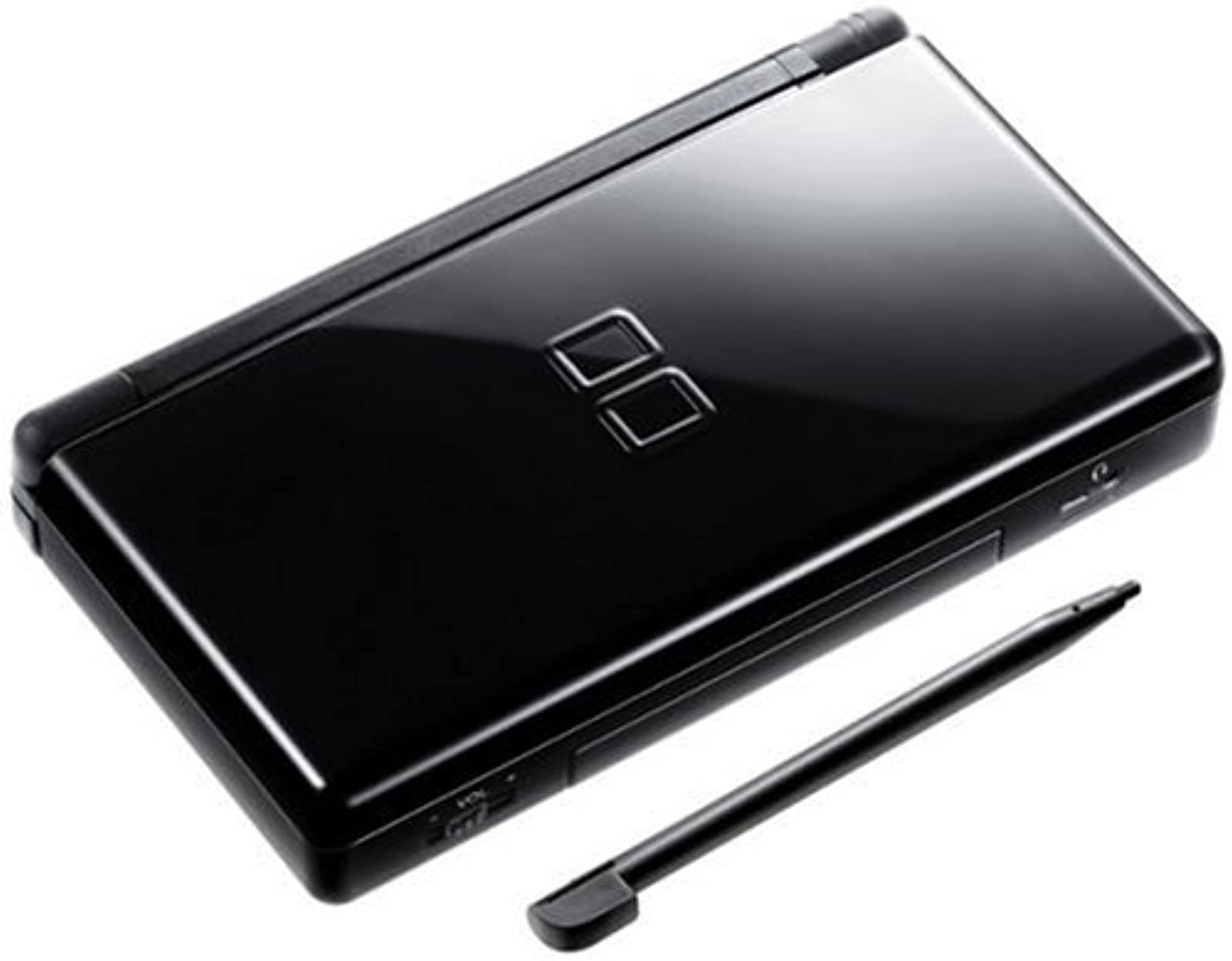
Figure 3.1: Front view of the Nintendo DS Lite (Onyx Black) with both screens open.
Key components include:
- Dual Screens: Two bright LCD screens for enhanced gameplay.
- Touch Screen: The lower screen is touch-sensitive, allowing for stylus or finger input.
- D-Pad and Buttons: Directional pad and action buttons (A, B, X, Y) for game control.
- Shoulder Buttons: L and R buttons located on the top edge of the device.
- Stylus Slot: Integrated slot for storing the included stylus.
- Game Card Slot: For Nintendo DS game cartridges.
- Game Boy Advance Slot: For Game Boy Advance game paks.
- Power Button: To turn the system on or off.
- Volume Slider: To adjust audio output.
- Headphone Jack: For connecting headphones.
- Charging Port: For connecting the AC adapter.
Figure 3.2: Side view of the Nintendo DS Lite, highlighting the various ports and controls.
4. Setup
4.1 Charging the Battery
- Insert the AC adapter plug into the charging port on the Nintendo DS Lite.
- Plug the AC adapter into a standard wall outlet.
- The orange charge indicator light will illuminate. The light will turn off when charging is complete.
- A full charge typically takes approximately 3 hours and provides up to 19 hours of continuous gameplay.
4.2 Inserting a Game Card
- Open the Nintendo DS Lite.
- Locate the Nintendo DS Game Card slot on the back of the device.
- Insert a Nintendo DS Game Card firmly until it clicks into place.
- To remove, press the game card until it ejects slightly, then pull it out.
4.3 Inserting a Game Boy Advance Game Pak
- Locate the Game Boy Advance Game Pak slot on the front edge of the device.
- Insert a Game Boy Advance Game Pak firmly into the slot.
- Note: Game Boy Advance games can only be played in single-player mode on the DS Lite.
5. Operating Instructions
5.1 Powering On/Off
- To turn on: Slide the POWER switch located on the right side of the device upwards.
- To turn off: Slide the POWER switch upwards and hold it until the screens turn off.
5.2 Adjusting Screen Brightness
The Nintendo DS Lite features four brightness settings. To adjust, open the DS Lite and press the brightness button located on the hinge while the system is powered on.
5.3 Using the Touch Screen
The lower screen is a touch screen. Use the included stylus for precise input. Avoid using sharp objects or excessive force, as this can damage the screen.
5.4 Nintendo Wi-Fi Connection
The Nintendo DS Lite is Wi-Fi compatible, allowing for online multiplayer gaming and communication. To connect:
- Ensure you have a Wi-Fi-ready game and a wireless broadband connection.
- Access the Wi-Fi settings within your game or the DS system menu.
- Follow the on-screen instructions to connect to an available wireless network.
Video 5.1: An official Nintendo video showcasing the features and gameplay of the Nintendo DS Lite, including its dual screens and portability.
6. Maintenance
6.1 Cleaning
- Use a soft, dry cloth to clean the exterior of the system.
- For screens, use a soft, lint-free cloth. If necessary, slightly dampen the cloth with water, but avoid spraying liquids directly onto the screens.
- Do not use harsh chemicals or abrasive cleaners.
6.2 Storage
When not in use, store the Nintendo DS Lite in a cool, dry place, away from direct sunlight and extreme temperatures. Close the system to protect the screens.
7. Troubleshooting
| Problem | Possible Cause | Solution |
|---|---|---|
| System does not power on. | Battery is depleted. | Charge the battery using the AC adapter. |
| Game card not recognized. | Game card not inserted correctly or dirty contacts. | Remove and reinsert the game card firmly. Clean game card contacts with a soft, dry cloth if necessary. |
| Touch screen unresponsive. | Screen calibration issue or debris on screen. | Clean the touch screen. If the issue persists, try recalibrating the touch screen via system settings. |
| No sound. | Volume too low or headphones connected. | Adjust the volume slider. Disconnect headphones if sound is desired from speakers. |
8. Specifications
- Model Number: USGSKB
- Platform: Nintendo DS
- Color: Onyx Black
- Screens: Dual LCD, lower screen with touch functionality
- Resolution: 256 x 192 pixels
- Connectivity: Wi-Fi (IEEE 802.11)
- Battery Life: Up to 19 hours (depending on brightness and usage)
- Weight: Approximately 16 ounces (454 grams)
- Input Devices: D-Pad, A/B/X/Y buttons, L/R shoulder buttons, START/SELECT buttons, POWER switch, Volume slider, Touch screen, Microphone
- Memory Storage Capacity: 256 MB
9. Warranty and Support
For warranty information and customer support, please refer to the documentation included with your purchase or visit the official Nintendo support website. Keep your proof of purchase for warranty claims.
Online Support: www.nintendo.com


