
1. Introduction
This manual provides essential instructions for the installation, operation, maintenance, and troubleshooting of your HGST HTS541010G9AT00 Hard Disk Drive. This 2.5-inch internal hard drive offers 100 GB of storage capacity with an ATA100 interface and a rotational speed of 5400 RPM. Please read this manual thoroughly before using the product to ensure proper functionality and data integrity.
2. Safety Information
Observe the following safety precautions to prevent damage to the drive and loss of data:
- Electrostatic Discharge (ESD): Always handle the hard drive by its edges. Wear an anti-static wrist strap or frequently touch a grounded metal object before handling to discharge static electricity.
- Physical Handling: Avoid dropping or subjecting the drive to sudden impacts. Hard drives are delicate precision instruments.
- Power Supply: Ensure the power supply to your computer is disconnected before installing or removing the drive.
- Ventilation: Ensure adequate airflow around the drive to prevent overheating, which can lead to performance degradation or failure.
- Data Backup: Regularly back up important data. No storage device is immune to failure.
3. Package Contents
Verify that your package contains the following item:
- HGST HTS541010G9AT00 Hard Disk Drive (1 unit)
Note: Mounting screws, data cables, and power cables are typically not included and must be purchased separately or sourced from your computer system.
4. Setup and Installation
Follow these steps for proper installation of the hard disk drive:
- Preparation: Power off your computer and disconnect all power cables. Open the computer case according to its manufacturer's instructions.
- Locate Drive Bay: Identify an available 2.5-inch drive bay. If installing in a 3.5-inch bay, an adapter bracket (not included) may be required.
- Mount the Drive: Carefully slide the HGST HTS541010G9AT00 into the drive bay. Secure it with appropriate screws to prevent vibration.
- Connect Cables:
- Connect the ATA100 data cable to the drive and to an available ATA100 port on your motherboard or expansion card. Ensure the cable's pin 1 aligns correctly with the drive and motherboard connectors.
- Connect a 4-pin Molex power connector from your power supply to the drive.
- Close Case and Power On: Close your computer case, reconnect power, and power on the system.
- BIOS/UEFI Configuration: Enter your system's BIOS/UEFI setup (usually by pressing DEL, F2, or F10 during boot). Verify that the new hard drive is detected. Save changes and exit.
- Operating System Setup:
- For a new operating system installation, follow the OS installer's prompts to partition and format the drive.
- For adding storage to an existing OS, open Disk Management (Windows) or Disk Utility (macOS/Linux) to initialize, partition, and format the drive.
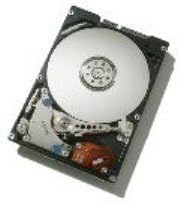
Image 1: HGST HTS541010G9AT00 Hard Disk Drive. This image displays the internal components of the hard drive, including the metallic platter, read/write head assembly, and control board, illustrating its physical form factor.
5. Operating the Hard Drive
Once installed and formatted, the HGST HTS541010G9AT00 operates like any other internal storage device. You can use it to store operating systems, applications, and user data. Data transfer speeds will be consistent with the ATA100 interface specification and the drive's 5400 RPM rotational speed.
- Data Transfer: Drag and drop files, or use copy/paste functions within your operating system.
- Application Storage: Install software directly onto the drive.
- System Drive: The drive can be configured as the primary boot drive for your operating system.
6. Maintenance
Proper maintenance can extend the lifespan of your hard drive and help prevent data loss:
- Regular Backups: Implement a routine for backing up critical data to an external drive or cloud storage.
- Defragmentation: For Windows operating systems, periodically run the Disk Defragmenter tool to optimize file access times. (Note: This is less critical for modern operating systems and SSDs, but can still be beneficial for HDDs.)
- Disk Error Checking: Use your operating system's built-in tools (e.g., CHKDSK on Windows) to check for and repair file system errors.
- Temperature Monitoring: Ensure your computer's cooling system is functioning correctly to keep the drive within optimal operating temperatures.
- Safe Removal (External Enclosures): If using the drive in an external enclosure, always use the "Safely Remove Hardware" option before disconnecting.
7. Troubleshooting
Refer to the table below for common issues and their potential solutions:
| Problem | Possible Cause | Solution |
|---|---|---|
| Drive not detected in BIOS/OS | Incorrect cable connection, faulty cable, incorrect BIOS settings, faulty drive. | Check ATA100 data and power cable connections. Try different cables or ports. Verify BIOS/UEFI settings. Test drive in another system if possible. |
| Slow performance | Fragmented files, drive nearly full, background processes, failing drive. | Run disk defragmenter. Free up disk space. Check for malware. Monitor drive health using S.M.A.R.T. tools. |
| Clicking or grinding noises | Mechanical failure, head crash. | Immediately back up any accessible data. This indicates a critical hardware failure. Replace the drive. |
| Data corruption or errors | File system errors, bad sectors, sudden power loss. | Run disk error checking utility (e.g., CHKDSK). Ensure stable power supply. Back up data and consider replacing the drive if errors persist. |
8. Specifications
| Feature | Detail |
|---|---|
| Model Number | HTS541010G9AT00 |
| Brand | HGST |
| Storage Capacity | 100 GB |
| Interface | ATA100 (PATA) |
| Rotational Speed | 5400 RPM |
| Cache Size | 8 MB |
| Form Factor | 2.5 Inches |
| Item Weight | 1.32 pounds (approx. 0.6 kg) |
| Package Dimensions | 0.04 x 0.04 x 0.04 inches (approx. 1 x 1 x 1 mm - Note: This dimension appears to be a placeholder or error in source data, actual drive dimensions are typically 100mm x 70mm x 9.5mm for 2.5" drives.) |
| Compatible Devices | Desktop (Note: While listed as 'Desktop', 2.5-inch drives are commonly used in laptops and small form factor PCs.) |
| Date First Available | September 11, 2014 |
9. Warranty and Support
For warranty information and technical support, please refer to the official HGST website or contact your point of purchase. Keep your proof of purchase for warranty claims. HGST provides resources and drivers on their support pages.
For further assistance, you may visit the HGST Support Website (Note: This link is a placeholder as the actual HGST website might have changed or been absorbed by Western Digital. Please verify the current support URL.)