
1. Introduction
The SABRENT SBT-TVFM is a versatile PCI card designed to transform your desktop PC into a multimedia entertainment and recording station. This card enables you to watch and record NTSC analog TV, listen to and record FM radio, and capture video and audio signals from external sources such as VCRs, DVD players, game consoles, and camcorders. It features S-Video and composite inputs for broad compatibility and includes a remote control for convenient operation.
2. Safety Information
Please read and follow these safety guidelines carefully before installing or operating the device:
- Always disconnect your computer from the power outlet before opening the case or installing any internal components.
- Wear an anti-static wrist strap to prevent electrostatic discharge (ESD) damage to your computer components.
- Handle the PCI card by its edges to avoid touching sensitive components.
- Ensure proper ventilation for your computer to prevent overheating.
- Do not expose the device to moisture or extreme temperatures.
- Keep the device away from children.
3. Package Contents
Verify that all items are present in your package:
- SABRENT SBT-TVFM TV Tuner/Video Capture/FM Radio PCI Card
- Remote Control
- Remote I/R Receiving Cable
- Audio Cable
- FM Antenna
- User's Manual (this document)
- Software CD

Image: Contents of the SABRENT SBT-TVFM package, including the PCI card, remote control, cables, FM antenna, and software CD.
4. Product Overview
The SBT-TVFM PCI card integrates multiple functions into a single expansion card for your computer. Below are key components and their descriptions.

Image: Top view of the SABRENT SBT-TVFM PCI card, showing the main chipset and tuner module.
4.1. PCI Cardbus Connector
This connector interfaces with your computer's PCI slot, providing power and data transfer for the card's operations.

Image: Close-up of the SABRENT SBT-TVFM PCI card, highlighting the PCI Cardbus Connector at the bottom edge.
4.2. Input/Output Ports
The rear bracket of the card features various ports for connecting external devices:
- Antenna Connectors: For connecting TV and FM antennas.
- Composite Video Jack: For connecting composite video sources (yellow RCA).
- Line-In Jack: For audio input from external devices.
- S-Video Connector: For connecting S-Video sources.
- Remote Jack: For connecting the IR receiver cable for the remote control.
- Line-Out Jack: For audio output to external speakers or your sound card.
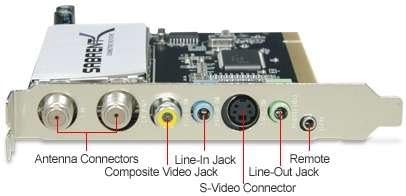
Image: Detailed view of the SABRENT SBT-TVFM PCI card's rear bracket, clearly labeling the Antenna Connectors, Composite Video Jack, Line-In Jack, S-Video Connector, Remote Jack, and Line-Out Jack.
5. Setup
5.1. System Requirements
Before installation, ensure your computer meets the following minimum requirements:
- Operating System: Windows 98SE, Windows ME, Windows 2000, Windows XP, Windows Vista, or Windows 7 (32-bit recommended for older drivers).
- CPU: 366 MHz or higher
- RAM: 32 MB or more
- Graphics Card: VGA card with 8 MB memory
- Expansion Slot: Available PCI slot
- Signal Source: Analog TV signal source (NTSC) and/or FM radio antenna.
5.2. Hardware Installation
- Power Off: Shut down your computer completely and disconnect the power cable from the wall outlet.
- Open Case: Remove the side panel of your computer case to access the motherboard.
- Locate PCI Slot: Identify an available PCI expansion slot on your motherboard.
- Remove Slot Cover: Carefully remove the metal slot cover corresponding to the chosen PCI slot from the back of your computer case.
- Insert Card: Align the SBT-TVFM PCI card with the PCI slot and press down firmly and evenly until it is securely seated.
- Secure Card: Fasten the card's metal bracket to the computer case with a screw.
- Close Case: Replace the computer case side panel and reconnect the power cable.
5.3. Software Installation
- Power On: Start your computer. Windows may detect new hardware and prompt for drivers.
- Insert CD: Insert the included Software CD into your computer's optical drive.
- Run Installer: Follow the on-screen instructions to install the drivers and the TV/FM application software. If the installer does not launch automatically, navigate to the CD drive in 'My Computer' and run 'Setup.exe' or a similar installer file.
- Restart: Restart your computer after the installation is complete, if prompted.
- Driver Verification: After restarting, verify that the drivers are correctly installed by checking Device Manager (Right-click 'My Computer' or 'This PC' > 'Manage' > 'Device Manager'). Look for the SBT-TVFM device under 'Sound, video and game controllers' or similar categories.
5.4. Connecting External Devices
Connect your signal sources and audio output to the appropriate ports on the card's rear bracket:
- TV Antenna/Cable: Connect your analog TV antenna or cable TV coaxial cable to the designated TV antenna connector.
- FM Antenna: Connect the included FM antenna to the FM antenna connector.
- Remote Control IR Receiver: Plug the remote I/R receiving cable into the 'Remote' jack. Position the IR receiver in a location where it has a clear line of sight to your remote control.
- Audio Output: Connect the included audio cable from the card's 'Line-Out' jack to your computer's sound card 'Line-In' jack or directly to external speakers.
- Video Input (Optional): For video capture, connect your external video source (VCR, DVD player, camcorder) using either an S-Video cable to the 'S-Video Connector' or an RCA composite video cable (yellow) to the 'Composite Video Jack'.
- Audio Input (Optional): For video capture, connect the audio output from your external video source to the card's 'Line-In' jack using an audio cable.
6. Operating Instructions
After successful installation, launch the TV/FM application software installed from the CD.
6.1. Watching TV
- Launch Software: Open the TV application software.
- Channel Scan: Access the settings or options menu within the software and initiate an 'Auto Scan' for TV channels. This will detect available analog NTSC channels.
- Select Channel: Once the scan is complete, you can select channels using the software interface or the remote control.
- Adjust Volume: Use the software controls or remote to adjust the volume.
6.2. Listening to FM Radio
- Switch Mode: Within the application software, switch to FM Radio mode.
- Station Scan: Perform an 'Auto Scan' for FM radio stations.
- Select Station: Choose your desired FM station from the list.
6.3. Video Capture
- Connect Source: Ensure your external video source (VCR, DVD player, camcorder) is connected to the card's video and audio input ports.
- Select Input: In the software, select the appropriate video input source (S-Video or Composite).
- Preview: You should see the video feed from your external source in the software's preview window.
- Record: Use the software's recording function to capture the video. You can typically specify the save location and file format (e.g., AVI).
6.4. Using the Remote Control
The included remote control allows for convenient operation from a distance. Ensure the IR receiver cable is properly connected and positioned. Functions typically include:
- Power On/Off
- Channel Up/Down
- Volume Up/Down
- Mute
- Input Source Selection
- Record/Stop
- Playback Controls
6.5. Recording Programs
The software allows you to record TV programs or FM radio broadcasts. Consult the software's help documentation for detailed instructions on scheduling recordings, setting recording quality, and managing recorded files.
7. Maintenance
The SBT-TVFM PCI card requires minimal maintenance. Keep your computer's interior clean and dust-free to ensure optimal performance and longevity of all components, including the TV tuner card. Periodically check for updated drivers on the SABRENT website.
8. Troubleshooting
If you encounter issues, refer to the following common problems and solutions:
- No Picture/Signal:
- Ensure the TV antenna or cable is securely connected to the card.
- Verify that the correct input source is selected in the software.
- Perform an auto-scan for channels within the software.
- Check if your TV signal source is analog NTSC. Digital ATSC signals are not supported by this model.
- No Sound:
- Confirm the audio cable is correctly connected from the card's 'Line-Out' to your sound card's 'Line-In' or external speakers.
- Check the volume levels in the software, your computer's operating system, and any external speakers.
- Ensure the correct audio input is selected in your computer's sound settings if routing through the sound card.
- Remote Control Not Working:
- Check that the remote I/R receiving cable is firmly plugged into the 'Remote' jack on the card.
- Ensure the IR receiver has a clear line of sight to the remote control.
- Replace the batteries in the remote control.
- Verify that the remote control drivers are correctly installed and configured with the application software.
- Software/Driver Issues:
- Reinstall the drivers and software from the provided CD.
- For Windows Vista/7, older drivers might cause compatibility issues. Try installing only the drivers from the CD first, then the application software.
- Check the SABRENT support website for updated drivers or compatibility information for newer operating systems.
- Poor Video Quality:
- Ensure all cables are securely connected and not damaged.
- Adjust video settings (brightness, contrast, saturation) within the application software.
- Verify the quality of your analog TV signal source.
9. Specifications
| Brand | SABRENT |
| Model Number | SBT-TVFM |
| Hardware Interface | PCI |
| Tuner Type | NTSC, FM |
| Video Capture Resolution | 480p |
| AV Output | AVI |
| Operating System Compatibility | Windows 98SE, ME, 2000, XP, Vista, 7 |
| Compatible Devices | Personal Computer, Television |
| Item Dimensions | 8.1 x 6.3 x 1.8 inches |
| Item Weight | 13.6 ounces |
| Built-In Media | Remote Control |
| UPC | 188218000729 |
10. Warranty Information
The SABRENT SBT-TVFM PCI Card comes with a limited warranty covering parts and labor for 12 months from the date of purchase. Please retain your proof of purchase for warranty claims. For detailed warranty terms and conditions, refer to the information provided with your product or visit the official SABRENT website.
11. Support
For technical support, driver updates, or further assistance, please visit the official SABRENT website or contact their customer service department. You can often find FAQs and troubleshooting guides online.
SABRENT Official Website: www.sabrent.com