
1. Product Overview
The D-Link DGS-105 is a 5-port Gigabit Ethernet unmanaged switch designed to provide high-speed wired network connectivity. Its compact metal housing ensures durability and quiet operation, making it suitable for various environments including homes, small offices, and creative workspaces. This switch offers plug-and-play functionality, requiring no complex configuration for immediate use.
Key features include:
- 5 Auto-Negotiating Gigabit Ports: Supports full/half duplex operation with up to 2Gbps per port, connecting PCs, consoles, NAS, printers, and other network devices.
- Plug & Play Expansion: Automatic MDI/MDIX eliminates the need for crossover cables, supporting Cat5e, Cat6, and Cat6A UTP cables up to 100m.
- Silent Fanless Metal Housing: The all-steel chassis naturally dissipates heat, ensuring quiet operation.
- Desktop or Wall Mount Flexibility: Includes rubber feet and keyhole slots for versatile placement.
- Smart QoS Prioritization: 802.1p traffic classes ensure smooth delivery of voice, video, and gaming data.
- IGMP Snooping: Efficiently streams 4K/8K video and multicast traffic without network flooding.
- Energy Efficient Ethernet (IEEE 802.3az): Reduces power consumption by up to 80% by managing idle ports and cable length.
- Built-in Surge & ESD Protection: Provides ±4 kV safeguards against power spikes.
- Jumbo Frame Support (9KB): Enhances throughput for large data transfers.

Front view of the D-Link DGS-105 5-Port Gigabit Unmanaged Switch, showing the five RJ45 Ethernet ports and individual Link/Act LEDs.
2. Package Contents
Verify that your package contains the following items:
- D-Link DGS-105 5-Port Gigabit Unmanaged Metal Desktop Switch
- AC/DC Power Adapter
- Mounting kit (2 anchors, 2 screws, 4 rubber feet)
- Quick Installation Guide (QIG)
If any items are missing or damaged, please contact your local D-Link reseller.
3. Physical Description
The DGS-105 switch features a compact metal chassis with five Gigabit Ethernet ports on the front panel. Each port has an associated LED indicator for link status and activity. The rear panel includes the power input and a security slot.

Angled view of the D-Link DGS-105 switch, highlighting its compact metal design.

Close-up of the rear panel, showing the power input (5V=1A) and the Kensington lock slot for security.
4. Setup
4.1. Placement
The DGS-105 switch can be placed on a desktop or mounted on a wall. Ensure the location allows for proper ventilation and easy access to ports and the power outlet. Use the included rubber feet for desktop placement or the mounting kit for wall installation.
4.2. Connecting the Power Adapter
- Connect the DC output plug of the included AC/DC power adapter to the power input port on the rear panel of the DGS-105 switch.
- Plug the AC input side of the power adapter into a standard wall outlet or power strip.
- Verify that the power LED on the switch illuminates, indicating that the device is receiving power.
4.3. Connecting Network Devices
The DGS-105 is a plug-and-play device, meaning no software configuration is required. Simply connect your network devices using standard Ethernet cables.
- Connect an Ethernet cable from your router or modem to any of the five Gigabit Ethernet ports on the DGS-105 switch.
- Connect Ethernet cables from your computers, gaming consoles, network-attached storage (NAS) devices, or other network devices to the remaining ports on the DGS-105 switch.
- The Link/Act LED for each connected port will illuminate, indicating an active connection. A blinking LED signifies data activity.
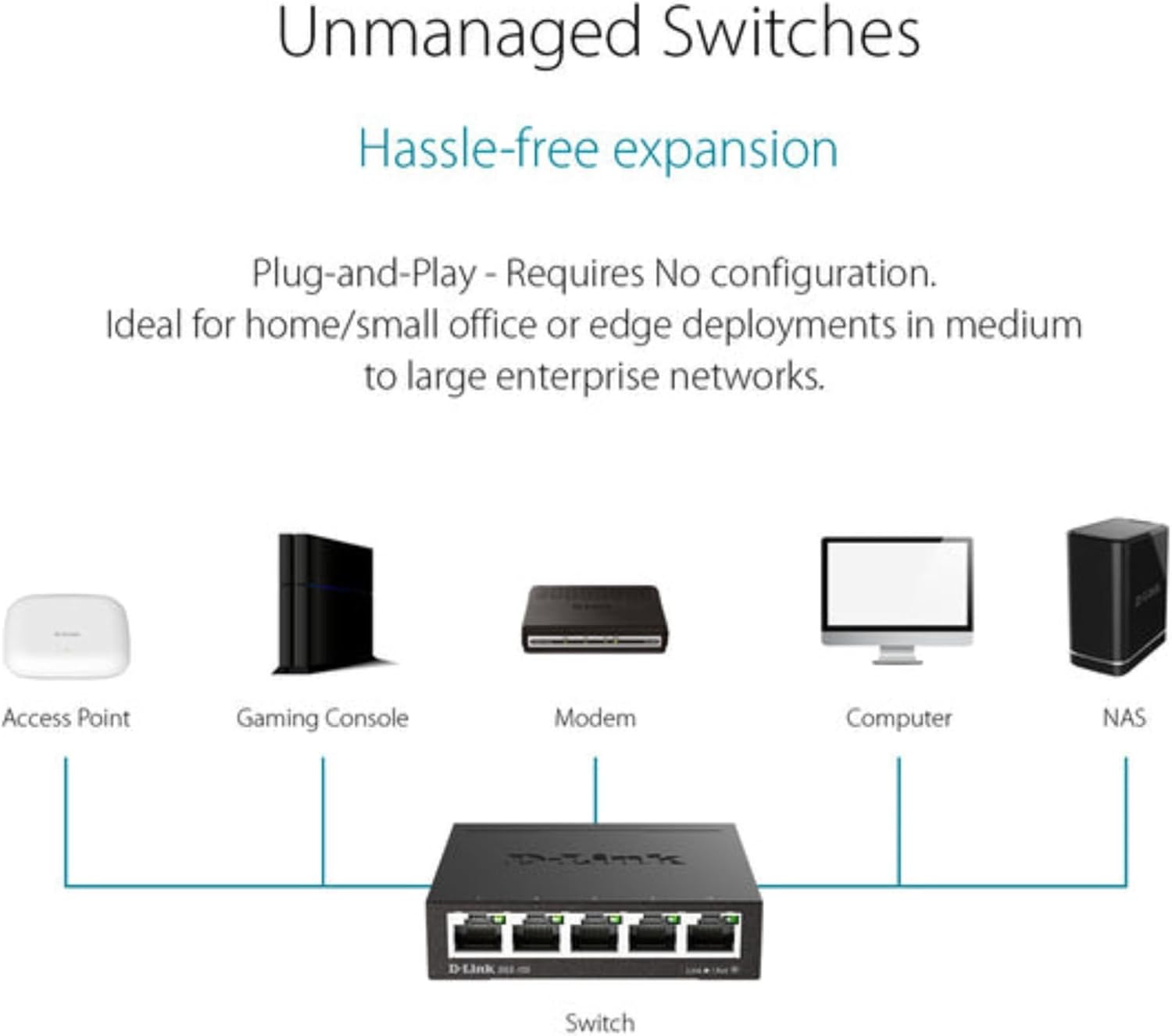
Typical network setup diagram showing the DGS-105 switch connecting multiple devices to a router.
5. Operating
5.1. LED Indicators
The DGS-105 switch features LED indicators to provide status information:
- Power LED: Illuminates when the switch is powered on.
- Link/Act LEDs (per port):
- Solid Green: Indicates a stable Gigabit (1000 Mbps) connection.
- Solid Amber: Indicates a stable Fast Ethernet (100 Mbps) connection.
- Blinking: Indicates data activity on the port.
- Off: No device is connected, or the connected device is powered off.
5.2. Data Transfer
The DGS-105 supports Gigabit Ethernet speeds, allowing for fast data transfer rates of up to 2000 Mbps (full-duplex) per port. Quality of Service (QoS) prioritizes time-sensitive data, ensuring smooth performance for applications like video streaming, VoIP, and online gaming. Jumbo Frame support (9KB) further optimizes throughput for large file transfers and backups.
5.3. Green Ethernet Features
The switch incorporates Energy Efficient Ethernet (IEEE 802.3az) technology, which automatically detects cable length and link status to adjust power usage. This feature can significantly reduce power consumption by up to 80% when ports are idle or connected to shorter cables, contributing to energy savings without compromising performance.

Illustration of D-Link Green technology's energy saving capabilities.
6. Maintenance
To ensure optimal performance and longevity of your DGS-105 switch, follow these maintenance guidelines:
- Cleaning: Use a soft, dry cloth to clean the exterior of the switch. Avoid using liquid or aerosol cleaners directly on the device.
- Ventilation: Ensure that the switch's ventilation openings are not blocked. Maintain adequate space around the device for proper airflow.
- Environment: Operate the switch within its specified temperature and humidity ranges (refer to specifications). Avoid exposing the device to direct sunlight, excessive heat, or moisture.
- Cable Management: Organize network cables to prevent strain on the ports and to maintain a tidy setup.
7. Troubleshooting
If you encounter issues with your DGS-105 switch, refer to the following common troubleshooting steps:
No Power
- Ensure the power adapter is securely connected to both the switch and a working power outlet.
- Verify that the power outlet is functional by plugging in another device.
- Check the power LED on the switch. If it is off, try a different power adapter (if available and compatible).
No Link/Activity on a Port
- Confirm that the Ethernet cable is securely plugged into both the switch port and the connected device.
- Ensure the connected device is powered on and its network adapter is enabled.
- Try using a different Ethernet cable.
- Connect the device to a different port on the switch.
- Check the status of the connected device's network adapter.
Slow Network Speed
- Ensure all connected devices and cables support Gigabit Ethernet for optimal performance.
- Check for excessive network traffic or bandwidth-intensive applications running on connected devices.
- Verify that the Ethernet cables are not damaged and are of appropriate quality (e.g., Cat5e or Cat6).
- Restart the switch and connected devices.
8. Specifications
| Feature | Specification |
|---|---|
| Product Dimensions (L x W x H) | 3.95" x 3.85" x 1.1" |
| Item Weight | 9.6 ounces |
| Voltage | 5 Volts (DC) |
| Current Rating | 1 Amps |
| Case Material | Metal |
| Interface Type | RJ45 |
| Data Transfer Rate | 2000 Megabits Per Second (Full Duplex) |
| Number of Ports | 5 |
| Model Number | 124889 |
| ASIN | B000BC7QMM |
| Color | Black |
| Compatible Devices | Desktop |
| First Available Date | September 9, 2005 |
9. Warranty and Support
The D-Link DGS-105 switch comes with Limited Lifetime Protection, ensuring long-term reliability. D-Link also provides US-based technical support to assist with any product-related inquiries or issues.
For detailed warranty information, technical support resources, and contact options, please refer to the official D-Link website or the documentation included with your product.
You can typically find support information at us.dlink.com/support.


