
1. Product Overview
The HP Laser Glossy Brochure Paper (Model Q6608A) is designed for producing high-quality documents with a professional, glossy finish. This paper features a five-layered coating on both sides, optimized for laser printers to prevent smudging and ensure vibrant, detailed images and text.
Key Features:
- Color Laser Compatibility: Specifically formulated for use with color laser printers.
- Commercial-Quality Finish: Provides an impressive look and feel suitable for professional brochures and documents.
- Double-Sided Gloss: Consistent gloss and smoothness on both sides for versatile printing.
- Advanced Coating: Porous coating and base paper formulation allow moisture to escape during the fusing process, preventing smearing.
- Standard Size: 8.5 x 11 inches, 200 Gram (approximately 57 lb bond / 135 lb text).
What's in the Box:
- One pack of HP Laser Glossy Brochure Paper (Q6608A), containing 100 sheets.
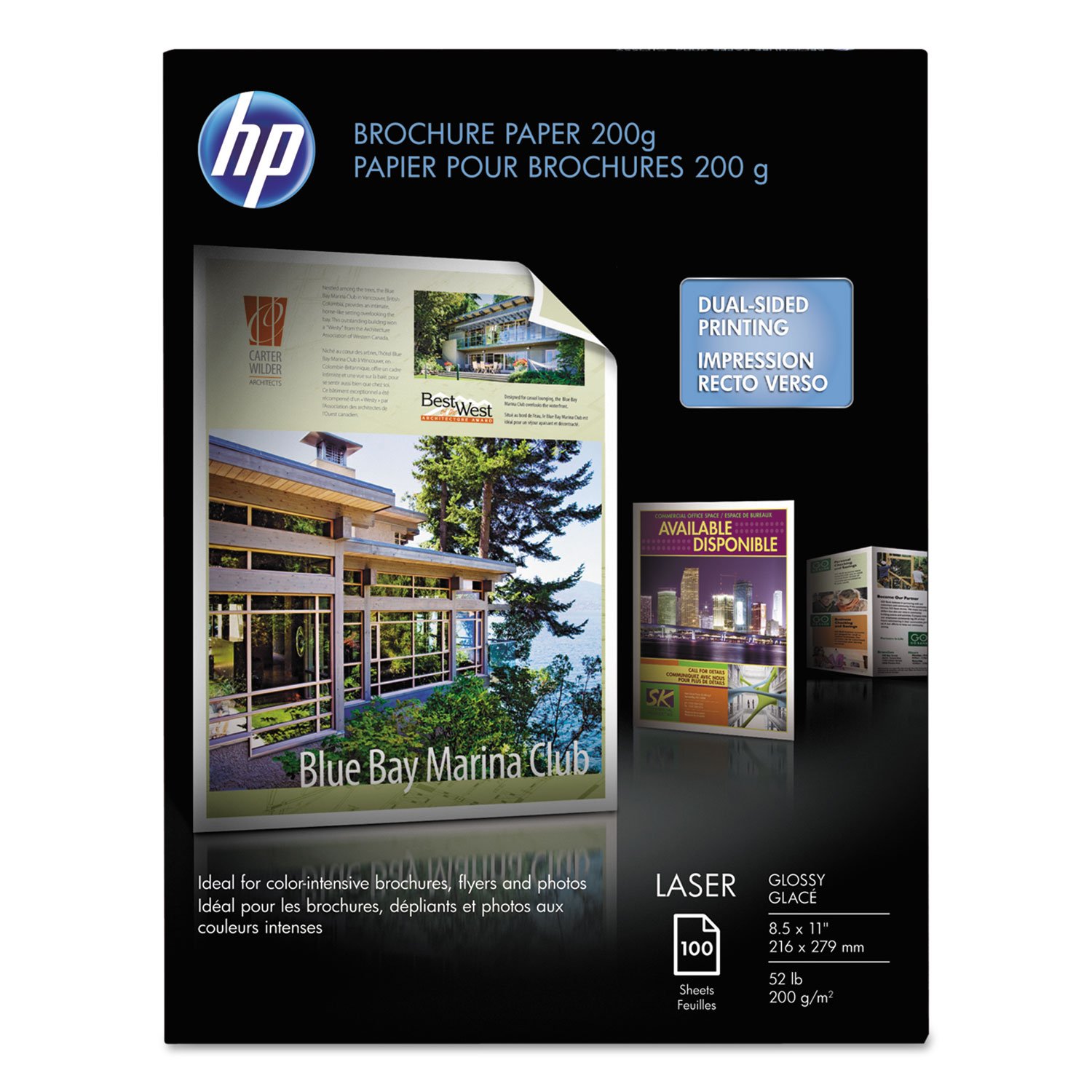
Image 1.1: HP Laser Glossy Brochure Paper Q6608A packaging. The image shows the product packaging for HP Laser Glossy Brochure Paper, highlighting its brand, type, and sheet count.
2. Setup
Proper setup ensures optimal print quality and prevents paper jams.
2.1 Loading Paper into Your Printer:
- Check Printer Compatibility: Ensure your laser printer supports paper weights up to 200 gsm (approximately 57 lb bond / 135 lb text). Refer to your printer's manual for specific paper handling capabilities.
- Open Paper Tray: Carefully open the paper input tray of your laser printer.
- Adjust Guides: Adjust the paper width guides to match the 8.5 x 11 inch paper size. Ensure the guides are snug against the paper stack without bending the sheets.
- Load Paper: Place the stack of HP Laser Glossy Brochure Paper into the tray with the side you intend to print on first facing the correct direction as indicated by your printer's instructions. For double-sided printing, the orientation may vary.
- Do Not Overload: Do not exceed the maximum paper capacity indicated by your printer. Overloading can cause jams.
2.2 Printer Driver Settings:
Before printing, configure your printer's software settings for the best results:
- Access Print Preferences: From your application, select 'Print' and then navigate to 'Printer Properties', 'Preferences', or 'Settings'.
- Select Paper Type: Choose 'Glossy Brochure', 'Heavy Glossy', or a similar option from the 'Paper Type' or 'Media Type' dropdown menu. Avoid selecting 'Photo Paper' unless specifically designed for laser printers, as this paper is optimized for brochures.
- Set Paper Weight: If an option for paper weight is available, select 'Heavy' or specify a weight close to 200 gsm.
- Choose Print Quality: For best results, select 'Best' or 'High' print quality.
- Duplex Printing: If printing on both sides, ensure 'Duplex Printing' or 'Print on Both Sides' is enabled in your printer settings.
3. Operating Instructions
Follow these guidelines for optimal printing performance and document quality.
3.1 Printing Tips:
- Test Prints: Before printing a large batch, perform a test print on a single sheet to verify settings and desired output.
- Allow Drying Time: Although designed for laser printers to prevent smudging, allow a few moments for the toner to fully set, especially for heavily inked areas, before handling extensively.
- Handle with Care: To avoid fingerprints or smudges, handle printed documents by the edges.
- Environmental Conditions: Print in a well-ventilated area with stable temperature and humidity to prevent paper curling or toner adhesion issues.
3.2 Double-Sided Printing:
This paper is designed for double-sided printing. If your printer supports automatic duplexing, ensure the setting is enabled in your print preferences. For manual duplexing, follow your printer's specific instructions for re-feeding pages to print the second side.
4. Maintenance
Proper storage and care of your paper will maintain its quality.
4.1 Storage Recommendations:
- Original Packaging: Store unused paper in its original packaging to protect it from dust, moisture, and light.
- Cool, Dry Place: Keep paper in a cool, dry environment away from direct sunlight, heat sources, and excessive humidity. Extreme conditions can cause paper to curl, warp, or affect toner adhesion.
- Flat Surface: Store paper flat to prevent bending or creasing.
4.2 Printer Care:
While this paper is designed for laser printers, regular printer maintenance is recommended:
- Clean Rollers: Periodically clean your printer's paper feed rollers according to your printer's manual to prevent dust buildup and ensure smooth paper feeding.
- Toner Cartridge Handling: Ensure toner cartridges are properly installed and not leaking, as this can affect print quality on any paper type.
5. Troubleshooting
If you encounter issues while using HP Laser Glossy Brochure Paper, consider the following:
5.1 Common Issues and Solutions:
- Paper Jams:
- Ensure paper guides are correctly adjusted in the tray.
- Do not overload the paper tray.
- Check your printer's manual for specific jam clearance procedures.
- Verify your printer supports the paper's weight (200 gsm).
- Smudging or Poor Toner Adhesion:
- Confirm 'Glossy Brochure' or 'Heavy Glossy' paper type is selected in printer settings.
- Ensure print quality is set to 'Best' or 'High'.
- Check if your printer's fuser unit is functioning correctly (refer to printer manual).
- Ensure you are using genuine HP toner cartridges.
- Paper Curling:
- Store paper in its original packaging in a cool, dry place.
- Avoid exposing paper to extreme humidity or temperature fluctuations.
- Colors Not Vibrant:
- Verify printer color settings are optimized for photo or graphic printing.
- Ensure toner cartridges are not low or empty.
- Confirm the correct paper type is selected in printer settings.
For further troubleshooting, consult your specific laser printer's user manual or visit the HP Support website.
6. Specifications
| Attribute | Detail |
|---|---|
| Model Number | Q6608A |
| Brand | HP |
| Paper Type | Laser Glossy Brochure Paper |
| Sheet Size | 8.5 x 11 inches (Letter) |
| Paper Weight | 200 Grams per Square Meter (gsm) |
| Paper Finish | Glossy (double-sided) |
| Sheets per Pack | 100 |
| Product Dimensions | 11 x 8.5 x 0.9 inches (packaging) |
| Item Weight | 2.2 pounds (approx. 1 kg) |
7. Warranty Information
HP paper products are manufactured to high-quality standards. For specific warranty details regarding this product, please refer to the official HP warranty documentation provided with your purchase or visit the official HP website. General HP warranty terms typically cover defects in materials and workmanship.
For more information, visit: HP Warranty Information
8. Support
For additional assistance, product information, or technical support, please contact HP customer service or visit their online resources:
- HP Support Website: support.hp.com
- Contact HP: Refer to the HP support website for regional contact numbers and online chat options.