
Introduction
This manual provides comprehensive instructions for the installation, configuration, and operation of the SMC EZ Connect g SMCWPCI-G 802.11g Wireless PCI Card. Please read this manual thoroughly before installation to ensure proper setup and optimal performance.
The SMCWPCI-G is designed to provide high-speed wireless connectivity for desktop computers, adhering to the IEEE 802.11g and 802.11b standards. It offers data rates up to 54 Mbps and includes security features such as 64/128-bit WEP encryption and Wi-Fi Protected Access (WPA).
Package Contents
Verify that your package contains the following items:
- SMC EZ Connect g SMCWPCI-G Wireless PCI Card
- Detachable external SMA antenna
- Installation CD (typically includes drivers and utility software)
- Quick Installation Guide (if applicable)
Setup and Installation
System Requirements
- Desktop PC with an available PCI v2.2 slot
- Compatible operating system (e.g., Windows 98SE, ME, 2000, XP, Vista - note: compatibility with newer OS like Windows 10 may vary and require updated drivers from the manufacturer's website)
- CD-ROM drive for driver installation (if not downloading drivers)
Hardware Installation
- Power Off Computer: Shut down your computer completely and unplug the power cord.
- Open Computer Case: Remove the computer case cover.
- Locate PCI Slot: Identify an available PCI slot on your motherboard.
- Insert PCI Card: Carefully insert the SMCWPCI-G card into the PCI slot, ensuring it is seated firmly. Secure the card with a screw if your case requires it.
- Attach Antenna: Screw the detachable SMA antenna onto the connector on the back of the PCI card. Position the antenna for optimal signal reception.
- Close Case and Power On: Replace the computer case cover, plug in the power cord, and power on your computer.
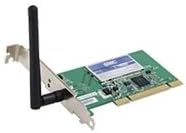
Image: The SMCWPCI-G Wireless PCI Card with its attached external antenna, ready for installation into a computer's PCI slot. The card features a green circuit board and a metal bracket for securing it in the case.
Driver Installation
- Insert Installation CD: Once Windows starts, it may detect new hardware. Insert the provided installation CD into your CD-ROM drive.
- Follow On-Screen Prompts: Follow the instructions on the screen to install the drivers and utility software. If an auto-run program does not start, navigate to the CD drive in "My Computer" and run the setup executable.
- Restart Computer: After the installation is complete, restart your computer if prompted.
- Verify Installation: After restarting, check Device Manager (right-click "My Computer" > "Manage" > "Device Manager") to ensure the wireless card is listed without any error symbols.
Operating Instructions
Connecting to a Wireless Network
- Access Wireless Utility: Use the SMC wireless utility software (usually found in the system tray or Start Menu) or the Windows built-in wireless network connection utility.
- Scan for Networks: The utility will scan for available wireless networks in your area.
- Select Network: Choose your desired wireless network (SSID) from the list.
- Enter Security Key: If the network is secured (recommended), enter the correct network security key (WEP, WPA, or WPA2 password).
- Connect: Click "Connect" to establish a connection.
- Verify Connection: Once connected, the utility or Windows network icon will indicate a successful connection. You should now have internet access if the wireless network is connected to the internet.
Understanding LED Indicators
The SMCWPCI-G card typically features LED indicators to provide status information:
- PW (Power) / Lnk (Link): Indicates the card is powered on and/or has an active wireless link.
- ACT (Activity): Flashes to indicate data transmission or reception.
Maintenance
The SMCWPCI-G Wireless PCI Card requires minimal maintenance. Follow these guidelines to ensure continued optimal performance:
- Keep Drivers Updated: Periodically check the SMC website for updated drivers, especially if you upgrade your operating system or experience connectivity issues.
- Antenna Position: Ensure the antenna is positioned vertically and unobstructed for the best signal reception.
- Cleanliness: Keep the computer's interior clean to prevent dust buildup on the card, which can affect performance and lifespan.
- Environmental Conditions: Operate the computer within recommended temperature and humidity ranges to prevent damage to internal components, including the wireless card.
Troubleshooting
If you encounter issues with your SMCWPCI-G Wireless PCI Card, refer to the following common problems and solutions:
No Wireless Networks Detected
- Check Antenna: Ensure the antenna is securely attached and properly positioned.
- Driver Installation: Verify that the drivers are correctly installed in Device Manager. Reinstall drivers if necessary.
- Wireless Router/AP: Ensure your wireless router or access point is powered on and broadcasting its SSID.
- Interference: Move closer to the wireless router or away from potential sources of interference (e.g., microwaves, cordless phones).
Cannot Connect to a Specific Network
- Incorrect Security Key: Double-check that you are entering the correct WEP/WPA/WPA2 security key. Security keys are case-sensitive.
- SSID Broadcast: If the network's SSID is hidden, you will need to manually enter the SSID in addition to the security key.
- MAC Filtering: Check if MAC address filtering is enabled on your wireless router. If so, add the MAC address of your SMCWPCI-G card to the router's allowed list.
Slow Connection Speed or Frequent Disconnections
- Signal Strength: Check the signal strength indicator. Low signal strength can lead to slow speeds and disconnections. Try repositioning the antenna or moving closer to the router.
- Interference: Other wireless devices or electronic equipment can cause interference.
- Driver Updates: Ensure you have the latest drivers installed.
- Router Settings: Verify that your wireless router is configured for optimal performance (e.g., correct channel, 802.11g mode).
Card Not Recognized by Computer
- Reseat Card: Power off the computer, unplug it, open the case, and reseat the PCI card firmly in its slot.
- Try Another PCI Slot: If available, try installing the card in a different PCI slot.
- Check BIOS: Ensure the PCI slot is enabled in your computer's BIOS settings.
Specifications
| Model Number | SMCWPCI-G |
| Standards | IEEE 802.11g, IEEE 802.11b |
| Interface | PCI v2.2 |
| Frequency Band | 2.4 GHz |
| Data Rate | Up to 54 Mbps (802.11g) |
| Security | 64/128-bit WEP, WPA (Wi-Fi Protected Access) |
| Antenna | Detachable external SMA antenna |
| LED Indicators | PW/Lnk, ACT |
| Operating Range (Outdoors) | Up to 400 m (1,312 ft) |
| Operating Range (Indoors) | Up to 100 m (328 ft) |
| Dimensions | 7.1 x 5.3 x 1.6 inches |
| Item Weight | 3.04 ounces (0.19 lbs) |
| Chipset (Advertised) | Atheros AR2413A-00 (Note: Some units may contain Realtek 8185 chipset) |
Warranty and Support
For warranty information and technical support, please refer to the documentation included with your product or visit the official SMC website. Support resources typically include:
- Online FAQs and knowledge base
- Driver downloads
- Contact information for technical support
Please retain your proof of purchase for warranty claims.


