
Introduction
The Learning Resources Time Tracker is an innovative visual timer and clock designed to help manage time effectively using intuitive colored lights and optional sound cues. It is suitable for various settings, including classrooms and homes, to assist individuals in understanding and managing time for different activities.
Product Overview
The Time Tracker features a unique design with three distinct colored light sections (green, yellow, and red) that visually indicate the progression of time. A large, easy-to-read LCD display shows the remaining time or current clock time. The device offers a 180-degree viewing angle for clear visibility from various positions.

Image: The Time Tracker with its distinct green, yellow, and red light sections, demonstrating its 180-degree viewing capability.
Setup
1. Powering the Device
- The Time Tracker requires 4 AAA batteries (not included) for portable use.
- Alternatively, it can be powered by a Learning Resources AC adapter (LER 6989, sold separately) for stationary operation.
2. Initial Setup
- Remove the timer from its packaging.
- Insert 4 AAA batteries into the designated compartment.
- Place the timer on a flat, stable surface.
- Use the controls to set the desired duration for each colored light section (green, yellow, red) or select an auto-timer mode.
- The digital clock can also be set using the menu buttons.

Image: The Time Tracker displaying its size and power requirements.
Operating Instructions
1. Setting the Timer
- Press the MENU button to cycle through modes: Clock, Timer, Auto Timer.
- In Timer mode, press ENTER to set individual durations for the Green, Yellow, and Red lights using the arrow buttons. Press ENTER again to confirm each segment.
- In Auto Timer mode, set the total time, and the timer will automatically allocate time to each color segment.
2. Starting and Pausing
- Press the START button to begin the countdown. The lights will illuminate according to the set durations.
- To pause the timer, press the START button again. Press START to resume.
3. Sound Cues and Volume Control
- The timer provides optional sound effects to indicate time changes and completion.
- Adjust the volume using the dedicated volume control buttons located on the side of the device.

Image: Visual guide for setting and operating the Time Tracker.
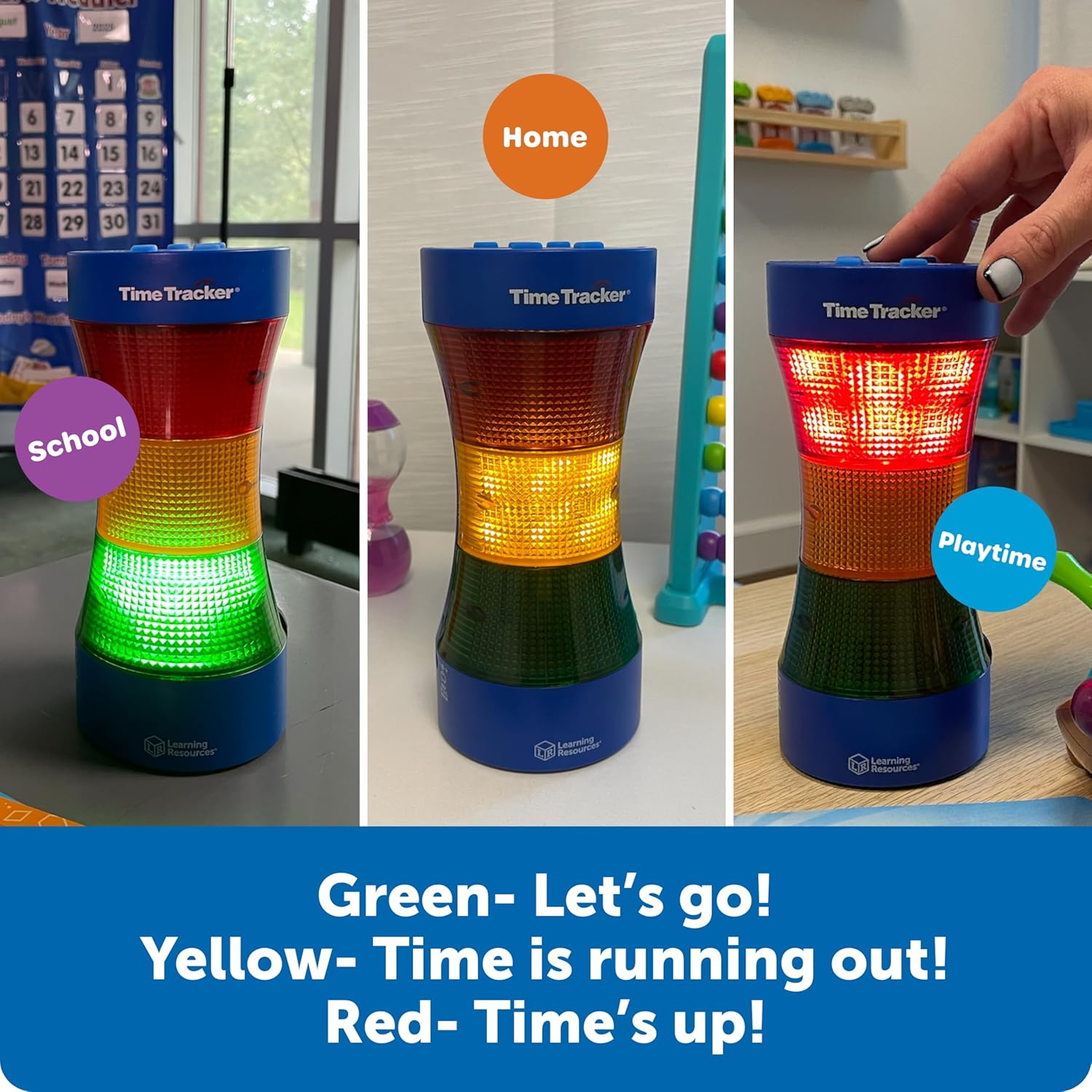
Image: The Time Tracker lights indicating different time statuses.
Video: An official overview of the Time Tracker Visual Timer & Clock, demonstrating its features and operation.
Key Features
- Visual and Audio Cues: Combines colored lights (green, yellow, red) with optional sound effects to signal time progression.
- Customizable Time Segments: Allows quick programming of durations for each colored light section.
- Wide Viewing Angle: Features 180-degree viewing for clear visibility from anywhere in a room.
- Large LCD Display: Provides an easy-to-read digital clock and timer display.
- Volume Control: Adjustable volume for sound cues, including a silent option.
- Pause Function: Temporarily halt the timer without losing progress.

Image: Educational benefits highlighted for the Time Tracker.
Specifications
| Attribute | Detail |
|---|---|
| Product Dimensions | 8.6 x 5.4 x 5.3 inches |
| Item Weight | 15.1 ounces |
| Model Number | LER6989 |
| Recommended Age | 5 - 10 years |
| Batteries | 4 AAA batteries (not included) |
| AC Adapter | LER 6989 (sold separately) |
Maintenance
To ensure the longevity and proper functioning of your Time Tracker, follow these maintenance guidelines:
- Cleaning: Wipe the device with a soft, dry cloth. Avoid using abrasive cleaners or solvents, as these may damage the surface.
- Battery Care: If the device will not be used for an extended period, remove the batteries to prevent leakage and corrosion.
- Storage: Store the Time Tracker in a cool, dry place away from direct sunlight and extreme temperatures.
Troubleshooting
If you encounter any issues with your Time Tracker, consider the following common solutions:
- Device Not Powering On: Check if the batteries are inserted correctly and are not depleted. If using an AC adapter, ensure it is properly connected and the power outlet is functional.
- Lights Not Illuminating: Verify that the timer is set and started. If individual light segments are not working, ensure their durations are correctly programmed.
- No Sound: Check the volume control to ensure it is not set to the lowest level or muted.
- Incorrect Time Display: Reset the clock or timer settings as per the operating instructions.
If problems persist after attempting these steps, please contact customer support.
Warranty & Support
For warranty information, product support, or to purchase replacement parts and accessories, please contact Learning Resources directly. Refer to the official Learning Resources website or the product packaging for the most current contact details and warranty terms.
Learning Resources is committed to providing quality educational products and customer satisfaction.


