
D-Link DWL-3200AP
D-Link DWL-3200AP Managed Access Point User Manual
Model: DWL-3200AP
1. Introduction
The D-Link DWL-3200AP is a high-performance managed access point designed for robust wireless network deployments. It supports 802.11g wireless connectivity at speeds up to 54Mbps and offers extensive security features including WPA-Personal, WPA-Enterprise, 802.1x, and AES encryption. Its industrial-grade plenum-rated chassis ensures durability and compliance for various installation environments. The DWL-3200AP supports multiple operation modes, including Access Point, Point-to-Point (PtP) Bridge, and Point-to-Multipoint (PtMP) Bridge, providing flexibility for diverse networking needs. Advanced management options are available via SNMP, AP Manager, Web GUI, or Telnet.
2. Package Contents
Before proceeding with installation, verify that all items are present and undamaged. If any item is missing or damaged, contact your local D-Link reseller for assistance.
- D-Link DWL-3200AP Managed Access Point
- Power Adapter
- PoE Injector (if applicable)
- Mounting Bracket and Screws
- Ethernet Cable
- Quick Installation Guide (not included in this manual)
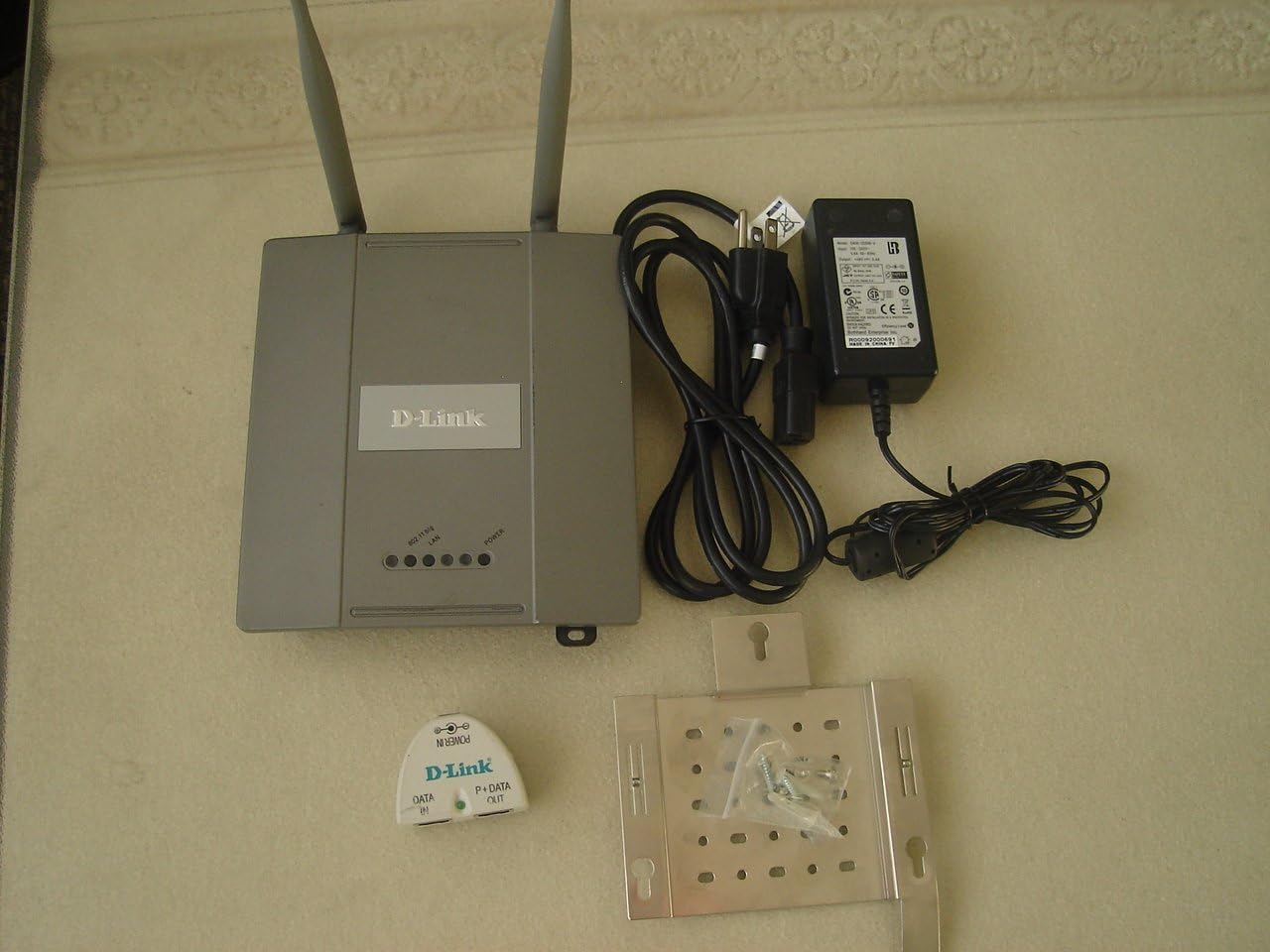
Image 1: Contents of the D-Link DWL-3200AP package, including the access point with two antennas, a power adapter, a PoE injector, and a mounting bracket with screws.
3. Setup and Installation
3.1. Physical Installation
The DWL-3200AP can be placed on a flat surface or mounted on a wall or ceiling using the provided mounting bracket. Ensure the chosen location allows for optimal wireless signal coverage and is within reach of power and network connections.
- Mounting: Secure the mounting bracket to the desired surface using the provided screws. Align the access point with the bracket and slide it into place until it clicks securely.
- Power Connection:
- Using Power Adapter: Connect the power adapter to the DWL-3200AP's power input port and then plug the adapter into a standard electrical outlet.
- Using Power over Ethernet (PoE): If your network switch supports PoE, connect an Ethernet cable from the PoE-enabled port on your switch directly to the LAN port on the DWL-3200AP. If using a separate PoE injector, connect an Ethernet cable from your non-PoE switch to the "DATA IN" port of the PoE injector, and another Ethernet cable from the "P+DATA OUT" port of the PoE injector to the LAN port on the DWL-3200AP.
- Network Connection: Connect an Ethernet cable from your network switch or router to the LAN port on the DWL-3200AP.
- Verify Power: Once connected, the Power LED on the front panel of the DWL-3200AP should illuminate, indicating that the device is receiving power.
3.2. Initial Configuration Access
To configure the DWL-3200AP, you can access its web-based management interface. By default, the device may obtain an IP address via DHCP or have a static fallback IP address (refer to the Quick Installation Guide for default IP). Ensure your computer is on the same network segment as the access point.
- Connect your computer directly to the DWL-3200AP via an Ethernet cable, or ensure your computer is on the same network as the access point.
- Open a web browser (e.g., Chrome, Firefox, Edge).
- Enter the IP address of the DWL-3200AP into the browser's address bar and press Enter.
- Log in using the default username and password (refer to the Quick Installation Guide for default credentials).
- Follow the on-screen instructions to configure your wireless settings, security, and other network parameters.
4. Operating Modes and Features
The DWL-3200AP offers various operating modes to suit different network requirements.
4.1. Operation Modes
- Access Point (AP) Mode: The standard mode where the device acts as a central hub for wireless clients to connect to a wired network.
- Point-to-Point (PtP) Bridge Mode: Connects two wired networks wirelessly over a long distance. Ideal for linking two buildings.
- Point-to-Multipoint (PtMP) Bridge Mode: Connects multiple wired networks wirelessly to a central wired network. Suitable for connecting several remote locations to a main office.
4.2. Wireless Connectivity and Performance
The DWL-3200AP supports the 802.11g wireless standard, providing data rates up to 54Mbps. For optimal performance, ensure proper placement to minimize interference and maximize signal strength.
4.3. Security Features
Robust security protocols are integrated to protect your wireless network:
- WPA-Personal (WPA-PSK): Uses a pre-shared key for authentication, suitable for small office/home office environments.
- WPA-Enterprise (WPA-802.1X): Utilizes a RADIUS server for centralized authentication, ideal for larger corporate networks.
- 802.1X Authentication: Port-based network access control.
- AES Encryption: Advanced Encryption Standard for strong data privacy.
4.4. Advanced Management Options
The DWL-3200AP can be managed through various interfaces:
- Web-based Graphical User Interface (GUI): Provides an intuitive interface for configuration and monitoring via a web browser.
- SNMP (Simple Network Management Protocol): Allows network administrators to monitor and manage the device remotely using SNMP-compatible network management software.
- AP Manager: D-Link's centralized management utility for managing multiple D-Link access points.
- Telnet: Command-line interface for advanced configuration and troubleshooting.
5. Maintenance
Regular maintenance helps ensure the longevity and optimal performance of your DWL-3200AP.
- Firmware Updates: Periodically check the D-Link support website for the latest firmware versions. Updating firmware can provide new features, performance improvements, and security patches. Follow the instructions provided with the firmware update carefully.
- Cleaning: Keep the device clean and free from dust. Use a soft, dry cloth to wipe the exterior. Do not use liquid cleaners or aerosols.
- Environmental Conditions: Ensure the device is operated within its specified temperature and humidity ranges. Avoid placing it near heat sources or in direct sunlight.
- Regular Reboots: While designed for continuous operation, a periodic reboot (e.g., once a month) can help clear temporary issues and refresh system resources.
6. Troubleshooting
This section provides solutions to common issues you might encounter with the DWL-3200AP.
6.1. No Power Indication
- Ensure the power adapter is securely connected to the access point and the electrical outlet.
- If using PoE, verify that the Ethernet cable is connected to a PoE-enabled port on your switch or that the PoE injector is properly connected and powered.
- Test the electrical outlet with another device to confirm it is functional.
6.2. Cannot Access Web Management Interface
- Verify that your computer's IP address is on the same subnet as the DWL-3200AP.
- Ensure the Ethernet cable connection between your computer and the access point (or network) is secure.
- Try clearing your browser's cache or using a different web browser.
- If the IP address of the access point has been changed, try to discover it using D-Link's AP Manager utility or by checking your router's DHCP client list.
- Perform a factory reset (refer to the Quick Installation Guide for instructions) if you have forgotten the login credentials or IP address. Note that a factory reset will erase all custom configurations.
6.3. Poor Wireless Signal or Connectivity Issues
- Placement: Relocate the access point to a more central location, away from obstructions like thick walls, metal objects, and other electronic devices that may cause interference.
- Interference: Other wireless devices (cordless phones, microwave ovens, Bluetooth devices) operating on the 2.4 GHz band can cause interference. Try changing the wireless channel on your DWL-3200AP.
- Antennas: Ensure the antennas are securely attached and properly oriented for optimal signal propagation.
- Firmware: Ensure the access point is running the latest firmware.
- Security Settings: Incorrect security settings can prevent devices from connecting. Double-check your SSID, encryption type, and password.
7. Specifications
| Feature | Description |
|---|---|
| Model Number | DWL-3200AP |
| Wireless Standard | IEEE 802.11g |
| Wireless Speed | Up to 54 Mbps |
| Security | WPA-Personal, WPA-Enterprise, 802.1x, AES |
| Operation Modes | Access Point, PtP Bridge, PtMP Bridge |
| Management | SNMP, AP Manager, Web GUI, Telnet |
| Power | Power Adapter, Power over Ethernet (PoE) |
| Chassis | Industrial-Grade Plenum-Rated |
| Product Dimensions | 10.93 x 6.1 x 1.77 inches |
| Item Weight | 3.75 pounds |
8. Warranty Information
D-Link provides a limited warranty for this product. The specific terms and conditions of the warranty, including its duration and coverage, are detailed in the warranty card included with your product or available on the official D-Link website. Please retain your proof of purchase for warranty service.
9. Technical Support
For technical assistance, product documentation, or firmware updates, please visit the official D-Link support website. You may also contact D-Link technical support directly through the contact information provided on their website or in your product's documentation.
D-Link Support Website: www.dlink.com/support
Related documentsDWL-3200AP


Ask a question about this manual
Ask about setup, troubleshooting, compatibility, parts, safety, or missing instructions. Manuals+ will review the question and use this page’s manual context to help answer it.