Seagate Technology 200 GB USB 2.0 and FireWire External Drive User Manual
Model: ST3200823A-RK
1. Introduction
This manual provides instructions for the installation, operation, and maintenance of your Seagate Technology 200 GB USB 2.0 and FireWire External Drive (Model ST3200823A-RK). This high-capacity external drive offers reliable storage and high performance for your digital data.
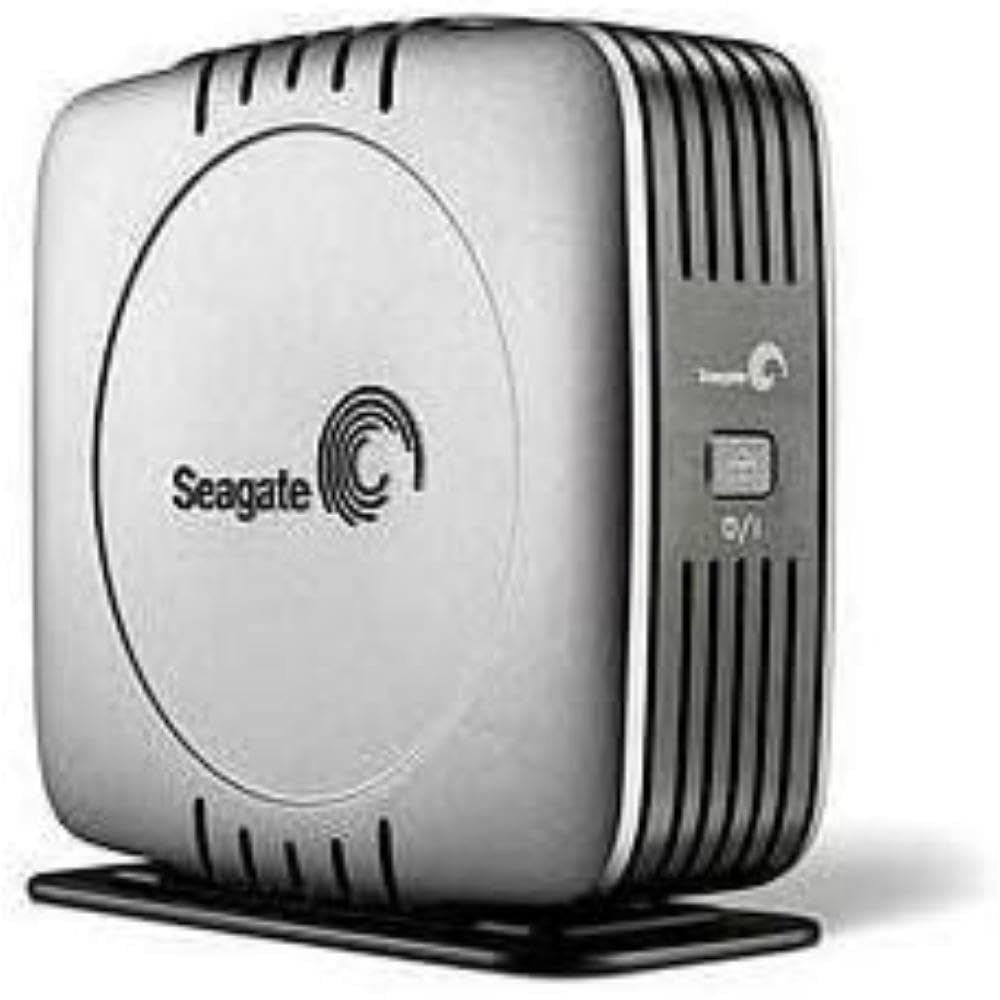
Figure 1: Seagate Technology 200 GB USB 2.0 and FireWire External Drive. This image displays the external hard drive, featuring a black rectangular casing with silver accents, indicating its compact design and connectivity ports.
2. Setup
2.1 Unpacking the Drive
Carefully remove all components from the packaging. Verify that the following items are included:
Seagate External Drive (ST3200823A-RK)
USB 2.0 cable
FireWire 1394a cable
AC adapter and power cord
Quick installation guide (refer to this manual for detailed instructions)
Backup software CD (for optional installation)
2.2 Connecting to Your Computer
The drive supports both USB 2.0 and FireWire (IEEE 1394a) connectivity. Choose the connection type compatible with your computer.
Connect the Data Cable:
For USB 2.0: Connect one end of the USB 2.0 cable to the USB port on the external drive and the other end to an available USB 2.0 port on your computer.
For FireWire: Connect one end of the FireWire 1394a cable to the FireWire port on the external drive and the other end to an available FireWire port on your computer.
Connect the Power Adapter: Plug the AC adapter into the power input on the external drive. Then, plug the power cord into a standard electrical outlet.
Power On: The drive should power on automatically or have a power button to activate it. Refer to the drive's physical indicators for power status.
Initial Recognition: Your operating system (Windows or macOS) should detect the new hardware and install necessary drivers automatically. This process may take a few moments. The drive will appear as a new storage device in "My Computer" (Windows) or on the Desktop/Finder (macOS).
Note: For optimal performance, ensure your computer has the latest drivers for its USB or FireWire ports.
3. Operating the Drive
3.1 Data Transfer
Once the drive is recognized by your computer, you can transfer files to and from it using standard operating system functions:
Drag and Drop: Click and drag files or folders from your computer's internal drive to the external drive icon, or vice versa.
Copy and Paste: Right-click on files/folders, select "Copy," then navigate to the destination on the external drive, right-click, and select "Paste."
Backup Software: Use the included backup software CD for automated backup solutions, if desired. Follow the on-screen instructions for installation and configuration.
3.2 Performance Characteristics
The Seagate external drive features a 7200 RPM hard disk with an average seek time of 8.5 milliseconds, providing fast data access and transfer speeds, especially when connected via FireWire or USB 2.0.
3.3 Compatibility
This drive is compatible with both PC (Windows) and Macintosh (macOS) computers. Ensure your operating system is up-to-date for best compatibility and performance.
4. Maintenance
4.1 General Care
Keep the drive in a clean, dry environment, away from direct sunlight, extreme temperatures, and humidity.
Avoid placing heavy objects on the drive.
Clean the exterior with a soft, dry cloth. Do not use liquid cleaners or solvents.
Ensure adequate ventilation around the drive to prevent overheating.
4.2 Safe Disconnection
Always safely eject or unmount the drive from your operating system before disconnecting the data cable or power. This prevents data corruption.
Windows: Click the "Safely Remove Hardware and Eject Media" icon in the system tray, then select the Seagate drive.
macOS: Drag the drive icon from the Desktop to the Trash, or click the Eject icon next to the drive name in Finder.
5. Troubleshooting
If you encounter issues with your Seagate external drive, try the following steps:
Drive Not Detected:
Ensure all cables (power and data) are securely connected to both the drive and the computer.
Try connecting the drive to a different USB or FireWire port on your computer.
If using a USB hub, connect the drive directly to the computer.
Verify the drive's power indicator light is on.
Restart your computer.
Slow Data Transfer:
Ensure you are using USB 2.0 or FireWire 1394a ports on your computer, not older USB 1.1 ports.
Close any unnecessary applications running in the background.
Check your computer's system resources; high CPU or memory usage can affect transfer speeds.
Drive Makes Unusual Noises:
If the drive emits grinding, clicking, or repetitive unusual noises, immediately back up any critical data if possible, and discontinue use. Contact Seagate support for further assistance.
Data Corruption:
Always safely eject the drive before disconnecting. If data corruption occurs, try running disk utility tools provided by your operating system (e.g., Check Disk on Windows, Disk Utility on macOS).
For persistent issues, refer to the Seagate support website or contact their customer service.
6. Specifications
Model Number:
ST3200823A-RK
Digital Storage Capacity:
200 GB
Connectivity Technology:
USB 2.0, FireWire IEEE 1394a
Hard Disk RPM:
7200 RPM
Average Seek Time:
8.5 milliseconds
Dimensions (D x W x H):
7.2" x 6.5" x 2.25" (18.3 cm x 16.5 cm x 5.7 cm)
Item Weight:
6.51 pounds (2.95 kg)
Compatible Devices:
PC and Macintosh computers (Desktop)
Manufacturer:
Seagate
Color:
Black
7. Warranty and Support
7.1 Product Warranty
This Seagate product is covered by a limited warranty. Please refer to the warranty information included with your product packaging or visit the official Seagate website for detailed terms and conditions regarding warranty coverage, duration, and claims procedures.
7.2 Technical Support
For technical assistance, troubleshooting, or further inquiries, please visit the Seagate support website. You can find FAQs, driver downloads, and contact information for customer service there.
Ask about setup, troubleshooting, compatibility, parts, safety, or missing instructions. Manuals+ will review the question and use this page’s manual context to help answer it.