
1. Introduction and Overview
This manual provides comprehensive instructions for the installation, operation, and maintenance of the Matrox Millennium G200 Graphics Adapter, model G2+/DUALP-PL. This PCI-based graphics card is designed to provide multi-monitor dual analog output, making it suitable for professional workstations and systems requiring reliable display capabilities. The Matrox G200 series is known for its robust performance and stability in various computing environments.
2. What's in the Box
Carefully unpack all components and verify that you have received the following items:
- Matrox Millennium G200 Graphics Adapter (G2+/DUALP-PL)
- DMS-59 to Dual VGA Y-cable
- DMS-59 to DVI and S-Video/Composite Y-cable (may vary by package)
- Driver CD (if included, otherwise drivers can be downloaded from the Matrox website)
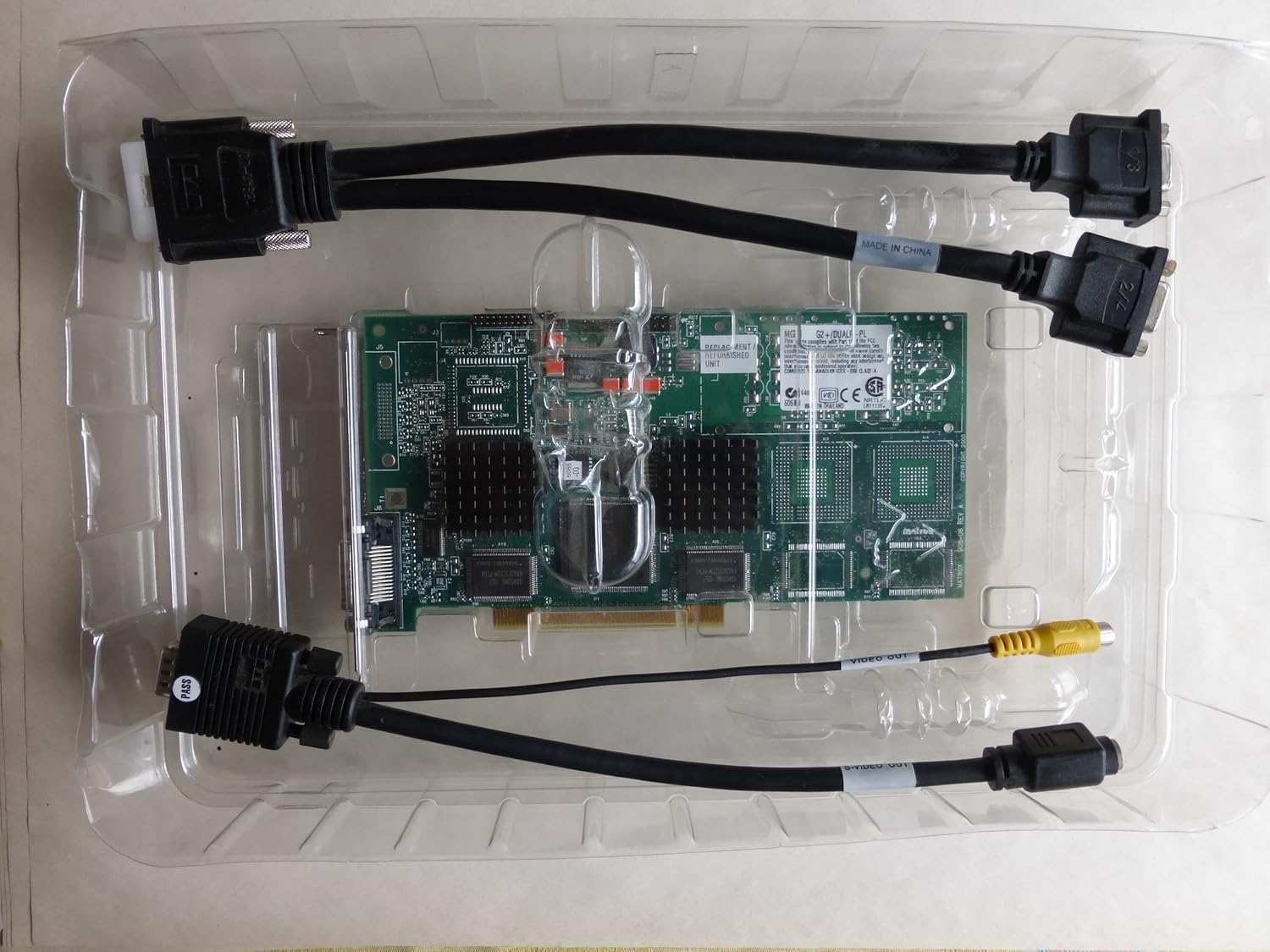
Image: The Matrox Millennium G200 graphics adapter shown within its clear plastic packaging, accompanied by its connecting cables.
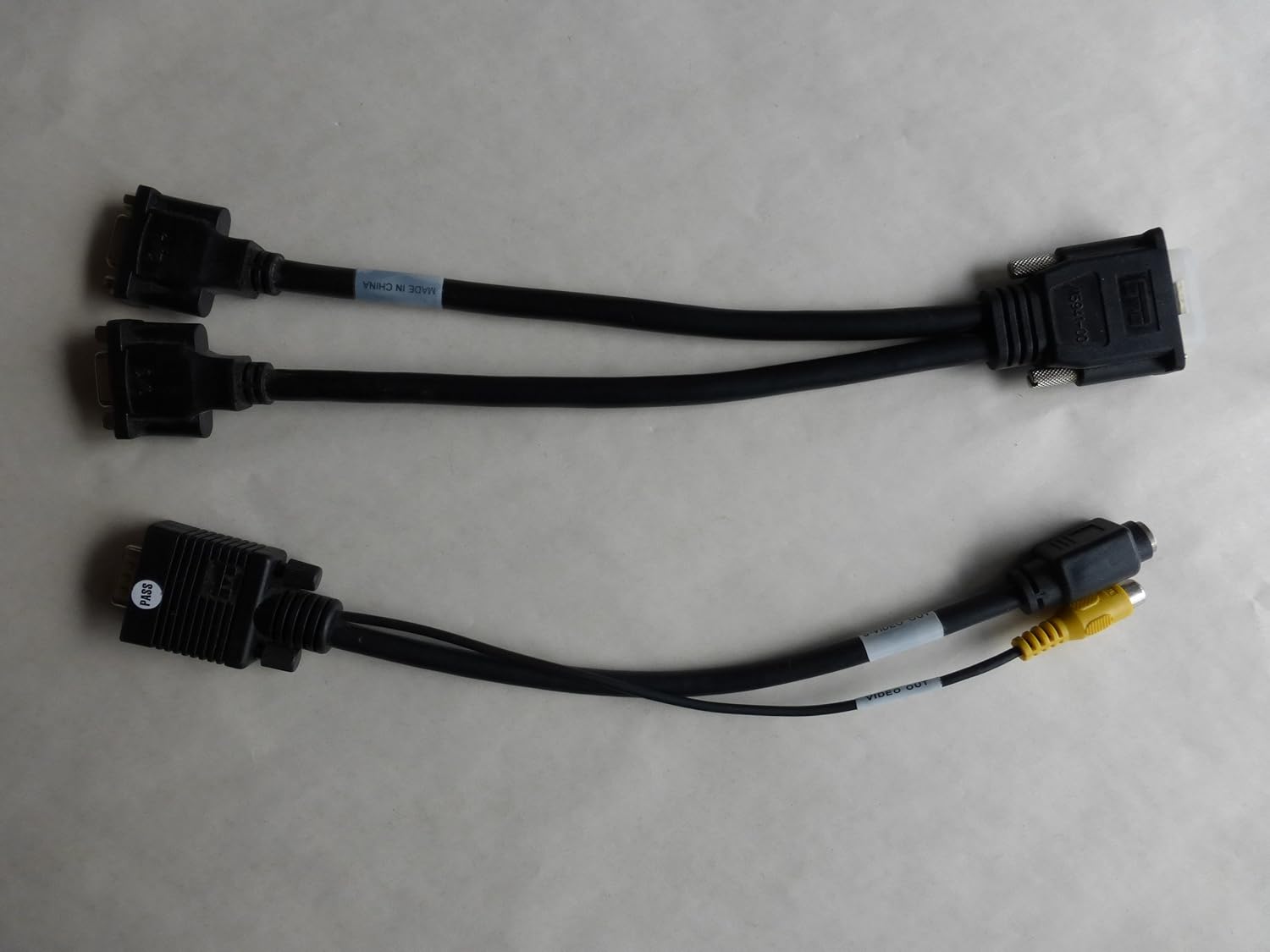
Image: Two types of Y-cables: one for dual VGA output and another for DVI and S-Video/Composite output, used with the graphics adapter.
3. Setup and Installation
3.1 Safety Precautions
- Always power off your computer and unplug it from the wall outlet before opening the case.
- Discharge any static electricity by touching a grounded metal object (e.g., the computer chassis) before handling internal components.
- Avoid touching the gold connector pins on the graphics card.
3.2 Hardware Installation
- Open the Computer Case: Remove the side panel of your computer case to access the motherboard.
- Locate an Available PCI Slot: Identify an empty PCI expansion slot on your motherboard. The Matrox Millennium G200 is a PCI card.
- Remove Slot Cover: Carefully remove the metal slot cover corresponding to the chosen PCI slot from the back of your computer case.
- Insert the Graphics Card: Align the graphics card with the PCI slot and press down firmly and evenly until the card is fully seated. Ensure the metal bracket on the card aligns with the opening in the case.
- Secure the Card: Use a screw or the case's retention mechanism to secure the graphics card's bracket to the computer case.
- Close the Computer Case: Replace the side panel of your computer case.
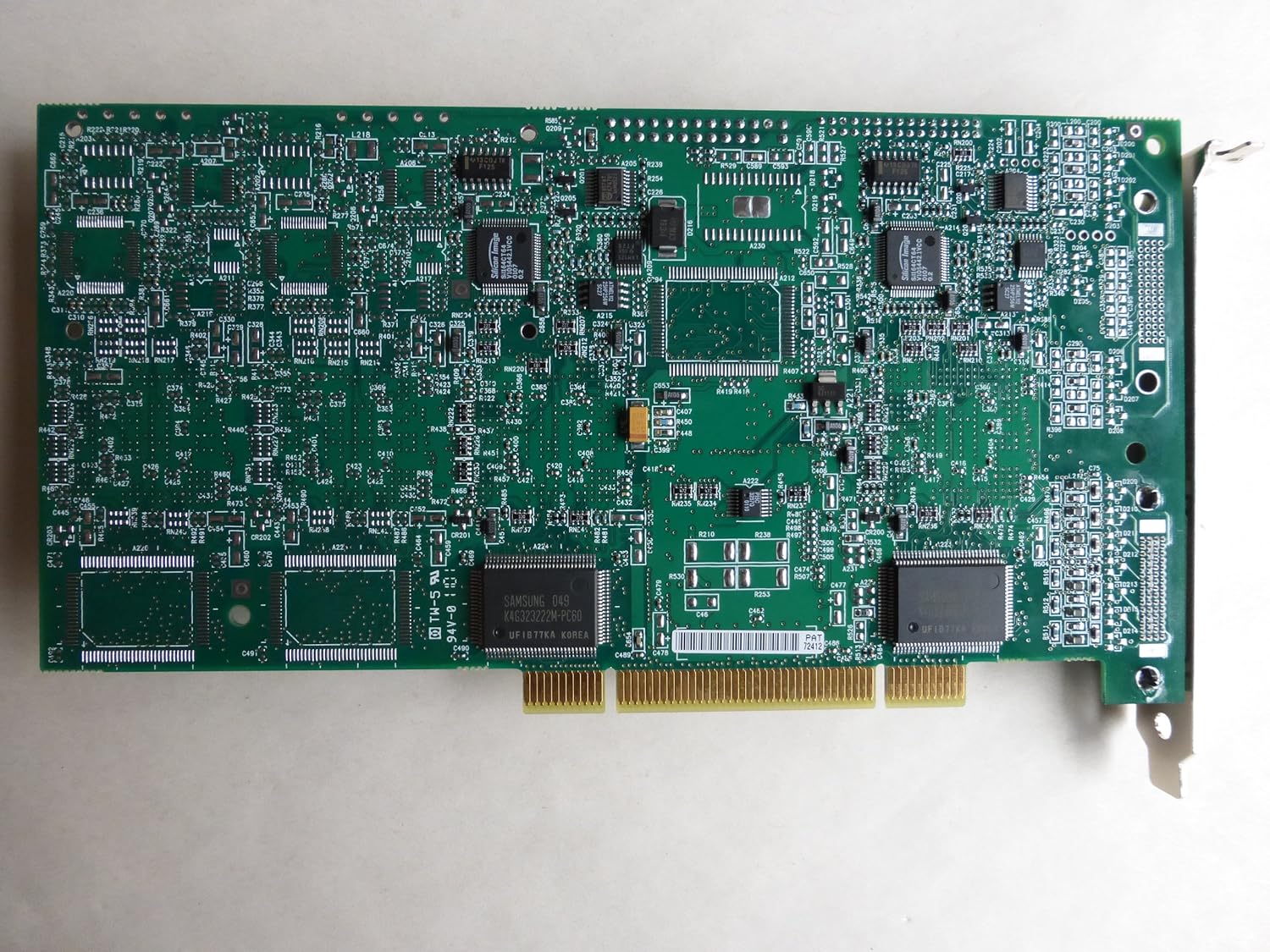
Image: A top-down view of the Matrox Millennium G200 graphics adapter, showcasing its green circuit board with various chips and components.

Image: An angled view of the Matrox Millennium G200 graphics adapter, highlighting the DMS-59 output port and the passive heatsinks on the main chips.
3.3 Driver Installation
- Connect Monitor(s): Connect your monitor(s) to the DMS-59 port on the graphics card using the appropriate Y-cable (DMS-59 to Dual VGA or DMS-59 to DVI/S-Video).
- Power On Computer: Plug in your computer and power it on. The operating system may detect new hardware and attempt to install generic drivers.
- Install Matrox Drivers:
- If a driver CD was included, insert it into your optical drive and follow the on-screen instructions.
- Alternatively, download the latest drivers for the Matrox Millennium G200 (G2+/DUALP-PL) from the official Matrox website. Run the installer and follow the prompts.
- Restart Computer: After the driver installation is complete, restart your computer to apply the changes.

Image: A detailed view of the DMS-59 connector along with S-Video and Composite video output jacks on one of the adapter cables.
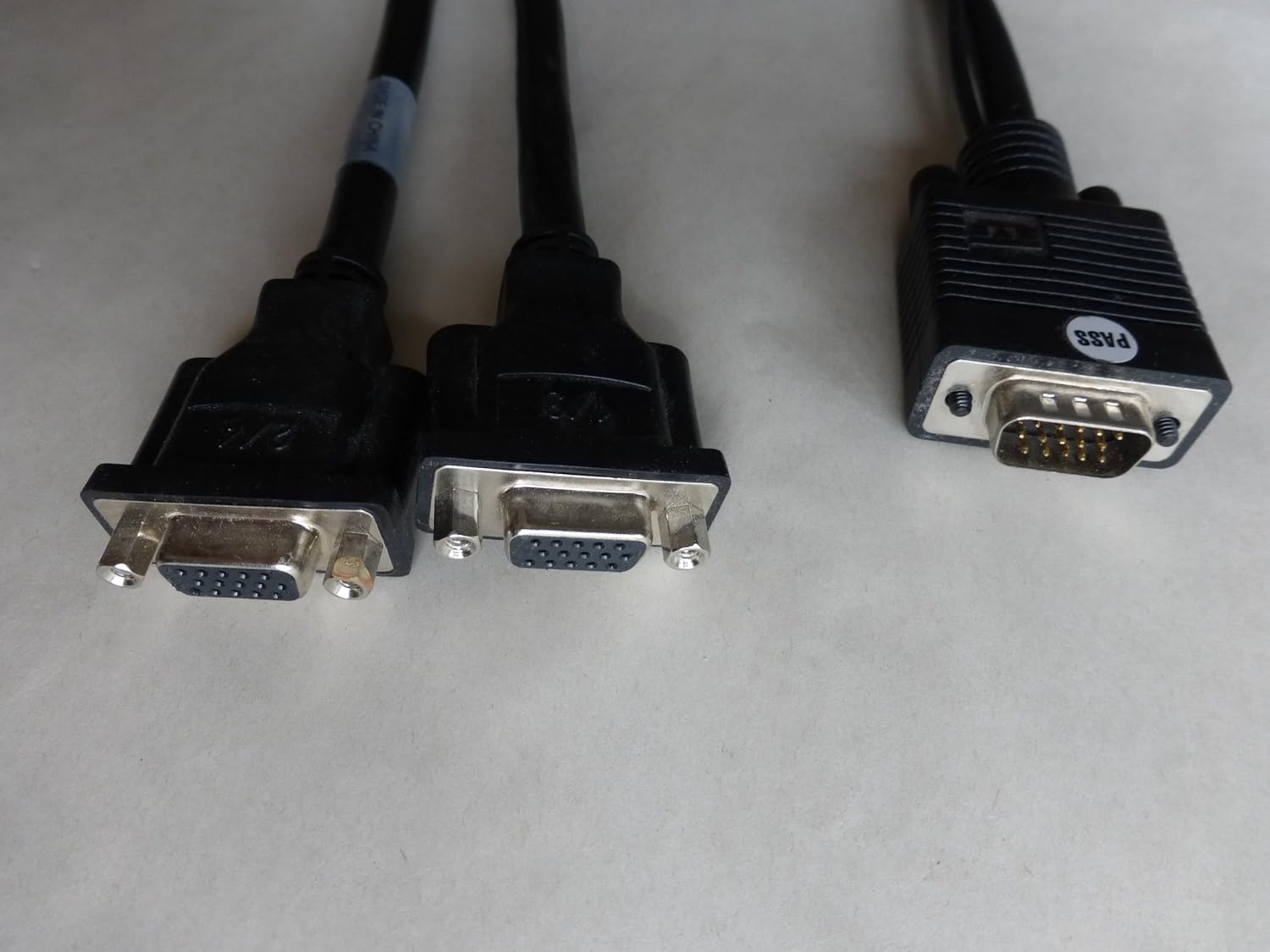
Image: A close-up of the dual VGA connectors and the DMS-59 input connector on the Y-cable, used for connecting two VGA monitors.
4. Operating Instructions
4.1 Connecting Monitors
The Matrox Millennium G200 (G2+/DUALP-PL) uses a DMS-59 connector to support dual analog displays. Use the provided Y-cable to connect your monitors:
- For two VGA monitors, use the DMS-59 to Dual VGA Y-cable.
- For one DVI monitor and one S-Video/Composite display, use the DMS-59 to DVI and S-Video/Composite Y-cable.
4.2 Configuring Display Settings
Once drivers are installed, you can configure your display settings through your operating system's display control panel. Matrox also provides its own display utility for advanced settings.
- Resolution and Refresh Rate: Adjust these settings to match your monitor's native resolution and preferred refresh rate for optimal display quality.
- Multi-Monitor Setup:
- Extended Desktop: Extend your desktop across two monitors to increase your workspace.
- Cloned/Mirrored Displays: Duplicate the same image on both monitors.
- Display Orientation: Rotate your display if using a pivot-capable monitor.
5. Maintenance
Proper maintenance ensures the longevity and optimal performance of your graphics adapter.
- Dust Removal: Periodically open your computer case and gently clean any dust accumulation on the graphics card and its heatsinks using compressed air. Ensure the computer is powered off and unplugged before cleaning.
- Airflow: Ensure your computer case has adequate airflow to prevent overheating, which can affect the performance and lifespan of the graphics card.
- Driver Updates: Check the Matrox website periodically for updated drivers. Keeping your drivers current can improve performance, add new features, and resolve compatibility issues.
6. Troubleshooting
If you encounter issues with your Matrox Millennium G200 graphics adapter, refer to the following common troubleshooting steps:
- No Display on Monitor:
- Ensure the monitor is powered on and correctly connected to the graphics card using the appropriate Y-cable.
- Verify the graphics card is fully seated in its PCI slot. Power off the computer, unplug it, open the case, and reseat the card.
- Check if your monitor input is set to the correct source (VGA, DVI).
- Test with a different monitor or cable if possible.
- Incorrect Resolution or Colors:
- Ensure the latest Matrox drivers are installed.
- Adjust display settings in your operating system's control panel to the monitor's native resolution and desired color depth.
- System Instability or Crashes:
- Verify that the graphics card is properly installed and secured.
- Ensure your system's power supply unit (PSU) meets the minimum requirements for all installed components.
- Check for driver conflicts with other hardware. Try reinstalling the Matrox drivers.
- Monitor system temperatures to ensure the card is not overheating.
7. Specifications
| Feature | Detail |
|---|---|
| Model Number | G2+/DUALP-PL |
| Brand | Matrox |
| Graphics Coprocessor | MGA G200 |
| Video Memory | 16 MB |
| Graphics RAM Type | SRAM |
| Video Output Interface | DMS-59 (supporting DVI, VGA via adapter) |
| Interface Type | PCI |
| Item Weight | 2 pounds (approx.) |
| Date First Available | January 28, 2005 |
8. Warranty and Support
For detailed warranty information, technical support, and driver downloads, please refer to the official Matrox website or contact their customer service department.
Matrox Official Website: https://www.matrox.com/graphics/en/support/
When contacting support, please have your product model number (G2+/DUALP-PL) and any relevant system information ready.

