
Introduction
The Contour ShuttlePRO V.2 is a versatile multimedia controller designed to enhance productivity in various applications, including video, audio, and photo editing. It features a jog wheel, shuttle ring, and 15 programmable buttons, providing intuitive control over your creative workflow. This manual will guide you through the setup, operation, and maintenance of your ShuttlePRO V.2.
Setup
System Requirements
- Macintosh Requirements: PowerBook, iBook, iMac (Specific OS versions may vary, refer to Contour Design's official website for the latest compatibility information).
- Available USB port.
Installation
- Download Drivers: Visit the official Contour Design website to download the latest drivers and software for your ShuttlePRO V.2.
- Install Software: Follow the on-screen instructions to install the downloaded software. It is recommended to install the software before connecting the device.
- Connect Device: Plug the USB cable of your ShuttlePRO V.2 into an available USB port on your computer.
- Software Recognition: The installed software should automatically detect the ShuttlePRO V.2 and load default settings or prompt you to configure it.
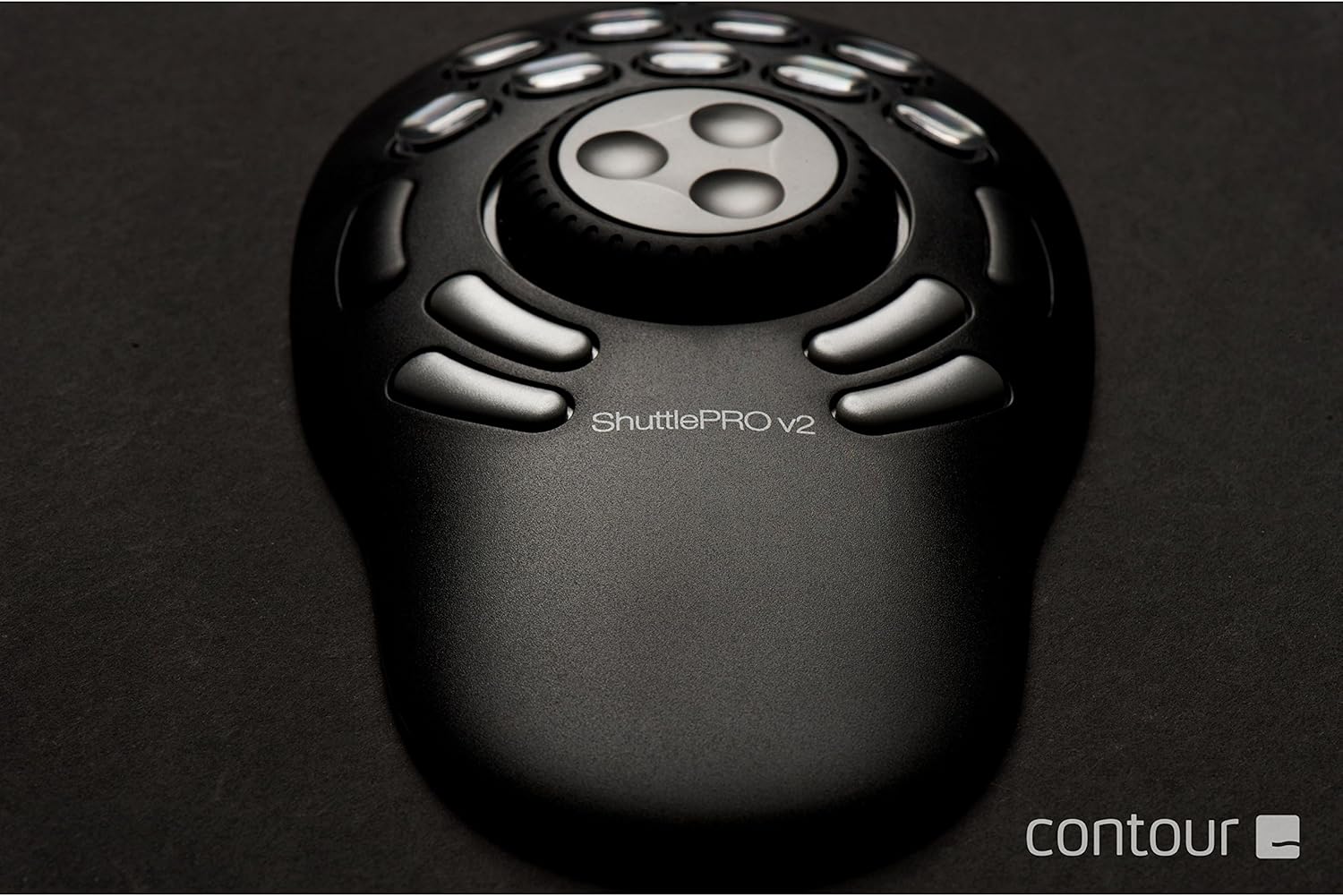
Figure 1: Top-down view of the ShuttlePRO V.2, showing the jog wheel, shuttle ring, and programmable buttons.
Operating Instructions
Key Components
- Programmable Buttons: The ShuttlePRO V.2 features 15 programmable buttons. Nine of these buttons have removable keycaps, allowing for custom labeling.
- Inner Ring (Jog): This ring rotates 360 degrees and provides precise frame-by-frame control in video editing, or fine-tuned adjustments in other applications.
- Outer Ring (Shuttle): The rubberized, spring-loaded outer ring allows for fast forward and rewind functions, with varying speeds depending on how far it's rotated.
Customizing Buttons and Rings
The ShuttlePRO V.2 software allows you to customize the function of each button and the jog/shuttle rings for different applications. The device automatically detects the program you are using and switches to the corresponding custom settings.
- Open ShuttlePRO V.2 Control Panel: Access the control panel from your system tray or applications folder.
- Select Application: Choose the application you wish to customize from the dropdown menu. If your application is not listed, you can add it.
- Assign Functions: Click on a button or ring control in the software interface and assign a keyboard shortcut, macro, or specific command.
- Label Buttons: For the nine buttons with removable keycaps, you can print or handwrite custom labels and insert them under the clear caps for easy identification.

Figure 2: Close-up view highlighting the ergonomic design and accessible buttons of the ShuttlePRO V.2.
Maintenance
- Cleaning: Use a soft, dry cloth to clean the surface of the ShuttlePRO V.2. Avoid using harsh chemicals or abrasive materials.
- Driver Updates: Regularly check the Contour Design website for updated drivers and software to ensure optimal performance and compatibility with new operating systems and applications.
- Storage: Store the device in a cool, dry place away from direct sunlight and extreme temperatures when not in use.
Troubleshooting
Device Not Recognized
- Ensure the USB cable is securely connected to both the ShuttlePRO V.2 and your computer.
- Try plugging the device into a different USB port.
- Restart your computer.
- Verify that the latest drivers are installed from the Contour Design website.
Buttons Not Responding Correctly
- Check the ShuttlePRO V.2 control panel to ensure the correct application profile is active.
- Review your custom button assignments for the specific application.
- Ensure there are no conflicting keyboard shortcuts within the application itself.
Jog/Shuttle Ring Issues
- Confirm that the jog and shuttle functions are correctly mapped in the control panel for the active application.
- Clean any dust or debris that might be obstructing the movement of the rings.
Specifications
| Feature | Detail |
|---|---|
| Product Dimensions | 10.7 x 8.6 x 2.8 inches (Packaging) / 1.15"D x 7.75"W x 1.15"H (Device) |
| Item Weight | 13.6 ounces / 0.85 Pounds |
| Model Number | ShuttlePRO 2 |
| Brand | Contour |
| Color | Black |
| Compatible Devices | Mac (Check official website for latest OS compatibility) |
| Programmable Buttons | 15 (9 with removable keycaps) |
| Jog Wheel | 360-degree rotation for frame-by-frame control |
| Shuttle Ring | Rubberized, spring-loaded for fast forward/rewind |
| Connectivity | USB |
Warranty and Support
For warranty information, technical support, and frequently asked questions, please visit the official Contour Design website or contact their customer service directly. Product registration may be required for warranty claims.
Contour Design Official Website: Visit the Contour Store on Amazon


