
Introduction
This manual provides detailed instructions for the safe and effective use of your Olympus VN-240 PC Digital Voice Recorder. Please read this manual thoroughly before using the device to ensure proper operation and to maximize its features.
Product Overview
The Olympus VN-240 PC is a digital voice recorder designed for capturing audio and facilitating the transfer of recordings to a personal computer. Key features include:
- PC Link: Download recordings to your PC for editing, emailing, or archiving.
- Four-Hour Recording: Record up to 4 uninterrupted hours in LP (Long Play) mode.
- 3 Recording Modes: Utilize HQ (High Quality) mode for superior sound, and LP and SP (Standard Play) modes for extended recording durations.
- 4 Folders: Three dedicated file folders plus a convenient schedule folder provide organized storage for your recordings.
- Long Battery Life: Enjoy up to 33 hours of continuous operation with two AAA batteries.

Front view of the Olympus VN-240 PC Digital Voice Recorder, showing the display screen and control buttons.
Setup
1. Battery Installation
The VN-240 PC operates on two AAA batteries.
- Locate the battery compartment cover on the back of the device.
- Slide the cover open.
- Insert two AAA batteries, ensuring correct polarity (+/-) as indicated inside the compartment.
- Close the battery compartment cover securely.
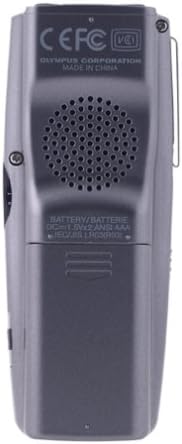
Rear view of the Olympus VN-240 PC Digital Voice Recorder, highlighting the battery compartment and speaker.
2. Initial Power On
Press and hold the POWER button until the display illuminates.
The device may prompt you to set the date and time upon first use. Follow the on-screen instructions to complete this setup.
Operating Instructions
1. Recording Audio
To begin recording:
- Select a folder (A, B, C, or D) using the FOLDER button.
- Press the REC button (red button) to start recording. The REC indicator will light up.
- To pause recording, press the REC button again. Press it once more to resume.
- To stop recording, press the STOP button.
2. Playback
To play back a recording:
- Select the desired folder and file using the FOLDER and FORWARD/REWIND buttons.
- Press the PLAY button.
- Adjust volume using the +/- buttons.
- To stop playback, press the STOP button.
3. Recording Modes
The VN-240 PC offers three recording modes:
- HQ (High Quality): For superior sound clarity, suitable for important lectures or meetings.
- SP (Standard Play): A balanced mode for general use.
- LP (Long Play): Maximizes recording time, suitable for extended sessions where absolute sound fidelity is less critical.
To change the recording mode, access the menu settings. Refer to the on-screen menu for navigation.
4. File Management
The device allows organization of recordings into four folders (A, B, C, D).
Erasing Files
To erase a single file:
- Select the file you wish to erase.
- Press the ERASE button.
- Confirm the deletion when prompted.
To erase an entire folder, navigate to the folder and select the "Erase All" option within the menu.
Moving Files
Files can be moved between folders using the menu options. Consult the on-screen menu for specific steps.
5. PC Link Functionality
The VN-240 PC can connect to a computer to transfer recordings.
- Install the provided software on your PC.
- Connect the recorder to your PC using a compatible USB cable.
- Follow the software instructions to download, edit, or archive your audio files.

Side view of the Olympus VN-240 PC Digital Voice Recorder, showing the 'HOLD' switch and external ports.
Maintenance
Cleaning
Wipe the device with a soft, dry cloth. Do not use liquid cleaners or solvents, as these may damage the device.
Battery Replacement
Replace batteries when the low battery indicator appears on the display. Always use fresh AAA alkaline batteries for optimal performance.
Storage
Store the recorder in a cool, dry place away from direct sunlight and extreme temperatures. Remove batteries if storing for extended periods to prevent leakage.
Troubleshooting
No Power
- Check battery installation and ensure batteries are fresh and correctly inserted.
- Verify that the device is not in 'HOLD' mode (if applicable).
Poor Recording Quality
- Ensure the microphone is not obstructed.
- Select HQ recording mode for the best quality.
- Record in a quiet environment, minimizing background noise.
- Ensure the recording level is appropriate for the sound source.
Cannot Connect to PC
- Verify the USB cable connection is secure at both ends.
- Ensure the PC software is correctly installed and updated.
- Restart both the recorder and the PC.
- Try a different USB port on your computer.
Recordings Disappear
- Check if files were accidentally erased.
- Verify if files were moved to a different folder (A, B, C, or D).
- Ensure the device has sufficient memory capacity.
Specifications
| Feature | Detail |
|---|---|
| Model | VN-240 PC |
| Item Model Number | 141712 |
| Brand | Olympus (OM SYSTEM) |
| Recording Capacity | Up to 4 hours (LP mode) |
| Recording Modes | HQ, SP, LP |
| Folders | 4 (A, B, C, D) |
| Power Source | 2 x AAA batteries |
| Battery Life | Up to 33 hours (continuous operation) |
| Compatible Devices | Personal Computer |
| Hardware Interface | USB 2.0 |
| Microphone | Built-In |
| Headphones Jack | 3.5 mm |
| Item Weight | 10.4 ounces (approx. 0.65 lbs) |
| Package Dimensions | 9 x 6 x 2 inches |
| First Available | March 1, 2004 |
| Manufacturer | Olympus |
| Screen Size | 3.5 Inches (diagonal) |
Warranty and Support
Warranty Information
For specific warranty details regarding your Olympus VN-240 PC Digital Voice Recorder, please refer to the warranty card included with your product packaging or visit the official Olympus support website.
Customer Support
For further assistance, technical support, or to inquire about service, please visit the official Olympus support website or contact their customer service department directly.
An official user manual (PDF) is available for download: Download User Manual (PDF)


