
Targus PAUH216U
Targus PAUH216U 4-Port Slim USB 2.0 Hub User Manual
Model: PAUH216U | Brand: Targus
1. Introduction
This manual provides instructions for the Targus PAUH216U 4-Port Slim USB 2.0 Hub. This device allows you to expand the USB connectivity of your computer, enabling the simultaneous connection of multiple USB devices.
Key Features:
- Connects up to 4 USB devices simultaneously, such as mice, digital cameras, memory drives, and printers.
- Portable design: Small, lightweight, and features built-in cable management for convenience.
- Plug and Play functionality: Easy installation without the need for additional drivers.
2. Setup Guide
Follow these steps to set up your Targus PAUH216U USB Hub:
- Locate an available USB port on your computer (laptop or desktop).
- Connect the integrated USB cable from the Targus PAUH216U hub into your computer's USB port.
- Your operating system should automatically detect and install the necessary drivers. No manual driver installation is typically required.
- Once the hub is recognized, you can begin connecting your USB devices to the available ports on the hub.
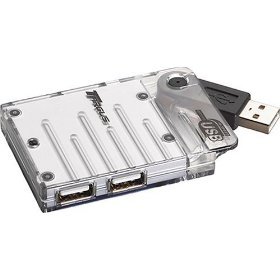
Figure 1: The Targus PAUH216U 4-Port Slim USB 2.0 Hub, showcasing its compact design and multiple USB ports. The integrated USB cable is visible, ready for connection to a computer.
3. Operating the Hub
The Targus PAUH216U hub is designed for simple operation:
- Connecting Devices: Insert the USB connector of your peripheral device (e.g., mouse, keyboard, flash drive, printer) into any of the four available USB ports on the hub.
- Simultaneous Use: All four ports can be used simultaneously to connect and operate multiple devices.
- Power: The hub is bus-powered, meaning it draws power directly from your computer's USB port. No external power adapter is typically required for standard USB devices.
- Disconnection: To safely remove a device, follow your operating system's guidelines for 'Safely Remove Hardware' if applicable, then simply unplug the device from the hub.
4. Maintenance and Care
To ensure the longevity and optimal performance of your Targus USB Hub, follow these maintenance guidelines:
- Cleaning: Use a soft, dry cloth to clean the exterior of the hub. Avoid using liquid cleaners or abrasive materials, as they may damage the surface.
- Storage: When not in use, store the hub in a cool, dry place away from direct sunlight and extreme temperatures.
- Handling: Avoid dropping the hub or subjecting it to strong impacts. Do not attempt to disassemble the device.
- Cable Care: Do not bend or crimp the integrated USB cable excessively. This can damage the internal wiring.
5. Troubleshooting
If you encounter issues with your Targus USB Hub, try the following troubleshooting steps:
- Device Not Recognized:
- Ensure the hub's USB cable is securely connected to your computer's USB port.
- Try connecting the hub to a different USB port on your computer.
- Ensure the device you are connecting to the hub is functioning correctly by plugging it directly into your computer's USB port.
- Restart your computer.
- Insufficient Power: Some high-power consumption devices (e.g., external hard drives) may require more power than a bus-powered hub can provide. If a device is not functioning, try connecting it directly to your computer's USB port or consider a powered USB hub if you frequently use such devices.
- Slow Data Transfer: Ensure both the hub and your connected devices are USB 2.0 compatible for optimal speeds. If using a USB 1.1 port on your computer, speeds will be limited to USB 1.1.
6. Product Specifications
| Feature | Detail |
|---|---|
| Model Number | PAUH216U |
| Brand | Targus |
| Hardware Interface | USB 2.0 |
| Total USB Ports | 4 |
| Compatible Devices | Mice, Digital Cameras, Memory Drives, Printers, and other USB devices |
| Special Feature | Plug and Play |
| Item Weight | 9.6 ounces (approx. 272 grams) |
| Package Dimensions | 7 x 6.2 x 2.2 inches (approx. 17.8 x 15.7 x 5.6 cm) |
| Date First Available | June 29, 2004 |
7. Warranty and Support
For information regarding warranty coverage, technical support, or service for your Targus PAUH216U 4-Port Slim USB 2.0 Hub, please refer to the warranty card included with your product or visit the official Targus support website. You can typically find support resources, FAQs, and contact information at www.targus.com/us/support.
Please retain your proof of purchase for warranty claims.
Ask a question about this manual
Ask about setup, troubleshooting, compatibility, parts, safety, or missing instructions. Manuals+ will review the question and use this page’s manual context to help answer it.