
Introduction
The D-Link DI-604 is a 4-Port Ethernet Broadband Router designed to share your internet connection among multiple computers. This manual provides detailed instructions for setting up, operating, maintaining, and troubleshooting your DI-604 router.
Package Contents
Please verify that your package contains the following items:
- D-Link DI-604 4-Port Ethernet Broadband Router
- Power Adapter
- Ethernet Cable (Cat5 UTP)
- User Manual (this document)
If any items are missing or damaged, please contact your reseller for assistance.
Product Overview

Image: A general view of the D-Link DI-604 4-Port Ethernet Broadband Router, showcasing its compact design and front panel.
Front Panel
The front panel of the DI-604 router features LED indicators that provide status information about the device and its connections.

Image: Close-up view of the D-Link DI-604 router's front panel, showing the Power, WAN, and four LAN (1-4) Link/Act LED indicators. The model number DI-604 is visible on the right side.
- Power LED: Indicates the power status of the router.
- WAN LED: Indicates the status of the connection to the internet (modem).
- LAN (1-4) LEDs: Indicate the link and activity status for each of the four Ethernet ports.
Rear Panel
The rear panel contains all the necessary ports for connecting the router to your network and power source.
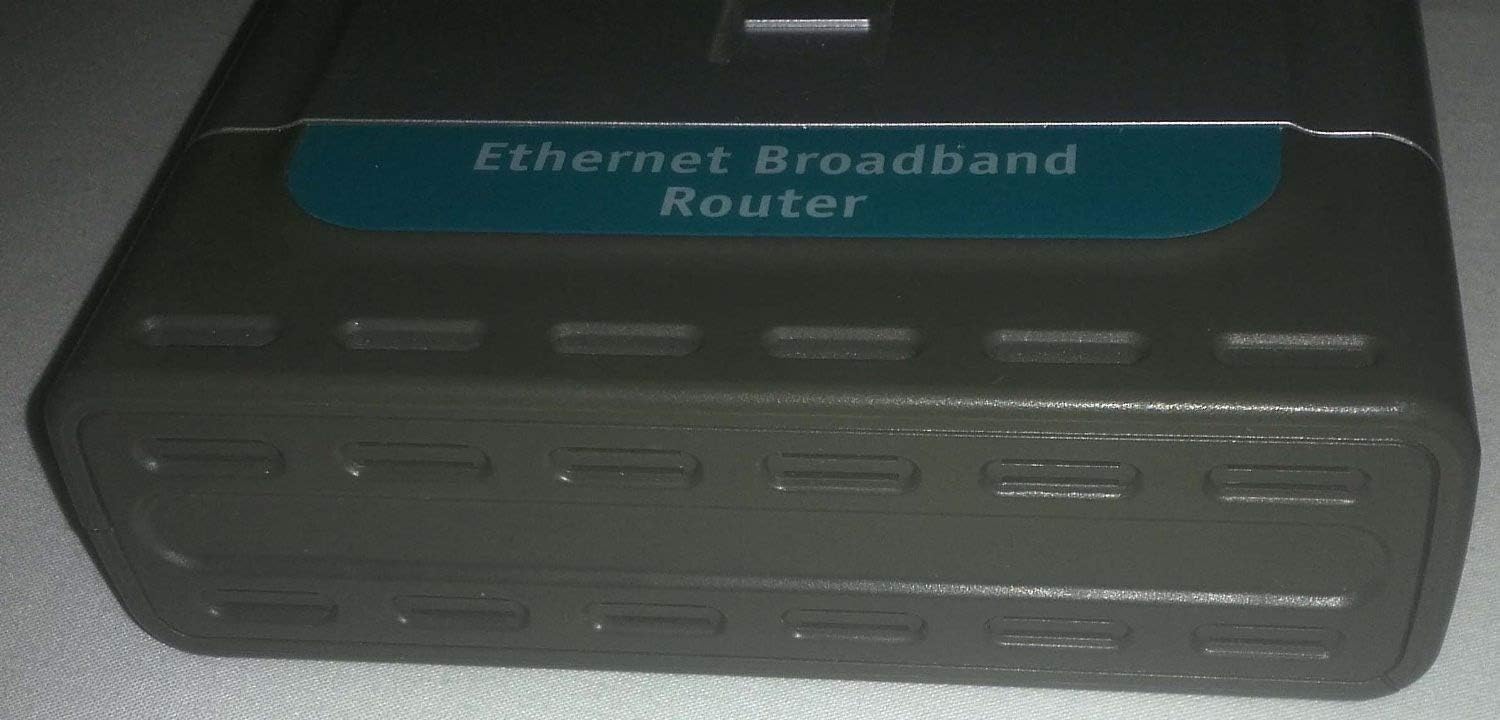
Image: Rear view of the D-Link DI-604 router, displaying the WAN port, four LAN ports (1-4), and the power input jack. The reset button is also visible.
- WAN Port: Connects to your broadband modem (DSL or Cable).
- LAN Ports (1-4): Connect to your computers or other network devices.
- Power Input: Connects to the included power adapter.
- Reset Button: Used to restore the router to factory default settings.
Bottom Label
The bottom label provides important identification information for your router.

Image: Underside of the D-Link DI-604 router, showing the product label. This label includes the Model No. DI-604, Serial No., MAC No., Hardware/Firmware versions, and FCC compliance information.
- Model No.: DI-604
- Serial No.: Unique identifier for your device.
- MAC No.: Media Access Control address, a unique hardware identifier.
- H/W:E1 F/W:2.18: Hardware and Firmware versions.
- FCC Compliance: Regulatory information.
Setup
Hardware Installation
Follow these steps to connect your D-Link DI-604 router:
- Power Off Devices: Turn off your computer and broadband modem.
- Connect Modem to Router: Connect one end of an Ethernet cable to the WAN port on the DI-604 router and the other end to your broadband modem's Ethernet port.
- Connect Computer(s) to Router: Connect one end of an Ethernet cable to a LAN port (1-4) on the DI-604 router and the other end to your computer's Ethernet adapter. Repeat for additional computers.
- Connect Power: Plug the power adapter into the power input jack on the rear of the DI-604 router, then plug the adapter into an electrical outlet.
- Power On Devices: First, power on your broadband modem and wait for it to fully initialize (usually indicated by stable status lights). Then, power on the DI-604 router. Finally, power on your computer(s).

Image: The D-Link DI-604 router shown alongside its power adapter and an Ethernet cable, illustrating the components typically used during hardware installation.
Initial Configuration
After hardware installation, you will need to configure the router using its web-based utility:
- Open Web Browser: On a computer connected to the router, open a web browser (e.g., Chrome, Firefox).
- Access Router Interface: In the address bar, type the default IP address of the router, which is typically http://192.168.0.1, and press Enter.
- Login: When prompted, enter the default username and password. For D-Link routers, the default username is often admin and the password field is usually left blank.
- Run Setup Wizard: Follow the on-screen instructions of the setup wizard to configure your internet connection settings (e.g., PPPoE, Dynamic IP, Static IP, depending on your ISP).
- Change Default Password: For security, it is highly recommended to change the default administrator password immediately after initial setup.
Operating the Router
Once configured, the D-Link DI-604 router will automatically manage your network connections. Ensure all connected devices are set to obtain IP addresses automatically (DHCP).
- Internet Access: All computers connected to the LAN ports should now have internet access through the router.
- Local Network: Devices connected to the LAN ports can communicate with each other within the local network.
- Web Interface: The web-based interface (http://192.168.0.1) allows for advanced configuration, including firewall settings, port forwarding, and parental controls.
Maintenance
Regular maintenance helps ensure optimal performance of your router.
- Regular Reboots: Periodically restarting the router (unplugging power for 10 seconds, then plugging back in) can resolve minor connectivity issues and improve performance.
- Firmware Updates: While this model is older and official firmware support may be limited, checking the D-Link support website for any available firmware updates is generally recommended for network devices. Always follow official instructions carefully when updating firmware.
- Factory Reset: If the router becomes unresponsive or you forget the login password, you can perform a factory reset. To do this, with the router powered on, use a paperclip to press and hold the reset button on the rear panel for approximately 10 seconds. All settings will revert to factory defaults.
Troubleshooting
This section addresses common issues you might encounter with your DI-604 router.
No Internet Access
- Check Cables: Ensure all Ethernet cables are securely connected to the correct ports (WAN to modem, LAN to computers).
- Check Modem: Verify that your broadband modem is working correctly and has an active internet connection.
- Router LEDs: Check the WAN LED on the router's front panel. If it is off or blinking erratically, there may be an issue with the connection to your modem or ISP.
- Reboot Sequence: Power off your modem, then the router, then your computer. Wait 30 seconds, then power on the modem, wait for it to fully initialize, then power on the router, and finally your computer.
- Router Configuration: Access the router's web interface and verify that your internet connection settings (WAN settings) are correctly configured according to your Internet Service Provider (ISP) details.
Cannot Access Router Web Interface
- IP Address: Ensure you are typing the correct default IP address (http://192.168.0.1) into your browser.
- Network Connection: Verify your computer is physically connected to one of the router's LAN ports and that the corresponding LAN LED is lit.
- IP Settings: Ensure your computer's network adapter is set to "Obtain an IP address automatically" (DHCP).
- Firewall/Antivirus: Temporarily disable any firewall or antivirus software on your computer to see if it is blocking access.
- Factory Reset: If all else fails, perform a factory reset (see Maintenance section) to revert to default settings, then try accessing the interface again with the default login credentials.
Specifications
| Model Number | DI-604 |
| Brand | D-Link |
| Product Dimensions | 110.24 x 82.68 x 25.59 inches |
| Item Weight | 2.12 pounds |
| Manufacturer | D-Link |
| ASIN | B00009VF6Z |
| Date First Available | September 12, 2006 |
| Connectivity | 1 x 10/100Mbps WAN Port, 4 x 10/100Mbps LAN Ports |
Warranty and Support
For specific warranty information regarding your D-Link DI-604 router, please refer to the documentation provided at the time of purchase or contact your reseller. As this is an older model, direct manufacturer support and firmware updates may be limited. For general support resources, you may visit the official D-Link website.
D-Link Website: https://www.dlink.com


