
Introduction
The Griffin PowerWave is a versatile USB audio interface and desktop amplifier designed for use with both Mac and PC computers. It allows users to record audio from microphones or line-level sources, convert analog audio collections (LPs, cassettes) to digital formats, and amplify audio for home speakers or portable devices like iPods and MP3 players. The PowerWave provides superior audio quality by isolating audio processing from the computer's internal electronic noise, delivering a cleaner sound experience.
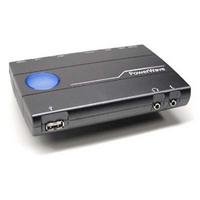
Figure 1: The Griffin PowerWave USB Audio Interface and Desktop Amplifier. This device connects to your computer via USB and provides various audio inputs and outputs.
Package Contents
Before you begin, please ensure all items are present in the package:
- PowerWave USB Audio Interface
- AC Power Supply
- Speaker Breakout Cable
- 6-foot Stereo Mini-jack Male to RCA Male Cable
- 7-inch Stereo Mini-jack Male to RCA Female Cable
- USB Male A to B Cable
- Software CD-ROM (for proprietary PowerWave software, if applicable)
- User's Manual (this document)
Setup
- Connect Power: Plug the AC power supply into the PowerWave and then into a wall outlet.
- Connect to Computer: Use the provided USB Male A to B cable to connect the PowerWave to an available USB port on your Mac or PC. Your computer should automatically detect the device and install generic USB audio drivers.
- Connect Speakers (Optional):
- For passive home speakers, use the speaker breakout cable to connect them to the PowerWave's speaker outputs.
- For powered speakers or Apple Pro speakers, connect them to the appropriate output jacks on the PowerWave using standard RCA or mini-jack cables.
- Connect Audio Sources (Optional):
- For line-level sources (e.g., LP player, cassette deck), connect them to the RCA or mini-jack line input ports.
- For microphones or musical instruments, connect them to the mic input port.
- Software Installation (Optional): If you wish to use the proprietary PowerWave software for advanced audio input/output level customization, insert the included CD-ROM and follow the on-screen instructions.
The PowerWave utilizes standard RCA stereo and 1/8-inch mini-jack connections, ensuring compatibility with a wide range of audio peripherals.
Operating Instructions
1. Basic Audio Playback
Once connected, the PowerWave will appear as an available audio output device in your computer's sound settings. Select it as your default output to route all computer audio through the PowerWave and connected speakers.
2. Recording Audio
To record, select the PowerWave as your audio input device in your preferred recording software (e.g., Audacity, GarageBand, Adobe Audition). You can record from:
- Line Input: For converting LPs or cassette tapes to digital formats (CD or MP3).
- Mic Input: For recording microphones or musical instruments.
Adjust input levels within your software or using the PowerWave's controls (if available) to prevent clipping and ensure optimal recording quality.
3. Standalone Amplifier Use
The PowerWave can function as a compact standalone amplifier. Connect your iPod or MP3 player directly to the PowerWave's input, and connect passive speakers to its output. This allows you to amplify audio from portable devices without needing a computer connection.
Maintenance
The Griffin PowerWave requires minimal maintenance. Follow these guidelines to ensure longevity:
- Cleaning: Use a soft, dry cloth to wipe the exterior of the device. Avoid using liquid cleaners or abrasive materials, as they may damage the finish or internal components.
- Storage: Store the PowerWave in a cool, dry place away from direct sunlight and extreme temperatures when not in use.
- Ventilation: Ensure the device has adequate ventilation and is not covered, to prevent overheating.
Troubleshooting
If you encounter issues with your PowerWave, refer to the following common solutions:
- No Sound Output:
- Ensure the PowerWave is properly connected to power and your computer via USB.
- Verify that the PowerWave is selected as the default audio output device in your computer's sound settings.
- Check all speaker connections and ensure speakers are powered on (if applicable) and volume is turned up.
- Poor Audio Quality / Buzzing:
- The PowerWave is designed to reduce noise from internal computer components. If you experience buzzing, ensure all cables are securely connected and try using a different USB port.
- Avoid placing the PowerWave directly on top of other electronic devices that may cause interference.
- Loud Thump When Switching Gain: This is a known characteristic of the device when adjusting the gain switch. It does not indicate a malfunction.
- Blue Light Flashing: A flashing blue light indicates normal operation when the device is connected to a computer.
- Recording Issues:
- Ensure the PowerWave is selected as the input device in your recording software.
- Check input levels in your software to prevent distortion.
- Verify that your audio source (microphone, LP player) is properly connected and functioning.
Specifications
| Brand | Griffin |
| Model Number | 3254-PWRW |
| Connectivity Technology | USB |
| Audio Input | USB, RCA, Mini-jack (Line/Mic) |
| Number of Channels | 4 |
| Compatible Devices | Personal Computer (Mac, PC) |
| Operating System Compatibility | Windows, macOS |
| Supported Software | Proprietary PowerWave Software (Details Not Provided) |
| GTIN (UPC) | 685387010509 |
| Parcel Dimensions | 23.88 x 18.29 x 11.68 cm |
| Item Weight | 929.86 g |
Warranty and Support
The Griffin PowerWave USB Audio Interface & Desktop Amplifier comes with a 1-year warranty from the date of purchase. For warranty claims or technical support, please refer to the contact information provided with your product packaging or visit the official Griffin website.
For additional resources and product information, you may visit the Griffin Store on Amazon.

