
Introduction
This manual provides comprehensive instructions for the use of Avery Easy Peel Printable Address Labels, Model 5160. These labels are designed for efficient and reliable printing with laser printers, offering a convenient solution for mailing, shipping, organization, and various identification needs. Each sheet contains 30 labels, measuring 1 inch by 2-5/8 inches, featuring Sure Feed technology for smooth printer performance and an Easy Peel design for quick application.
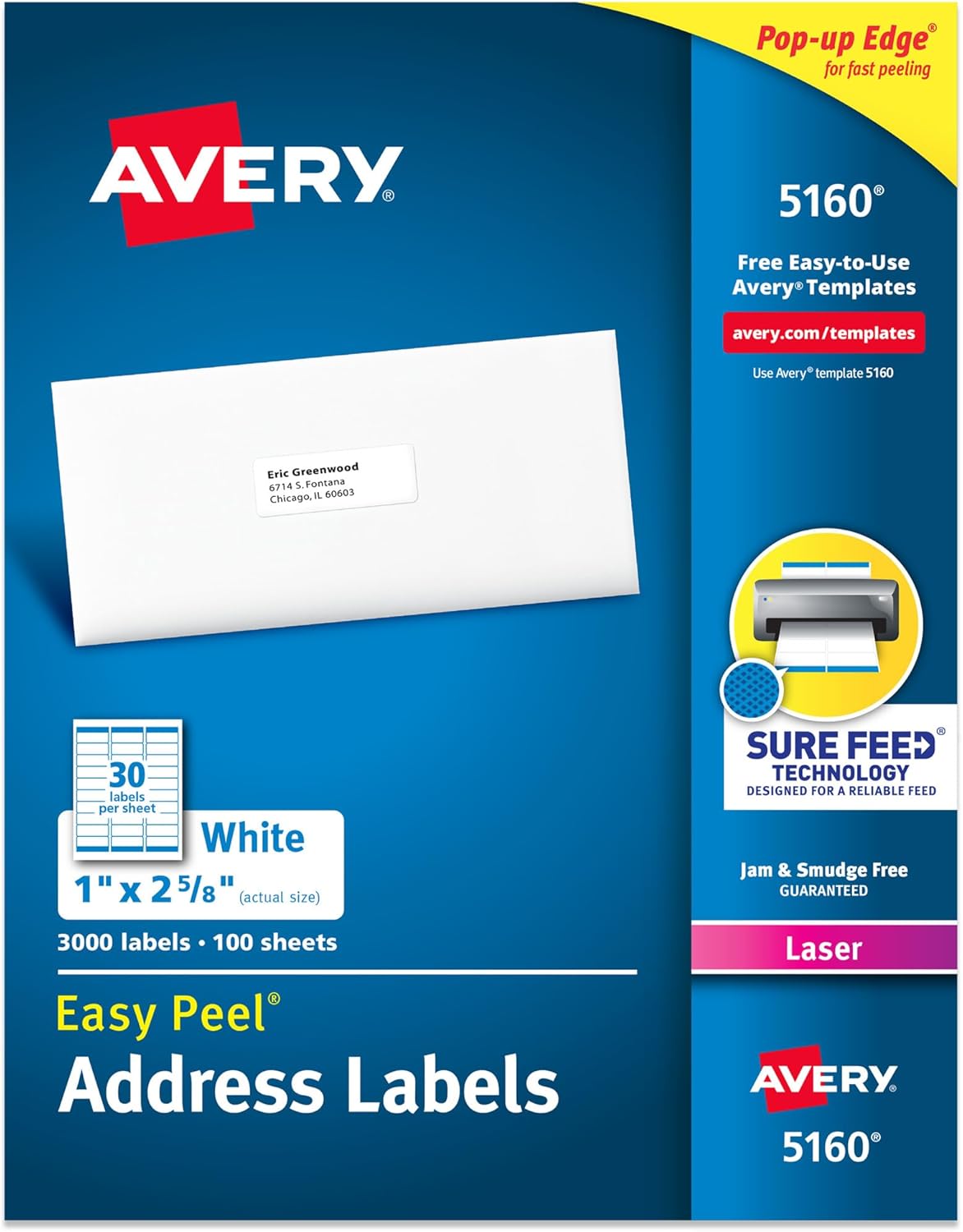
Image: Avery 5160 Easy Peel Address Labels product packaging, showing a sheet of labels and an envelope with an applied label.
Product Features
- Versatile Use: Suitable for mailing, shipping, product labeling, organization, and identification.
- Sure Feed Technology: Patented technology designed to reduce misalignments and printer jams, ensuring a reliable feed through your laser printer.
- Easy Peel with Pop-up Edge: Facilitates quick and hassle-free peeling of labels from the sheet.
- Customization Options: Compatible with Avery Design & Print Online for personalized designs, templates, and mail merge features.
- Laser Printer Optimized: Engineered for clear text and crisp graphics with laser printers, helping to prevent smearing or smudging.
- Handwrite Compatible: Labels can also be written on for quick personalization.
- Permanent Adhesive: Ultrahold permanent adhesive ensures labels stick and stay on most smooth surfaces.

Image: Visual representation of key product features including matte white finish, permanent adhesive, easy peel, smudge-free printing, laser printer compatibility, and handwrite option.
Setup and Preparation
1. Software and Template Selection
To ensure accurate printing, it is recommended to use Avery's free online design software. Visit avery.com/templates and search for template 5160. This platform allows you to design, import data, and prepare your labels for printing without needing to download software.

Image: Avery Design & Print Online interface displayed on a desktop computer, tablet, and smartphone, illustrating its accessibility for creating custom labels.
2. Printer Compatibility
These labels are specifically optimized for use with laser printers. Using inkjet printers may result in smudging or poor print quality. Verify your printer type before proceeding.

Image: A visual comparison indicating that Avery 5160 labels are compatible with laser printers (green check) and not recommended for inkjet printers (red X).
Operating Instructions
1. Designing Your Labels
- Go to avery.com/templates.
- Enter product number 5160 in the search bar to find the correct template.
- Choose a blank template or a pre-designed option.
- Customize your labels with text, images, or use the Mail Merge feature to import data from a spreadsheet.
- Review your design carefully to ensure all information is correct and aligned within the label boundaries.
2. Loading Labels into Your Printer
- Ensure your laser printer is clean and free of dust or debris.
- Load the Avery label sheets into your printer's paper tray according to your printer's instructions for specialty media. Pay attention to the correct orientation for printing on the label side.
- Avery's Sure Feed technology helps prevent misalignments, but proper loading is crucial.

Image: A visual explanation of Avery's Sure Feed technology, which minimizes misalignments and jams, and the Easy Peel with Pop-up Edge feature for simplified label removal.
3. Printing Your Labels
- From the Avery Design & Print software, select the print option.
- Follow the on-screen prompts to send your design to your laser printer.
- It is advisable to print a test sheet on plain paper first to check alignment before printing on the actual label sheets.
4. Peeling and Applying Labels
- Once printed, allow the ink to dry completely to prevent smudging.
- Bend the label sheet slightly to activate the Easy Peel Pop-up Edge, making it easier to grasp and remove individual labels.
- Carefully peel each label and apply it to your desired surface, ensuring smooth adhesion.
Versatile Applications
Avery 5160 labels are highly versatile and can be used for a wide range of purposes beyond standard mailing:
- Mailing and Shipping: Standard use for envelopes, packages, and postcards.
- Organization: Labeling files, folders, storage bins, and office supplies.
- Product Labeling: Ideal for small businesses to label products, jars, or handmade items.
- Identification: Creating name tags, return address labels, or asset tags.
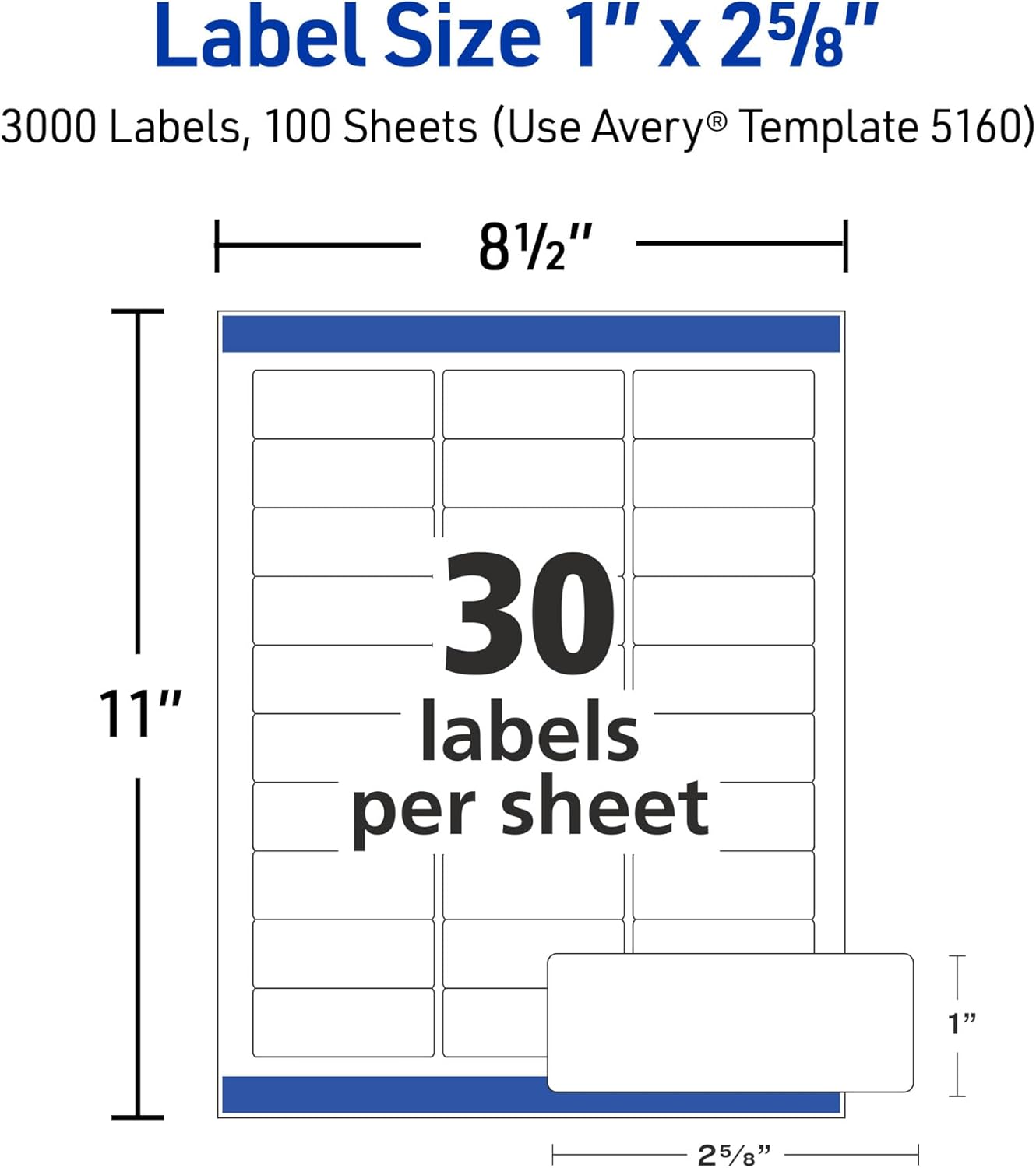
Image: A clear pencil box containing various colored pens and pencils, with an Avery label applied to the side for organization.

Image: A collage demonstrating the versatile applications of Avery labels, including shipping, organization, product labeling, and mailing.
Maintenance and Storage
To maintain the quality and performance of your Avery labels:
- Store unused label sheets in their original packaging in a cool, dry place, away from direct sunlight and excessive humidity.
- Avoid bending or creasing the label sheets before printing, as this can affect printer feed and label adhesion.
- Keep printer rollers clean to prevent dust or adhesive residue transfer to the labels.
Troubleshooting
Printer Jams or Misalignments
- Check Printer Settings: Ensure your printer settings are configured for the correct paper type (e.g., labels, heavy paper) and size (Letter 8.5" x 11").
- Proper Loading: Verify that label sheets are loaded correctly into the paper tray, following your printer's guidelines.
- Clean Printer: Dust or debris on printer rollers can cause feeding issues. Clean your printer regularly.
- Use Avery Templates: Always use Avery's official templates to ensure correct alignment and prevent printing outside label boundaries.
Smudging or Poor Print Quality
- Printer Type: Confirm you are using a laser printer. These labels are not designed for inkjet printers.
- Printer Settings: Adjust print quality settings to a higher resolution if available.
- Allow Drying Time: After printing, allow a few moments for the toner to set on the labels before handling them excessively.
Product Specifications
| Specification | Detail |
|---|---|
| Model Number | 5160 |
| Label Dimensions | 1 inch x 2-5/8 inches |
| Labels Per Sheet | 30 |
| Sheet Size | 8-1/2 x 11 inches (Letter) |
| Color | White (Matte) |
| Material Type | Paper |
| Adhesive Type | Permanent (Ultrahold) |
| Printer Compatibility | Laser Printers |
| Item Weight | 2.3 pounds (for 3,000 labels) |
| Product Dimensions (Pack) | 11.31 x 8.81 x 0.97 inches |

Image: A diagram illustrating the layout and dimensions of an Avery label sheet, highlighting the 1" x 2-5/8" label size and the overall 8.5" x 11" sheet size.
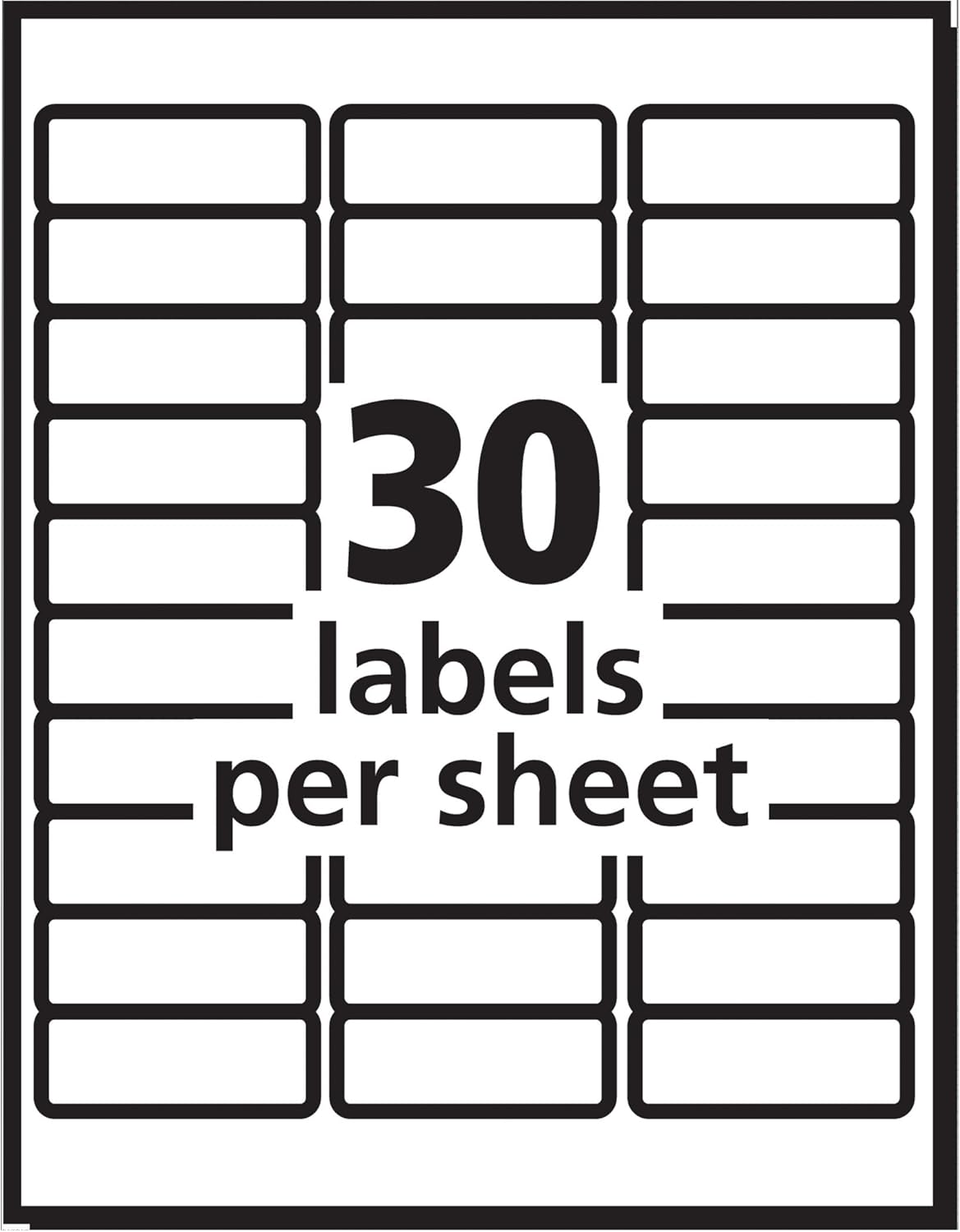
Image: A schematic diagram showing the arrangement of 30 labels on a single sheet, indicating the quantity and layout.
Support and Resources
For further assistance, templates, or to explore more Avery products, please visit the official Avery website:
- Avery Templates & Software: avery.com/templates
- Avery Support: Refer to the support section on the Avery website for FAQs and contact information.
Avery is committed to providing quality products and support for your labeling needs.


