
Nintendo HVC-101
Nintendo Family Computer AV (HVC-101)
Instruction Manual
1. Introduction
Welcome to the world of classic gaming with your Nintendo Family Computer AV (HVC-101). This manual provides essential information for setting up, operating, and maintaining your console to ensure years of enjoyment. The Family Computer AV is a second-generation model of the original Famicom, featuring AV output for improved compatibility with modern televisions.

This image displays the Nintendo Family Computer AV console, model HVC-101, in its compact, light grey design. An attached controller, also light grey with red buttons and a black D-pad, is positioned in front of the console, ready for use.
2. Safety Information
- Do not expose the console or accessories to extreme temperatures, humidity, or direct sunlight.
- Avoid dropping or subjecting the console to strong impacts.
- Use only the specified AC adapter. Using an incorrect adapter may damage the console.
- Keep the console and accessories away from water or other liquids.
- Do not attempt to disassemble or modify the console. This will void any potential warranty and may cause damage.
- Ensure proper ventilation around the console during operation.
3. Package Contents
Please check that all the following items are included in your package:
- Nintendo Family Computer AV Console (HVC-101)
- Family Computer Controller (HVC-102) - typically two controllers
- AC Adapter
- AV Cable (RCA type)
- Instruction Manual

This image displays the full contents typically found in a Nintendo Family Computer AV package: the HVC-101 console, two controllers (one still in plastic), the instruction manual, and the AC adapter with cables. All components are neatly laid out.
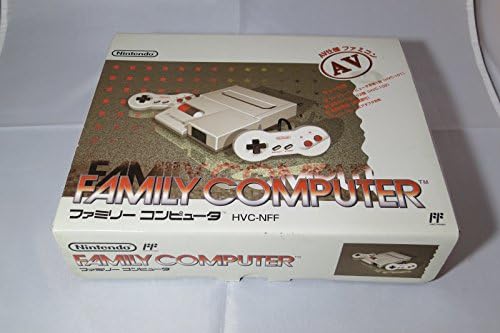
The original retail box for the Nintendo Family Computer AV, featuring product branding, an image of the console and controller, and Japanese text. The box is predominantly white and gold.

A close-up of the side of the Family Computer AV box, showing Japanese text that lists the contents: 'Family Computer Main Unit 1 (HVC-101)', 'Dedicated Controller 2 (HVC-102)', and 'Instruction Manual (with warranty)'. This confirms the typical contents of a new unit.
4. Setup
Before connecting, ensure your television supports NTSC video signals for proper display. The Family Computer AV uses standard RCA (composite) video and mono audio output.
- Connect the AV Cable: Plug the yellow RCA connector (video) and the white RCA connector (audio) from the AV cable into the corresponding input jacks on your television. Connect the other end of the AV cable to the AV OUT port on the back of the Family Computer AV console.
- Connect the AC Adapter: Plug the small barrel connector of the AC adapter into the DC IN port on the back of the Family Computer AV console. Plug the other end of the AC adapter into a standard wall outlet.
- Connect Controllers: Plug the controller cables into the controller ports on the front of the console.
- Select TV Input: Turn on your television and select the correct AV input channel (e.g., Video 1, AV, Input 1) that corresponds to where you connected the console.
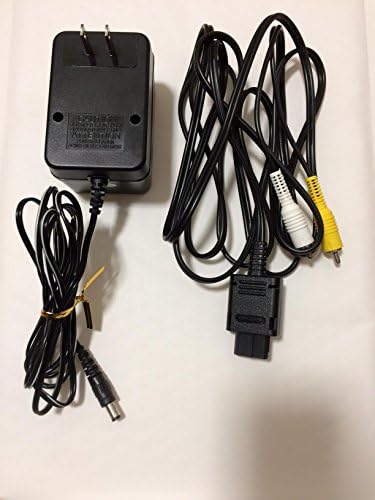
The essential accessories for the Family Computer AV: the AC power adapter with its cable, and the AV RCA cables (yellow for video, white for mono audio) used for connecting the console to a television.
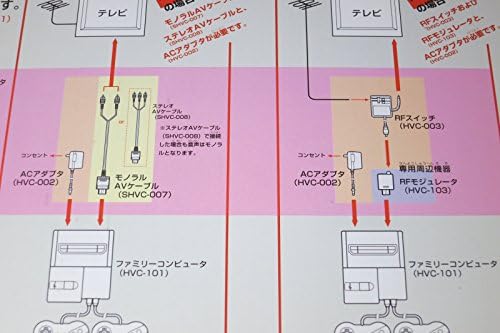
A magnified view of the connection diagram from the Family Computer AV manual. It clearly depicts two connection options: one using AV cables (monaural AV cable SHVC-007) and an AC adapter (HVC-002), and another using an RF switch (HVC-003) and RF modulator (HVC-103) with the AC adapter, both connecting to a television.
5. Operating Instructions
- Insert a Game Cartridge: Gently insert a compatible Famicom game cartridge into the cartridge slot on top of the console. Ensure it is fully seated.
- Power On: Locate the POWER switch on the console and slide it to the 'ON' position. The power indicator light should illuminate.
- Start Playing: The game should now appear on your television screen. Use the connected controllers to play.
- Controller Functions:
- D-Pad: Directional control for movement.
- A Button: Primary action button (e.g., jump, shoot).
- B Button: Secondary action button (e.g., run, special ability).
- SELECT Button: Often used for menu navigation or selecting options.
- START Button: Used to pause the game or begin gameplay.
- Power Off: When finished playing, slide the POWER switch to the 'OFF' position. Remove the game cartridge by gently pulling it straight up.

A close-up view of the Nintendo Family Computer AV controller, featuring its iconic light grey casing, red A and B buttons, black D-pad, and 'SELECT' and 'START' buttons. The controller cable is visible at the top.
6. Maintenance and Care
- Cleaning the Console: Use a soft, dry cloth to wipe the exterior of the console. For stubborn dirt, slightly dampen the cloth with water, then wipe dry immediately. Do not use harsh chemicals or abrasive cleaners.
- Cleaning Cartridge Slot: If games are not loading properly, the cartridge slot contacts may be dirty. Use a specialized cleaning kit or a cotton swab with isopropyl alcohol to gently clean the contacts inside the slot. Ensure the console is powered off and unplugged before cleaning.
- Storage: Store the console and cartridges in a cool, dry place away from direct sunlight and dust. Keep them in their original packaging or protective cases when not in use.
- Cable Care: Avoid bending or twisting cables excessively. Store them neatly to prevent tangling and damage.
7. Troubleshooting
- No Picture or Sound:
- Ensure all AV cables are securely connected to both the console and the television.
- Verify that the television is set to the correct AV input channel.
- Check if the AC adapter is properly connected and the console's power light is on.
- Confirm your television supports NTSC video signals.
- Game Does Not Load or Freezes:
- Ensure the game cartridge is fully inserted into the slot.
- Try removing and re-inserting the cartridge.
- Clean the contacts on the game cartridge and inside the console's cartridge slot (refer to Maintenance section).
- Ensure the cartridge is an original Famicom cartridge and not damaged.
- Controller Not Responding:
- Check if the controller cable is securely plugged into the console's controller port.
- Try using a different controller if available to determine if the issue is with the controller or the console port.
- Power Light Not On:
- Verify the AC adapter is plugged into a working wall outlet.
- Ensure the AC adapter is securely connected to the console.
- Check the POWER switch on the console is in the 'ON' position.
8. Specifications
| Model Number | HVC-101 |
|---|---|
| ASIN | B0000648TM |
| Dimensions (Approx.) | 24 x 23 x 11 cm (Packaging) |
| Weight (Approx.) | 1.1 Kilograms (Packaging) |
| Video Output | Composite Video (RCA, NTSC) |
| Audio Output | Mono Audio (RCA) |
| Power Supply | AC Adapter (Specific voltage/amperage as per adapter label) |
9. Warranty and Support
Specific warranty information for this product is not provided in the available data. For details regarding warranty coverage, technical support, or repair services, please refer to the documentation included with your purchase or contact Nintendo customer support in your region. Keep your proof of purchase for any warranty claims.
Related documentsHVC-101


Ask a question about this manual
Ask about setup, troubleshooting, compatibility, parts, safety, or missing instructions. Manuals+ will review the question and use this page’s manual context to help answer it.